
1. Pendahuluan
This manual provides detailed instructions for the proper setup, operation, and maintenance of your Veho VMS-004 Discovery Deluxe USB Microscope. Please read this manual thoroughly before using the device to ensure optimal performance and longevity.
The Veho VMS-004 is a versatile USB microscope designed for detailed observation and digital capture of magnified images and videos. It features up to 400x magnification, a 2.0 Megapixel CMOS lens, and adjustable LED illumination, making it suitable for various applications including educational, hobbyist, and professional use.
2. Informasi Keselamatan
- Jangan membongkar: Attempting to disassemble or modify the microscope may cause damage and void the warranty.
- Hindari sinar matahari langsung: Do not expose the microscope to direct sunlight or high temperatures.
- Tangani dengan hati-hati: The lens and internal components are delicate. Avoid dropping or subjecting the device to strong impacts.
- Tetap kering: Perangkat ini tidak tahan air. Hindari paparan air atau kelembapan tinggi.
- Sumber daya: Use only the specified USB power source.
- Anak-anak: Keep out of reach of small children. Adult supervision is recommended during use.
3. Isi Paket
Verifikasi bahwa semua item ada dalam paket Anda:
- Veho VMS-004 Discovery Deluxe USB Microscope
- Flexi Alloy Stand
- Software CD (for drivers and application)
- User Manual (dokumen ini)
4. Produk Lebihview
Familiarize yourself with the main components of the Veho VMS-004 microscope.

Figure 4.1: The Veho VMS-004 Discovery Deluxe USB Microscope mounted on its flexi alloy stand.
- Microscope Body: Contains the lens, CMOS sensor, and illumination LEDs.
- Roda Fokus: Located on the microscope body, used to adjust the focus for clear images.
- Tombol Jepretan: A button on the microscope body for capturing still images.
- LED Illumination Control: A small wheel or dial to adjust the brightness of the built-in LEDs.
- Kabel USB: For connecting the microscope to your computer.
- Flexi Alloy Stand: Provides a stable base and adjustable positioning for the microscope.

Gambar 4.2: Tampilan jarak dekat view of the focus wheel and magnification markings on the microscope body.

Gambar 4.3: Depan view of the microscope lens, showing the integrated LED illumination ring.
5. Pengaturan
5.1 Perakitan Stand
The flexi alloy stand provides stability and allows for precise positioning of the microscope.
- Attach the microscope holder to the flexible arm of the stand.
- Secure the microscope into the holder. Ensure it is firmly seated but not overly tightened to avoid damage.
- Tempatkan dudukan pada permukaan yang stabil dan rata.
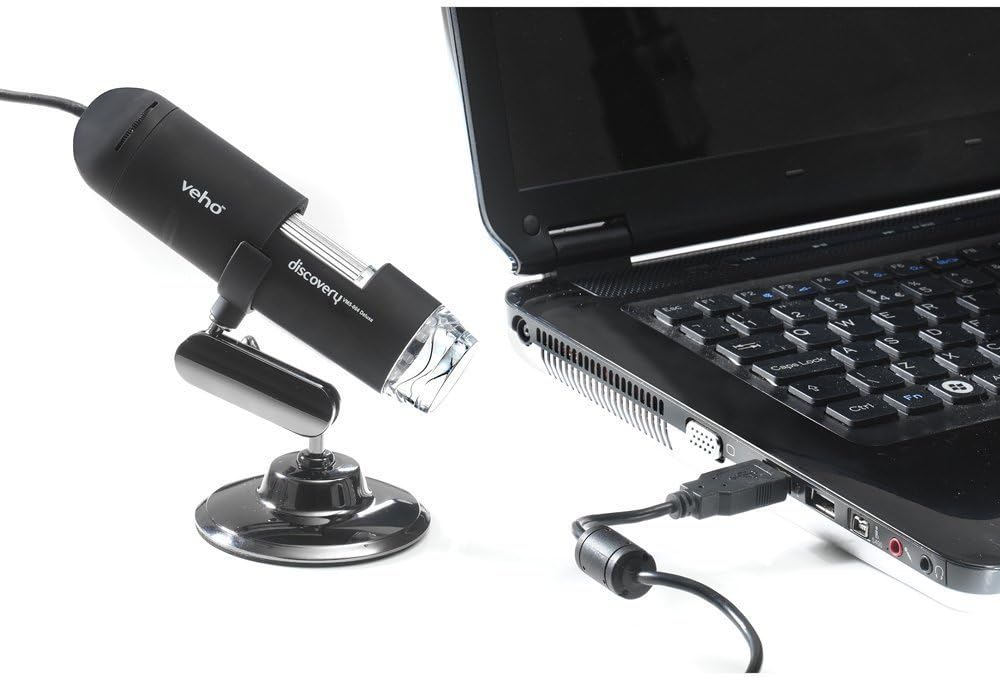
Figure 5.1: The microscope securely mounted on its flexi alloy stand.
5.2 Instalasi Perangkat Lunak
The Veho VMS-004 requires driver and software installation for full functionality on your computer (PC or Mac compatible).
- Insert the provided software CD into your computer's CD/DVD drive. If your computer does not have a CD drive, please visit the official Veho support website to download the necessary drivers and software.
- Follow the on-screen instructions to install the drivers and the accompanying application.
- Restart komputer Anda jika diminta setelah instalasi.
5.3 Connecting the Microscope
Once the software is installed, connect the microscope to your computer.
- Plug the USB cable of the microscope into an available USB port on your computer.
- The computer should automatically detect the device.
- Launch the installed microscope application. You should see a live feed from the microscope's camera.

Figure 5.2: The USB microscope connected to a laptop, ready for use.
6. Petunjuk Pengoperasian
6.1 Placing the Object
Position the object you wish to observe directly beneath the microscope lens. Adjust the flexible stand to bring the lens close to the object.

Figure 6.1: The microscope positioned over a coin for observation.
6.2 Menyesuaikan Pembesaran dan Fokus
The microscope offers up to 400x digital magnification. To achieve a clear image:
- Adjust the distance between the microscope lens and the object using the flexible stand.
- Rotate the focus wheel on the microscope body until the image on your computer screen is sharp and clear.
- Catatan: The effective magnification changes with the distance from the object and the focus setting.
6.3 LED Illumination Control
The microscope features built-in LEDs to illuminate your subject. To adjust the brightness:
- Locate the LED illumination control (a small wheel or dial) on the microscope cable or body.
- Rotate the control to increase or decrease the LED brightness as needed for optimal viewing.
6.4 Mengambil Gambar dan Video
The included software allows you to capture still images and record videos.
- Gambar diam: Press the snapshot button on the microscope body or click the capture button within the software interface.
- Rekaman Video: Use the record function within the software application to start and stop video capture.
- Ditangkap files are typically saved to a default folder on your computer, which can usually be configured within the software settings.
6.5 Measurement Software
The accompanying software includes measurement capabilities. Refer to the software's help documentation for detailed instructions on how to calibrate and use the measurement tools. For accurate measurements, it is recommended to use a known reference scale in your image.
7. Pemeliharaan
- Membersihkan Lensa: Gunakan kain lembut dan bebas serat yang dirancang khusus untuk lensa optik. Jangan gunakan pembersih atau pelarut abrasif.
- Membersihkan Tubuh: Bersihkan badan mikroskop dan penyangganya dengan kain kering atau sedikit kering.amp, kain lembut.
- Penyimpanan: When not in use, store the microscope in a clean, dry, and dust-free environment.
- Pembaruan Perangkat Lunak: Periodically check the Veho official website for software and driver updates to ensure compatibility and optimal performance.
8. Penyelesaian masalah
| Masalah | Kemungkinan Penyebab | Larutan |
|---|---|---|
| No image on screen / Device not detected |
|
|
| Gambar buram atau tidak fokus |
|
|
| Gambar terlalu gelap atau terlalu terang |
|
|
| Magnification does not appear to be 400x |
|
|
9. Spesifikasi
| Nomor Model | VMS-004D |
| Pembesaran | Up to x400 (digital) |
| Lensa | 2.0 Megapiksel CMOS |
| Penerangan | On/Off LEDs (adjustable brightness) |
| Perumahan | Tacton Rubber Touch |
| Berdiri | Flexi Alloy Stand |
| Konektivitas | USB |
| Kesesuaian | Kompatibel dengan PC dan Mac |
| Dimensi Produk | Ukuran 13.46x10.92x22.35 cm |
| Berat Barang | 159 gram |
| Jil.tage | 5 Volt (Didukung USB) |
| Jenis Sumber Cahaya | Halogen |
| Sudut Nyata dari View | 30 Derajat |
10. Garansi & Dukungan
Untuk informasi garansi, dukungan teknis, atau pertanyaan layanan, silakan lihat kartu garansi yang disertakan dengan produk Anda atau kunjungi situs web resmi Veho. websitus. Simpan bukti pembelian Anda untuk klaim garansi.
Veho Official Weblokasi: www.veho-world.com