
1. Pendahuluan
The Acer Aspire Switch 10 SW5-012-16AA is a versatile 2-in-1 detachable touchscreen laptop designed for flexibility and productivity. It combines the functionality of a traditional laptop with the portability of a tablet, allowing users to switch between modes to suit various tasks and environments. This manual provides essential information for setting up, operating, maintaining, and troubleshooting your device.

Figure 1: Acer Aspire Switch 10 in traditional laptop mode.
2. Pengaturan
2.1 Unboxing dan Pemeriksaan Awal
Upon opening the package, ensure all components are present and undamaged. Your Acer Aspire Switch 10 package should include the laptop unit, AC adapter, and power cord. Inspect the device for any physical damage before proceeding.
2.2 Mengisi Daya Perangkat
Before first use, fully charge your Acer Aspire Switch 10. Connect the AC adapter to the charging port on the device and then to a power outlet. The charging indicator light will illuminate. A full charge typically takes several hours.
2.3 Attaching and Detaching the Keyboard
The Acer Aspire Switch 10 features a magnetic snap hinge for easy attachment and detachment of the keyboard. To attach, align the tablet portion with the keyboard dock and gently push until the magnets engage. To detach, firmly pull the tablet away from the keyboard. Ensure the device is powered off or in sleep mode before detaching to prevent data loss.

Figure 2: Attaching the tablet to the keyboard dock.
Video 1: Demonstration of the Acer Switch 10's magnetic snap hinge and mode switching.
3. Operasi
3.1 Menghidupkan/Mematikan
To power on, press and hold the power button until the Acer logo appears. To power off, navigate to the Windows Start menu, select "Power," and then "Shut down."
Mode Pengoperasian 3.2
The Acer Aspire Switch 10 offers four distinct operating modes:
- Notebook Mode: Traditional laptop setup for typing and productivity.
- Modus Tablet: Detach the screen for a portable touchscreen experience.
- Mode Berdiri: Flip the screen around and dock it facing outwards for presentations or media viewing.
- Mode Tampilan: Fold the screen back completely, with the keyboard facing down, ideal for watching videos or interacting with the touchscreen.
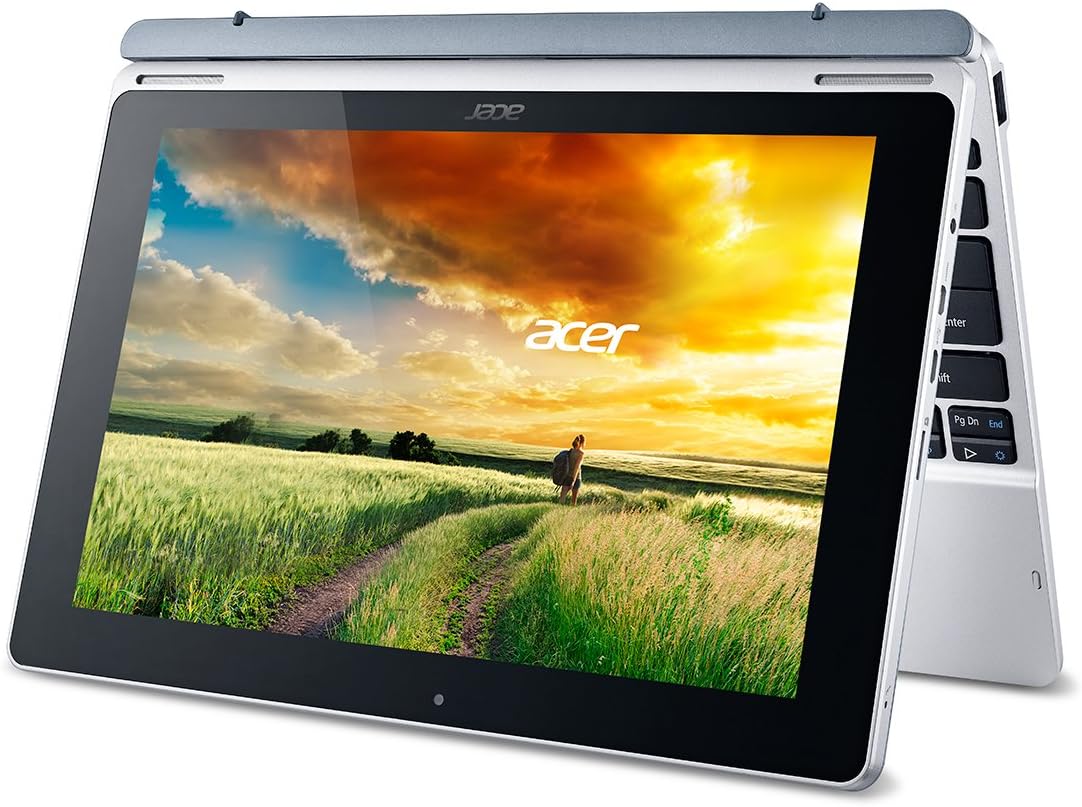
Figure 3: Acer Aspire Switch 10 in tablet mode.
Video 2: Selesaiview of the Aspire Switch 10's various modes and functionalities.
3.3 Navigasi Dasar
The device runs on Windows 8.1 (32-bit) with Bing. You can navigate using the 10.1-inch touchscreen, the keyboard, or the integrated touchpad. Familiarize yourself with Windows 8.1 gestures for optimal touchscreen interaction.
3.4 Konektivitas
The Aspire Switch 10 supports various connectivity options:
- Wifinya: 802.11a/b/g/n Wireless LAN with Acer Nplify, featuring MIMO technology (Dual-Band 2.4GHz and 5GHz).
- Bluetooth dapat digunakan untuk berbagai keperluan, seperti: Bluetooth 4.0 for connecting wireless peripherals.
- Port USB: One Micro USB 2.0 port on the tablet and one USB 2.0 port on the keyboard.
- Micro-HDMI: Untuk menghubungkan ke layar eksternal dengan dukungan HDCP.
- Slot MicroSD: For expanding internal storage.
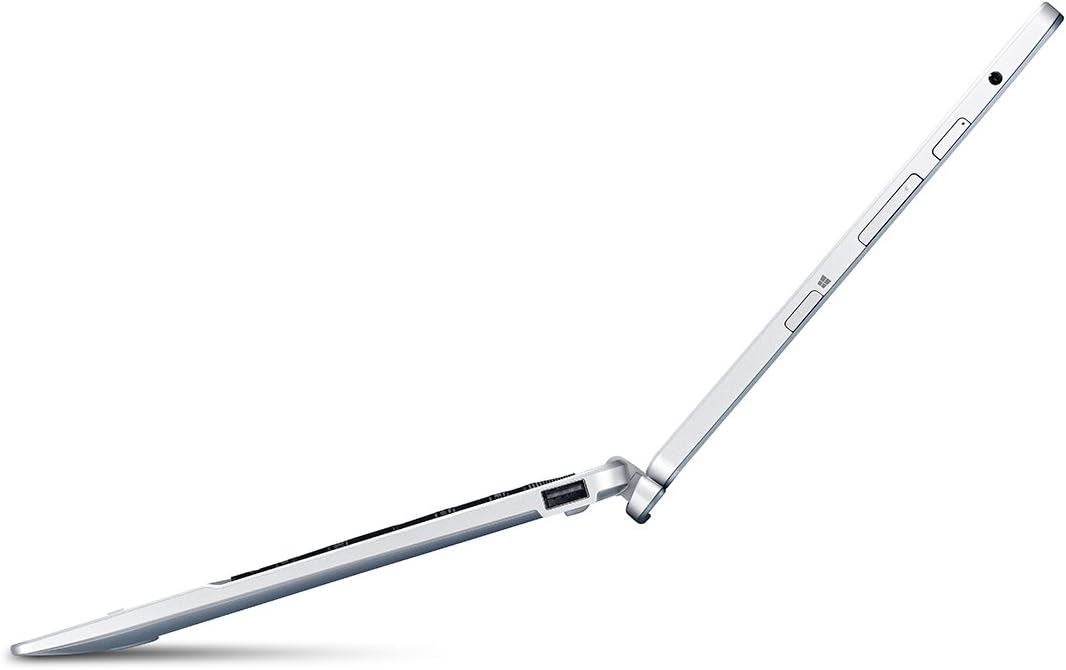
Gambar 4: Sisi view illustrating available ports.
3.5 Pre-installed Software
Your device comes with a Microsoft Office 365 Personal 1-Year Subscription (activation code included), providing access to essential productivity applications like Word, Excel, and PowerPoint.
4. Pemeliharaan
4.1 Membersihkan Perangkat
Gunakan kain lembut dan bebas serat untuk membersihkan layar dan permukaan luar. Untuk noda membandel, sedikit gosok.ampBilas kain dengan air atau larutan pembersih yang aman untuk layar. Hindari bahan kimia keras atau bahan abrasif.
4.2 Perawatan Baterai
To maximize battery life, avoid extreme temperatures and fully discharging the battery frequently. For long-term storage, charge the battery to about 50% and store the device in a cool, dry place.
4.3 Pembaruan Perangkat Lunak
Regularly check for and install Windows updates to ensure your system has the latest security patches and performance improvements. Go to "Settings" > "Update & Security" > "Windows Update" to manage updates.
5. Penyelesaian masalah
5.1 Perangkat Tidak Menyala
If the device does not power on, ensure it is connected to the AC adapter and charging. Press and hold the power button for several seconds. If the issue persists, try connecting to a different power outlet or contact support.
5.2 Keyboard Tidak Merespons
Ensure the tablet is securely docked to the keyboard. Detach and reattach the tablet to re-establish the connection. If the problem continues, restart the device.
5.3 Kinerja Lambat
Close unnecessary applications running in the background. Check for available storage space and consider uninstalling unused programs. Running Windows updates can also improve performance.
6. Spesifikasi
| Fitur | Detil |
|---|---|
| Nama Model | SW5-012-16AA |
| Ukuran Layar | 10.1 inci |
| Resolusi Tampilan | 1280x800 Pixels (HD) |
| Prosesor | Intel Atom Z3735F 1.33 GHz (Quad-Core) |
| Memori RAM | 2 GB LPDDR3 SDRAM |
| Penyimpanan Internal | 32 GB (SSD) |
| Sistem Operasi | Windows 8.1 (32-bit) with Bing |
| Grafik | Intel HD Graphics (Terintegrasi) |
| Daya Tahan Baterai | Hingga 8 jam |
| Berat | 2.58 lbs (Tablet & Keyboard) |
| Konektivitas | 802.11a/b/g/n Wi-Fi, Bluetooth 4.0, Micro USB 2.0, USB 2.0 (keyboard), Micro-HDMI, Micro SD slot |
7. Garansi dan Dukungan
The Acer Aspire Switch 10 SW5-012-16AA comes with a Garansi Terbatas Wisatawan Internasional (ITW) selama satu tahun. For detailed warranty terms, service, and technical support, please refer to the official Acer support website or contact Acer customer service directly. Keep your proof of purchase for warranty claims.