
iPazzPort NC-812-16F
iPazzPort NC-812-16F Wireless HDMI Display Adapter User Manual
Model: NC-812-16F | Brand: iPazzPort
1. Pendahuluan
The iPazzPort NC-812-16F is a versatile wireless HDMI display adapter designed to mirror or cast content from your smartphone, tablet, or other compatible devices to a larger screen such as a TV, monitor, or projector. It supports both Miracast for Android devices and Airplay for iOS devices, providing a convenient solution for sharing media, presentations, and more.
2. Produk Lebihview
2.1. Fitur Utama
- Supports Miracast for Android devices.
- Supports Airplay for iOS devices.
- Wireless display for media, images, and presentations.
- Connects to HDMI-enabled TVs, monitors, and projectors.
- Desain kompak dan portabel.
2.2. Isi Paket
Verifikasi bahwa semua item ada dalam paket Anda:
- iPazzPort Wireless HDMI Display Adapter
- Kabel Pengisian Daya USB
- Kabel Ekstensi HDMI
- Panduan Pengguna

Image: Contents of the iPazzPort Wireless HDMI Display Adapter package, including the adapter, cables, and manual.
3. Petunjuk Penyiapan
3.1. Koneksi Fisik
- Connect the micro USB end of the charging cable to the iPazzPort adapter's charging port.
- Connect the standard USB end of the charging cable to a 5V/1A USB power adapter (not always included) or a USB port on your TV/projector.
- Plug the HDMI connector of the iPazzPort adapter directly into an available HDMI port on your TV, monitor, or projector. If space is limited, use the provided HDMI extension cable.
- Nyalakan perangkat tampilan Anda dan pilih sumber input HDMI yang benar.
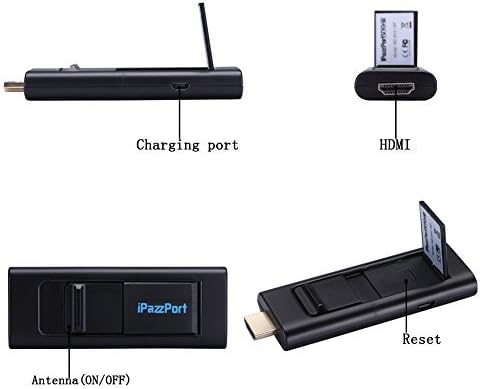
Gambar: Detail view of the iPazzPort adapter showing the charging port, HDMI connector, and antenna switch.

Image: Diagram illustrating how to connect the iPazzPort adapter to Android and iOS devices, and then wirelessly to a monitor, HD TV, or projector.
Video: A demonstration of the physical connection process for the iPazzPort Wireless HDMI Display Adapter, showing how to connect the power cable and HDMI extension to the device and then to a power source and TV.
3.2. Wireless Connection (iOS - Airplay)
- Ensure your iPazzPort adapter is connected to your TV and powered on. The TV screen should display the iPazzPort main interface with Wi-Fi name (SSID) and password.
- On your iOS device (iPhone/iPad), go to Pengaturan > Wifi gratis.
- Select the Wi-Fi network named "iPazzPort_Cast-XXXX" (where XXXX is a unique identifier) and enter the password displayed on your TV screen (default is usually "12345678").
- Once connected, swipe up from the bottom of your iOS device screen to open the Control Center.
- Ketuk pada Putar Udara (or Screen Mirroring).
- Select "iPazzPort_Cast-XXXX" from the list of available devices.
- Alihkan Pencerminan switch to ON. Your iOS device screen should now be mirrored on your TV.
3.3. Wireless Connection (Android - Miracast)
- Ensure your iPazzPort adapter is connected to your TV and powered on. The TV screen should display the iPazzPort main interface.
- On your Android device, navigate to the wireless display or screen mirroring settings. The name of this feature varies by device and Android version (e.g., Smart View, Screen Cast, Wireless Display, MirrorShare, AllShare Cast, etc.).
- Enable the screen mirroring feature and search for available devices.
- Select "iPazzPort_Cast-XXXX" from the list. Your Android device screen should now be mirrored on your TV.
4. Petunjuk Pengoperasian
Once connected, the iPazzPort adapter mirrors your device's screen to the larger display. Any content displayed on your mobile device will appear on the connected TV, monitor, or projector.
4.1. Casting Photos and Videos
Open your photo gallery or video player on your mobile device. The content will automatically display on the connected screen. For videos, ensure your device is in landscape mode for optimal viewing on the larger display.

Gambar: Examples of using the iPazzPort adapter for home theater, sharing moments, TV games, and business presentations.
4.2. Presenting Documents (PPT, etc.)
Open your presentation application (e.g., PowerPoint, Google Slides) on your mobile device. The presentation will be mirrored to the large screen, allowing you to control slides directly from your device.

Image: The iPazzPort adapter facilitating a presentation in a meeting room, displaying content from a tablet to a projector screen.
4.3. Bermain Game
Launch your favorite games on your mobile device. The game will be mirrored to the larger screen, providing an enhanced gaming experience. Note that some latency may occur depending on your device and network conditions.
5. Penyelesaian masalah
- Tidak ada tampilan di TV: Ensure the adapter is properly powered and connected to the correct HDMI input. Check if the TV input source is set to the corresponding HDMI port.
- Tidak dapat terhubung ke Wi-Fi: Verify the Wi-Fi name (SSID) and password displayed on the TV screen. Ensure your mobile device's Wi-Fi is enabled.
- Koneksi terputus-putus atau lag: Move your mobile device closer to the iPazzPort adapter to improve signal strength. Reduce interference from other wireless devices. Ensure the adapter has sufficient power.
- iOS Airplay issues: Ensure your iOS device and the iPazzPort adapter are on the same Wi-Fi network. Try restarting both devices.
- Android Miracast issues: Ensure your Android device supports Miracast and that the feature is enabled. Some devices may require specific apps or settings.
6. Spesifikasi
| Nomor Model | NC-812-16F |
| Teknologi Konektivitas | Wifi gratis |
| Jenis Konektor | HDMI, Micro USB |
| Fitur Khusus | Wireless, Wireless Display |
| Resolusi | 1080p |
| Perangkat yang Kompatibel | Television, Monitor, Projector (with HDMI input) |
| Berat Barang | 0.1 Kilogram (sekitar 3.52 ons) |
| Dimensi Produk (P x L x T) | 3.5x0.4x1.3 inci |
| Jil.tage | 5 Volt |
| Ukuran Memori RAM Terpasang | 2 GB |
7. Informasi Keselamatan
Harap baca dan ikuti panduan keselamatan ini untuk memastikan pengoperasian yang benar dan mencegah kerusakan pada perangkat atau cedera:
- Jangan biarkan perangkat terkena air atau kelembapan berlebihan.
- Hindari suhu ekstrem.
- Jangan mencoba membongkar atau memperbaiki perangkat sendiri.
- Use only the provided or recommended power adapter and cables.
- Jauhkan dari jangkauan anak-anak.
8. Garansi dan Dukungan
For warranty information and technical support, please refer to the contact details provided with your purchase or visit the official iPazzPort weblokasi.