
1. Pendahuluan
Terima kasih sudah membeliasing the GooDee Mini Projector GD-DE-9. This manual provides essential information for setting up, operating, and maintaining your projector. Please read it thoroughly before use to ensure optimal performance and safety.
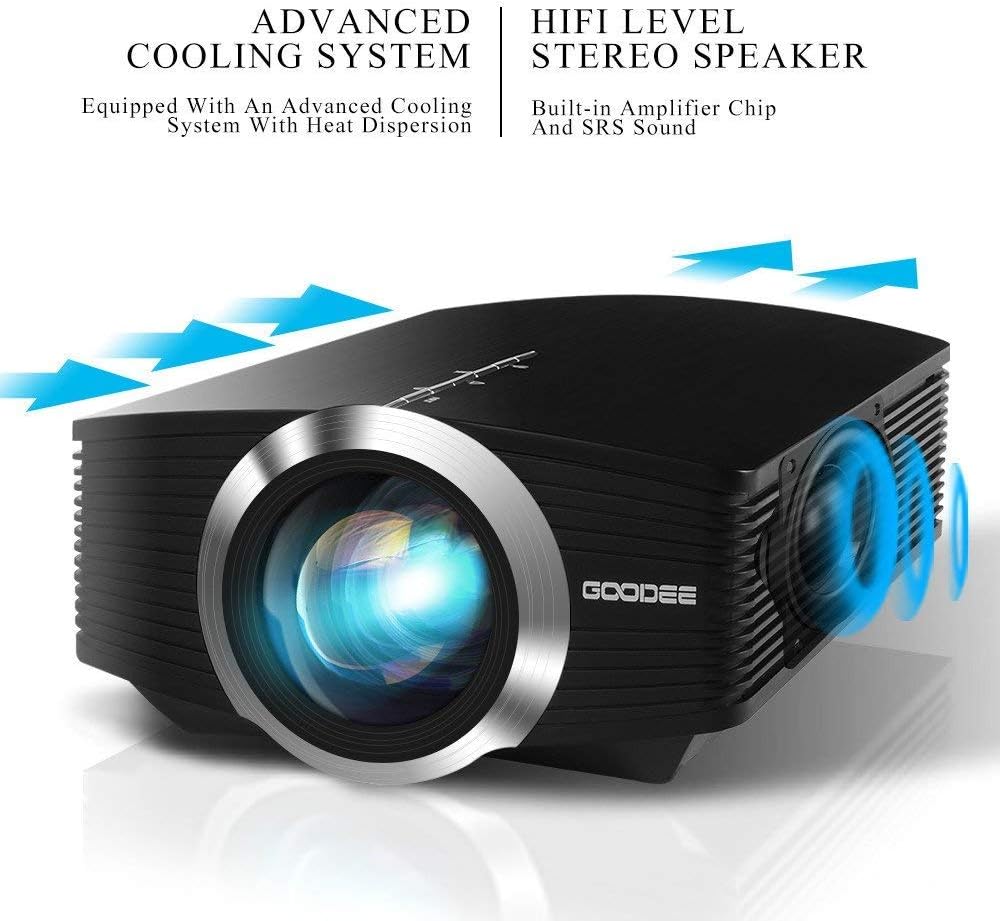
The GooDee GD-DE-9 is a portable LED projector designed for home entertainment, gaming, and presentations. It features a native resolution of 800x480p, supports up to 1080p input, and offers multiple connectivity options including HDMI, VGA, USB, AV, and SD card. Its advanced cooling system ensures quiet operation, and the integrated 2W speaker provides clear audio.

Gambar 1.1: Depan view of the GooDee Mini Projector GD-DE-9.
2. Informasi Keselamatan
Untuk mencegah kebakaran, sengatan listrik, atau cedera, harap perhatikan tindakan pencegahan keselamatan berikut:
- Jangan membuka penutup proyektorasing. Serahkan semua servis kepada teknisi servis yang berkualifikasi.
- Jangan biarkan proyektor terkena hujan atau lembab untuk mencegah kebakaran atau sengatan listrik.
- Pastikan ventilasi yang baik. Jangan halangi lubang ventilasi.
- Gunakan hanya adaptor daya yang disertakan dengan proyektor.
- Hindari melihat langsung ke lensa proyektor saat lamp sedang aktif.
- Tempatkan proyektor pada permukaan yang stabil dan rata.
- Cabut proyektor dari stopkontak saat terjadi badai petir atau saat tidak digunakan dalam waktu lama.
3. Isi Paket
Mohon periksa apakah semua barang sudah termasuk dalam paket Anda:
- GooDee Mini Projector GD-DE-9
- Adaptor Daya
- Kontrol Jarak Jauh
- Kabel HDMI
- AV Kabel
- Panduan Pengguna
4. Produk Lebihview
4.1 Komponen Proyektor

Gambar 4.1: Sisi view with input/output ports.
The projector features a direct light path optical technology for enhanced brightness and an advanced cooling system for quiet operation.

Figure 4.2: Advanced Cooling System and HIFI Stereo Speaker.
4.2 Kontrol Jarak Jauh
The remote control allows you to operate the projector from a distance. Insert two AAA batteries (not included) into the remote control before use.

Gambar 4.3: Kontrol Jarak Jauh.
5. Pengaturan
5.1 Penempatan dan Jarak Proyeksi
The image size is adjusted by changing the projection distance. For optimal viewing, a projection distance between 1.5 to 4 meters is recommended, yielding screen sizes from 50 to 130 inches. The best projection size is typically 80-100 inches at a distance of 6.6-8 feet.

Figure 5.1: Projection Distance and Screen Size Chart.
Gambar 5.2: Contohample Projector Placement.
5.2 Sambungan Daya
Hubungkan adaptor daya ke port input daya proyektor, lalu colokkan adaptor ke stopkontak.
5.3 Menghubungkan Perangkat Input
The projector supports various input sources including HDMI, VGA, USB, AV, and SD card. It can connect to PCs, laptops, DVD players, PS3/4, Xbox ONE, and smartphones/tablets (via MHL cable and adapter, not included).

Figure 5.3: Multimedia Connection Diagram.
To connect a smartphone or tablet, ensure your device supports MHL functionality. You will need an MHL cable and a suitable adapter (not included).

Figure 5.4: Connecting Smartphones/Tablets.
5.4 Focus Adjustment and Keystone Correction
Adjust the focus ring on the projector lens until the image is clear. Use the keystone correction feature to adjust the image if it appears trapezoidal. The projector supports a ±15° keystone correction.
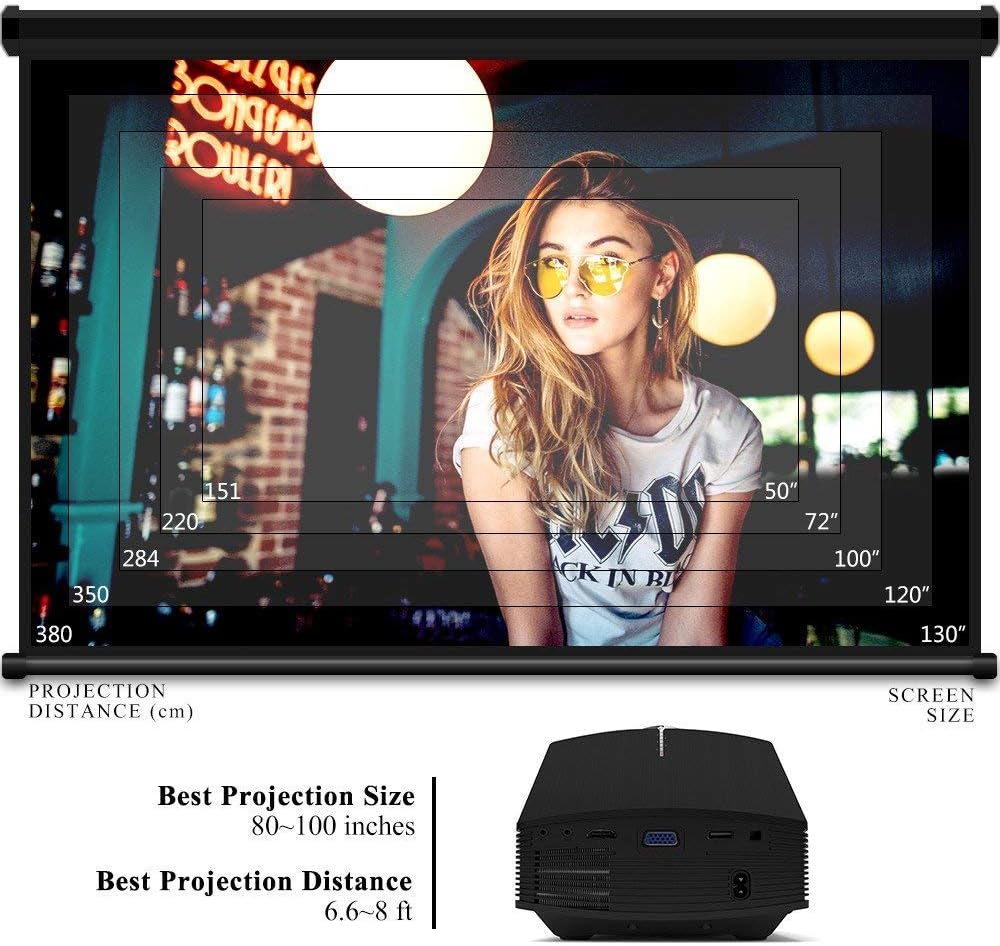
Figure 5.5: Focus and Keystone Adjustment.
6. Petunjuk Pengoperasian
6.1 Daya Hidup/Mati
Tekan tombol daya pada proyektor atau kendali jarak jauh untuk menghidupkan atau mematikan proyektor.
6.2 Pemilihan Sumber
Press the 'Source' button on the projector or remote control to cycle through available input sources (HDMI, VGA, USB, AV, SD). Select the desired input source corresponding to your connected device.
6.3 Navigasi Menu
Use the arrow buttons on the projector or remote control to navigate through the on-screen menu. Press 'OK' or 'Enter' to confirm selections. Use the 'Menu' button to access settings and 'Exit' or 'Return' to go back.
6.4 Keluaran Audio
The projector has a built-in 2W speaker. For external audio, connect speakers or headphones to the 3.5mm audio output jack on the projector.
7. Pemeliharaan
7.1 Membersihkan Lensa
Use a soft, lint-free cloth or lens cleaning paper to gently wipe the projector lens. Do not use abrasive cleaners or solvents.
7.2 Membersihkan Ventilasi Udara
Regularly clean the air vents to ensure proper airflow and prevent overheating. Use a soft brush or compressed air to remove dust accumulation.
7.3 Penyimpanan
Saat tidak digunakan, simpan proyektor di tempat yang sejuk dan kering, jauhkan dari sinar matahari langsung dan suhu ekstrem. Gunakan kemasan asli atau wadah pelindung untuk mencegah debu dan kerusakan.
8. Penyelesaian masalah
| Masalah | Kemungkinan Penyebab | Larutan |
|---|---|---|
| Tidak ada gambar yang ditampilkan | Incorrect input source selected; Cable not connected properly; Device not powered on. | Select the correct input source; Check all cable connections; Ensure the source device is powered on. |
| Gambar buram | Fokus tidak disesuaikan; Proyektor terlalu dekat/jauh dari layar. | Sesuaikan cincin fokus; Sesuaikan jarak proyeksi. |
| Gambarnya berbentuk trapesium | Proyektor tidak tegak lurus dengan layar. | Sesuaikan koreksi keystone. |
| Tidak ada suara | Volume terlalu rendah; Dibisukan; Perangkat audio eksternal tidak terhubung/terkonfigurasi. | Increase volume; Unmute; Check external audio connections and settings. |
| Kontrol jarak jauh tidak berfungsi | Batteries low/dead; Obstruction between remote and projector; Remote sensor blocked. | Replace batteries; Remove obstructions; Ensure remote sensor is clear. |
9. Spesifikasi
| Fitur | Detil |
|---|---|
| Merek | Bagus sekali |
| Nomor Model | GD-DE-9 |
| Jenis Tampilan | Layar LCD |
| Resolusi Asli | 800 x 480 piksel |
| Resolusi yang Didukung | Hingga 1080p |
| Kecerahan | 3000 Lumens (LED) |
| Lamp Kehidupan | 30,000 Jam |
| Teknologi Konektivitas | HDMI, USB, VGA, AV, Kartu SD |
| Antarmuka Perangkat Keras | HDMI, USB, VGA |
| Speaker Terpadu | Speaker Stereo 2W |
| Jarak Proyeksi | 1.5 - 4 meters (6.6 - 8 feet recommended) |
| Ukuran Layar | 50 - 130 inches (80 - 100 inches recommended) |
| Koreksi Keystone | ±15° Panduan |
| Faktor Bentuk | Portabel |
| Jenis Pemasangan | Dudukan Meja |
| Warna | Hitam |
| Dimensi Paket | Ukuran 33x21.6x11.8 cm |
| Berat Barang | 1.48 kg |
| Penggunaan yang Direkomendasikan | Gaming, Home Theater |
| Perangkat yang Kompatibel | Smartphone, PC, Laptop, DVD Player, PS3/4, Xbox ONE, Fire TV Stick |
10. Garansi dan Dukungan
GooDee offers a 3-year warranty for this projector. If you encounter any issues or are not completely satisfied with your purchase, please contact GooDee customer support. A refund or replacement is available within the first 2 months of purchase. Customer satisfaction is our top priority.
For support, please refer to the contact information provided on the GooDee official websitus atau platform pembelian Anda.