
Wasp WPL308
Wasp WPL308 Desktop Barcode Printer Instruction Manual
Model: WPL308 | Brand: Wasp
Produk Selesaiview
The Wasp WPL308 Desktop barcode printer is a versatile medium-duty barcode printer designed for various printing applications. It features a durable double-wall clamshell design and a 3.5-inch color TFT display with a real-time clock. This printer supports both thermal transfer and direct thermal printing methods, achieving print speeds of up to 8 inches per second at a 203 DPI resolution. It is equipped with 128 MB Flash memory and 128 MB SDRAM, suitable for producing high-volume 4x6 shipping labels, high-resolution product marking, and graphic solutions, including labels for electronics marking applications.
Standard connectivity options include USB 2.0, USB-A Host, 10/100 Mbps Ethernet, and Serial interfaces. An optional 802.11a/b/g/n Wi-Fi interface is also available.
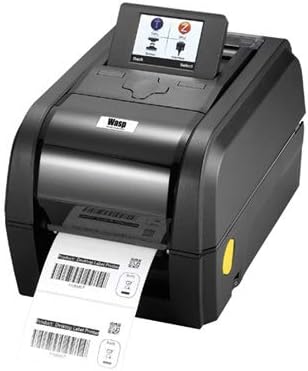
Image: The Wasp WPL308 Desktop Barcode Printer, showcasing its compact design and front-facing label output.
Fitur Utama
- Up to 203 mm (8 in) per sec. print speed
- 128 MB Flash memory and 128 MB SDRAM memory
- microSD Flash memory expansion up to 32 GB
- User-friendly clamshell design
- Serial, internal Ethernet USB 2.0 & USB host interfaces standard
- 3.5 inches TFT Display
- Label capacity up to 127 mm (5 inches) OD
- Ribbon capacity up to 300 m (984 feet)
- WPL firmware for plug-n-play ease
- Memiliki kualifikasi ENERGY STAR®
Isi Paket
Before beginning installation, please verify that all items are present and undamaged:
- Wasp WPL308 Barcode Printer
- 203 dpi Thermal Printhead (pre-installed)
- Kabel listrik

Image: The Wasp WPL308 printer with its clamshell cover open, revealing the internal mechanism for loading a roll of labels.
Panduan Pengaturan
- Membongkar: Keluarkan printer dan semua aksesori dari kemasan dengan hati-hati. Simpan kemasan untuk pengangkutan atau penyimpanan di masa mendatang.
- Sambungan Daya: Connect the provided power cable to the printer's power input port and then to a suitable electrical outlet.
- Koneksi data: Connect the printer to your computer or network using a USB, Ethernet, or Serial cable as required by your setup. Ensure the cable is securely connected to both the printer and the host device.
- Instalasi Driver: Install the necessary printer drivers and software from the manufacturer's website or any included media. Follow the on-screen instructions for a complete installation.
- Memuat Media: Open the printer's clamshell cover. Load the label roll onto the media supply spindle, ensuring it feeds smoothly through the guides and under the printhead. For thermal transfer printing, install the ribbon according to the printer's internal diagrams, ensuring it is taut and correctly aligned. Close the cover securely.
Operasi
Once the printer is set up and connected, power it on. The 3.5-inch color TFT display will illuminate, showing the printer's status and menu options. Use the display and control buttons to navigate settings, perform calibrations, and monitor print jobs. Ensure your labels and ribbon (if applicable) are correctly loaded and aligned before sending print commands. Initiate print jobs from your computer application, ensuring the WPL308 is selected as the target printer.
Pemeliharaan
Regular maintenance is crucial for extending the life of your WPL308 printer and ensuring consistent print quality.
- Pembersihan Kepala Cetak: Gunakan kain bebas serat untuk mengusapnya dengan lembut.ampened with isopropyl alcohol to gently wipe the printhead surface. Perform this cleaning regularly, especially after replacing a roll of labels or ribbon.
- Platen Roller Cleaning: Clean the platen roller with isopropyl alcohol to remove any adhesive or dust buildup. Rotate the roller manually to clean the entire surface.
- Pembersihan Umum: Periodically clean the exterior and interior of the printer with a soft, dry cloth to remove dust and debris. Avoid using abrasive cleaners or solvents.
- Mengganti Perlengkapan: Replace label rolls and ribbons as they are depleted. Always use Wasp-approved supplies for optimal performance and to prevent damage to the printer.
Pemecahan Masalah Umum
- Printer Tidak Merespons: Check that the power cable is securely connected and the printer is powered on. Verify that the data cable (USB, Ethernet, Serial) is properly connected to both the printer and the computer/network. Ensure printer drivers are correctly installed and updated.
- Kualitas Cetak Buruk: Clean the printhead as described in the Maintenance section. Verify that the labels and ribbon (if used) are compatible with the printer and are loaded correctly. Adjust print darkness settings if necessary.
- Label Tidak Terpasang dengan Benar: Ensure the label roll is properly seated on the media supply spindle and that labels are threaded correctly through the guides. Check for any obstructions in the label path.
- Pesan Kesalahan di Layar: Refer to the printer's 3.5-inch TFT display for specific error codes or messages. Consult the Wasp support website or the full user manual for detailed explanations and solutions for each error.
Spesifikasi Teknis
| Spesifikasi | Detil |
|---|---|
| Merek | Tawon |
| Nama Model | WPL308 Barcode Printer |
| Teknologi Percetakan | Thermal (Direct Thermal/Thermal Transfer) |
| Kecepatan Cetak Maksimum (Monokrom) | 8 inches per second (203 mm/s) |
| Dimensi Produk | 13.1x8.9x7.8 inci |
| Berat Barang | 8.27 pon |
| Kapasitas Penyimpanan Memori | Memori Flash 128MB, SDRAM 128MB |
| Antarmuka Perangkat Keras | Ethernet, Serial Interface, USB |
| Teknologi Konektivitas | Networkable, USB |
| Komponen yang Termasuk | 203 dpi Thermal Printhead, WPL308 Power Cable |
| Media Cetak | Label |
| Fitur Khusus | Energy Star Berkualitas |
Garansi dan Dukungan
The Wasp WPL308 printer includes a 2-year manufacturer's warranty that covers material defects. For enhanced protection and coverage beyond the standard warranty, WaspProtect extended service plans are available, which can also cover accidental breakage.
For technical assistance, troubleshooting, or to inquire about warranty claims and WaspProtect plans, please contact Wasp Barcode Technologies customer service. Visit the official Wasp Barcode Technologies webKunjungi situs ini untuk informasi dukungan dan detail kontak terbaru.
Dokumen Terkait - WPL308
 |
TSC TX210 Series Desktop Barcode Printer User Manual User manual for the TSC TX210 Series desktop barcode printers, covering specifications, setup, operation, maintenance, and troubleshooting for models TX210, TX310, and TX610. Learn about features, connectivity, and best practices for efficient label printing. |
 |
3nStar LTT334: Printer Label Termal Langsung & Transfer Termal 4 inci Temukan 3nStar LTT334, printer label termal langsung dan transfer termal 4 inci yang menawarkan pencetakan profesional dengan harga terjangkau. Dilengkapi fitur kecepatan tinggi, berbagai emulasi, dan perangkat lunak Bartender. |
 |
Panduan Pengguna Printer Label Termal Industri Wasp WPL406 Panduan pengguna lengkap untuk printer label termal industri Wasp WPL406. Meliputi fitur produk, spesifikasi, pengaturan, pengoperasian, pemasangan media dan pita, fungsi menu LCD, diagnostik, pemecahan masalah, dan perawatan. |
 |
Panduan Memulai Cepat Printer Desktop PC300T/PC310T Mulailah menggunakan printer desktop Honeywell PC300T/PC310T Anda dengan cepat. Panduan ini mencakup pengaturan, pengoperasian, dan pemecahan masalah dasar untuk pencetakan transfer termal dan termal langsung. |
 |
Panduan Pengguna Pembuat Label Genggam E1000 Panduan pengguna lengkap untuk mesin label genggam E1000, mencakup pengoperasian, fitur, pemecahan masalah, dan informasi garansi. Pelajari cara membuat berbagai jenis label, mencetak kode batang, dan merawat perangkat Anda. |
 |
TSC MH261 Series User Manual: Industrial Barcode Printer Explore the TSC MH261 Series industrial barcode printers (MH261T, MH361T) with this comprehensive user manual. Learn about setup, operation, specifications, and maintenance for high-performance thermal transfer and direct thermal printing solutions. |
Ask a question about this manual
Ask about setup, troubleshooting, compatibility, parts, safety, or missing instructions. Manuals+ will review the question and use this page’s manual context to help answer it.