
1. Produk Lebihview
The WISE TIGER EP-AC2939 is a 1200Mbps AC Dual Band WiFi Extender designed to expand your existing Wi-Fi coverage. It functions as a wireless repeater and access point, boosting internet Wi-Fi for up to 32 devices and covering areas up to 1500 sq. ft. This device is compatible with any AC router, gateway, or access point, supporting both 2.4GHz (up to 300Mbps) and 5GHz (up to 867Mbps) bands.
Equipped with dual external 6 dBi antennas, it extends Wi-Fi coverage 360 degrees, ensuring reliable data transmission throughout your home or office. The integrated 100Mbps Ethernet port allows it to function as a wireless adapter for wired devices. A smart signal indicator assists in finding the optimal placement for maximum Wi-Fi coverage.

Image: The EP-AC2939 extender highlighting its dual-band capabilities (2.4GHz at 300Mbps and 5GHz at 867Mbps) and its capacity to connect up to 32 devices, including phones, pads, laptops, game consoles, desktops, and TVs.
2. Isi Paket
- 1 x WISE TIGER EP-AC2939 WiFi Extender
- 1 x Adaptor Daya
- 1 x Panduan Pengguna

Image: The EP-AC2939 WiFi Extender displayed alongside its retail packaging and the included user manual, illustrating the complete product package.
3. Tata Letak Perangkat
The EP-AC2939 features a compact design with adjustable external antennas for optimal signal reception. Key components include:
- Daya LED: Menunjukkan status daya.
- LED CPU: Menunjukkan aktivitas sistem.
- LED 5G: Indicates 5GHz band activity.
- LED 2.4G: Indicates 2.4GHz band activity.
- LED LAN: Menunjukkan aktivitas port Ethernet.
- Tombol WPS: For quick setup with WPS-enabled routers.
- Tombol Reset: To restore factory default settings (use a pin to press and hold).
- Port Ethernet: For wired device connectivity.
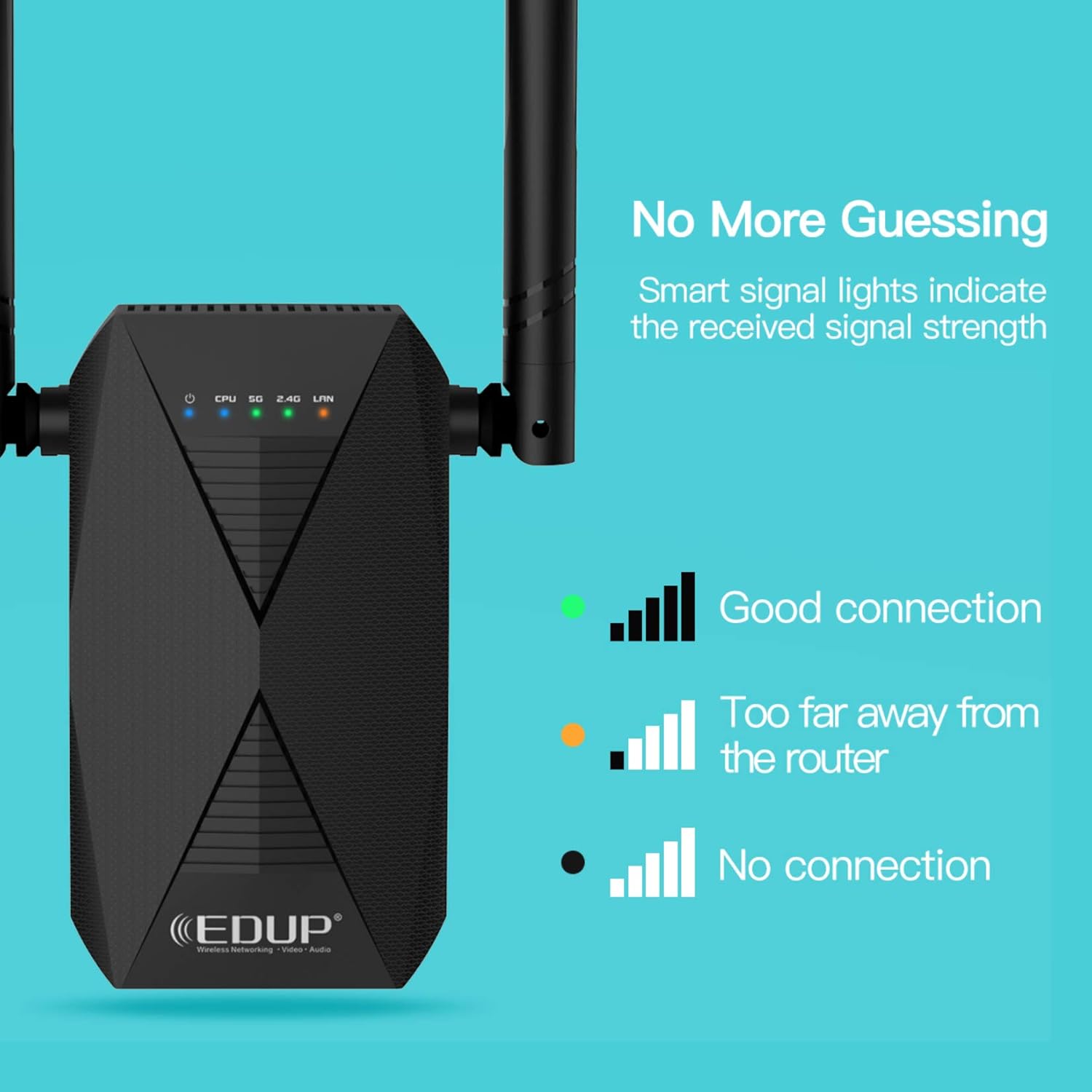
Image: Close-up of the EP-AC2939 WiFi Extender showing its signal indicator lights. A green light indicates a good connection, an orange light indicates being too far from the router, and no light indicates no connection.
4. Panduan Pengaturan
There are two primary methods to set up your WISE TIGER EP-AC2939 WiFi Extender: using the WPS button or through a web peramban.
4.1. Metode WPS (Wi-Fi Protected Setup)
- Colokkan extender ke stopkontak di dekat router utama Anda.
- Wait for the CPU LED to turn solid blue.
- Press the 2.4G or 5G button on the extender (depending on which band you want to extend).
- Dalam waktu 2 menit, tekan tombol WPS pada router utama Anda.
- The extender's 2.4G/5G LED should turn solid green, indicating a successful connection.
- Relocate the extender to a desired location within the range of your main router's Wi-Fi signal. Use the signal indicator lights to find an optimal spot.

Image: A visual guide demonstrating the WPS one-key connection process. It shows pressing the 2.4G or 5G button on the extender, then the router's WPS button, and finally placing the extender in a desired location.
4.2. Web Metode Browser
For detailed visual instructions on setting up via web browser, please refer to the video below:
Video: Official setup guide for the AC1200 WiFi Range Extender, demonstrating the steps to configure the device using a web browser interface. This video is provided by Wise Tiger LLC.
Petunjuk langkah demi langkah:
- Nyalakan dan Hubungkan: Plug the extender into an electrical outlet. On your mobile device or computer, connect to the extender's open Wi-Fi network (e.g., "WiFi_EXT" or "WiFi_EXT_5G").
- Halaman Pengaturan Akses: Buka sebuah web peramban dan masukkan
192.168.0.254di bilah alamat. - Choose Repeater Mode: On the setup page, select "Repeater Mode".
- Select Primary Network: Choose the 2.4GHz or 5GHz original Wi-Fi network you wish to extend from the list.
- Masukkan Kata Sandi: Type the password for your original Wi-Fi network. You can choose to keep the SSID and password the same or modify them for the extended Wi-Fi.
- Menghubungkan: Click "Connect" to apply the settings. The extender will restart.
- Verifikasi Koneksi: After the extender restarts, check your device's Wi-Fi settings to confirm that the extended Wi-Fi network is available and connected successfully.
5. Mode Operasi
The WISE TIGER EP-AC2939 WiFi Extender supports two operational modes:
5.1. Modus Pengulang
In Repeater Mode, the extender wirelessly connects to your existing router's Wi-Fi network and re-transmits the signal, effectively extending its range. This mode is ideal for eliminating Wi-Fi dead zones and improving signal strength in areas with weak coverage.
5.2. Mode Titik Akses (AP)
In Access Point Mode, the extender connects to your router via an Ethernet cable and transforms your wired network connection into a wireless access point. This is useful for adding Wi-Fi capability to a wired-only network or creating a new Wi-Fi network in a specific area.
6. Optimal Placement and Signal Indicator
The smart signal indicator lights on the extender help you find the best location for optimal Wi-Fi coverage. After initial setup, you can relocate the extender to a suitable spot. Observe the indicator lights to ensure a strong connection:
- Lampu hijau: Indicates a good connection to the main router.
- Lampu Oranye: Indicates the extender is too far from the main router, suggesting relocation closer to the router.
- Tidak Ada Cahaya: Indicates no connection to the main router.
Place the extender roughly halfway between your router and the Wi-Fi dead zone. Avoid placing it near large metal objects, concrete walls, or other devices that may cause interference.
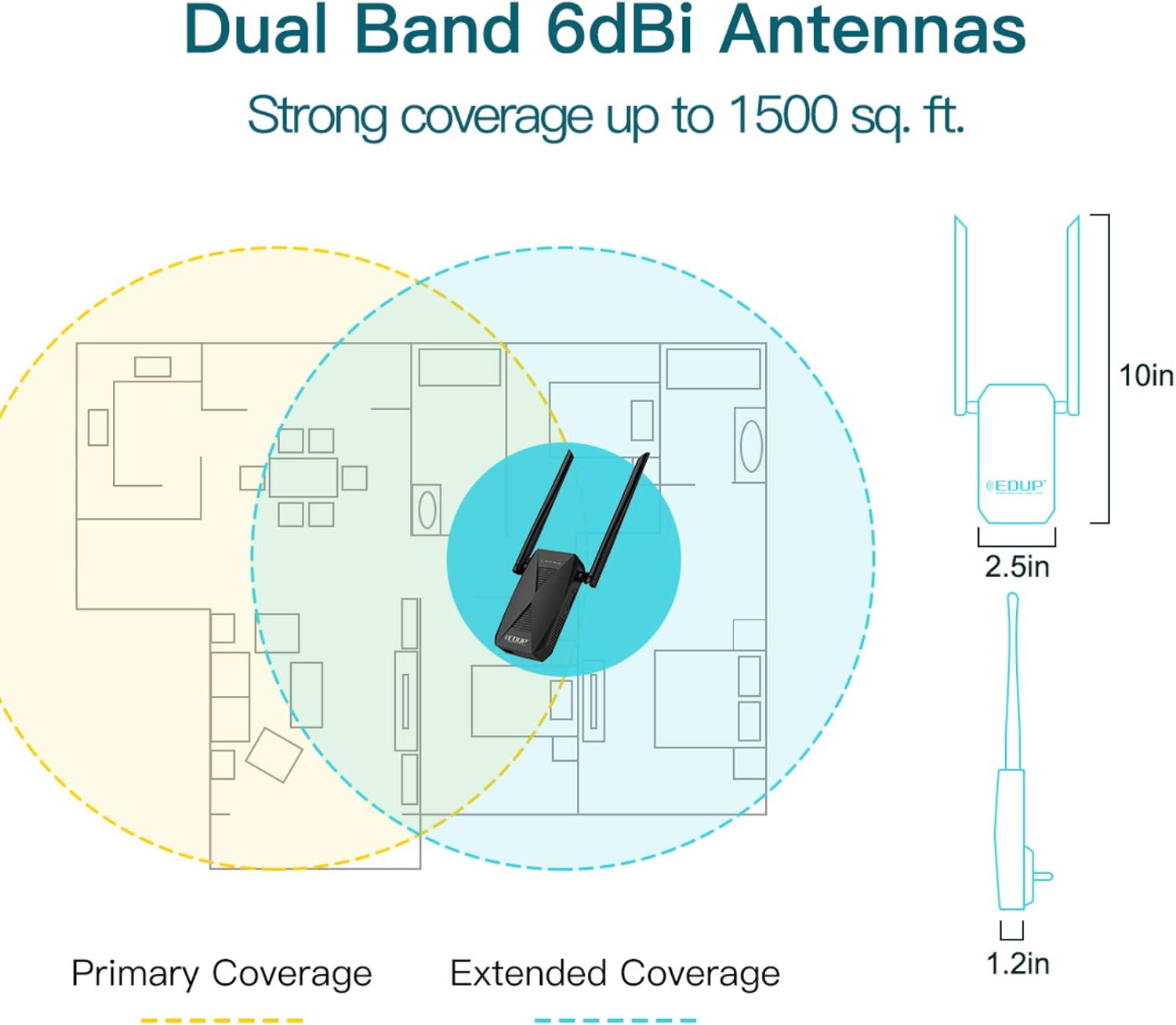
Image: A floor plan diagram showing how the EP-AC2939 WiFi Extender extends network coverage. It illustrates the primary coverage area of the main router and the significantly expanded coverage provided by the extender, reaching up to 1500 sq. ft.
7. Konektivitas Kabel
The EP-AC2939 features a 100Mbps Ethernet port, allowing you to connect wired devices such as desktop computers, gaming consoles, or smart TVs directly to the extender. This provides a stable and fast wired connection for devices that require it, while still extending your wireless network.

Image: The EP-AC2939 WiFi Extender with a clear indication of its 100/10M Ethernet port, designed for connecting wired devices to the network.
8. Spesifikasi
| Fitur | Detil |
|---|---|
| Tipe Nirkabel | 802.11ac |
| Merek | HARIMAU BIJAK |
| Seri | EP-AC2939 |
| Berat Barang | 9.5 ons |
| Dimensi Paket | 8x6x2 inci |
| Warna | Hitam |
| Pabrikan | WISE TIGER LLC |
| Standar Komunikasi Nirkabel | 802.11ac |
| Kecepatan Transfer Data | 1200 Megabit Per Detik |
| Kelas Pita Frekuensi | Pita Ganda |
9. Penyelesaian masalah
- Tidak Ada Daya: Ensure the extender is securely plugged into a working electrical outlet. Check if the power LED is illuminated.
- Tidak Dapat Terhubung ke Wi-Fi Extender: Verify that the extender is powered on. Try resetting the extender to factory defaults by pressing the reset button for 5-10 seconds with a pin, then re-attempt setup.
- Sinyal Lemah dari Extender: Relocate the extender closer to your main router. Use the smart signal indicator lights to find an optimal position (green light indicates good signal). Ensure there are no major obstructions between the router and the extender.
- Extended Wi-Fi Not Visible: Ensure the extender is powered on and configured correctly. If you modified the SSID during setup, search for the new network name.
- Kecepatan Lambat pada Jaringan yang Diperluas: The extender's performance depends on the signal strength from your main router. Try optimizing the extender's placement. Ensure your main router is providing adequate speed.
- Pengaturan WPS Gagal: Jika pengaturan WPS gagal, coba cara berikut: web browser method for configuration. Ensure your router's WPS function is enabled and working correctly.
- Koneksi Intermiten: Check for potential interference from other electronic devices (microwaves, cordless phones). Ensure the extender is not placed in an area with excessive network traffic or physical obstructions.
10. Informasi Keselamatan
- Jangan biarkan perangkat terkena air atau kelembapan.
- Jangan mencoba membongkar atau memperbaiki perangkat sendiri.
- Gunakan hanya adaptor daya yang disediakan.
- Jauhkan perangkat dari sumber panas dan sinar matahari langsung.
- Pastikan ventilasi yang memadai di sekitar perangkat.
11. Garansi dan Dukungan
For warranty information and technical support, please refer to the documentation included with your product or visit the official WISE TIGER weblokasi. Simpan kwitansi pembelian Anda untuk klaim garansi.