
1. Pendahuluan
This manual provides essential instructions for the safe and efficient use of your Canon PIXMA E3470 All-in-One Inkjet Printer. The PIXMA E3470 is a compact wireless device designed for printing, scanning, and copying, offering an affordable printing experience with low running costs.
2. Informasi Keselamatan
Harap baca semua petunjuk keselamatan sebelum menggunakan printer untuk mencegah cedera atau kerusakan pada perangkat. Simpan manual ini untuk referensi di masa mendatang.
- Jangan letakkan printer di tempat yang tidak stabil.
- Hindari memaparkan printer ke sinar matahari langsung, suhu tinggi, atau kelembapan yang berlebihan.
- Gunakan hanya kabel daya yang disertakan dengan printer.
- Do not attempt to disassemble or modify the printer. Refer servicing to qualified personnel.
- Jauhkan dari jangkauan anak-anak.
3. Isi Paket
Verifikasi bahwa semua item ada dalam paket:
- Canon PIXMA E3470 Printer
- Kabel listrik
- Kartrid Tinta Pemula
- Setup CD-ROM (may not be included in all regions, drivers available online)
- Manual dan dokumen lainnya
4. Pencetak Selesaiview
Familiarize yourself with the main components of your Canon PIXMA E3470 printer.

Gambar 4.1: Depan View of the Canon PIXMA E3470 Printer. This image displays the printer from the front, showing the control panel on the left, the paper output tray, and the Canon logo. The top cover for the scanner and paper input is also visible.
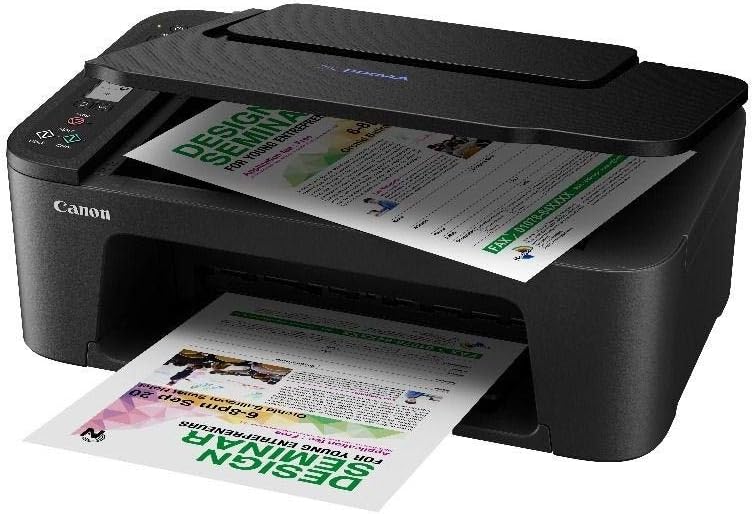
Figure 4.2: Canon PIXMA E3470 Printer with Paper Loaded. This image shows the printer from an angled top-front perspective, with documents loaded in the paper input tray and a printed page partially ejected from the output tray. This illustrates the printer in operation during a print job.
4.1 Panel Kontrol
- Tombol Daya: Menyalakan atau mematikan printer.
- Layar LCD: Shows printer status, error messages, and menu options.
- Tombol Navigasi: Used to navigate menus on the LCD display.
- Start Button (Black/Color): Initiates black and white or color copying/scanning.
- Tombol Berhenti: Cancels current operation or exits menu.
- Tombol Wi-Fi: Activates or deactivates Wi-Fi connectivity.
4.2 Paper Trays
- Baki Belakang: For loading various paper types and sizes.
- Baki Keluaran: Where printed documents are ejected.
4.3 Unit Pemindai
- Kaca Platen: For scanning documents and photos.
5. Pengaturan
5.1 Pengaturan Awal Printer
- Buka Kemasan Printer: Lepaskan semua bahan pelindung dan selotip dari printer.
- Hubungkan Daya: Plug the power cable into the printer and then into a wall outlet. Press the Power button to turn on the printer.
- Pasang Kartrid Tinta: Open the printer's access cover and install the starter ink cartridges according to the on-screen instructions or quick start guide. Ensure they are securely latched.
- Muat Kertas: Open the rear tray cover and load plain A4 paper. Adjust the paper guides to fit the paper width.
5.2 Instalasi Perangkat Lunak
For full functionality, install the printer drivers and software on your computer or mobile device.
- From CD-ROM: If included, insert the setup CD-ROM into your computer and follow the on-screen instructions.
- Dari Weblokasi: Visit the official Canon support website for the PIXMA E3470 model to download the latest drivers and software.
5.3 Menghubungkan ke Wi-Fi
The PIXMA E3470 supports wireless connectivity for convenient printing from various devices.
- Standard Connection (Access Point Mode):
- Ensure your wireless router is on.
- Pada panel kontrol printer, navigasikan ke menu pengaturan Wi-Fi.
- Select "Standard setup" or "Easy setup" and follow the prompts to connect to your Wi-Fi network. You may need to enter your network password (WPA/WPA2 key).
- Wi-Fi Direct (Access Point Mode):
- This mode allows direct connection from a mobile device without a router.
- Activate Wi-Fi Direct on the printer via the control panel.
- On your smartphone or tablet, search for the printer's Wi-Fi Direct network and connect to it.
- Mobile Printing Services:
- Apple AirPrint™: For iOS devices, ensure your device and printer are on the same Wi-Fi network. Select the printer from the print options in your application.
- Mopria™ Print Service: For Android devices, install the Mopria Print Service app from the Google Play Store. Ensure your device and printer are on the same Wi-Fi network.
6. Mengoperasikan Printer
6.1 Mencetak Dokumen dan Foto
- Pastikan printer dihidupkan dan terhubung ke perangkat Anda.
- Load the desired paper type and size into the rear tray.
- Open the document or photo on your computer or mobile device.
- Pilih "Cetak" dari menu aplikasi.
- Choose the Canon PIXMA E3470 from the list of available printers.
- Adjust print settings such as paper size, media type, print quality, and number of copies.
- For dual-sided printing, select the duplex printing option in your printer settings if supported by your operating system and application.
- Click "Print" to start the print job.
6.2 Memindai Dokumen
- Place the document face-down on the platen glass, aligning it with the alignment mark.
- Close the document cover gently.
- On your computer, open the scanning software (e.g., Canon IJ Scan Utility) or initiate scanning from your operating system's scanning utility.
- Pilih pengaturan pemindaian seperti jenis dokumen, resolusi, dan folder tujuan.
- Klik "Pindai" untuk memulai proses.
- Alternatively, you can initiate a scan directly from the printer's control panel by selecting the scan option and following the prompts to send the scan to a connected computer or cloud service.
6.3 Menyalin Dokumen
- Place the original document face-down on the platen glass.
- Tutup penutup dokumen.
- On the printer's control panel, use the navigation buttons to select the number of copies.
- Press the Black Start button for a black and white copy or the Color Start button for a color copy.
7. Pemeliharaan
7.1 Mengganti Kartrid Tinta
When an ink cartridge runs low or is empty, a message will appear on the LCD display. Use genuine Canon ink cartridges for optimal performance.
- Pastikan printer menyala.
- Open the printer's access cover. The print head holder will move to the replacement position.
- Gently press down on the empty ink cartridge to release it, then pull it out.
- Unpack the new ink cartridge, remove the protective tape/film, and insert it into the correct slot until it clicks into place.
- Close the access cover. The printer will perform an initialization process.
7.2 Membersihkan Pencetak
- Luar: Bersihkan bagian luar printer dengan kain lembut dan kering.ampkain bebas serat. Jangan gunakan pembersih atau pelarut abrasif.
- Kaca Platen: Clean the scanner glass with a soft, lint-free cloth moistened with glass cleaner.
- Pembersihan Internal: If print quality issues arise (e.g., streaks, faded colors), perform print head cleaning or deep cleaning from the printer's maintenance menu or through the printer driver software on your computer.
8. Penyelesaian masalah
This section addresses common issues you might encounter with your PIXMA E3470 printer.
- Printer Tidak Menyala:
Pastikan kabel daya tersambung dengan aman ke printer dan stopkontak listrik yang berfungsi.
- Tidak Ada Daya:
Check the power connection. Try a different outlet. If the issue persists, contact support.
- Printer Tidak Merespons/Offline:
Verify the printer is powered on. Check Wi-Fi connection status on both the printer and your device. Restart the printer and your computer/router. Ensure the correct printer is selected in your print dialog.
- Kualitas Cetak Buruk:
Check ink levels and replace any empty cartridges. Perform print head cleaning or alignment from the printer's maintenance menu or software. Ensure you are using the correct paper type and quality settings for your print job.
- Kertas Macet:
Carefully remove any jammed paper following the instructions on the LCD display or in the quick start guide. Ensure paper is loaded correctly and not overfilled. Use appropriate paper for the printer.
- Kode Kesalahan:
Refer to the printer's LCD display for specific error codes. Consult the Canon support website or the quick start guide for detailed explanations and solutions for each code.
9. Spesifikasi
Key technical specifications for the Canon PIXMA E3470 printer:
| Fitur | Spesifikasi |
|---|---|
| Nomor Model | 4464C012AA |
| Teknologi Konektivitas | Wifi gratis |
| Teknologi Percetakan | Tinta jet |
| Fungsi | Cetak, Pindai, Salin |
| Keluaran Printer | Warna |
| Ukuran Media Maksimum | 8.5 x 14 inci (Legal) |
| Ukuran Lembar yang Didukung | A4, A5, B5, LTR, LGL, 4 x 6", 5 x 7", Square (5 x 5") |
| Kapasitas Lembar Input Maksimum | 400 (Note: This capacity may vary based on paper type and region.) |
| Kecepatan Pencetakan Monokrom Maksimum | 7.7 halaman |
| Kecepatan Cetak Maksimum (Warna) | 4 halaman |
| Kecepatan Salin Maksimum (Hitam & Putih) | 7.7 halaman |
| Pencetakan Dua Sisi | Ya |
| Jenis Pemindai | Tempat tidur datar |
| Perangkat yang Kompatibel | Ponsel Pintar |
| Berat Barang | 4 Kilogram |
| Fitur Khusus | Siap Jaringan |
Note: Specifications are subject to change without notice. For the most current information, please refer to the official Canon weblokasi.
10. Garansi dan Dukungan
For warranty information, please refer to the warranty card included with your product or visit the official Canon website for your region. Technical support and additional resources, including driver downloads and FAQs, are available on the Canon support weblokasi.
Canon Resmi Weblokasi: www.canon.com