
Perkenalan
This user manual provides detailed instructions for the installation, operation, maintenance, and troubleshooting of your Xprinter XP-K200L 80mm Thermal Receipt Printer. Please read this manual thoroughly before using the printer to ensure proper function and to extend the product's lifespan. Keep this manual for future reference.
Informasi Keselamatan
- Selalu gunakan adaptor daya yang disertakan dengan printer.
- Jangan biarkan printer terkena air atau kelembapan.
- Hindari meletakkan printer di bawah sinar matahari langsung atau di dekat sumber panas.
- Pastikan ventilasi yang baik di sekitar printer.
- Jangan mencoba membongkar atau memperbaiki printer sendiri. Hubungi petugas servis yang berkualifikasi.
- Jauhkan dari jangkauan anak-anak.
Isi Paket
Please check the package contents upon unpacking. If any items are missing or damaged, contact your vendor.
- Xprinter XP-K200L Thermal Receipt Printer
- Adaptor Daya
- Kabel Listrik
- Kabel USB
- Gulungan Kertas Termal (gulungan awal)
- Kabel Laci Kas
- User Manual (dokumen ini)
Produk Selesaiview
Familiarize yourself with the main components of your Xprinter XP-K200L thermal receipt printer.

Gambar 1: Sisi view of the Xprinter XP-K200L thermal receipt printer. On the right, the power switch is visible, and on the left, a button to open the paper cover is present.
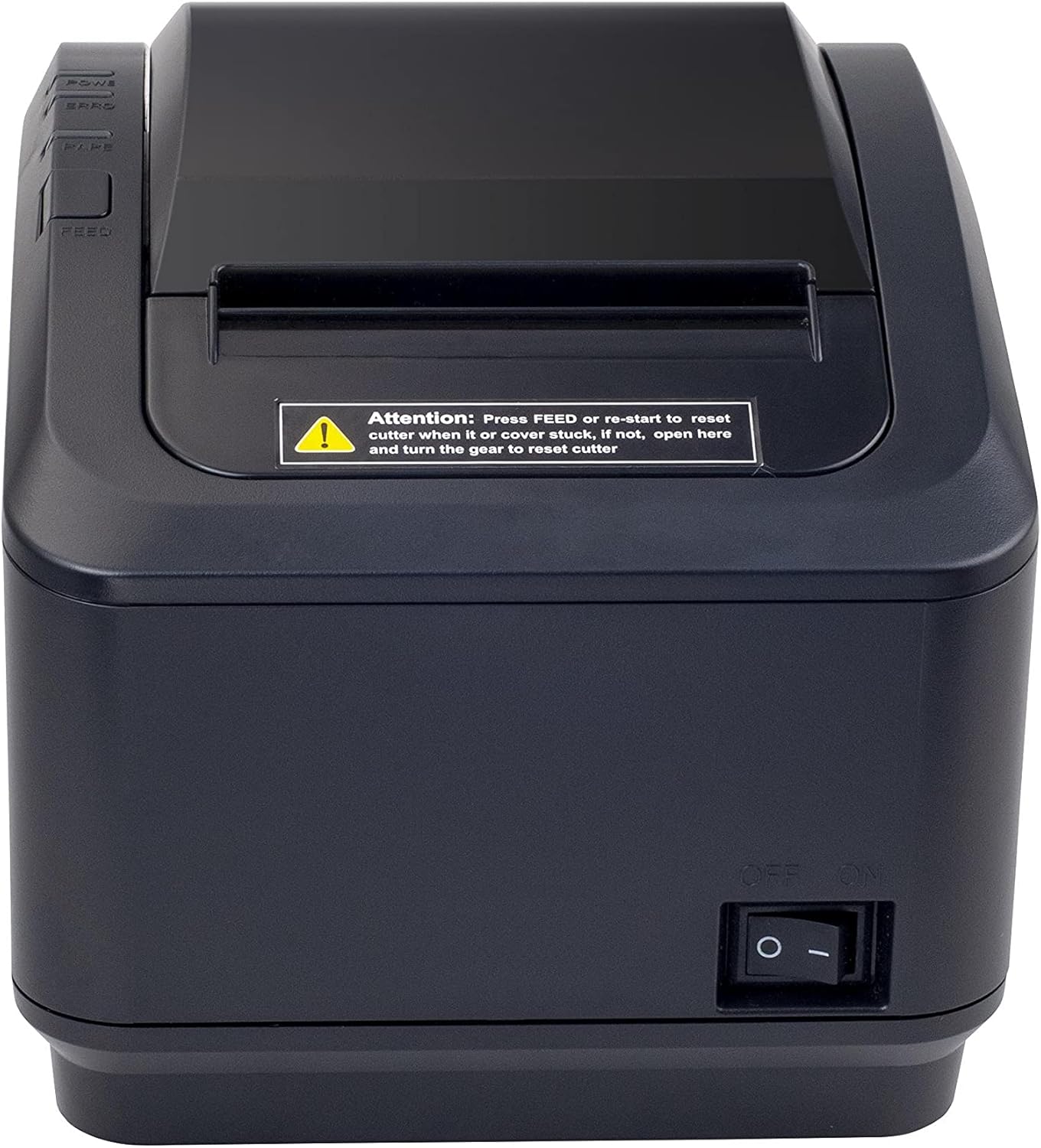
Gambar 2: Tampak depan view of the Xprinter XP-K200L thermal receipt printer. The paper output slot is at the top, and below it are control buttons for functions like feed and error reset. A warning label is also visible.

Figure 3: This image displays the Xprinter XP-K200L thermal receipt printer with its top cover open, showing the internal compartment where the thermal paper roll is loaded. The print head mechanism is also visible.
Pengaturan
1. Menghubungkan Daya
- Ensure the printer's power switch is in the MATI posisi.
- Hubungkan adaptor daya ke port daya printer.
- Sambungkan kabel daya ke stopkontak listrik yang sesuai.
2. Memuat Kertas Termal
- Press the cover open button (refer to Figure 1) to open the top cover of the printer.
- Insert a new 80mm thermal paper roll into the compartment, ensuring the paper feeds from the bottom and the leading edge extends slightly out of the printer.
- Close the top cover firmly until it clicks into place. Ensure there is no slack in the paper roll.
3. Connecting to a Computer/Network
The XP-K200L printer supports both USB and LAN (Ethernet) connectivity.
Koneksi USB:
- Hubungkan salah satu ujung kabel USB ke port USB printer.
- Hubungkan ujung lain kabel USB ke port USB yang tersedia di komputer Anda.
- Install the printer drivers. Drivers are typically provided on a CD or can be downloaded from the manufacturer's websitus. Ikuti petunjuk di layar untuk instalasi.
LAN (Ethernet) Connection:
- Connect one end of an Ethernet cable to the printer's LAN port.
- Hubungkan ujung lain kabel Ethernet ke router atau sakelar jaringan Anda.
- Configure the printer's network settings (e.g., IP address) if necessary. This usually involves printing a self-test page to get the current IP address and then accessing the printer's web interface or using a utility tool provided by the manufacturer.
- Install the printer drivers on your computer, selecting the network connection option during setup.
4. Connecting a Cash Drawer
- Connect the cash drawer cable to the dedicated cash drawer port on the printer.
- Ensure your POS software is configured to send commands to open the cash drawer via the printer.
Petunjuk Pengoperasian
Menyalakan/Mematikan
- To power on the printer, flip the power switch (refer to Figure 1) to the ON posisi.
- To power off the printer, flip the power switch to the MATI posisi.
Pencetakan Dasar
Once the printer is connected and drivers are installed, you can print receipts from your POS software or any application that supports printing.
- Ensure the printer is powered on and has paper loaded.
- From your application, select the print option.
- Choose the "Xprinter XP-K200L" from the list of available printers.
- Confirm print settings and click "Print".
Self-Test Page
To print a self-test page, which provides information about the printer's settings and status:
- Ensure the printer is powered off and the paper roll is loaded.
- Tekan dan tahan tombol MEMBERI MAKAN tombol.
- Saat memegang MEMBERI MAKAN button, turn the power switch to ON.
- Lepaskan MEMBERI MAKAN button after the printer starts printing.
Pemeliharaan
Membersihkan Printer
- Kepala Cetak: Gunakan kapas secara perlahanampened with isopropyl alcohol to gently wipe the thermal print head. Allow it to dry completely before use. Clean regularly to ensure print quality.
- Pemotong: If the cutter becomes jammed or dirty, carefully clean it with a soft brush or cloth.
- Luar: Bersihkan bagian luar printer dengan kain lembut dan kering. Jangan gunakan pembersih abrasif atau pelarut.
Replacing Thermal Paper
When the paper roll is depleted or near its end, replace it following the steps in the "Loading Thermal Paper" section under Setup.
Penyelesaian Masalah
| Masalah | Kemungkinan Penyebab | Larutan |
|---|---|---|
| Printer tidak mau menyala. | Power cord or adapter not connected properly; power outlet issue. | Periksa semua sambungan daya. Coba stopkontak yang berbeda. |
| No printing. | No paper; paper loaded incorrectly; printer offline; driver issue; incorrect connection. | Load paper correctly. Check printer status. Reinstall drivers. Verify USB/LAN connection. |
| Kualitas cetak buruk. | Dirty print head; low quality thermal paper. | Clean the print head (see Maintenance). Use recommended thermal paper. |
| Paper jam or cutter error. | Paper loaded incorrectly; debris in cutter mechanism. | As per printer label: Tekan MEMBERI MAKAN or re-start to reset cutter. If the issue persists, open the top cover and carefully turn the gear to reset the cutter mechanism. Ensure paper is loaded correctly and remove any obstructions. |
| Laci uang tidak terbuka. | Cable not connected; POS software not configured. | Check cash drawer cable connection. Verify POS software settings for cash drawer trigger. |
Spesifikasi
| Fitur | Detil |
|---|---|
| Merek | Printer X |
| Nama Model | XP-K200L |
| Teknologi Printer | Panas |
| Teknologi Konektivitas | USB, LAN (Ethernet) |
| Fitur Khusus | Jaringan Siap |
| Warna | Hitam |
| Keluaran Printer | Satu warna |
| Berat Barang | 1.5 kg |
| Dimensi Produk (PxLxT) | Ukuran 19.5x14x13.8cm |
| Compatible OS/Controller Type | Android (and typically Windows/Linux via drivers) |
| Media Cetak | Plain Thermal Paper |
| cetak Warna | Hitam |
| Resolusi | 576 x 512 dots per inch (or dots per line) |
| Max Print Resolution B/W | 576dpi |
| Fungsi Printer Tambahan | Cetak saja |
| Metode Kontrol | Terpencil |
| Ukuran Media Maksimum | 80 mm |
| Ukuran Kertas | 79.5 mm |
| Kekuatan | 60 watt |
| Komponen yang Termasuk | Power adapter, Cash drawer cable |
| Seri | XP-K |
| Penggunaan Khusus | Restaurants, bars, cinemas, garages, transportation, hospitals, clinics |
| Jumlah Port USB | 1 |
Garansi dan Dukungan
For warranty information and technical support, please refer to the documentation provided with your purchase or contact your vendor directly. Keep your proof of purchase for warranty claims.
For driver downloads and further support resources, visit the official Xprinter weblokasi.