
1. Pendahuluan
Thank you for choosing the IMICE X6 Wired USB Gaming Mouse. This manual provides essential information for setting up, operating, and maintaining your new gaming mouse. Please read it carefully to ensure optimal performance and longevity of your device.
2. Informasi Keselamatan
- Jauhkan perangkat dari cairan dan kelembapan berlebihan.
- Hindari suhu ekstrem.
- Do not attempt to disassemble or modify the mouse. This may void your warranty and cause damage.
- Gunakan kain lembut dan kering untuk membersihkan.
3. Isi Paket
Paket harus berisi item berikut:
- IMICE X6 Wired USB Gaming Mouse
- User Manual (dokumen ini)
4. Produk Lebihview
The IMICE X6 gaming mouse features an ergonomic design with multiple programmable buttons and adjustable DPI settings for a customized gaming experience.
4.1 Button Functions and Working Modes
The mouse supports two working modes: Normal mode and Multimedia mode. You can switch between these modes by long-pressing the DPI button for more than 5 seconds.
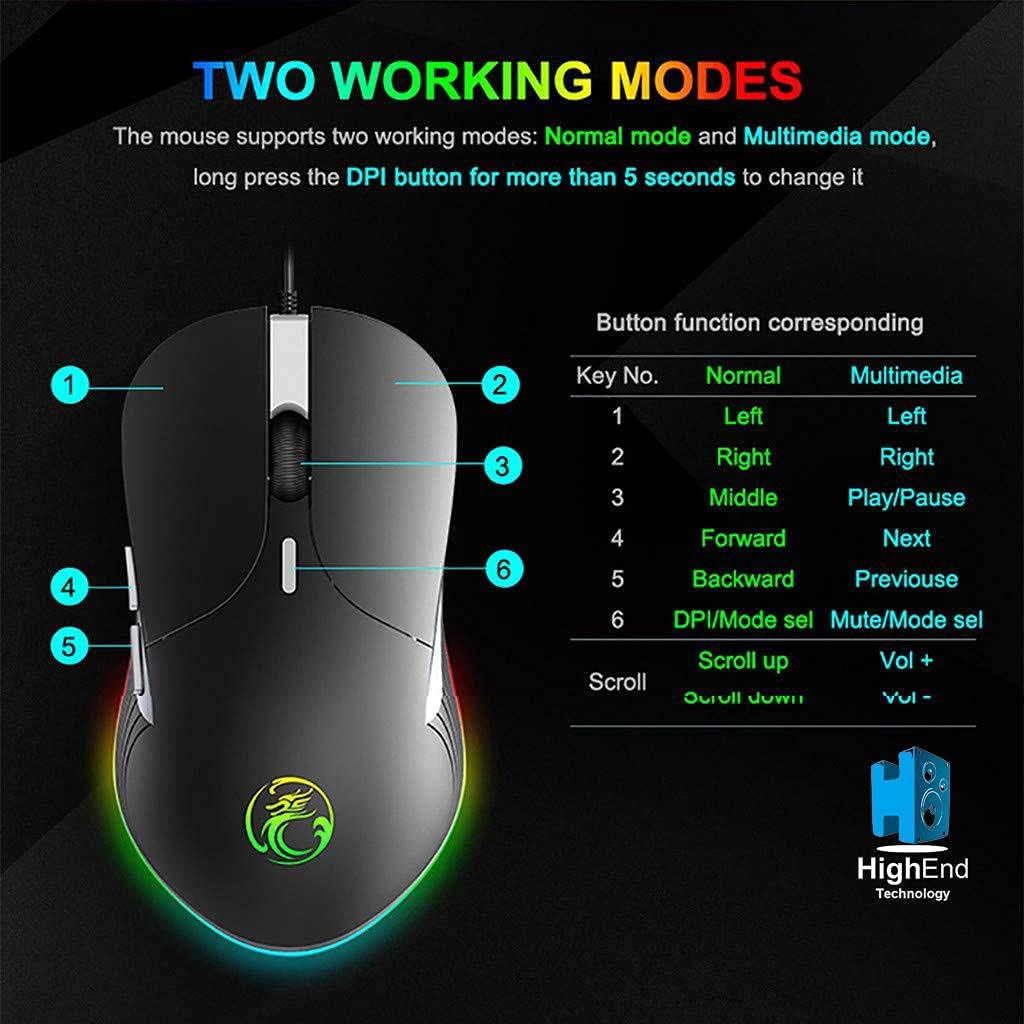
Gambar 4.1: Button layout and function table for IMICE X6 mouse. The image displays the mouse from a top-down perspective, highlighting six numbered buttons. A table next to it lists the default functions for each button in 'Normal' mode (Left, Right, Middle, Forward, Backward, DPI/Mode select) and 'Multimedia' mode (Left, Right, Play/Pause, Next, Previous, Mute/Mode select). The scroll wheel also has functions for 'Scroll up' (Vol +) and 'Scroll down' (Vol -).
4.2 Komponen Mouse
Familiarize yourself with the main components of your IMICE X6 mouse.

Gambar 4.2: Labeled components of the IMICE X6 mouse. This image shows a side-angle view of the mouse, pointing out the 'Right click' button, 'Scroll' wheel, 'DPI switch', 'Left click' button, 'Forward' button, and 'Backward' button. The text also mentions that software can be used to implement functions like lighting and button functions, utilizing a built-in memory chip.
5. Pengaturan
Setting up your IMICE X6 mouse is a simple plug-and-play process.
- Hubungkan Kabel USB: Plug the USB connector of the mouse into an available USB port on your computer or laptop.
- Instalasi Driver: Sistem operasi Anda (Windows, macOS, Linux) seharusnya secara otomatis mendeteksi dan menginstal driver yang diperlukan. Biasanya tidak diperlukan instalasi perangkat lunak tambahan untuk fungsi dasar.
- Uji Fungsionalitas: Once connected, move the mouse and click the buttons to ensure it is working correctly.
6. Petunjuk Pengoperasian
6.1 Operasi Dasar
- Klik kiri: Primary button for selecting items, activating functions.
- Klik kanan: Secondary button for context menus and special functions.
- Roda Gulir: Gulir ke atas atau ke bawah melalui dokumen dan web halaman. Dapat juga ditekan untuk fungsi klik tengah.
- Tombol Maju/Mundur: Navigasi web pages or folders (default function).
6.2 Menyesuaikan Sensitivitas DPI
The IMICE X6 mouse features 6 adjustable DPI levels, allowing you to change cursor speed and precision on the fly. The DPI button is typically located behind the scroll wheel.
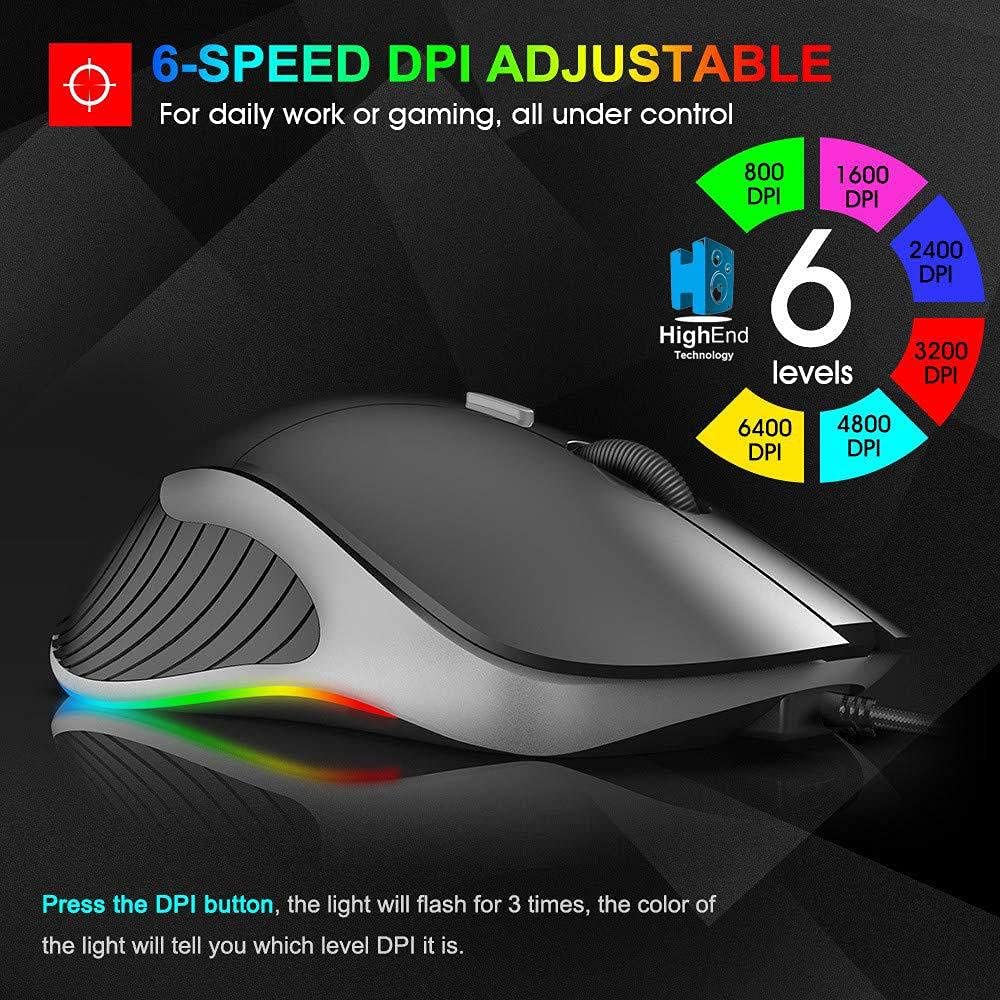
Gambar 6.1: 6-Speed DPI Adjustment. This image shows the mouse from a side-top view, with six colored circles indicating DPI levels: 800, 1600, 2400, 3200, 4800, and 6400 DPI. The text explains that pressing the DPI button will make the light flash 3 times, and the color of the light indicates the current DPI level.
To change DPI:
- Tekan tombol tombol DPI (Button 6 in Image 4.1).
- The mouse's LED lighting will flash 3 times, and the color will indicate the current DPI level.
- Continue pressing the DPI button to cycle through the available DPI settings: 800, 1600, 2400, 3200, 4800, and 6400 DPI.
6.3 Mengganti Mode Kerja
As mentioned in Section 4.1, the mouse has two working modes:
- Modus Normal: Standard mouse functions for general use and gaming.
- Modus Multimedia: Buttons are remapped for media control (e.g., Play/Pause, Next, Previous, Volume).
To switch modes, long-press the DPI button for more than 5 seconds. The mouse will indicate the mode change, typically through a change in LED behavior.
7. Pemeliharaan
Proper maintenance ensures the longevity and performance of your mouse.
- Pembersihan: Gunakan kain lembut dan bebas serat untuk menyeka permukaan mouse. Untuk kotoran yang membandel, sedikit gosok.ampBilas kain dengan air. Hindari bahan kimia keras atau bahan abrasif.
- Perawatan Sensor: Jaga agar sensor optik di bagian bawah mouse tetap bersih dan bebas dari debu atau kotoran untuk memastikan pelacakan yang akurat.
- Perawatan Kabel: Hindari tikungan tajam atau tarikan berlebihan pada kabel USB untuk mencegah kerusakan.
8. Penyelesaian masalah
If you encounter issues with your IMICE X6 mouse, try the following solutions:
| Masalah | Larutan |
|---|---|
| Tikus tidak merespons |
|
| Pergerakan kursor tidak menentu atau tersentak-sentak |
|
| Pengaturan DPI tidak berubah |
|
9. Spesifikasi
Key technical specifications for the IMICE X6 Gaming Mouse:
- Merek: IMICE
- Model: X6
- Warna: Hitam
- Teknologi Konektivitas: USB (Kabel)
- Deteksi Gerakan: Optik
- Maximum Mouse Sensitivity (DPI): 6400DPI
- Tingkat DPI yang Dapat Disesuaikan: 800, 1600, 2400, 3200, 4800, 6400 DPI
- Jumlah Tombol: 5
- Orientasi Tangan: Sangat pandai
- Penggunaan yang Direkomendasikan: Permainan
- Perangkat yang Kompatibel: Komputer, Laptop
- Sumber Daya: Plug-in Electric (USB powered)
- Baterai yang Diperlukan: TIDAK
10. Garansi dan Dukungan
Your IMICE X6 Gaming Mouse comes with a standard manufacturer's warranty. Please refer to the warranty card included with your purchase or contact your retailer for specific warranty terms and conditions.
For technical support or further assistance, please contact the vendor or visit the official IMICE support websitus (jika tersedia).