
1. Pendahuluan
This manual provides instructions for the installation, operation, and maintenance of your PUSOKEI USB Bluetooth 5.0 Adapter. This device enables Bluetooth connectivity for your computer, allowing wireless communication with various Bluetooth-enabled peripherals such as headphones, speakers, keyboards, mice, and more.

Figure 1: PUSOKEI USB Bluetooth 5.0 Adapter. This image highlights the adapter's compatibility with 32/64-bit Windows 10/8/7 and its compact design that does not obstruct adjacent USB ports.
2. Isi Paket
Harap periksa isi kemasan setelah dibuka. Jika ada barang yang hilang atau rusak, hubungi layanan pelanggan.
- 1 x PUSOKEI USB Bluetooth Adapter
- 1 x CD Disc (for driver installation)
- 1 x Panduan Pengguna (dokumen ini)
3. Petunjuk Penyiapan
3.1 Instalasi Driver
- Insert the CD Disc: Place the included CD disc into your computer's CD/DVD drive.
- Jalankan Penginstal: Navigate to the CD drive in "My Computer" or "This PC" and run the setup file (e.g., "setup.exe" or "install.exe").
- Ikuti Petunjuk di Layar: Follow the instructions provided by the installer to complete the driver installation. This may require administrator privileges.
- Restart Computer (if prompted): If prompted, restart your computer to ensure the drivers are correctly loaded.
- Alternative Driver Download: If your computer lacks a CD/DVD drive, drivers may be available for download from the official PUSOKEI support weblokasi.
3.2 Menghubungkan Adaptor
- Locate an Available USB Port: Identify an open USB 2.0 or 3.0 port on your computer.
- Masukkan Adaptor: Gently insert the PUSOKEI USB Bluetooth Adapter into the USB port. Ensure it is fully seated.

Figure 2: The USB Bluetooth adapter connected to a laptop. The adapter's compact size ensures it does not interfere with other ports.
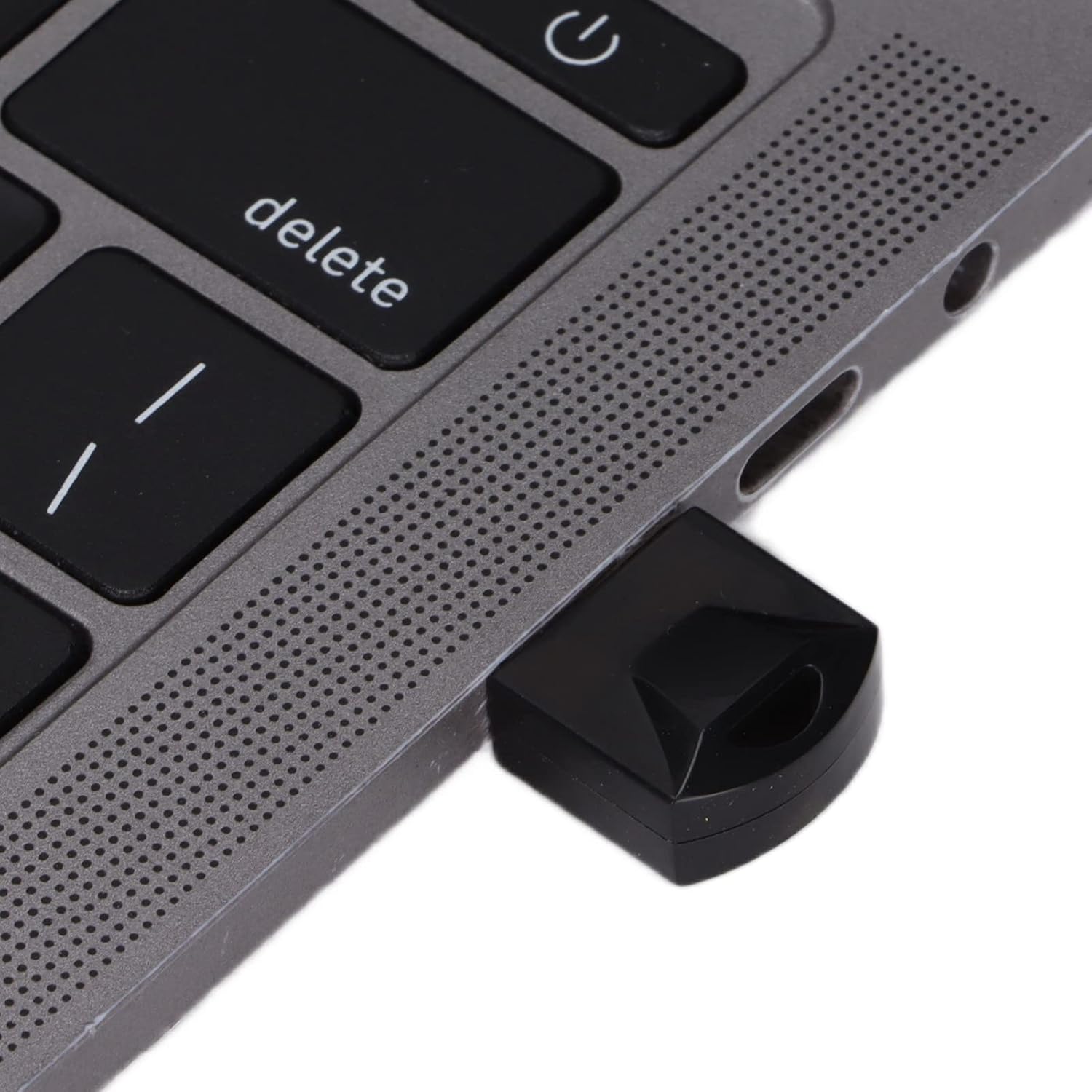
Gambar 3: Tampilan dekat view of the PUSOKEI USB Bluetooth adapter securely inserted into a laptop's USB port.
Once connected, your operating system should recognize the adapter. You may see a Bluetooth icon appear in your system tray.
4. Petunjuk Pengoperasian
4.1 Memasangkan dengan Perangkat Bluetooth
- Enable Bluetooth on Your Computer: Ensure Bluetooth is turned on in your computer's settings. This is usually found in "Settings" > "Devices" > "Bluetooth & other devices" on Windows.
- Put Your Device in Pairing Mode: Refer to your Bluetooth device's manual to put it into pairing mode. This often involves holding a button until an indicator light flashes.
- Tambahkan Perangkat: Di komputer Anda, klik "Tambahkan Bluetooth atau perangkat lain" dan pilih "Bluetooth".
- Pilih Perangkat Anda: Komputer Anda akan memindai perangkat Bluetooth di sekitar. Pilih perangkat Anda dari daftar yang muncul.
- Konfirmasi Pemasangan: Follow any on-screen prompts to confirm pairing. This might involve entering a PIN (e.g., "0000" or "1234") if required by the device.

Figure 4: A user operating a laptop with the Bluetooth adapter, demonstrating active use for wireless connectivity.
4.2 Data Transfer and Audio Transmission
Once paired, you can use your Bluetooth devices as intended:
- Perangkat Audio: Select your paired Bluetooth headphones or speakers as the audio output device in your sound settings.
- Perangkat masukan: Paired Bluetooth keyboards and mice should function automatically.
- File Transfer: Untuk file transfer between your computer and a Bluetooth-enabled phone or tablet, use the "Send or receive files via Bluetooth" option in your computer's Bluetooth settings.
5. Spesifikasi
The PUSOKEI USB Bluetooth 5.0 Adapter features advanced technology for reliable wireless connectivity.
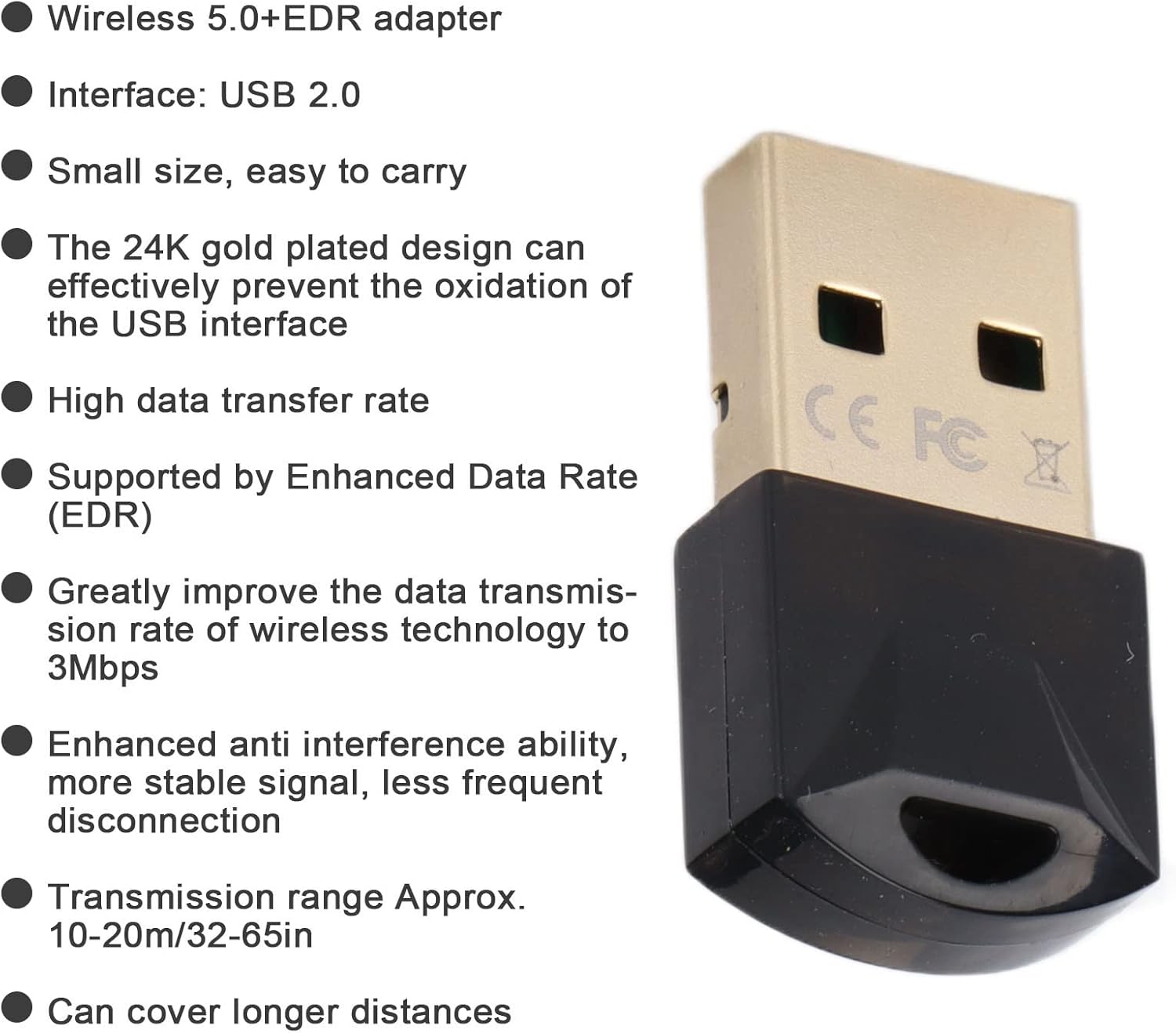
Figure 5: Key features and specifications of the PUSOKEI USB Bluetooth 5.0 adapter, including its gold-plated USB interface and EDR support.
| Fitur | Keterangan |
|---|---|
| Model | Adaptor Bluetooth USB |
| Bahan | ABS |
| Warna | Hitam |
| Keripik | For Realtek 8761 |
| Antarmuka | Kabel USB 2.0 |
| Versi Bluetooth | Bluetooth V5.0 + EDR |
| Kecepatan Transfer Data | Up to 3Mbps (with EDR) |
| Pita Frekuensi | 2.400-2.480 GHz |
| Menerima Range | Approx. 10-20m (32-65ft) in open environments |
| Dukungan Sistem Operasi | Windows 7 / 8 / 10 / 2000 / 98 / Me / XP |
| Tidak mendukung | Windows Vista, Linux, OS X |
6. Penyelesaian masalah
| Masalah | Solusi yang mungkin |
|---|---|
| Adapter not recognized |
|
| Tidak dapat dipasangkan dengan perangkat |
|
| Poor connection or frequent disconnections |
|
7. Pemeliharaan
The PUSOKEI USB Bluetooth Adapter requires minimal maintenance to ensure optimal performance and longevity.
- Pembersihan: Use a soft, dry cloth to wipe the adapter. Do not use liquid cleaners or solvents.
- Penyimpanan: Saat tidak digunakan, simpan adaptor di tempat sejuk dan kering, jauh dari sinar matahari langsung dan suhu ekstrem.
- Penanganan: Hindari menjatuhkan adaptor atau terkena benturan keras.
- Port USB: The 24K gold-plated USB interface is designed to resist oxidation. Avoid touching the gold contacts directly to prevent contamination.
8. Garansi dan Dukungan
For warranty information and technical support, please refer to the documentation included with your purchase or visit the official PUSOKEI websitus. Simpan struk pembelian Anda sebagai bukti pembelian untuk klaim garansi.
For further assistance, please contact PUSOKEI customer service through their official channels.