
Fnatic BOLT
Fnatic BOLT Wireless Gaming Mouse User Manual
Perkenalan
This manual provides detailed instructions for the setup, operation, maintenance, and troubleshooting of your Fnatic BOLT Wireless Gaming Mouse. Please read this manual thoroughly before using the product to ensure optimal performance and longevity.
Produk Selesaiview
The Fnatic BOLT is a lightweight wireless gaming mouse designed for high performance. It features a durable construction and versatile connectivity options.
Komponen
- Left and Right Click Buttons
- Roda Gulir
- DPI Cycle Button (typically located on the bottom or top)
- Tombol Samping (maju/mundur)
- Port Pengisian Daya USB-C
- Wireless Receiver (dongle)

Gambar 1: Atas view of the Fnatic BOLT Wireless Gaming Mouse, showing the main click buttons and scroll wheel.

Gambar 2: Sudut view of the Fnatic BOLT Wireless Gaming Mouse, highlighting the two programmable side buttons.

Gambar 3: Depan view of the Fnatic BOLT Wireless Gaming Mouse, displaying the USB-C charging port.
Pengaturan
1. Pengisian Awal
Before first use, it is recommended to fully charge the Fnatic BOLT mouse.
- Connect the provided USB-C cable to the charging port on the front of the mouse.
- Hubungkan ujung kabel USB-C lainnya ke port USB yang memiliki daya pada komputer Anda atau adaptor dinding USB.
- The mouse's indicator light will show charging status (refer to product documentation for specific light patterns). A full charge typically takes a few hours.
2. Menghubungkan ke Komputer Anda
The Fnatic BOLT supports two wireless connection modes: 2.4 GHz wireless (via USB dongle) and Bluetooth.
2.1. Koneksi Nirkabel 2.4 GHz
- Locate the USB wireless receiver (dongle) that came with your mouse.
- Colokkan penerima USB ke port USB yang tersedia di komputer Anda.
- Nyalakan mouse menggunakan sakelar daya yang terletak di bagian bawah mouse.
- The mouse should automatically connect to the receiver. The indicator light will confirm a successful connection.
2.2. Koneksi Bluetooth
- Pastikan Bluetooth di komputer Anda diaktifkan.
- Turn on the mouse and switch it to Bluetooth mode (refer to the mouse's bottom switch or button for mode selection).
- Di komputer Anda, buka pengaturan Bluetooth dan cari perangkat baru.
- Select "Fnatic BOLT" from the list of available devices to pair.
- Lampu indikator pada mouse akan mengkonfirmasi keberhasilan pemasangan.
Petunjuk Pengoperasian
Penyesuaian DPI
The Fnatic BOLT mouse allows you to adjust its Dots Per Inch (DPI) sensitivity. This mouse features 4 preset DPI levels.
- Locate the DPI cycle button, typically on the bottom of the mouse.
- Press the DPI button to cycle through the available sensitivity settings.
- An indicator light (often on the scroll wheel or top of the mouse) may change color or flash to indicate the current DPI level.
Fungsi Tombol
- Klik kiri: Tindakan utama, seleksi.
- Klik kanan: Menu konteks, tindakan sekunder.
- Klik Roda Gulir: Middle click, often used for opening links in new tabs or specific in-game functions.
- Gulir ke Atas/Bawah: Navigating documents or web halaman.
- Tombol Samping: Default to Forward/Back in web browsers. These can often be customized via software (if available).
Manajemen Daya
- To conserve battery life, turn off the mouse using the power switch when not in use for extended periods.
- The mouse may enter a sleep mode after a period of inactivity. Move the mouse or click a button to wake it up.
- Monitor the battery indicator (if available) to know when to recharge.
Pemeliharaan
Pembersihan
- Regularly clean the mouse surface with a soft, dry, lint-free cloth.
- Untuk kotoran membandel, sedikit dampBilas kain dengan air atau larutan pembersih ringan. Hindari bahan kimia keras.
- Clean the optical sensor on the bottom of the mouse with a cotton swab to ensure accurate tracking.
- Jangan biarkan cairan masuk ke dalam komponen internal mouse.
Perawatan Baterai
- Hindari mengosongkan baterai sepenuhnya secara sering.
- Simpan mouse di tempat yang sejuk dan kering saat tidak digunakan dalam jangka waktu lama.
- Jangan biarkan tikus terpapar suhu ekstrem.
Penyelesaian Masalah
Mouse Tidak Merespons
- Periksa Baterai: Ensure the mouse is charged. Connect it to the USB-C cable and allow it to charge for a period.
- Saklar daya: Verify the mouse's power switch is in the "ON" position.
- Wireless Connection (2.4 GHz):
- Pastikan penerima USB terpasang dengan benar ke port USB yang berfungsi. Coba port USB lain.
- Ensure the mouse is within range of the receiver.
- Hindari sumber interferensi (misalnya, perangkat nirkabel lain, benda logam besar).
- Koneksi Bluetooth:
- Pastikan Bluetooth di komputer Anda diaktifkan.
- Check if the mouse is in Bluetooth pairing mode or already paired. Re-pair if necessary.
- Remove and re-add the device in your computer's Bluetooth settings.
- Mulai ulang: Hidupkan ulang komputer Anda.
Pelacakan Tidak Akurat
- Sensor Bersih: Bersihkan sensor optik pada bagian bawah mouse.
- Permukaan: Pastikan Anda menggunakan mouse di permukaan yang sesuai. Permukaan yang sangat reflektif atau tidak rata dapat memengaruhi pelacakan. Alas mouse sangat disarankan.
- Pengaturan DPI: Adjust the DPI setting to a level that suits your preference and task.
Daya Tahan Baterai Pendek
- Pengisian daya: Pastikan mouse terisi daya penuh.
- Matikan: Remember to turn off the mouse when not in use.
- Penggunaan: High-intensity usage or certain settings might consume more power.
Spesifikasi
| Fitur | Detil |
|---|---|
| Merek | Bahasa Indonesia: Fnatic |
| Nama Model | FnaticGear BOLT |
| Nomor Model Barang | BAUT |
| Warna | putih |
| Teknologi Konektivitas | Bluetooth, Wi-Fi (2.4 GHz Wireless) |
| Teknologi Deteksi Gerakan | Optik |
| Jumlah Tombol | 6 |
| Orientasi Tangan | Benar |
| Fitur Khusus | Ringan |
| Jenis Sumber Daya | Wireless (Rechargeable Battery) |
| Baterai Termasuk | Ya (1 baterai Lithium Metal) |
| Kandungan Energi Baterai Lithium | 470 Miliamp Jam (mAh) |
| Dimensi Produk | 12.5 x 6.5 x 0.1 cm; 69 g |
| Perangkat yang Kompatibel | Laptop, Komputer Pribadi |
| Sistem Operasi | Linux, Windows 7, Windows XP (and newer) |
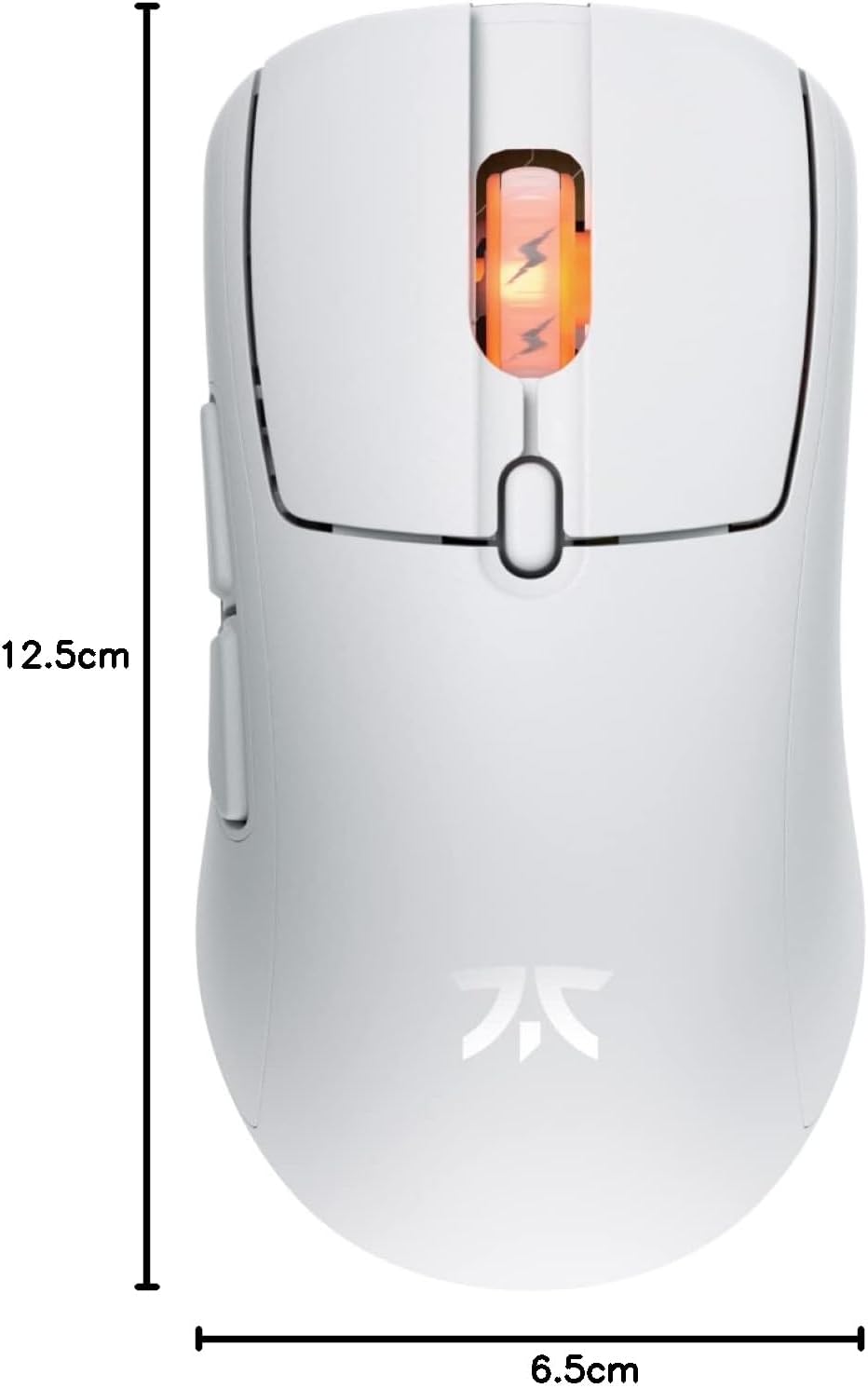
Figure 4: Diagram showing the dimensions of the Fnatic BOLT Wireless Gaming Mouse.
Garansi dan Dukungan
For information regarding warranty coverage and technical support, please refer to the official Fnatic websitus atau kartu garansi yang disertakan dengan produk Anda.
You can typically find support resources, FAQs, and contact information on the manufacturer's official support pages.