
havit PJ205-PRO
Havit PJ205 Pro Portable Android Projector User Manual
Model: PJ205-PRO | Brand: Havit
1. Produk Lebihview
The Havit PJ205 Pro is a portable Android projector designed for versatile entertainment and presentation needs. It features native 1080p Full HD resolution, 220 ANSI lumens brightness, and a customized Android 9.0 operating system with access to the Google Play Store. Its compact design includes a hand rope for easy portability, and it offers multiple connectivity options including Wi-Fi, HDMI, USB, VGA, and AV ports.

Gambar 1.1: Sudut view of the Havit PJ205 Pro projector, showcasing its compact design, front lens, and textured grey casing with a black carrying strap.
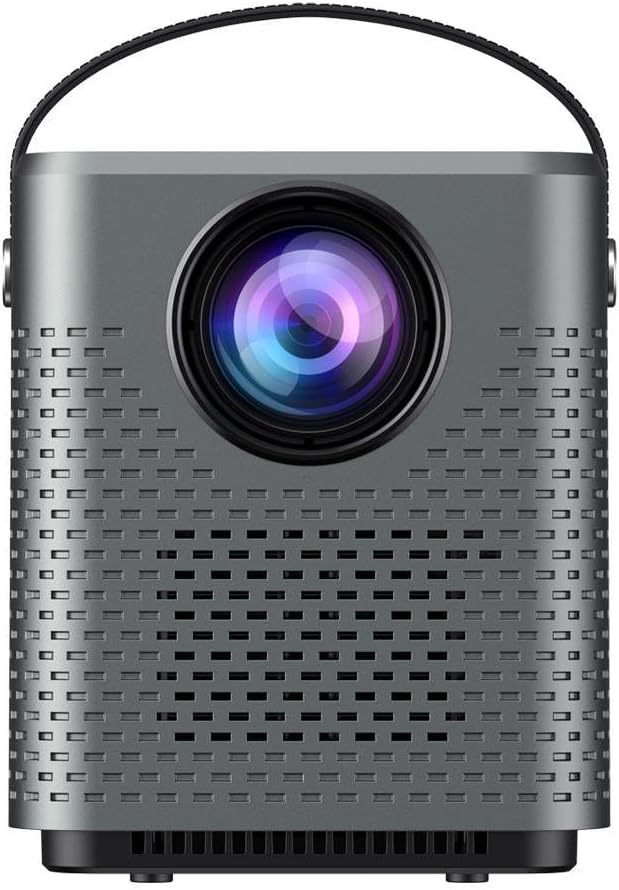
Gambar 1.2: Depan view of the projector, highlighting the large projection lens and the perforated speaker grilles on the front panel.
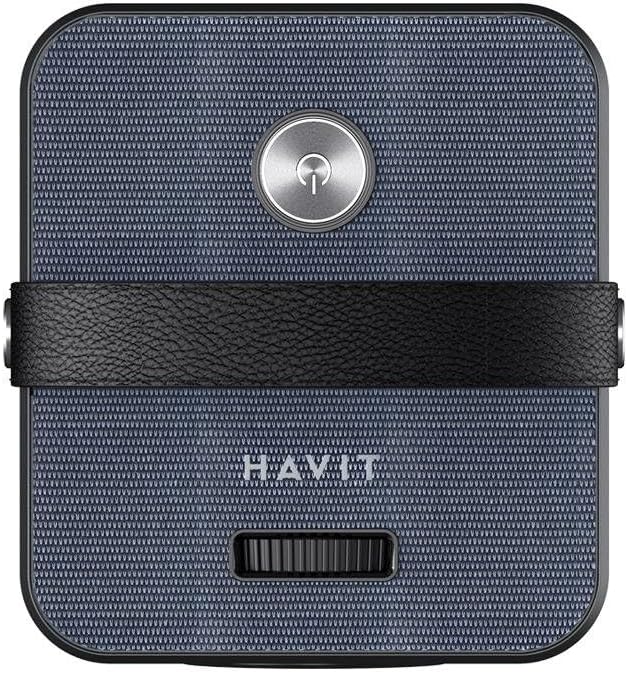
Gambar 1.3: Atas view of the projector, showing the power button, the "HAVIT" branding, and the focus adjustment wheel.

Gambar 1.4: Belakang view of the projector, displaying the various input ports including AV, HDMI, USB, and the power input.
2. Informasi Keselamatan
Harap baca semua petunjuk keselamatan dengan saksama sebelum menggunakan produk ini. Kegagalan mengikuti petunjuk ini dapat mengakibatkan sengatan listrik, kebakaran, atau bahaya lainnya.
- Sumber Daya: Gunakan hanya adaptor daya yang ditentukan. Pastikan volumetage kompatibel dengan wilayah Anda.
- Ventilasi: Jangan menghalangi lubang ventilasi apa pun. Pastikan ada ruang yang cukup di sekitar proyektor agar aliran udara lancar.
- Panas: The projector may become warm during operation. Avoid touching the lens or hot surfaces.
- Air dan Kelembaban: Jangan biarkan proyektor terkena hujan, kelembapan, atau cairan apa pun.
- Pembersihan: Unplug the projector before cleaning. Use a soft, dry cloth. Do not use liquid cleaners or aerosols.
- Perawatan Lensa: Avoid touching the projector lens directly. Use a lens cleaning cloth if necessary.
- Anak-anak: Keep the projector out of reach of children.
- Membongkar: Jangan mencoba membongkar atau memperbaiki proyektor sendiri. Serahkan semua perbaikan kepada teknisi servis yang berkualifikasi.
3. Isi Paket
Pastikan semua barang yang tercantum di bawah ini ada dalam paket Anda. Jika ada barang yang hilang atau rusak, silakan hubungi penjual Anda.
- Havit PJ205 Pro Portable Android Projector
- Adaptor Daya
- Kendali Jarak Jauh (baterai tidak termasuk)
- Kabel HDMI
- Panduan Pengguna
4. Pengaturan
4.1 Penempatan Awal
Place the projector on a stable, flat surface. Ensure there are no obstructions in front of the lens or around the ventilation openings. For optimal viewing, posisikan proyektor tegak lurus terhadap permukaan proyeksi.
4.2 Sambungan Daya
- Hubungkan adaptor daya ke port DC IN pada proyektor.
- Hubungkan adaptor daya ke stopkontak di dinding.
- Press the power button on the projector or remote control to turn it on. The indicator light will illuminate.
4.3 Penyesuaian Fokus
Rotate the focus adjustment wheel located on the top of the projector until the projected image appears clear and sharp.
4.4 Koreksi Keystone
If the projected image appears trapezoidal, use the digital keystone correction feature in the projector's settings menu to adjust the image shape until it is rectangular. This projector supports automatic and manual keystone correction.
5. Petunjuk Pengoperasian
5.1 Menavigasi Sistem Android
The Havit PJ205 Pro runs on a customized Android 9.0 system. Use the remote control to navigate the interface. The main screen provides access to pre-installed apps, settings, and input sources.
- Layar Beranda: Displays frequently used applications and system shortcuts.
- Toko Google Play: Log in with your Google account to download additional applications like Netflix, Prime Video, and YouTube.
- Pengaturan: Access network settings, display options, sound settings, and system information.
Koneksi Wi-Fi 5.2
- Pergi ke Pengaturan di layar beranda.
- Memilih Jaringan & Internet.
- Menyalakan Wifi gratis and select your desired network from the list.
- Masukkan kata sandi Wi-Fi jika diminta, lalu sambungkan.
5.3 Screen Mirroring (Wireless Display)
Proyektor ini mendukung pencermian layar nirkabel untuk perangkat iOS dan Android.
- Pastikan perangkat seluler Anda dan proyektor terhubung ke jaringan Wi-Fi yang sama.
- On the projector, select the "Screen Mirroring" or "Wireless Display" application.
- Di perangkat iOS Anda, buka Pusat Kontrol dan ketuk "Pencermian Layar" atau "Pencermian AirPlay", lalu pilih proyektor dari daftar.
- On your Android device, go to "Cast", "Smart View", "Wireless Display", or similar settings, then select the projector from the list.
5.4 Menghubungkan Perangkat Eksternal
Proyektor ini menawarkan berbagai port untuk menghubungkan perangkat eksternal:
- HDMI: Connect Blu-ray players, game consoles, laptops, or other HDMI-enabled devices. Select the corresponding HDMI input from the projector's input source menu.
- Kabel USB: Masukkan flash drive USB untuk memutar media. files (videos, photos, music, documents). Select the USB input source.
- VGA: Connect older computers or laptops using a VGA cable. Select the VGA input source.
- DARI: Connect devices with AV output (e.g., DVD players) using the provided AV cable. Select the AV input source.
- Keluaran Audio (3.5mm): Hubungkan speaker eksternal atau headphone untuk audio yang lebih baik.
6. Pemeliharaan
6.1 Membersihkan Proyektor
- Luar: Use a soft, lint-free cloth to wipe the projector's surface. For stubborn marks, slightly dampen kain dengan air. Jangan gunakan pembersih atau pelarut yang bersifat abrasif.
- Lensa: Gently wipe the lens with a professional lens cleaning cloth or lens paper. Avoid touching the lens with your fingers.
- Bukaan Ventilasi: Use a soft brush or compressed air to remove dust from the ventilation openings. Ensure the projector is unplugged before cleaning.
6.2 Penyimpanan
Saat tidak digunakan dalam jangka waktu lama, simpan proyektor di tempat yang sejuk dan kering, jauh dari sinar matahari langsung dan suhu ekstrem. Gunakan kemasan asli atau wadah pelindung untuk mencegah penumpukan debu dan kerusakan.
7. Penyelesaian masalah
| Masalah | Kemungkinan Penyebab | Larutan |
|---|---|---|
| Tidak ada gambar yang diproyeksikan | Power cable loose; Projector off; Incorrect input source selected. | Check power connection; Press power button; Select correct input source (HDMI, USB, AV, VGA). |
| Gambar buram | Gambar buram; Jarak proyeksi tidak tepat. | Adjust the focus wheel; Adjust the distance between the projector and the screen. |
| Tidak ada suara | Volume too low; Muted; External device audio settings. | Increase projector volume; Unmute; Check audio output settings on connected device. |
| Masalah koneksi Wi-Fi | Kata sandi salah; Router terlalu jauh; Gangguan jaringan. | Masukkan kembali kata sandi; Dekatkan proyektor ke router; Mulai ulang router dan proyektor. |
| Kontrol jarak jauh tidak berfungsi | Batteries dead; Obstruction; Remote not paired. | Replace batteries; Remove obstructions; Re-pair remote if necessary (refer to specific pairing instructions if applicable). |
8. Spesifikasi
| Fitur | Detil |
|---|---|
| Model | PJ205-PRO |
| Resolusi Asli | 1920 x 1080 Pixels (1080p Full HD) |
| Kecerahan | 200 ANSI lumens |
| Sistem Operasi | Android 9.0 yang telah dimodifikasi |
| Konektivitas | Wi-Fi, HDMI, USB, VGA, AV |
| Rasio Aspek | 16:9 |
| Jenis Tampilan | LCD LED |
| Tingkat Kebisingan | 35dB |
| Apatage | 40 watt |
| Dimensi (P x L x T) | Ukuran 5x2x2 cm |
| Berat Barang | 100 gram |
| Fitur Khusus | Portable, Hand rope, Hifi stereo sound, Screen Mirroring |
9. Garansi dan Dukungan
For warranty information and technical support, please refer to the warranty card included in your product packaging or visit the official Havit websitus. Simpan bukti pembelian Anda untuk klaim garansi.
If you encounter any issues not covered in this manual, please contact Havit customer support for assistance.
Informasi Kontak: Please refer to the contact details provided on the Havit official websitus atau dokumentasi pembelian Anda.
Ask a question about this manual
Ask about setup, troubleshooting, compatibility, parts, safety, or missing instructions. Manuals+ will review the question and use this page’s manual context to help answer it.