
1. Pendahuluan
Welcome to the BOSGAME H77 Mini PC user manual. This guide provides essential information for setting up, operating, maintaining, and troubleshooting your new mini PC. Please read this manual thoroughly to ensure proper usage and to maximize the performance and longevity of your device.
2. Produk Lebihview
The BOSGAME H77 is a compact yet powerful mini PC designed for a wide range of applications, from daily productivity to light gaming. It features an AMD Ryzen 7 7735HS processor, 32GB DDR5 RAM, and a 512GB NVMe M.2 SSD, offering high performance in a small form factor.

Figure 2.1: Powerful Performance. This image illustrates the core specifications of the BOSGAME H77 Mini PC, emphasizing its AMD Ryzen 7 7735HS processor with 8 cores, 16 threads, a clock speed range of 3.2 to 4.75GHz, and a Thermal Design Power (TDP) of 35W. A benchmark comparison for Cinebench R23 (Multi-Core) is also shown, positioning the 7735HS favorably against other Ryzen models.

Figure 2.2: Speedy Response. This image highlights the gaming capabilities of the BOSGAME H77 Mini PC, powered by AMD Radeon 680M integrated graphics. It displays estimated frames per second (FPS) for popular games such as League of Legends (148.0 FPS), Fortnite (132.0 FPS), CS:GO (135.0 FPS), Grand Theft Auto (98.0 FPS), and DOTA 2 (178.0 FPS), indicating smooth performance. The image also notes the system's 32GB DDR5 RAM, 512GB SSD, and support for up to 2TB HDD.

Figure 2.3: Triple Screen Display Support. This image demonstrates the BOSGAME H77 Mini PC's ability to support up to three displays simultaneously. It features two HDMI 2.0 ports and one Type-C (USB4.0) port, allowing for a versatile multi-monitor setup suitable for daily tasks, work, and entertainment. Key features like Wi-Fi 6, Bluetooth 5.2, cooling fan with heat sink, and 4K 60Hz support are also highlighted.
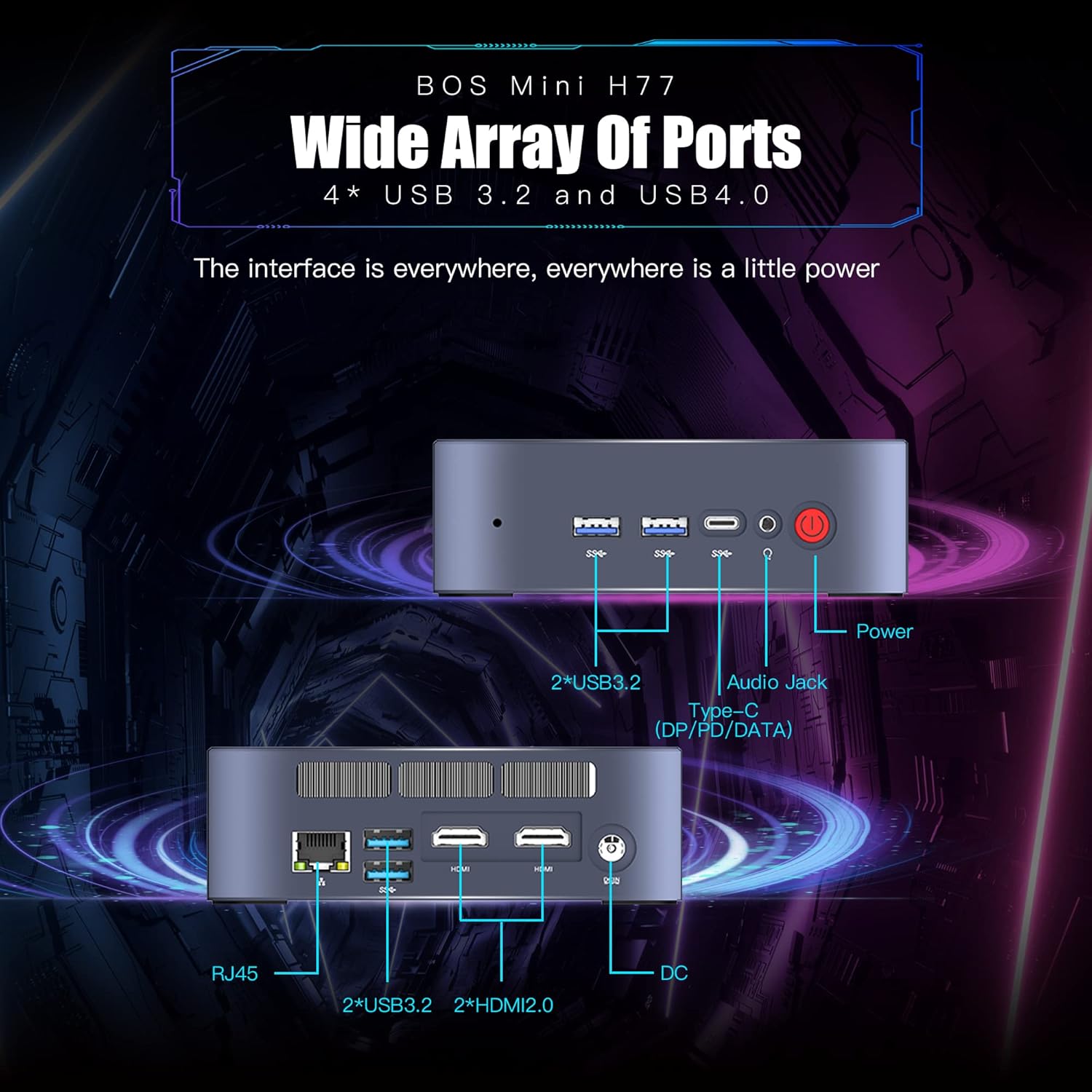
Figure 2.4: Wide Array of Ports. Gambar ini memberikan gambaran detail view of the BOSGAME H77 Mini PC's connectivity options. The front panel includes two USB 3.2 ports, one USB4.0 Type-C port (supporting DP/PD/DATA), an audio jack, and the power button. The rear panel features an RJ45 Ethernet port, two additional USB 3.2 ports, two HDMI 2.0 ports, and the DC power input. This comprehensive selection of ports ensures broad compatibility with various peripherals and displays.

Gambar 2.5: Desain Kompak. This image emphasizes the compact and space-saving design of the BOSGAME H77 Mini PC. With a 0.6L body and dimensions of 126mm (length), 112mm (width), and 40.8mm (height), its honeycomb design is both aesthetically pleasing and functional, allowing it to fit into various environments without occupying much space.
3. Panduan Pengaturan
3.1 Isi Paket
Sebelum melanjutkan, pastikan semua item ada dalam paket:
- BOSGAME H77 Mini PC
- Adaptor Daya
- Kabel HDMI
- User Manual (dokumen ini)
3.2 Menghubungkan Periferal
- Hubungkan Layar: Use the provided HDMI cable to connect your monitor to one of the HDMI ports on the rear of the Mini PC. For triple display, connect additional monitors using the second HDMI port and the USB4.0 Type-C port (requires a compatible adapter, not included).
- Hubungkan Keyboard dan Mouse: Plug your USB keyboard and mouse into any available USB 3.2 ports on the front or rear of the Mini PC.
- Hubungkan Daya: Connect the power adapter to the DC input port on the rear of the Mini PC, then plug the adapter into a power outlet.
- Koneksi Jaringan (Opsional): For a wired connection, plug an Ethernet cable into the RJ45 port on the rear. For wireless, ensure Wi-Fi is enabled during initial setup or via Windows settings.
3.3 Proses Booting Awal
- Tekan tombol daya di bagian depan Mini PC. Lampu indikator daya akan menyala.
- Follow the on-screen instructions to complete the Windows 11 Pro setup. This typically involves selecting your region, language, creating a user account, and connecting to a network.
4. Petunjuk Pengoperasian
4.1 Daya Hidup/Mati
- Nyalakan: Tekan tombol daya sekali.
- Menutup: Click the Windows Start button, then select Power > Shut down. Do not unplug the power adapter directly without proper shutdown to prevent data loss.
- Mulai ulang: Klik tombol Mulai Windows, lalu pilih Daya > Mulai Ulang.
4.2 Konektivitas Jaringan
- Wifinya: To connect to a wireless network, click the Wi-Fi icon in the taskbar, select your desired network, and enter the password. The device supports Wi-Fi 6 for fast wireless speeds.
- Eternet: If an Ethernet cable is connected, the system will automatically detect and connect to the wired network.
- Bluetooth dapat digunakan untuk berbagai keperluan, seperti: To connect Bluetooth devices (e.g., headphones, speakers), go to Windows Settings > Bluetooth & devices, and pair your device. The Mini PC supports Bluetooth 5.2.
4.3 Menggunakan Port USB
The BOSGAME H77 features multiple USB 3.2 ports and a versatile USB4.0 Type-C port. These ports can be used for connecting external storage, peripherals, or for data transfer.
- USB 3.2: Provides high-speed data transfer for compatible devices.
- USB4.0 Type-C: This port supports DisplayPort (DP) for video output, Power Delivery (PD) for charging compatible devices, and high-speed data transfer.
4.4 Triple Display Setup
To utilize the triple display feature:
- Connect your primary monitor to one HDMI port.
- Connect your second monitor to the other HDMI port.
- Connect your third monitor to the USB4.0 Type-C port using a compatible USB-C to DisplayPort or USB-C to HDMI adapter (sold separately).
- Once connected, right-click on the desktop, select "Display settings," and configure your displays (extend, duplicate, etc.) as needed.
5. Pemeliharaan
5.1 Cleaning the Mini PC
Pembersihan rutin membantu menjaga kinerja optimal dan memperpanjang umur perangkat Anda.
- Luar: Use a soft, dry, lint-free cloth to wipe the exterior surfaces. For stubborn marks, slightly dampBilas kain dengan air. Hindari bahan kimia keras.
- Ventilasi: Gunakan udara bertekanan secara berkala untuk membersihkan debu dari kisi-kisi ventilasi guna memastikan aliran udara yang tepat dan mencegah panas berlebih.
5.2 Pembaruan Perangkat Lunak
Keep your Windows 11 Pro operating system and drivers updated to ensure security, stability, and performance.
- Pembaruan Windows: Go to Windows Settings > Windows Update and check for available updates.
- Pembaruan Driver: Visit the BOSGAME official website for the latest drivers for your H77 Mini PC.
5.3 Manajemen Penyimpanan
The 512GB NVMe M.2 SSD provides fast storage. To maintain performance:
- Hapus hal-hal yang tidak perlu secara berkala. filedan aplikasi.
- Utilize Windows Disk Cleanup tool to free up space.
- Consider external storage solutions for large files if the internal SSD becomes full.
6. Penyelesaian masalah
This section addresses common issues you might encounter with your BOSGAME H77 Mini PC.
6.1 Tidak Ada Daya
- Pastikan adaptor daya terhubung dengan aman ke Mini PC dan stopkontak yang berfungsi.
- Verifikasi apakah stopkontak berfungsi dengan mencolokkan perangkat lain.
- Periksa adaptor daya untuk melihat apakah ada kerusakan yang terlihat.
6.2 Tidak Ada Tampilan
- Confirm the HDMI cable (or USB-C display cable) is securely connected to both the Mini PC and the monitor.
- Ensure the monitor is powered on and set to the correct input source (HDMI 1, HDMI 2, DisplayPort, etc.).
- Try connecting the Mini PC to a different monitor or TV to rule out monitor issues.
6.3 Masalah Konektivitas Jaringan
- Wifinya: Check if Wi-Fi is enabled in Windows settings. Restart your router/modem. Ensure you are within range of your Wi-Fi network.
- Eternet: Verify the Ethernet cable is properly connected. Check your router/modem for internet access.
6.4 Sistem Melambat atau Macet
- Tutup aplikasi yang tidak diperlukan yang berjalan di latar belakang.
- Periksa Task Manager (Ctrl+Shift+Esc) untuk melihat proses yang mengonsumsi CPU, RAM, atau penggunaan disk yang tinggi.
- Ensure your system is up-to-date with the latest Windows and driver updates.
- Lakukan pembersihan disk dan periksa keberadaan malware.
Jika Anda mengalami masalah yang tidak tercakup di sini, silakan merujuk ke bagian dukungan untuk bantuan lebih lanjut.
7. Spesifikasi
| Fitur | Spesifikasi |
|---|---|
| Merek | BOSGAME |
| Nomor Model | H77 |
| Sistem Operasi | Windows 11 Pro |
| Model CPU | AMD Ryzen 7 7735HS (8 Cores, 16 Threads) |
| Kecepatan CPU | Up to 4.75 GHz (Base 3.2 GHz) |
| Koprosesor Grafis | Grafis AMD Radeon 680M Terintegrasi |
| Ukuran Memori RAM Terpasang | Memori DDR32 SDRAM 5 GB |
| Slot Memori Tersedia | 2 |
| Deskripsi Hard Disk | 512 GB NVMe M.2 SSD |
| Antarmuka Keluaran Video | 2x HDMI, 1x USB4.0 Type-C (DP support) |
| Resolusi Tampilan Maksimum | 3840 x 2160 piksel (4K) |
| Jumlah Port USB | 4x USB 3.2, 1x USB4.0 Type-C |
| Teknologi Konektivitas | Ethernet, HDMI, LAN, Wi-Fi |
| Kompatibilitas Nirkabel | Wi-Fi 6 (802.11ax), Bluetooth 5.2 |
| Metode Pendinginan | Udara |
| Warna | Hitam |
| Fitur Tambahan | Pembaca Kartu Memori |
8. Garansi dan Dukungan
Your BOSGAME H77 Mini PC comes with a standard manufacturer's warranty. Please refer to the warranty card included in your package for specific terms and conditions, including warranty duration and coverage details.
For technical support, troubleshooting assistance, or warranty claims, please visit the official BOSGAME websitus web atau hubungi layanan pelanggan mereka. Simpan struk pembelian dan nomor seri produk Anda saat mencari bantuan.