
1. Pendahuluan
Thank you for choosing the Gigastone 24 inch 165Hz IPS Gaming Monitor. This manual provides essential information for setting up, operating, and maintaining your monitor. Please read it thoroughly before use to ensure optimal performance and safety.
This monitor features a 23.8-inch Full HD (1920x1080) IPS panel with a 165Hz refresh rate and 5ms response time, designed to deliver a smooth and immersive visual experience. It includes FreeSync technology to reduce screen tearing and stuttering, and Eye Care technology for comfortable viewing during extended use. The monitor also comes with built-in speakers and supports VESA mounting.
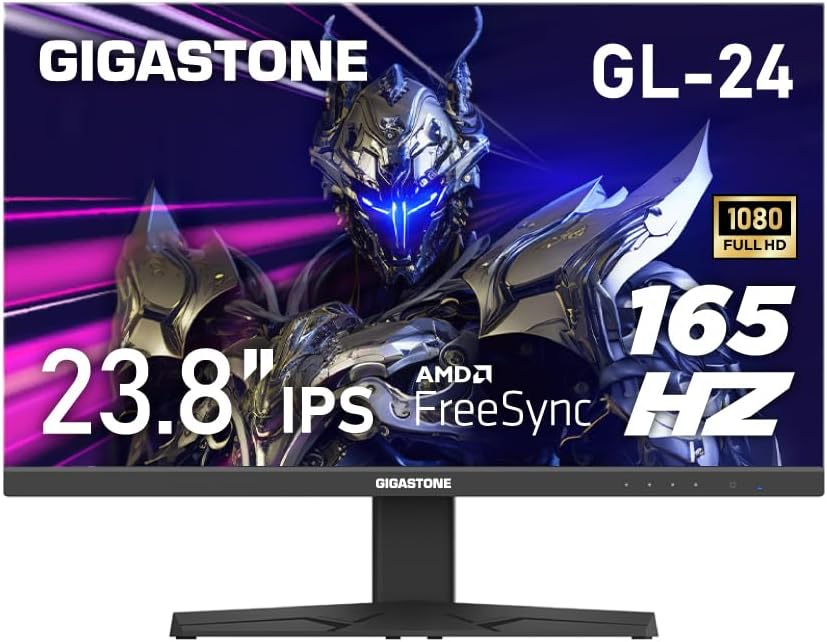
Gambar 1: Depan view of the Gigastone 24 inch 165Hz IPS Gaming Monitor.
2. Isi Paket
Harap periksa isi paket untuk memastikan semua item ada:
- Gigastone 24 inch 165Hz IPS Gaming Monitor
- Dudukan Monitor (Alas dan Leher)
- Adaptor Daya
- Kabel HDMI
- Kabel DisplayPort (DP)
- User Manual (dokumen ini)
3. Pengaturan
3.1 Merakit Dudukan Monitor
- Keluarkan monitor dari kemasannya dengan hati-hati, letakkan menghadap ke bawah di permukaan yang lembut dan bersih untuk mencegah goresan.
- Pasangkan leher dudukan ke panel monitor dengan menyelaraskan tab dan mendorong hingga terkunci pada tempatnya.
- Pasang alas penyangga ke leher penyangga. Kencangkan dengan sekrup pengunci yang terletak di bagian bawah alas.
3.2 Menghubungkan Monitor
Sambungkan monitor ke komputer atau perangkat lain menggunakan kabel yang sesuai.

Gambar 2: Belakang view of the monitor with port labels.
- Sambungan Daya: Connect the power adapter to the monitor's power input port, then plug the other end into a power outlet.
- Koneksi HDMI: Connect one end of the HDMI cable to the HDMI port on your computer's graphics card and the other end to one of the HDMI ports (HDMI Ver 2.0) on the monitor.
- Koneksi DisplayPort (DP): Connect one end of the DP cable to the DisplayPort on your computer's graphics card and the other end to the DP Ver 1.2 port on the monitor.
- Keluaran Audio: For external speakers or headphones, connect them to the Audio Out port on the monitor. The monitor also has built-in speakers.
3.3 Pemasangan VESA
The monitor supports VESA 100x100mm mounting standards, allowing you to attach it to a compatible wall mount or monitor arm (sold separately). To do this, remove the stand and attach the VESA mount using appropriate screws.

Figure 3: Monitor highlighting VESA 100x100mm mounting points.
4. Mengoperasikan Monitor
4.1 Menghidupkan/Mematikan
Tekan tombol daya yang terletak di sisi kanan bawah monitor untuk menyalakan atau mematikannya. Lampu indikator daya akan menyala saat monitor menyala.
4.2 Menu Tampilan di Layar (OSD)
The OSD menu allows you to adjust various monitor settings. Use the control buttons (usually located on the bottom right or rear of the monitor) to navigate the menu.
- Navigasi: Use the directional buttons to move through menu options.
- Pilihan: Tekan tombol tengah untuk memilih opsi atau mengkonfirmasi pengaturan.
- KELUAR: Gunakan tombol 'Keluar' atau 'Kembali' untuk kembali ke menu sebelumnya atau keluar dari OSD.
4.3 Fitur dan Pengaturan Utama
- Kecepatan Refresh (165Hz): This monitor supports a high refresh rate of 165Hz, providing smoother motion and reduced input lag, especially beneficial for gaming. Ensure your graphics card and connection cable (DisplayPort or high-speed HDMI) support 165Hz at 1920x1080 resolution. You may need to adjust this setting in your computer's display settings.
- FreeSync / Adaptive-Sync: This technology synchronizes the monitor's refresh rate with your graphics card's frame rate, eliminating screen tearing and reducing stuttering. To enable FreeSync, ensure it is activated in the monitor's OSD menu and in your graphics card's control panel (e.g., AMD Radeon Software).
- Teknologi Perawatan Mata: The monitor incorporates features like Blue Light Shift and Anti-Flicker technology to reduce eye strain during prolonged use. These settings can typically be adjusted within the OSD menu.
- Pemilihan Sumber Masukan: If you have multiple devices connected, use the OSD menu to switch between HDMI 1, HDMI 2, or DisplayPort inputs.
- Pengaturan Audio: Adjust the volume of the built-in speakers or connected external audio devices via the OSD menu.

Figure 4: Visual comparison demonstrating the smoothness of 165Hz refresh rate versus 75Hz.

Figure 5: Visual comparison showing the effect of FreeSync technology on screen tearing.
Video 1: An official product video demonstrating the monitor's features and gaming experience. This video highlights the visual quality and performance aspects of the Gigastone gaming monitor.
5. Pemeliharaan
Perawatan yang tepat memastikan umur panjang dan kinerja monitor Anda yang optimal.
- Membersihkan Layar: Usap layar secara perlahan menggunakan kain lembut bebas serat. Untuk noda membandel, dampen the cloth slightly with water or a monitor-specific cleaning solution. Tidak spray liquid directly onto the screen.
- Membersihkan Casing: Gunakan kain lembut dan kering untuk membersihkan monitor.asing. Hindari penggunaan pembersih atau pelarut yang bersifat abrasif.
- Ventilasi: Pastikan lubang ventilasi monitor tidak terhalang untuk mencegah panas berlebih.
- Matikan: Selalu matikan monitor dan cabut dari stopkontak sebelum membersihkan atau jika tidak akan digunakan dalam jangka waktu lama.
6. Penyelesaian masalah
Jika Anda mengalami masalah dengan monitor Anda, ikuti langkah-langkah pemecahan masalah umum berikut:
| Masalah | Solusi yang mungkin |
|---|---|
| Tidak ada gambar di layar |
|
| Image is flickering or distorted |
|
| Tidak ada suara dari speaker |
|
If the problem persists after trying these steps, please contact Gigastone customer support for further assistance.
7. Spesifikasi
| Fitur | Detil |
|---|---|
| Nomor Model | GL-24FF3 |
| Ukuran Layar | 24 Inches (23.8" actual) |
| Jenis Panel | Bahasa Inggris |
| Resolusi | Resolusi 1920x1080 (FHD) |
| Tingkat Penyegaran | frekuensi 165Hz |
| Waktu Respon | 5 menit |
| Rasio Aspek | 16:9 |
| Viewsudut ing | Lebar 178° View |
| Kecerahan | 300 Candela |
| Rasio Kontras | 1000:1 |
| Konektivitas | 2x HDMI (Ver 2.0), 1x DisplayPort (Ver 1.2), Audio Out |
| Dudukan VESA | Ukuran 100x100mm |
| Fitur Khusus | FreeSync, Eye Care Technology (Blue Light Shift & Anti-Flicker), Built-in Speakers |
| Dimensi Produk (P x L x T) | 1.87x21.26x16.39 inci |
| Berat Barang | 12.41 pon |
8. Garansi dan Dukungan
This Gigastone monitor comes with a Garansi pabrik 3 tahun. For warranty claims, technical support, or any inquiries, please contact Gigastone customer service. They offer 24/7 world-wide customer service.
Please refer to the official Gigastone website or your purchase documentation for the most up-to-date contact information and detailed warranty terms and conditions.