
1. Pendahuluan
Thank you for choosing the OMOTON KB515 Bluetooth Keyboard. This full-size wireless keyboard is specifically designed for Mac OS devices, offering a comfortable typing experience with multi-device connectivity. Please read this manual carefully to ensure proper setup and operation.

The OMOTON KB515 Bluetooth Keyboard integrated into a multi-device Mac OS workspace.
2. Isi Paket
- Papan Ketik Bluetooth OMOTON KB515
- Penarik Keycap
- Panduan Pengguna
Catatan: Diperlukan 2 baterai AAA untuk pengoperasian dan tidak termasuk dalam paket.
3. Pengaturan dan Pemasangan
3.1 Pemasangan Baterai
- Locate the battery compartment on the back of the keyboard.
- Buka penutup ruang baterai.
- Masukkan dua (2) baterai AAA, pastikan polaritas yang benar (+/-).
- Tutup penutup ruang baterai.
3.2 Daya Hidup/Mati
Slide the power switch, located on the top edge of the keyboard, to the "ON" position to power on the keyboard. Slide it to "OFF" to power off.
3.3 Bluetooth Pairing Instructions
The OMOTON KB515 keyboard supports connection to up to three devices simultaneously via Bluetooth. Ensure Bluetooth is enabled on your Mac OS device before proceeding.
- Nyalakan keyboard menggunakan tombol ON/OFF.
- Tekan dan tahan tombol Fn kunci dan salah satu kunci saluran Bluetooth (BT1, BT2, atau BT3) for 3-5 seconds until the corresponding LED indicator (blue light) blinks. This activates pairing mode for the selected channel.
- On your Mac OS device, go to Pengaturan Sistem (atau Preferensi SistemBahasa Indonesia: Bahasa Indonesia: Bluetooth.
- In the list of available devices, select "Keyboard OMOTON".
- Follow any on-screen prompts to complete the pairing process. The blue indicator light will turn off once successfully connected.
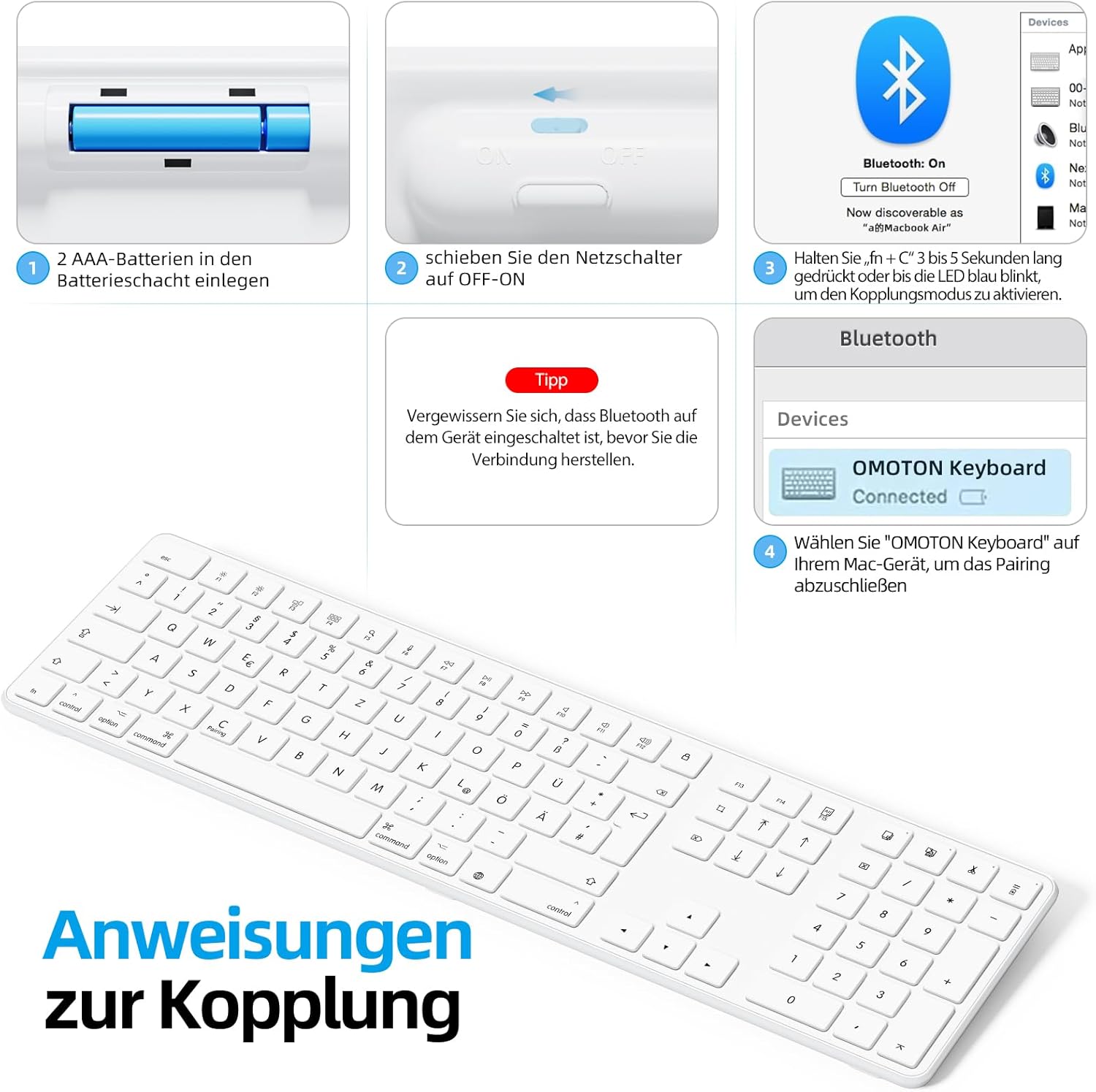
Visual guide for battery insertion and Bluetooth pairing steps.
Tip: To pair with additional devices, repeat step 2 using a different Bluetooth channel (BT2 or BT3).
4. Mengoperasikan Keyboard
4.1 Beralih Antar Perangkat yang Terpasang
Untuk beralih di antara perangkat yang terhubung, cukup tekan tombol Fn kunci beserta kunci saluran Bluetooth yang sesuai (BT1, BT2, atau BT3) that your desired device is paired to. A short press is sufficient for switching.
4.2 Tombol Multimedia dan Fungsi
The OMOTON KB515 keyboard features 12 dedicated multimedia shortcut keys optimized for Mac OS, providing quick access to various functions.

The keyboard layout highlighting the optimized multimedia keys for Mac OS.
- F1-F2: Penyesuaian Kecerahan Layar
- F3: Kontrol Misi
- F4: Landasan peluncuran
- F7-F9: Media Playback Controls (Previous, Play/Pause, Next)
- F10-F12: Kontrol Volume (Bisukan, Turunkan Volume, Naikkan Volume)
4.3 Mode Hemat Daya
To conserve battery life, the keyboard will automatically enter sleep mode after 10 minutes of inactivity. To wake it up, simply press any key. The keyboard will reconnect to the last active device.
5. Pemeliharaan
- Jaga kebersihan keyboard dengan mengelapnya menggunakan kain lembut dan kering.
- Hindari memaparkan keyboard pada cairan atau kelembapan berlebihan.
- Do not disassemble the keyboard, as this will void the warranty.
- When not in use for extended periods, turn off the keyboard to save battery life.
- Use the included keycap puller to carefully remove and clean individual keycaps if necessary.
6. Penyelesaian masalah
6.1 Keyboard Tidak Terhubung/Terpasang
- Pastikan keyboard dalam keadaan menyala dan menggunakan baterai baru.
- Make sure Bluetooth is enabled on your Mac OS device.
- Verify that the keyboard is in pairing mode (blue LED blinking) for the selected channel.
- Coba lepaskan pasangan dan pasangkan kembali keyboard dari pengaturan Bluetooth perangkat Anda.
- Restart your Mac OS device and try pairing again.
- Ensure the keyboard is within the effective Bluetooth range (typically up to 10 meters).
6.2 Tombol Tidak Merespons
- Periksa level baterai dan ganti jika perlu.
- Ensure the keyboard is properly connected to your device. Try switching Bluetooth channels.
- Bersihkan kotoran yang mungkin berada di bawah tombol.
6.3 Lag atau Pemutusan Koneksi
- Move the keyboard closer to your Mac OS device to reduce interference.
- Ensure there are no other strong wireless signals or devices interfering with the Bluetooth connection.
- Check for any available software updates for your Mac OS.
7. Spesifikasi
| Nomor Model | Bahasa Indonesia: KB515 |
| Merek | OMOTON |
| Teknologi Konektivitas | Bahasa Indonesia: Bluetooth |
| Sumber Daya | 2 x Baterai AAA (tidak termasuk) |
| Tata Letak Papan Ketik | QWERTZ (Jerman) |
| Kesesuaian | Mac OS X 10.10 and above (MacBook Air, MacBook Pro, iMac, iPad, etc.) |
| Fitur Khusus | Wireless Connection, Numeric Keypad, Multimedia Keys, Ergonomic Design |
| Bahan | Rubber (keypad cushioning) |
| Warna | Putih |

Keyboard dimensions and key features like ON/OFF switch and battery slot.
8. Garansi dan Dukungan
For warranty information or technical support, please refer to the documentation provided with your purchase or contact OMOTON customer service directly through their official website or the retailer where you purchased the product. Please have your model number (KB515) and proof of purchase ready.