
1. Pendahuluan
This manual provides detailed instructions for the setup, operation, maintenance, and troubleshooting of your Xprinter XP-233B Thermal Barcode Printer. The XP-233B is designed for efficient thermal printing of barcodes and labels, utilizing heat-sensitive paper without the need for ink or ribbons.
2. Petunjuk Keselamatan
- Pastikan printer terhubung ke sumber daya dengan tegangan yang benar.tagseperti yang tertera pada adaptor daya.
- Jangan biarkan printer terkena air atau kelembapan yang berlebihan.
- Hindari meletakkan printer di bawah sinar matahari langsung atau di dekat sumber panas.
- Keep the printer away from dust and debris to prevent damage to internal components.
- Jangan mencoba membongkar atau memperbaiki printer sendiri. Hubungi teknisi servis yang berkualifikasi untuk mendapatkan bantuan.
- Use only recommended thermal label rolls to ensure optimal print quality and printer longevity.
3. Isi Paket
Verifikasi bahwa semua item ada dalam paket:
- Xprinter XP-233B Thermal Barcode Printer
- Adaptor Daya
- Kabel USB
- Panduan Memulai Cepat (jika disertakan)
- Driver CD (if included, drivers can also be downloaded online)
4. Produk Lebihview
Familiarize yourself with the main components of the XP-233B printer.

Gambar 4.1: Sisi depan view of the Xprinter XP-233B, showing the power switch, control panel, and label output slot.

Gambar 4.2: Belakang view of the Xprinter XP-233B, highlighting the USB, Ethernet, and power input ports.
Fungsi Panel Kontrol:
- Tombol PAKAN: Press to feed a blank label. Hold to perform a self-test print.
- Tombol JEDA: Pauses or resumes printing.
- Tombol BATAL: Cancels the current print job.
- Indikator LED: Display printer status (e.g., Power, Error, Paper Out). Refer to troubleshooting for specific light patterns.
5. Pengaturan
5.1 Menghubungkan Pencetak
- Connect the power adapter to the printer's power input port and then plug it into a wall outlet.
- Connect the USB cable from the printer to your computer. For Ethernet connectivity, connect an Ethernet cable from the printer to your network router or switch.
- Nyalakan printer menggunakan sakelar daya yang terletak di samping.
5.2 Memuat Label
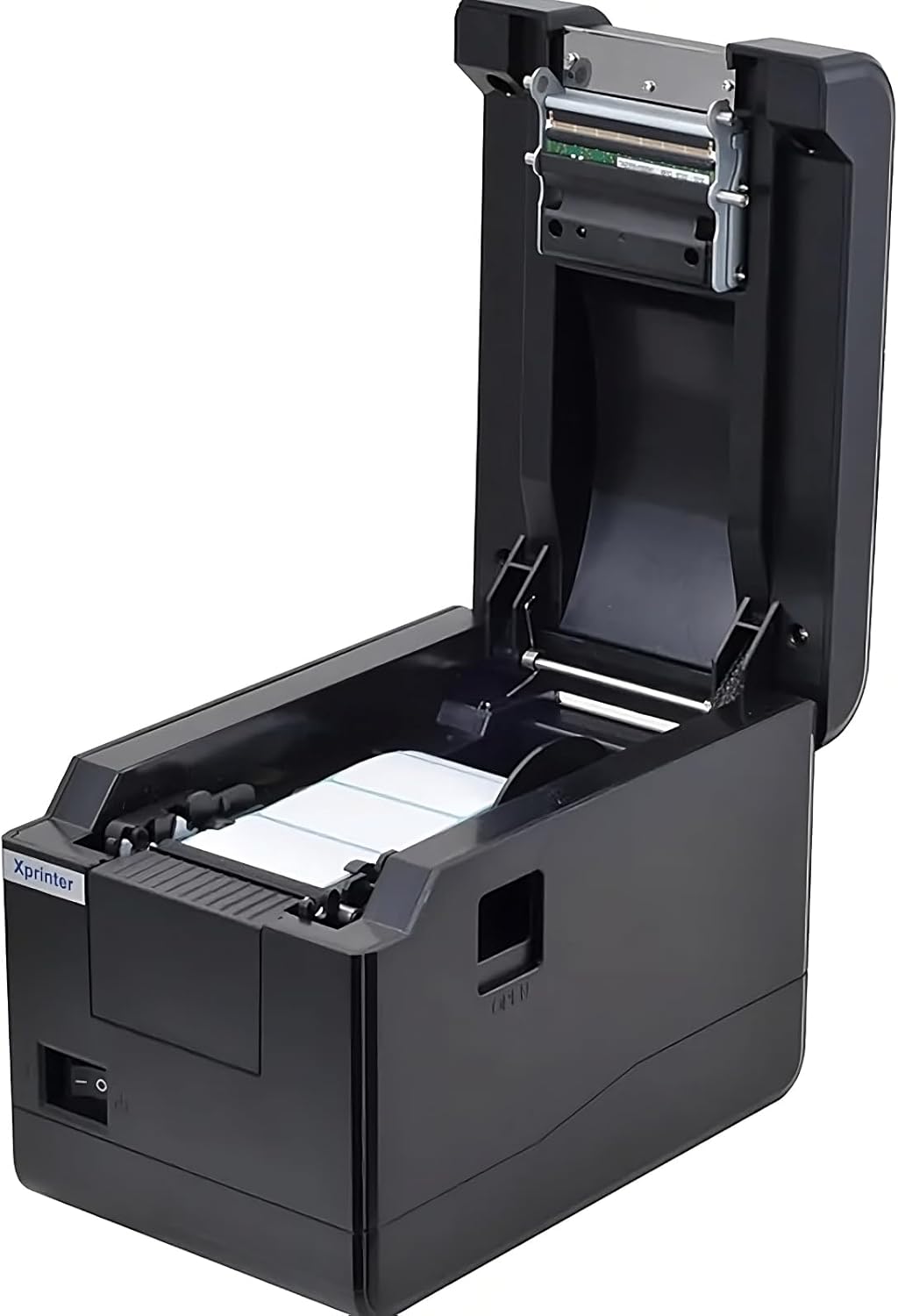
Gambar 5.1: Perintahkan ke bawah view of the Xprinter XP-233B with the cover open, illustrating the label loading area.
- Press the 'OPEN' button on the side of the printer to open the top cover.
- Place the thermal label roll into the label compartment, ensuring the labels feed from the bottom of the roll and the printable side faces upwards.
- Adjust the movable label guides to fit the width of your label roll snugly, without pinching the labels.
- Pull a few labels past the print head and out through the front slot.
- Tutup penutup atas dengan rapat hingga berbunyi klik.
- Printer akan secara otomatis melakukan kalibrasi dan mengeluarkan beberapa label untuk mendeteksi celah antar label.
5.3 Instalasi Driver
Install the printer drivers on your computer. Drivers can typically be found on the included CD or downloaded from the official Xprinter websitus. Ikuti petunjuk di layar untuk instalasi.
6. Mengoperasikan Printer
6.1 Pencetakan Dasar
Once the printer is set up and drivers are installed, you can print labels from your application (e.g., label design software, shipping software). Ensure the correct printer model (Xprinter XP-233B) is selected in your application's print settings.
6.2 Self-Test Print
To perform a self-test print:
- Ensure the printer is powered on and labels are loaded.
- Tekan dan tahan tombol MEMBERI MAKAN button for approximately 3-5 seconds until the printer starts printing.
- The self-test print will display printer information and a test pattern, confirming basic functionality.
7. Pemeliharaan
7.1 Membersihkan Kepala Cetak
Regular cleaning of the print head ensures optimal print quality and extends the printer's lifespan. Clean the print head when print quality degrades or after every few rolls of labels.
- Matikan printer dan cabut kabel daya.
- Buka penutup atas.
- Gently wipe the print head surface with a cotton swab lightly dampened with isopropyl alcohol (70% or higher).
- Allow the print head to dry completely (approximately 2-3 minutes) before closing the cover and turning on the printer.
7.2 Membersihkan Bagian Luar
Bersihkan bagian luar printer dengan kain lembut dan kering.amp kain. Jangan gunakan bahan kimia keras atau pembersih abrasif.
8. Penyelesaian masalah
| Masalah | Kemungkinan Penyebab | Larutan |
|---|---|---|
| Printer tidak menyala | Power cord loose; power outlet faulty; power adapter damaged. | Check power connections; try a different outlet; replace power adapter if necessary. |
| Tidak ada label yang diberikan saat memberi makan | Labels incorrectly loaded; paper out; label guides too tight. | Reload labels correctly; replace label roll; adjust label guides. |
| Kualitas cetak buruk (pudar, bergaris-garis) | Print head dirty; low-quality labels; print head damaged. | Clean print head (refer to Section 7.1); use recommended thermal labels; contact support if print head is damaged. |
| Printer tidak merespons perintah cetak. | Incorrect driver installed; USB/Ethernet cable loose; printer paused. | Reinstall drivers; check cable connections; press BERHENTI SEBENTAR tombol untuk melanjutkan. |
| Labels skipping or misaligning | Incorrect label sensor calibration; label guides not set correctly. | Perform a self-test print to recalibrate; adjust label guides. |
9. Spesifikasi
| Fitur | Spesifikasi |
|---|---|
| Nama Model | Xprinter - Thermal barcode printer |
| Nomor Model Barang | XP-233B |
| Teknologi Printer | Panas |
| Teknologi Konektivitas | Eternet, USB |
| Keluaran Printer | Satu warna |
| Media Cetak | Label |
| Kapasitas Lembaran Maksimum | 100 (typical for roll capacity, actual sheet capacity depends on label size) |
| Dimensi Produk (P x L x T) | Ukuran 26.8x18x17.2 cm |
| Berat Barang | 1.2 kg |
| Warna | Hitam |
10. Informasi Garansi
Xprinter products typically come with a limited manufacturer's warranty. Please refer to the warranty card included with your product or visit the official Xprinter website for specific warranty terms and conditions, including coverage duration and service procedures. Keep your purchase receipt as proof of purchase for warranty claims.
11. Dukungan Pelanggan
For technical assistance, driver downloads, or further inquiries regarding your Xprinter XP-233B, please visit the official Xprinter support website or contact their customer service department. Contact information can usually be found on the Xprinter websitus atau dalam dokumentasi yang disertakan dengan printer Anda.