
Yunseity Yunseity3b4dnfuyte
Yunseity 4G LTE USB WiFi Modem User Manual
Model: Yunseity3b4dnfuyte
Perkenalan
This user manual provides comprehensive instructions for the Yunseity 4G LTE USB WiFi Modem. This portable device allows you to establish a mobile hotspot or use it as a direct USB modem, providing high-speed internet access wherever 3G/4G network coverage is available. With a maximum wireless connection speed of 150 Mbps, it is designed for convenient internet access for various devices, including laptops, tablets, and smartphones.
Produk Selesaiview
The Yunseity 4G LTE USB WiFi Modem is a compact and lightweight device designed for portability and ease of use. It integrates a 4G modem and a WiFi router into a single USB stick form factor.

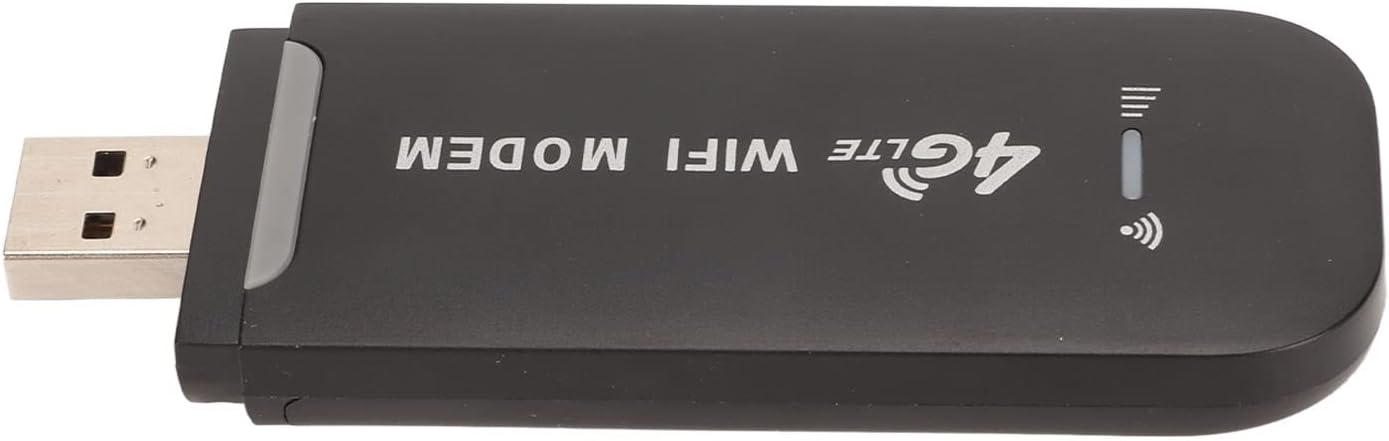
Depan view of the Yunseity 4G LTE USB WiFi Modem, showing the 4G LTE WiFi Modem branding and indicator lights.

The 4G Router highlighting its mini portable design, plug-and-play functionality, and ability to share internet with up to 10 users simultaneously.

The compact and portable design of the modem, showing its dimensions (96mm length, 33mm width, 12mm thickness) and light weight of approximately 30g.
Fitur Utama:
- Konektivitas Kecepatan Tinggi: Supports 3G and 4G networks with wireless speeds up to 150 Mbps.
- Penggunaan Multiguna: Functions as a portable WiFi hotspot or a direct USB modem.
- Pasang dan Mainkan: No driver installation or CD required for operation.
- Dukungan Multi-Pengguna: Connects up to 10 users simultaneously.
- Tenaga Portabel: Can be powered via any standard USB port, including power banks, car chargers, or laptops.
- Slot Kartu SIM: Requires a standard SIM card for network access.
Panduan Pengaturan
Follow these steps to set up your Yunseity 4G LTE USB WiFi Modem for the first time.
1. Pemasangan Kartu SIM:
- Gently slide open the back cover of the modem to reveal the SIM card slot.
- Insert a standard-sized 3G/4G SIM card into the designated slot. Ensure the SIM card is activated and has an active data plan. Catatan: Roaming services, virtual SIM cards, and IoT SIM cards are generally not supported.
- Tutup penutup belakang dengan rapat.

The modem with its back cover removed, clearly showing the SIM card slot for installation.
2. Menghidupkan Perangkat:
- Connect the USB modem to any standard USB power source. This can be:
- A USB port on your laptop or desktop computer.
- A USB wall adapter (charger).
- A car USB charger.
- A power bank.
- The device will automatically power on. Observe the indicator lights for status.

The modem plugged into a laptop's USB port, demonstrating its plug-and-play functionality without requiring driver installation.

Illustrations showing different ways to power the modem: via a wall charger, a car USB power adapter, and direct connection to a PC.
3. Connecting to the WiFi Network:
- On your device (laptop, tablet, phone), search for available WiFi networks.
- Locate the network name (SSID) for your modem, which typically starts with "4G-UFI-xxx". The default SSID and WiFi Key (password) are usually printed on a label inside the modem or on its packaging.
- Select the network and enter the WiFi Key when prompted.
- Once connected, your device should have internet access.
Petunjuk Pengoperasian
The Yunseity 4G LTE USB WiFi Modem offers flexible operation modes.
As a Mobile WiFi Hotspot:
When powered via any USB source (wall adapter, car charger, power bank), the modem functions as a portable WiFi hotspot. This allows multiple devices (up to 10) to connect wirelessly and share the 3G/4G internet connection. This is ideal for travel, outdoor activities, or in vehicles.

A person using a laptop outdoors, demonstrating the portability and utility of the USB 4G Mobile Hotspot for remote internet access.

An illustration showing multiple people simultaneously connected to the 4G WiFi Router, highlighting its support for up to 10 users.

Various usage scenarios including in-car WiFi, during travel, and outdoor hiking, showcasing the modem's versatility.
As a USB Modem:
When plugged directly into a computer's USB port, the device can also function as a USB modem, providing direct internet access to that computer. No additional drivers are typically needed as it operates as a plug-and-play device.
The Yunseity 4G LTE USB WiFi Modem connected to a laptop, ready to provide internet access.
Pemeliharaan
To ensure the longevity and optimal performance of your Yunseity 4G LTE USB WiFi Modem, follow these simple maintenance guidelines:
- Tetap Kering: Hindari memaparkan perangkat ke air atau kelembapan tinggi.
- Bersihkan dengan lembut: Gunakan kain lembut dan kering untuk membersihkan bagian luarnya. Jangan gunakan cairan pembersih atau aerosol.
- Hindari Suhu Ekstrem: Jangan memaparkan perangkat ke suhu yang sangat tinggi atau sangat rendah.
- Tangani dengan hati-hati: Hindari menjatuhkan atau membenturkan perangkat dengan keras.
- Penyimpanan yang Tepat: When not in use, store the modem in a cool, dry place away from direct sunlight.
Penyelesaian Masalah
If you encounter issues with your Yunseity 4G LTE USB WiFi Modem, refer to the following common problems and their solutions.
1. Cannot Connect to the Internet / No Network Signal:
- Aktivasi Kartu SIM: Ensure your SIM card is activated and has an active data plan. Verify with your mobile network provider.
- PIN Deactivation: If your SIM card requires a PIN, it might prevent the modem from connecting. Insert the SIM card into a mobile phone or another compatible device and disable the PIN request feature. The modem's internal interface may not support PIN entry.
- Cakupan Jaringan: Confirm that you are in an area with 3G/4G network coverage. Signal strength can vary, and in rural areas, signals may be intermittent.
- Jenis Kartu SIM: Ensure you are using a standard 3G/4G SIM card. Virtual SIM cards or IoT SIM cards are typically not supported.
- Reinsert SIM: Power off the modem, remove the SIM card, and reinsert it firmly to ensure proper contact.
2. Device Not Powering On / Unstable Operation (LED Blinking Red or Off):
- Catu Daya Voltage: The modem is sensitive to power supply. Ensure the USB port or charger provides a stable 5V.
- Avoid using long USB extension cables, as they can cause voltagjatuh.
- Try a different USB port on your laptop/PC.
- Use a different USB wall charger or power bank.
- Terlalu panas: If the device becomes excessively hot, disconnect it from the power source immediately. Ensure adequate ventilation around the device.
3. Slow Internet Speed:
- Kekuatan Sinyal: Check the signal indicator on the modem. A weak signal will result in slower speeds. Try moving to a location with better network reception.
- Kemacetan Jaringan: During peak hours or in crowded areas, network speeds can decrease due to congestion.
- Data Plan Limits: Ensure your SIM card's data plan has not reached its high-speed data limit, which might result in throttled speeds.
- Number of Connected Users: If multiple devices are connected, the bandwidth is shared, which can reduce individual device speeds.
4. Cannot Access Modem's Web Antarmuka:
- Alamat IP yang benar: Ensure you are entering the correct IP address (e.g., 192.168.100.1) into your browser's address bar.
- Connected to Modem's WiFi: Make sure your device is connected to the modem's WiFi network (SSID: "4G-UFI-xxx") and not another network.
- Tembolok Peramban: Bersihkan cache dan cookie peramban Anda, atau coba peramban lain.
Spesifikasi
| Fitur | Keterangan |
|---|---|
| Merek | Yunseitas |
| Nama Model | Yunseity3b4dnfuyte |
| Teknologi Konektivitas | USB, Nirkabel (WiFi) |
| Standar Komunikasi Nirkabel | 802.11b |
| Kecepatan Transfer Data | Up to 150 Megabits per second (Mbps) |
| Kelas Pita Frekuensi | Pita Tunggal (2.4 GHz) |
| Protokol Keamanan | WPA2-PSK |
| Perangkat yang Kompatibel | Laptops, Tablets, Mobile Phones, various WiFi-enabled devices |
| Sistem Operasi (Internal) | ZyNOS |
| Masukan Voltage | 5 Volt (DC) |
| Berat Barang | 42 gram |
| Dimensi (P x L x T) | Kira-kira 96 x 33 x 12 mm |
| Jenis Kartu SIM | Kartu SIM Standar |
| Max. Users Supported | 10 |
Garansi dan Dukungan
For warranty information and technical support, please refer to the product packaging or contact Yunseity customer service through the retailer where the product was purchased. Keep your purchase receipt as proof of purchase.
For further assistance or specific inquiries, you may also visit the official Yunseity brand store on Amazon: Yunseity Store.
Ask a question about this manual
Ask about setup, troubleshooting, compatibility, parts, safety, or missing instructions. Manuals+ will review the question and use this page’s manual context to help answer it.