
SHARE SUNSHINE computer mouse wireless
Wireless Mouse Transparent Bluetooth Tri-Mode User Manual
Model: computer mouse wireless
Perkenalan
Thank you for choosing the SHARE SUNSHINE Wireless Transparent Bluetooth Tri-Mode Mouse. This innovative mouse offers versatile connectivity options (Bluetooth 5.1, Bluetooth 5.1, and 2.4GHz wireless), a unique transparent design, and silent clicks for a comfortable and efficient user experience. This manual provides detailed instructions on setting up, operating, and maintaining your new mouse.
Informasi Keselamatan
Please read the following safety guidelines carefully before using the device:
- Jangan biarkan tikus terkena suhu dan kelembapan ekstrem.
- Hindari menjatuhkan atau membiarkan mouse terkena benturan keras.
- Do not attempt to disassemble or repair the mouse yourself. This may void the warranty and cause damage.
- Jauhkan tikus dari air dan cairan lainnya.
- Gunakan hanya kabel USB yang disediakan untuk mengisi daya.
Isi Paket
Pastikan semua item ada dalam paket:
- 1 x Transparent Wireless Mouse
- 1 x Panduan Selamat Datang
- 1 x USB Receiver
- 1 x Kabel Pengisian Daya USB
Produk Selesaiview
The SHARE SUNSHINE Wireless Mouse features a unique transparent design, allowing you to see its internal components. It is equipped with multiple buttons and indicators for seamless operation.

Gambar 1: Product Components and Functions. This diagram highlights the key parts of the transparent mouse, including the left and right buttons, scroll wheel, DPI adjustment, battery status lights, and the USB receiver storage slot.
Klip 1: Cool Transparent Tri-Mode Mouse. This video demonstrates the intricate internal design and assembly of the transparent mouse, showcasing its unique aesthetic and functional components.
Pengaturan
1. Mengisi Daya Mouse
Before first use, fully charge the mouse. Connect the provided USB charging cable to the Type-C port on the front of the mouse and plug the other end into a USB power source (e.g., computer, wall adapter). The LED battery indicator will show charging status.
Gambar 2: Charging the Mouse. The image shows the mouse connected to a charging cable, highlighting the convenient Type-C charging interface.
2. Connecting the Mouse (Tri-Mode Connectivity)
Your mouse supports three connection modes: 2.4GHz wireless via USB receiver, Bluetooth 1 (BT1), and Bluetooth 2 (BT2). You can switch between these modes using the button on the bottom of the mouse.

Gambar 3: Tri-Mode Connection. This illustration demonstrates the mouse's ability to connect to three different devices simultaneously using 2.4G wireless and two separate Bluetooth 5.1 channels.
Klip 2: Transparent Wireless Mouse Connection. This short video demonstrates the quick and easy process of connecting the mouse to various devices, including inserting the USB receiver and switching between Bluetooth modes.
2.1. Koneksi Nirkabel 2.4GHz:
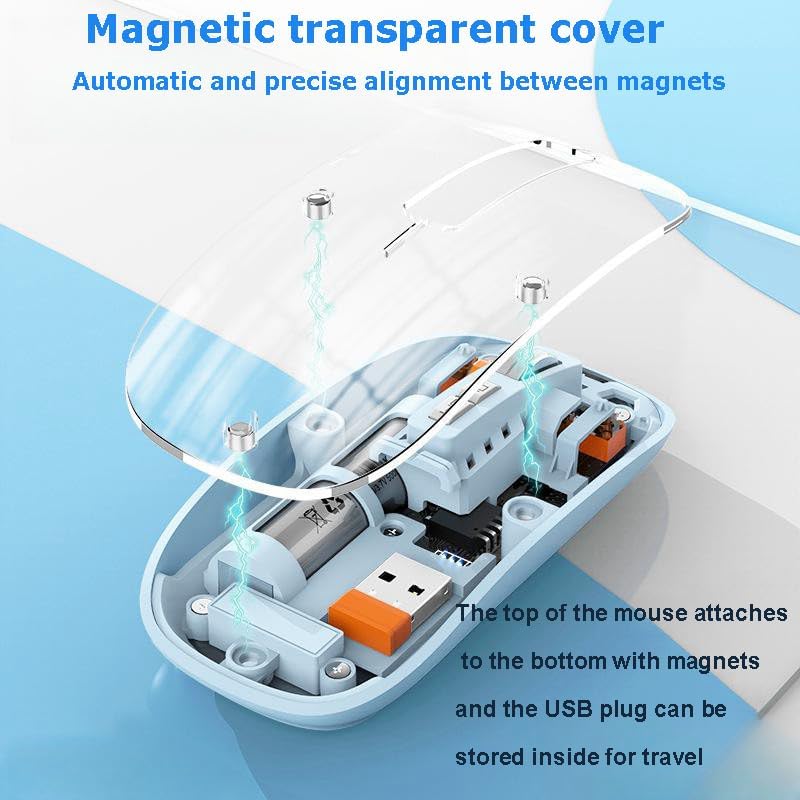
- Locate the USB receiver inside the mouse. The magnetic top cover can be easily removed to access it.
- Colokkan USB receiver ke port USB yang tersedia di komputer atau laptop Anda.
- Nyalakan mouse menggunakan sakelar ON/OFF di bagian bawah.
- Switch the mode button on the bottom of the mouse to the "2.4G" position. The mouse will automatically connect.
2.2. Bluetooth Connection (BT1 / BT2):
- Nyalakan mouse menggunakan sakelar ON/OFF di bagian bawah.
- Switch the mode button on the bottom of the mouse to either "BT1" or "BT2" position.
- Press and hold the mode button for 3-5 seconds until the indicator light flashes rapidly, indicating pairing mode.
- On your device (PC, Mac, Laptop, iPad, etc.), go to Bluetooth settings and search for "BT5.1 Mouse" or similar.
- Select the mouse to pair. Once connected, the indicator light will stop flashing.
- Repeat steps for BT2 if connecting to a second Bluetooth device.
Petunjuk Pengoperasian
1. Beralih Antar Perangkat yang Terhubung
To switch between your connected devices (2.4G, BT1, BT2), simply press the mode button on the bottom of the mouse. The corresponding indicator light will illuminate to show the active connection.
Klip 3: Transparent Rechargeable Mute Bluetooth Mouse. This video demonstrates how to easily switch between the different connectivity modes (Bluetooth 1, Bluetooth 2, and 2.4G wireless) using the button on the mouse's underside.
2. Penyesuaian DPI
The mouse features adjustable DPI (Dots Per Inch) settings, allowing you to customize cursor sensitivity. Press the "DPI loop+/-" button (refer to Figure 1) to cycle through available DPI settings. Each press will change the sensitivity, adapting to your preference for precision or speed.
3. Klik Senyap
The SHARE SUNSHINE mouse is designed with silent click technology, significantly reducing click noise. This feature ensures a quiet working environment, ideal for offices, libraries, or late-night use, without disturbing others.

Gambar 4: Silent Click Feature. This image illustrates the benefit of the mouse's silent click design, allowing for quiet operation without disturbing others.
Pemeliharaan
Untuk memastikan umur panjang dan kinerja optimal mouse Anda, ikuti tips perawatan berikut:
- Pembersihan: Gunakan kain lembut dan kering untuk menyeka permukaan mouse. Untuk kotoran membandel, gosok sedikit.ampBilas kain dengan air atau larutan pembersih ringan. Hindari bahan kimia keras atau bahan abrasif.
- Penyimpanan: Bila tidak digunakan dalam jangka waktu lama, simpan mouse di tempat yang sejuk dan kering.
- Perawatan Baterai: Hindari menguras baterai sepenuhnya secara sering. Isi daya mouse secara teratur untuk menjaga kesehatan baterai.
Penyelesaian Masalah
If you encounter any issues with your mouse, please refer to the following table for common problems and solutions:
| Masalah | Kemungkinan Penyebab | Larutan |
|---|---|---|
| Tikus tidak merespons | Low battery; Incorrect connection mode; USB receiver not plugged in (2.4G); Bluetooth not paired. | Charge the mouse; Switch to the correct connection mode (2.4G, BT1, BT2); Ensure USB receiver is securely plugged in; Re-pair Bluetooth connection. |
| Pergerakan kursor tidak menentu atau lambat | Low DPI setting; Dirty optical sensor; Unsuitable surface. | Increase DPI setting; Clean the optical sensor with a soft cloth; Use on a clean, non-reflective mouse pad or surface. |
| Koneksi Bluetooth sering terputus | Interference; Device too far from mouse; Low battery. | Move closer to the device; Remove other wireless devices causing interference; Charge the mouse. |
| Tombol tidak bisa diklik | Software issue; Physical damage. | Restart your computer; Check for driver updates; If physical damage, contact support. |
Spesifikasi
| Fitur | Detil |
|---|---|
| Teknologi Konektivitas | Bluetooth 5.1 (BT1, BT2), 2.4GHz Wireless (USB Receiver) |
| Teknologi Deteksi Gerakan | Optik |
| Fitur Khusus | Transparent Design, Rechargeable, Silent Clicks, LED Lights, Portable, Lightweight |
| Berat Barang | 3.87 ons |
| Dimensi Paket | 4.65x3.11x1.18 inci |
| Kesesuaian | Office computers, PCs, Macs, Laptops, Apple devices, iPads |
Garansi dan Dukungan
The SHARE SUNSHINE Wireless Mouse comes with a one-year worry-free warranty from the date of purchase. This warranty covers manufacturing defects and ensures your satisfaction with the product.

Gambar 5: One Year Warranty. This badge signifies the product's included one-year warranty, providing peace of mind for your purchase.
For technical support, warranty claims, or any questions regarding your SHARE SUNSHINE product, please contact our customer service team through the retailer's platform or visit the official SHARE SUNSHINE brand store for more information.
Kami berkomitmen untuk menyediakan produk berkualitas tinggi dan layanan pelanggan yang prima.