
1. Pendahuluan
This manual provides detailed instructions for the installation, operation, maintenance, and troubleshooting of your Gigastone 22-inch VA LED Monitor. Please read this manual thoroughly before using the product to ensure proper setup and optimal performance. Keep this manual for future reference.
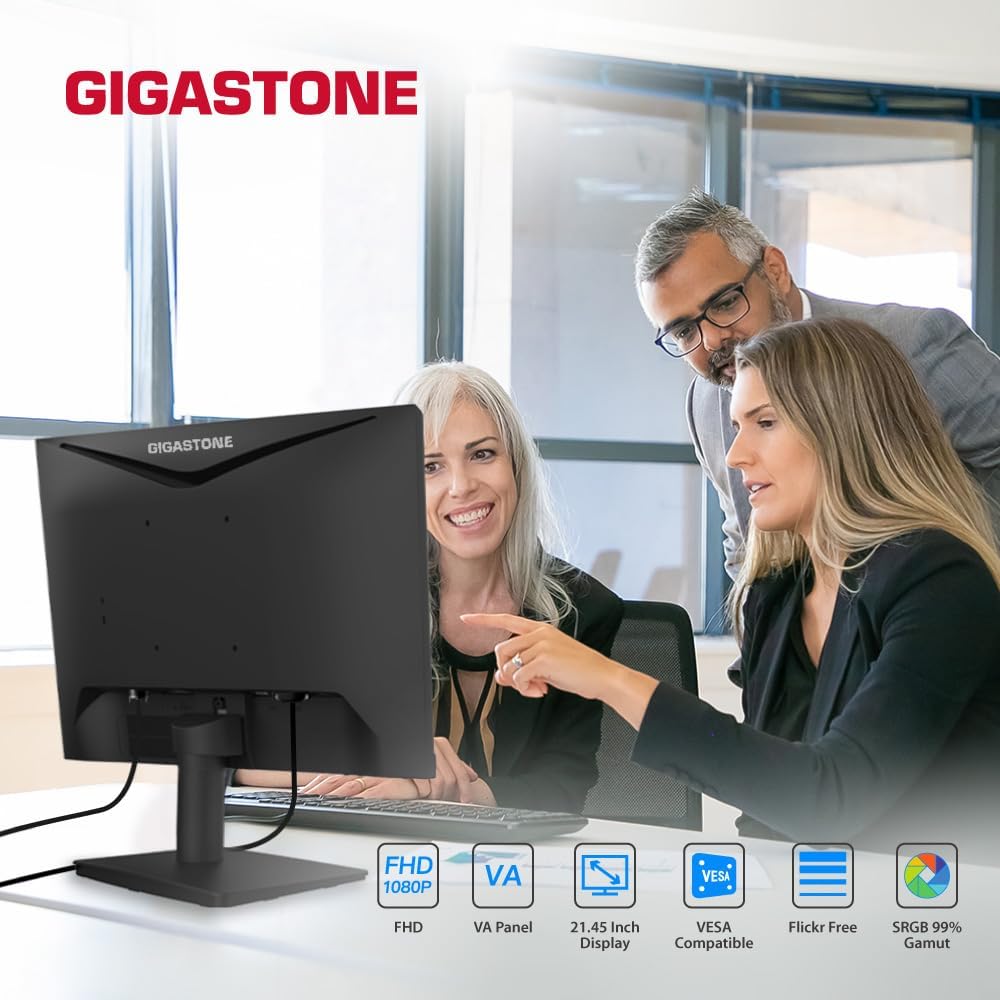
Figure 1.1: Gigastone 22-inch VA LED Monitor in use.
Fitur Utama:
- Full HD (FHD) 1920x1080p Resolution: Menghasilkan visual yang jernih dan tajam.
- Kecepatan Penyegaran 75Hz: Provides smoother image transitions and reduced screen tearing.
- Teknologi Panel VA: Offers superior contrast ratios and wide viewing angles of 178°.
- Teknologi Perawatan Mata: Features Low Blue Light and Anti-Flicker technologies to reduce eye strain during extended use.
- Desain Tanpa Bingkai: Maximizes screen space and provides a sleek appearance.
- Konektivitas Serbaguna: Includes HDMI and VGA ports.
- Kompatibel dengan Dudukan VESA: Allows for flexible mounting options (100x100mm).
- Adaptive-Sync (FreeSync) Compatible: Menyelaraskan kecepatan penyegaran layar dengan kecepatan bingkai kartu grafis untuk menghilangkan robekan layar dan gagap.
2. Petunjuk Penyiapan
2.1 Membongkar Kemasan Monitor
Carefully remove all components from the packaging. Ensure all items listed in the packing list are present and undamaged. Retain the original packaging for future transport or service needs.
2.2 Merakit Stand
- Letakkan monitor menghadap ke bawah pada permukaan yang lembut dan bersih untuk mencegah goresan.
- Attach the stand base to the stand neck. Secure it with the provided screw(s) by turning clockwise until firm.
- Align the assembled stand with the mounting slot on the back of the monitor. Push firmly until it clicks into place or secure with the provided screw(s). Ensure the stand is securely fastened to prevent instability.
- Angkat monitor dengan hati-hati dan letakkan di permukaan yang stabil dan rata.
2.3 Menghubungkan Kabel
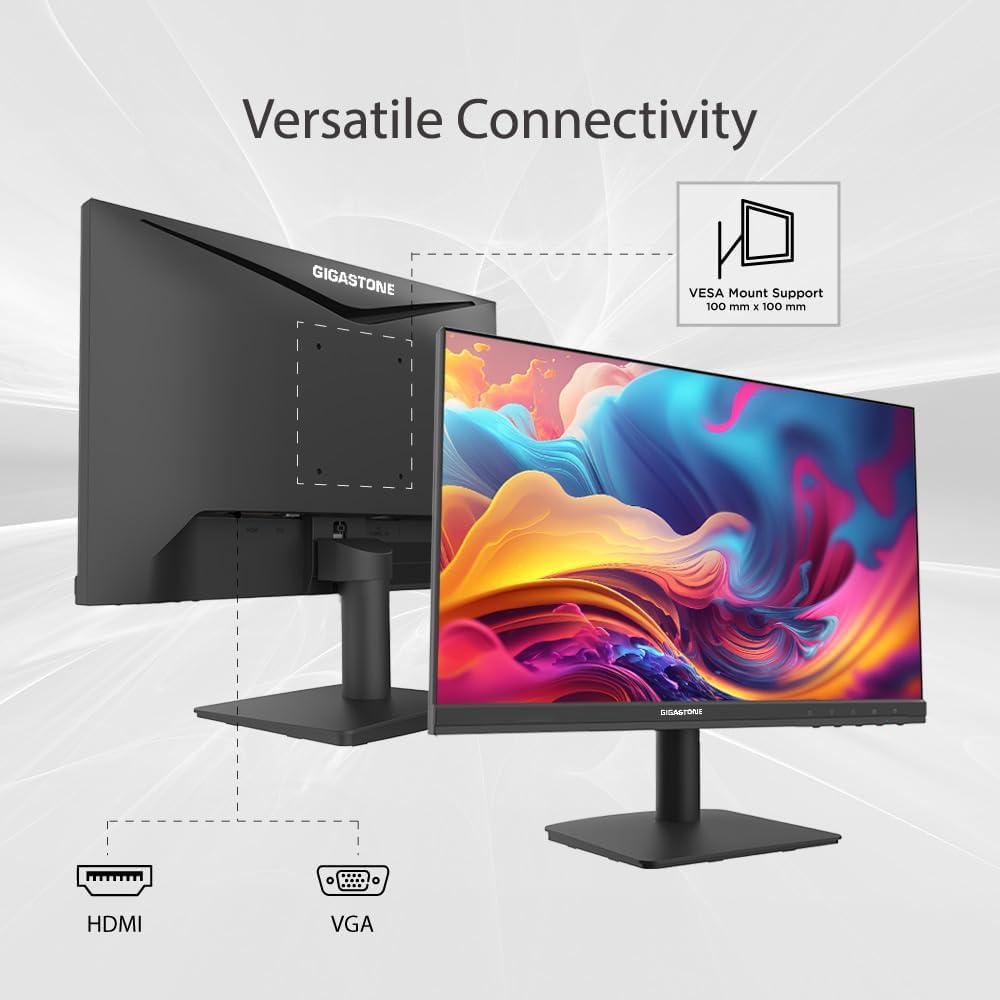
Figure 2.1: Monitor connectivity ports and VESA mount.
- Kabel listrik: Hubungkan salah satu ujung kabel daya ke input daya monitor dan ujung lainnya ke stopkontak.
- Kabel Video: Pilih salah satu koneksi berikut:
- HDMI: Hubungkan salah satu ujung kabel HDMI ke port HDMI monitor dan ujung lainnya ke port output HDMI pada komputer Anda.
- VGA: Connect one end of the VGA cable to the monitor's VGA port and the other end to the VGA output port on your computer.
- Pastikan semua koneksi aman.
2.4 Dudukan VESA (Opsional)
The monitor supports VESA mounting (100x100mm). To mount the monitor on a wall or an articulating arm, first remove the stand. Follow the instructions provided with your VESA-compatible mounting kit for proper installation.
3. Petunjuk Pengoperasian
3.1 Daya Hidup/Mati
Press the power button, usually located on the bottom right side of the monitor, to turn the monitor on or off. The power indicator light will illuminate when the monitor is on.
3.2 Menu Tampilan di Layar (OSD)
The OSD menu allows you to adjust various monitor settings. Use the buttons located on the bottom right of the monitor to navigate and select options.
Opsi Menu OSD Umum:
- Kecerahan/Kontras: Sesuaikan pencahayaan keseluruhan dan perbedaan antara area terang dan gelap.
- Pengaturan Warna: Ubah suhu warna, rona, dan saturasi.
- Sumber Masukan: Pilih secara manual antara input HDMI dan VGA.
- Mode Gambar: Choose from preset display modes (e.g., Standard, Game, Movie).
- Mode Perawatan Mata: Activate Low Blue Light and Anti-Flicker features.
- Adaptive-Sync (FreeSync): Enable or disable this feature for compatible graphics cards.
3.3 Teknologi Perawatan Mata
The monitor incorporates Low Blue Light and Anti-Flicker technologies to minimize eye strain. These features can be enabled or adjusted through the OSD menu. Reducing blue light can help alleviate eye fatigue, especially during prolonged use.
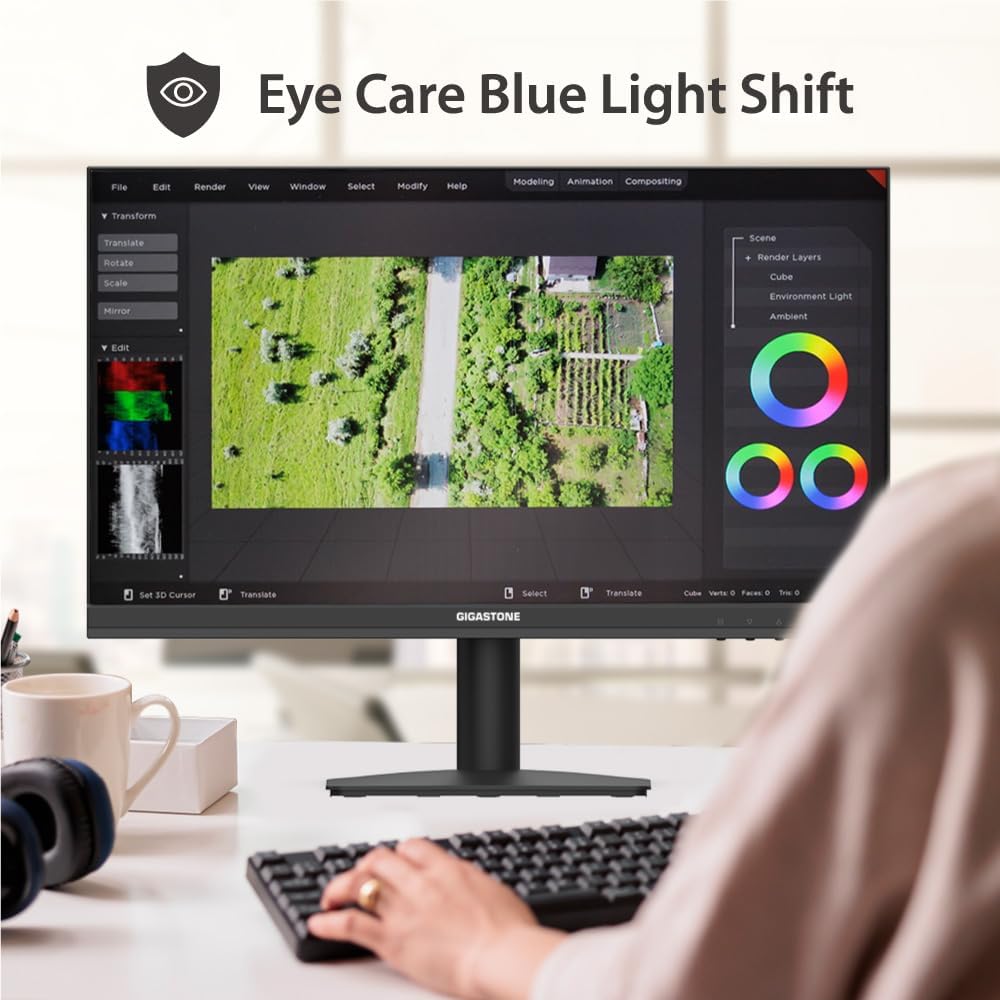
Figure 3.1: Eye Care Blue Light Shift feature in action.
3.4 Adaptive-Sync (FreeSync)
This monitor is compatible with Adaptive-Sync technology, which helps eliminate screen tearing and stuttering by synchronizing the monitor's refresh rate with your graphics card's frame rate. To use this feature, ensure your graphics card supports Adaptive-Sync/FreeSync and enable it in both your graphics card settings and the monitor's OSD menu.
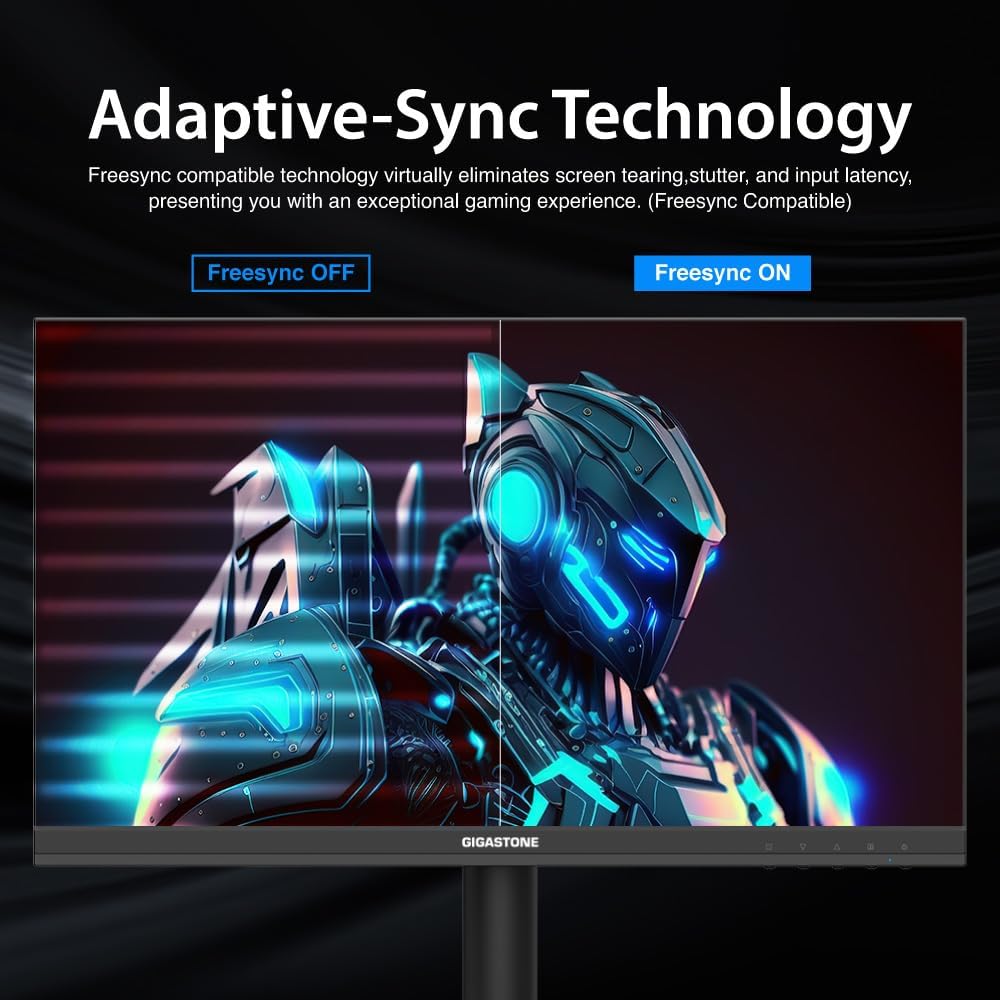
Figure 3.2: Visual representation of Adaptive-Sync (FreeSync) technology.
4. Pemeliharaan
4.1 Membersihkan Monitor
- Selalu cabut monitor dari stopkontak sebelum membersihkan.
- Gunakan kain yang lembut dan tidak berbulu secara tipis dampdibersihkan dengan air atau pembersih layar non-abrasif.
- Do not spray cleaner directly onto the screen or casing.
- Hindari penggunaan benzena, tiner, pembersih berbahan dasar amonia, atau bahan abrasif, karena dapat merusak permukaan monitor.
4.2 Perawatan Umum
- Jauhkan monitor dari sinar matahari langsung, panas berlebihan, dan kelembapan.
- Pastikan ventilasi yang memadai di sekitar monitor untuk mencegah panas berlebih.
- Jangan letakkan benda berat di atas monitor atau kabelnya.
5. Penyelesaian masalah
If you encounter issues with your monitor, refer to the following troubleshooting guide. If the problem persists, contact customer support.
| Masalah | Kemungkinan Penyebab | Larutan |
|---|---|---|
| Tidak ada daya | Power cable not connected; Power outlet faulty; Monitor off | Ensure power cable is securely connected; Test power outlet; Press power button on monitor |
| Tidak ada sinyal | Video cable not connected; Incorrect input source selected; Computer not outputting signal | Check video cable connections (HDMI/VGA); Select correct input source via OSD; Ensure computer is on and outputting video |
| Gambar berkedip atau terdistorsi | Loose video cable; Incorrect resolution/refresh rate; Graphics card driver issue | Secure video cable; Set display resolution to 1920x1080 and refresh rate to 75Hz; Update graphics card drivers |
| OSD menu not responding | Buttons are locked; Temporary software glitch | Refer to monitor's specific instructions for unlocking OSD buttons (if applicable); Power cycle the monitor |
| Adaptive-Sync (FreeSync) not working | Feature not enabled; Graphics card not compatible; Outdated drivers | Enable FreeSync in monitor OSD and graphics card control panel; Ensure compatible graphics card; Update graphics drivers |
6. Spesifikasi Produk
| Fitur | Spesifikasi |
|---|---|
| Merek | batu raksasa |
| Nomor Model | GS-LM-27FF2 |
| Ukuran Layar | 22 inci |
| Resolusi | FHD 1080p (1920 x 1080 Piksel) |
| Rasio Aspek | 16:9 |
| Tingkat Penyegaran | frekuensi 75Hz |
| Waktu Respon | 4 Milidetik |
| Teknologi Tampilan | VA LED Back Light |
| Viewsudut ing | 178 Derajat |
| Kecerahan | 250kd/m2 |
| Rasio Kontras | 1000:1 |
| Konektivitas | hdmi, vga |
| Sinkronisasi Adaptif | Sinkronisasi Gratis |
| Jenis Pemasangan | VESA Wall Mount (100x100mm) |
| Dimensi Barang (P x L x T) | 1.85"Panjang x 19.4"Lebar x 6.7"T |
7. Informasi Garansi
This Gigastone monitor is covered by a Garansi pabrik 3 tahun Terhitung sejak tanggal pembelian. Garansi ini mencakup kerusakan material dan pengerjaan dalam penggunaan normal. Garansi ini tidak mencakup kerusakan yang disebabkan oleh penyalahgunaan, kecelakaan, modifikasi tanpa izin, atau faktor eksternal.
Harap simpan bukti pembelian Anda untuk klaim garansi.
8. Dukungan Pelanggan
For technical assistance, warranty claims, or any other inquiries, please contact Gigastone customer service. We offer 24/7 world-wide customer service to assist you.
For the most up-to-date contact information, please visit the official Gigastone websitus atau lihat rincian kontak yang disediakan bersama kemasan produk Anda.
Anda juga dapat mengunjungi Gigastone Store on Amazon untuk informasi produk lebih lanjut dan sumber daya dukungan.