
Zenwire A10
Zenwire A10 Mini Portable Projector User Manual
Model: A10
1. Pendahuluan
Terima kasih sudah membeliasing the Zenwire A10 Mini Portable Projector. This device is designed to provide a versatile and convenient projection experience, allowing you to display content from various sources, including smartphones, tablets, and computers. Please read this manual carefully before using the projector to ensure proper operation and to maximize its lifespan.
2. Petunjuk Keselamatan Penting
- Jangan melihat langsung ke lensa proyektor saat lampuamp sedang aktif.
- Pastikan ventilasi yang baik di sekitar proyektor untuk mencegah panas berlebih. Jangan menghalangi lubang ventilasi.
- Gunakan hanya adaptor daya yang disertakan dengan proyektor.
- Jauhkan proyektor dari air, kelembapan, dan bahan yang mudah terbakar.
- Jangan mencoba membongkar atau memperbaiki proyektor sendiri. Hubungi petugas servis yang berkualifikasi untuk mendapatkan bantuan.
- Tempatkan proyektor pada permukaan yang stabil dan rata.
- Cabut steker proyektor saat terjadi badai petir atau saat tidak digunakan dalam waktu lama.
3. Isi Paket
Harap periksa isi kemasan setelah membuka kemasan. Jika ada barang yang hilang atau rusak, hubungi penjual.
- Zenwire A10 Mini Portable Projector
- Kontrol Jarak Jauh
- Adaptor Daya
- Panduan Pengguna
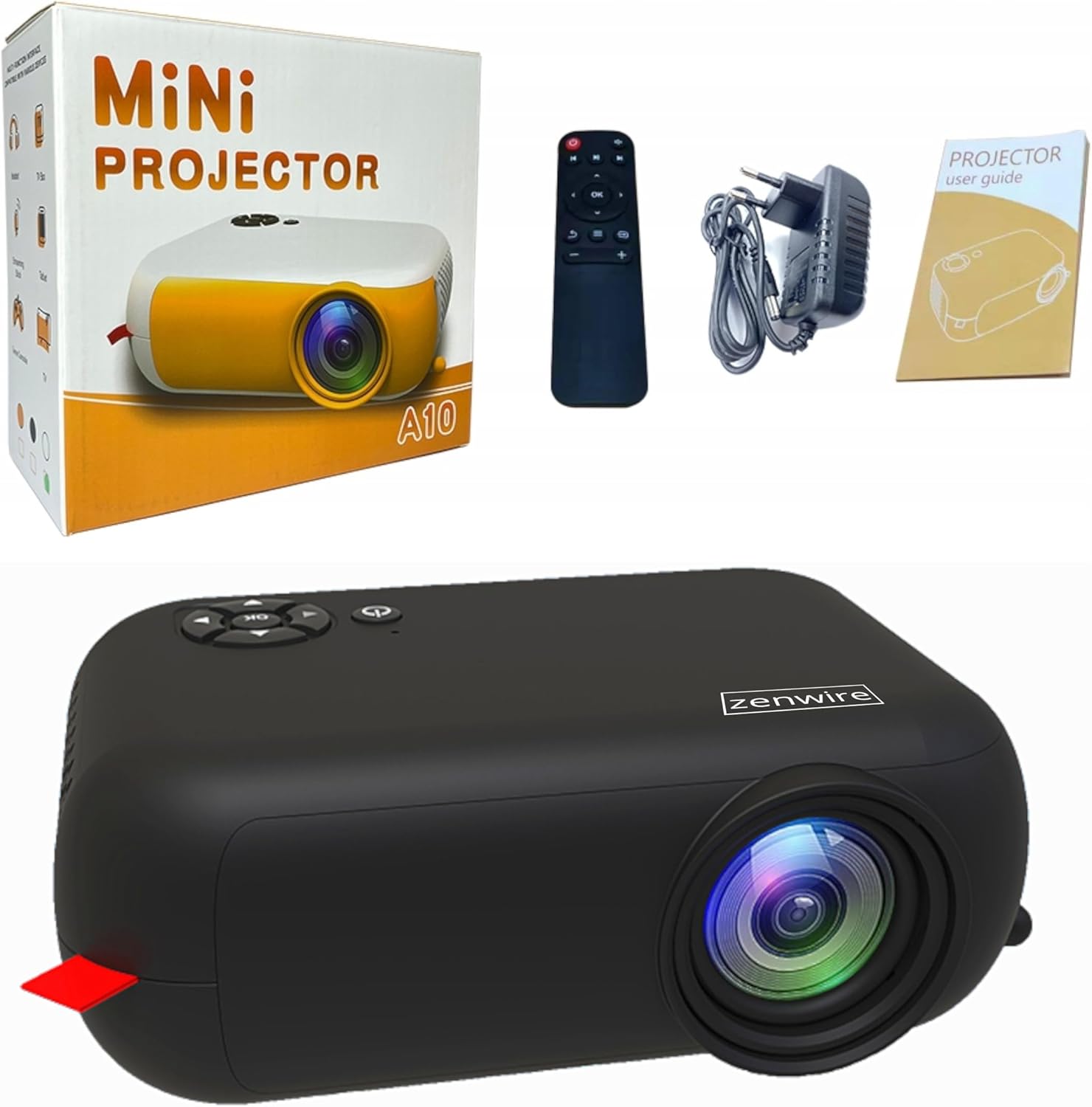
Image: Contents of the Zenwire A10 Mini Projector package, including the projector, remote control, power adapter, and user manual.
4. Produk Lebihview
4.1 Projector Dimensions and Design
The Zenwire A10 is designed for portability, featuring a compact and lightweight form factor. Its dimensions are approximately 14cm x 10cm x 5.5cm, making it easy to carry and set up in various locations.

Image: The Zenwire A10 Mini Projector held in a hand, illustrating its compact size and portability.
4.2 Port dan Kontrol
The projector features a range of input and output ports for versatile connectivity, along with intuitive controls.

Image: Rear panel of the Zenwire A10 Mini Projector, showing the 5V-IN DC power input, IR receiver, USB port, 3.5mm audio jack, HDMI port, and SD card slot.
- 5V-IN DC: Power input for the projector.
- IR: Penerima inframerah untuk remote control.
- Kabel USB: Hubungkan perangkat penyimpanan USB untuk pemutaran media.
- Jack Headphone (3.5mm): Hubungkan speaker eksternal atau headphone.
- HDMI: Connect devices such as laptops, gaming consoles, or streaming sticks.
- SD: Insert Micro SD cards for media playback.
- Roda Fokus: Adjust image sharpness (located on the side).
- Panel Kontrol: Buttons on top for navigation and selection.
5. Pengaturan
5.1 Sambungan Daya
- Hubungkan adaptor daya yang disertakan ke 5V-IN DC port pada proyektor.
- Hubungkan adaptor daya ke stopkontak di dinding.
- Tekan tombol daya pada proyektor atau remote control untuk menyalakannya.
5.2 Placement and Focus Adjustment
- Place the projector on a stable surface or mount it according to your preference. Ensure the projector lens is facing the projection surface (wall or screen).
- Adjust the distance between the projector and the screen to achieve your desired image size. The projector supports screen sizes up to 100 inches.
- Rotate the focus wheel (typically located near the lens) until the projected image appears clear and sharp.

Image: Diagram illustrating the Zenwire A10 Mini Projector's capability to project various screen sizes, from 13 inches up to 100 inches, depending on the projection distance.
6. Mengoperasikan Proyektor
6.1 Wireless Connection (Miracast & Airplay)
The Zenwire A10 supports wireless screen mirroring via 2.4/5GHz WiFi, compatible with Android (Miracast) and iOS (Airplay) devices.
- Pastikan proyektor dan perangkat seluler Anda terhubung ke jaringan Wi-Fi yang sama.
- Pada menu utama proyektor, pilih opsi 'Screen Mirroring' atau 'Wireless Display'.
- Untuk Android: On your Android phone/tablet, enable 'Wireless Display', 'Screen Mirroring', 'Smart View', or similar function (names may vary by device). Select the projector from the list of available devices.
- Untuk iOS: On your iPhone/iPad, open Control Center and tap 'Screen Mirroring'. Select the projector from the list of available devices.
- The content from your mobile device should now be mirrored on the projector screen.
6.2 Koneksi Kabel
Proyektor ini menawarkan berbagai pilihan input berkabel untuk berbagai perangkat.

Image: The Zenwire A10 Mini Projector connected to various devices such as smartphones, tablets, laptops, desktop computers, gaming consoles, and media players, highlighting its versatile connectivity.
- HDMI: Connect a laptop, PC, gaming console (e.g., Xbox, PlayStation), or streaming device (e.g., Amazon Fire TV Stick, Google Chromecast) using an HDMI cable. Select the HDMI input source on the projector.
- Kabel USB: Insert a USB flash drive or external hard drive into the USB port. The projector's media player will allow you to browse and play supported video, audio, and image files.
- Mikro SD: Insert a Micro SD card into the SD card slot. Similar to USB, you can access media files through the projector's interface.
- Output Audio (Jack 3.5mm): Connect external speakers or headphones to enhance the audio experience.
6.3 Navigasi Menu
Use the remote control or the buttons on the projector to navigate through the on-screen menu. Select input sources, adjust picture settings (brightness, contrast, color), sound settings, and other system preferences.
7. Pemeliharaan
- Pembersihan Lensa: Use a soft, lint-free cloth specifically designed for optical lenses to gently wipe the projector lens. Avoid using abrasive cleaners or excessive force.
- Penghilangan Debu: Regularly clean the projector's exterior with a soft, dry cloth. Use a small brush or compressed air to clear dust from the ventilation openings to ensure proper airflow.
- Penyimpanan: When not in use, store the projector in a cool, dry place, away from direct sunlight and extreme temperatures. Use the original packaging or a protective case to prevent dust accumulation and damage.
8. Penyelesaian masalah
If you encounter issues with your Zenwire A10 projector, refer to the following common problems and solutions:
| Masalah | Kemungkinan Penyebab | Larutan |
|---|---|---|
| Tidak ada gambar di layar | Daya tidak terhubung; Sumber input tidak tepat; Perangkat tidak terhubung dengan benar. | Check power cable; Select correct input source (HDMI, USB, etc.); Reconnect source device. |
| Gambar buram | Fokus tidak disesuaikan; Proyektor terlalu dekat/jauh dari layar. | Adjust the focus wheel; Adjust projection distance. |
| Tidak ada suara | Volume terlalu rendah; Dibisukan; Perangkat audio eksternal tidak terhubung/dipilih. | Increase volume; Unmute; Check external speaker connection or select internal speaker. |
| Masalah koneksi nirkabel | Not on same Wi-Fi network; Device not compatible; Interference. | Ensure both devices are on the same Wi-Fi; Verify device compatibility; Try moving closer to Wi-Fi router. |
9. Spesifikasi
| Fitur | Detil |
|---|---|
| Merek | kawat Zen |
| Nomor Model | Nomor telepon A10 |
| Tipe Produk | Compact and Portable Projector |
| Resolusi Asli | Resolusi 480x360p |
| Resolusi Tampilan Maksimum | 1920x1080 (HD Penuh) |
| Kecerahan | 1800lm / 60 ANSI |
| Rasio Kontras | 2000:1 |
| Jenis Tampilan | DIPIMPIN |
| Teknologi Konektivitas | Wi-Fi (2.4/5GHz), HDMI, USB, Micro SD, 3.5mm Audio Jack |
| Fitur Nirkabel | Miracast, Pemutaran Udara |
| Perangkat yang Kompatibel | Smartphones (Android, iOS), Tablets, Laptops, PCs, Gaming Consoles |
| Penggunaan yang Direkomendasikan | Bioskop Rumah |
| Dimensi (Perkiraan) | Ukuran 14cm x 10cm x 5.5cm |
10. Garansi dan Dukungan
The Zenwire A10 Mini Portable Projector comes with a standard manufacturer's warranty. For specific warranty terms and conditions, please refer to the documentation provided at the time of purchase or contact your retailer. For technical support or service inquiries, please reach out to Zenwire customer service through their official websitus atau informasi kontak yang disediakan bersama produk Anda.
Ask a question about this manual
Ask about setup, troubleshooting, compatibility, parts, safety, or missing instructions. Manuals+ will review the question and use this page’s manual context to help answer it.