
1. Pendahuluan
This manual provides comprehensive instructions for the Kruger & Matz KM1100 FRAMEO Wi-Fi 10.1-inch Digital Photo Frame. Please read this manual carefully before using the device to ensure proper operation and to maximize its features. This digital photo frame allows you to display photos and videos, share memories with family and friends via the Frameo app, and enjoy additional functionalities like weather information and a sleep timer.

Image: The Kruger & Matz KM1100 Digital Photo Frame showing a family picture on its screen.
2. Isi Paket
Verifikasi bahwa semua item yang tercantum di bawah ini disertakan dalam paket produk Anda:
- Kruger & Matz KM1100 Digital Photo Frame
- Berdiri
- Catu Daya (DC 5V/2A)
- Panduan Pengguna

Image: The included power adapter for the digital photo frame.
3. Produk Lebihview
Familiarize yourself with the physical components and connection ports of your digital photo frame.
3.1 Depan View
The front of the device features a 10.1-inch TFT touch display with a resolution of 1280 x 800 pixels and a 16:10 aspect ratio. The 5-point touch panel allows for intuitive navigation.
3.2 Belakang View dan Pelabuhan
The rear of the frame includes the power button, speaker, and various connection ports.

Image: The back of the digital photo frame, showing the power button, speaker grille, and product information label.

Gambar: Detail view of the connectivity ports on the digital photo frame: MicroSD card slot, MicroUSB port, and DC power input.
Pelabuhan yang tersedia:
- MicroUSB Slot: For connecting to a computer or other devices.
- Slot Kartu MicroSD: For expanding storage up to 32 GB and displaying content directly from a memory card.
- Pelabuhan DC IN: Untuk menghubungkan adaptor daya.
4. Pengaturan
Follow these steps to set up your digital photo frame for the first time.
4.1 Menghidupkan
- Connect the power adapter to the DC IN port on the back of the frame.
- Hubungkan adaptor daya ke stopkontak di dinding.
- The frame will automatically power on or you may need to press and hold the power button on the back.
4.2 Konfigurasi Awal
Upon first startup, you will be guided through an initial setup wizard. This includes selecting your language, time zone, and connecting to a Wi-Fi network.
4.3 Menghubungkan ke Wi-Fi
- Dari menu utama, navigasikan ke Pengaturan.
- Memilih Wifi gratis dan menyalakannya.
- Pilih jaringan Wi-Fi yang Anda inginkan dari daftar.
- Masukkan kata sandi jaringan jika diminta, lalu ketuk. Menghubungkan.
4.4 Pengaturan Aplikasi Frameo
The Frameo app is essential for transferring photos and videos from your smartphone to the digital photo frame.
- Download the Frameo app from the Google Play Store (for Android) or the Apple App Store (for iOS) on your smartphone.
- Buka aplikasi Frameo dan buat akun atau masuk.
- On your digital photo frame, follow the on-screen instructions to generate a unique code.
- In the Frameo app on your smartphone, enter this code to pair your device with the photo frame.
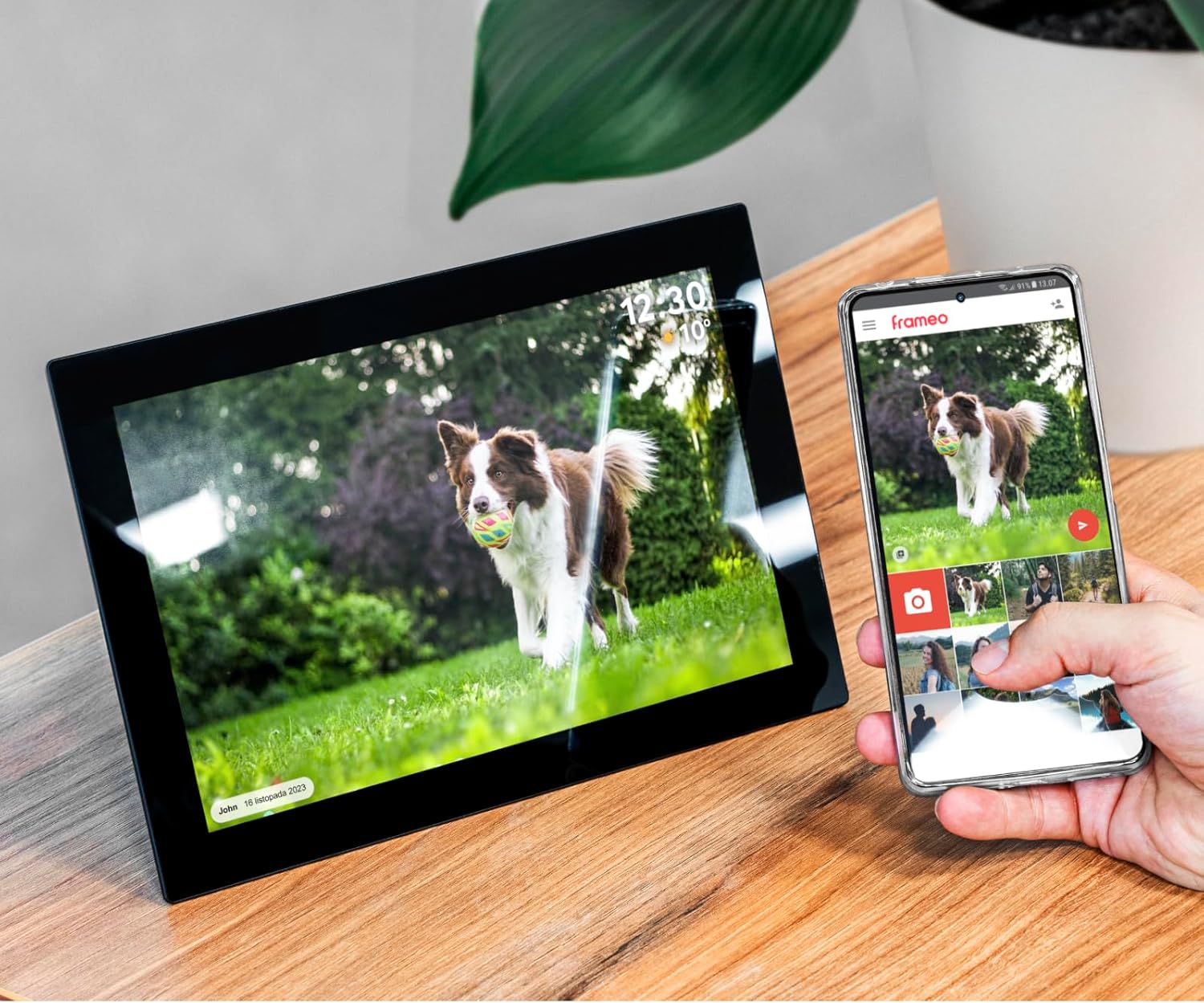
Image: The digital photo frame shown alongside a smartphone, illustrating the Frameo app for photo transfer.
5. Petunjuk Pengoperasian
Learn how to use the various features of your Kruger & Matz KM1100 digital photo frame.
5.1 Mentransfer Foto dan Video
Use the Frameo app on your smartphone to send photos and short videos directly to your digital photo frame.
- Buka aplikasi Frameo di ponsel pintar Anda yang sudah terhubung.
- Pilih foto atau video yang ingin Anda kirim.
- Choose your digital photo frame as the recipient.
- The selected media will be transferred and appear on your frame.
5.2 Pemutaran Video
The frame supports video playback. Videos sent via the Frameo app or loaded from a microSD card will play automatically within the slideshow or can be selected manually.

Image: A digital photo frame in vertical orientation, showing a video playing with a visible play button icon.
5.3 Adding Descriptions and Reactions
You can add descriptions and interactive reactions (emoticons) to your photos directly from the Frameo app or on the frame itself.

Image: The digital photo frame displaying an overlay menu for selecting emoticons to react to a photo.
5.4 Random Image Display
Configure the frame to display images in a random order for varied viewing experience. This setting can typically be found in the frame's display settings.
5.5 Displaying Images from MicroSD Card
Insert a compatible microSD card (up to 32 GB) into the MicroSD card slot. The frame will automatically detect the card and allow you to view its contents or integrate them into your slideshow.
5.6 Timer and Sleep Function
Utilize the built-in timer and sleep functions to conserve energy or schedule when the frame is active. These settings can be adjusted in the system settings menu.
5.7 Informasi Cuaca
When connected to Wi-Fi, the frame can display current weather information, often shown alongside the time on the screen.
6. Pemeliharaan
Proper care and maintenance will extend the lifespan of your digital photo frame.
- Membersihkan Layar: Gunakan kain lembut bebas serat untuk menyeka layar dengan lembut. Untuk noda membandel, usap layar dengan lembut.ampBasahi kain dengan air atau larutan pembersih layar. Hindari bahan kimia keras.
- Membersihkan Bingkai: Usap bagian luar bingkai dengan kain kering dan lembut.
- Matikan Saat Tidak Digunakan: If storing the frame for an extended period, disconnect it from the power source.
- Hindari Kondisi Ekstrim: Do not expose the frame to extreme temperatures, direct sunlight for prolonged periods, or high humidity.
7. Penyelesaian masalah
If you encounter issues with your digital photo frame, refer to the following common solutions.
- Frame does not turn on: Pastikan adaptor daya terhubung dengan aman ke rangka dan stopkontak yang berfungsi. Coba stopkontak lain.
- Tidak dapat terhubung ke Wi-Fi: Verify your Wi-Fi password is correct. Ensure the frame is within range of your Wi-Fi router. Restart your router and the photo frame.
- Photos are not transferring: Check if both your smartphone and the photo frame are connected to the internet. Ensure the Frameo app is updated to the latest version. Verify the frame code is correctly entered in the app.
- Layar tidak responsif: Try restarting the frame by disconnecting and reconnecting the power. If the issue persists, perform a factory reset (refer to system settings, note this will erase all data).
- Kartu microSD tidak terdeteksi: Ensure the card is inserted correctly. Try a different microSD card to rule out card malfunction. Check if the card is formatted to a compatible file sistem (misalnya, FAT32).
8. Spesifikasi
Detailed technical specifications for the Kruger & Matz KM1100 Digital Photo Frame.
| Model | KM1100 |
| Ukuran Layar | 10.1 inci |
| Jenis Tampilan | TFT |
| Resolusi | 1280 x 800 piksel |
| Rasio Aspek | 16:10 |
| Panel Sentuh | Sentuhan 5 titik |
| Sistem Operasi | Android 6.1 |
| prosesor | Rockchip RK3126 Quad-Core |
| RAM | 1 GB |
| Memori Internal | 16 GB |
| Max. Memory Card Capacity | 32 GB (MicroSD) |
| Konektivitas | Wi-Fi 802.11 b/g/n (2.4 GHz) |
| Pelabuhan | MicroUSB, MicroSD slot, DC IN |
| Suara | Mono Speaker |
| Catu Daya | DC 5 V / 2 A. |
| Masukan AC | 100 - 240 V AC; 50/60 Hz |
| Dimensi (L x T x D) | Ukuran 255 x 172 x 18 mm (17.5 x 25.5 x 2.51 cm) |
| Berat | 530 gram (500 gram) |
| Format Gambar yang Didukung | JPEG, PNG |
| Format Video yang Didukung | MPEG-1, MPEG-2, MPEG-4, H.263, H.264, VC1, RV |

Image: Visual representation of the 16 GB internal memory, expandable with a MicroSD card.
9. Garansi dan Dukungan
For warranty information and technical support, please refer to the documentation provided with your purchase or visit the official Kruger & Matz websitus. Simpan bukti pembelian Anda untuk klaim garansi.