
1. Pendahuluan
This manual provides essential information for the safe and efficient use of your Google TV 7000 Series 4K Ultra HD LED Television. Please read these instructions thoroughly before operating the device and retain them for future reference.
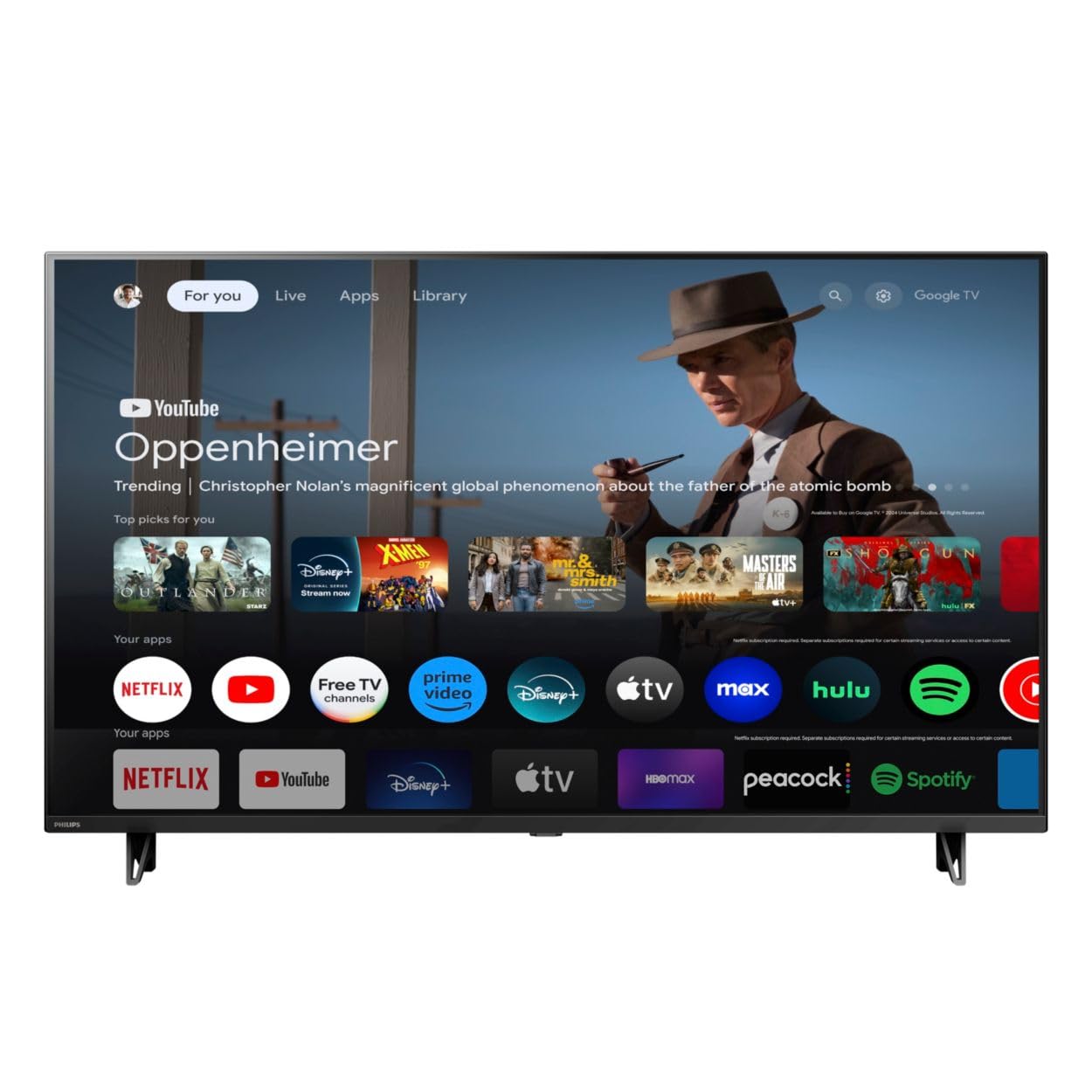
Depan view of the Google TV 7000 Series 4K Ultra HD LED Television, showcasinberkat bezel dan layarnya yang tipis.
2. Pengaturan
2.1 Unboxing dan Isi Paket
Keluarkan semua barang dari kemasan dengan hati-hati. Pastikan semua komponen ada:
- Google TV 7000 Series Television
- Kontrol jarak jauh
- Baterai untuk kendali jarak jauh
- Dudukan meja
- Screws for tabletop stand
- Panduan memulai cepat
- User Manual (dokumen ini)
2.2 Menghubungkan Daya
Connect the power cord to the TV's power input, then plug the other end into a wall outlet. Ensure the power outlet is easily accessible.
2.3 Menghubungkan Perangkat Eksternal
Your television supports various connectivity options:
- HDMI: Connect devices like Blu-ray players, game consoles, or set-top boxes to the HDMI ports. This model features Audio Return Channel (HDMI 2).
- Kabel USB: Use the USB port for media playback or connecting compatible accessories.
- Eternet: Untuk koneksi internet kabel yang stabil, sambungkan kabel Ethernet ke port LAN.
- Headphone Keluar: Hubungkan headphone untuk mendengarkan secara pribadi.
- Keluaran Audio Digital (Optik): Untuk menghubungkan ke sistem audio eksternal.
- CVBS+Audio L/R In: Untuk menghubungkan perangkat analog lama.
2.4 Pengaturan Awal
Saat pertama kali dinyalakan, TV akan memandu Anda melalui proses pengaturan awal. Ini meliputi:
- Pemilihan bahasa
- Connecting to a Wi-Fi network or using Ethernet
- Signing in with your Google account to access Google TV features and apps
- Scanning for available channels (ATSC, NTSC)
2.5 Opsi Pemasangan
You can place your TV on a tabletop using the included stand or mount it on a wall.
- Dudukan Meja: Attach the tabletop stand using the provided screws as per the quick start guide.
- Wall Mount: For wall mounting, use a VESA compatible mount (600 x 400 mm). Consult a professional for wall mounting to ensure safety and proper installation.
3. Petunjuk Pengoperasian
3.1 Kendali Jarak Jauh Berakhirview
The remote control allows you to navigate the Google TV interface, adjust settings, and control playback. It supports voice control for Google Assistant.
3.2 Fungsi Dasar
- Kekuatan: Tekan tombol daya untuk menghidupkan atau mematikan TV.
- Volume: Gunakan tombol volume untuk mengatur level suara.
- Saluran: Use the channel buttons to switch between TV channels.
- Masukan: Select the desired input source (HDMI, USB, etc.).
3.3 Google TV Interface Navigation
Use the directional pad and 'OK' button on your remote to navigate the Google TV home screen. The home screen provides access to your installed apps, recommended content, and settings.
3.4 Fitur Cerdas
- Chromecast Bawaan: Cast content from your compatible mobile devices or computer directly to your TV.
- Asisten Google Bawaan: Press the Google Assistant button on your remote to use voice commands for searching content, controlling smart home devices, getting information, and more.
- Aplikasi Streaming: Access popular streaming services like Netflix, YouTube, Discovery+, Tubi TV, and Prime Video directly from the Google TV interface.
3.5 Pengaturan Gambar dan Suara
Sesuaikan Anda viewpengalaman menonton dan mendengarkan melalui menu pengaturan TV:
- Picture Style: Choose from various preset picture modes or customize settings like brightness, contrast, color, and sharpness. Features include Dynamic contrast, Film mode, Blue stretch, and Custom Color management.
- Dukungan HDR: TV ini mendukung HDR10 dan HLG untuk kontras dan warna yang lebih baik dengan konten yang kompatibel.
- Mode Permainan: Optimize picture settings for gaming to reduce input lag.
- Gaya Suara: Select sound presets or adjust bass and treble. Features include Dolby Audio and Auto Volume Leveling.
- Rasio Aspek: Adjust the screen aspect ratio (e.g., Automatic, 4:3, Movie Expand, Full).
3.6 Konektivitas
Your TV offers various ways to connect to networks and devices:
- Wifinya: Hubungkan secara nirkabel ke jaringan rumah Anda untuk akses internet.
- Bluetooth dapat digunakan untuk berbagai keperluan, seperti: Connect compatible Bluetooth devices such as headphones or game controllers.
- Eternet: Provides a stable wired internet connection.
4. Pemeliharaan
4.1 Cleaning the Screen and TV Body
- Selalu cabut kabel TV sebelum membersihkan.
- Gunakan kain lembut, kering, dan bebas serat untuk menyeka layar dan bodi TV dengan lembut.
- Untuk noda membandel, oleskan sedikitampBasahi kain dengan air atau pembersih layar khusus. Jangan pernah menyemprotkan pembersih langsung ke layar.
- Hindari penggunaan pembersih abrasif, lilin, atau pelarut.
4.2 Pembaruan Perangkat Lunak
Your Google TV may receive automatic software updates to improve performance and add new features. Ensure your TV is connected to the internet to receive these updates. You can also manually check for updates in the settings menu.
4.3 Perawatan Remote Control
Replace batteries when the remote control's response becomes sluggish. Do not mix old and new batteries or different types of batteries. Keep the remote control away from moisture and direct sunlight.
5. Penyelesaian masalah
Jika Anda mengalami masalah dengan televisi Anda, lihat solusi umum berikut:
| Masalah | Solusi yang mungkin |
|---|---|
| Tidak ada daya | Periksa apakah kabel daya terpasang dengan aman ke TV dan stopkontak dinding. Pastikan stopkontak berfungsi. |
| Tidak ada gambar, tetapi ada suara | Pastikan sumber input yang dipilih sudah benar. Periksa koneksi perangkat eksternal. |
| Tidak ada suara, tetapi gambar ada | Periksa level volume dan status bisu. Pastikan sistem audio eksternal terhubung dengan benar dan menyala. |
| Kontrol jarak jauh tidak berfungsi | Ganti baterainya. Pastikan tidak ada penghalang antara remote dan sensor IR TV. |
| Masalah koneksi jaringan | Restart your router and modem. Reconnect to the Wi-Fi network or check the Ethernet cable connection. |
| Picture quality issues (e.g., pixelation) | Check the signal strength for broadcast channels. For streaming content, ensure a stable internet connection. Adjust picture settings. |
5.1 Reset Pabrik
If problems persist, a factory reset may resolve them. This will erase all personal settings and installed apps, returning the TV to its original factory state. Consult the on-screen menu for the factory reset option, usually found under System or Device Preferences in Settings.
6. Spesifikasi
Key technical specifications for the Google TV 7000 Series 4K Ultra HD LED Television:
| Fitur | Spesifikasi |
|---|---|
| Ukuran Layar | 43 inci |
| Teknologi Tampilan | LCD UltraHD Display, LED Backlight |
| Resolusi | 4 ribu (2160p) |
| Tingkat Penyegaran | 120 PMR (Picture Motion Rate) |
| Format HDR Didukung | HDR10, HLG |
| Sistem Operasi | Android 11 (Google TV) |
| Teknologi Konektivitas | Bluetooth, Ethernet, USB, Wi-Fi |
| Fitur Audio | Dolby Audio, Auto Volume Leveling |
| Fitur Khusus | Chromecast Built-in, Google Assistant Built-in, Game Mode, Digital Noise Reduction, MPEG artifact reduction, Dynamic contrast |
| Dimensi Produk (P x L x T) | 9.8"Panjang x 37.9"Lebar x 23.9"T |
| Berat Barang | 14.99 pon |
| Standar Pemasangan VESA | Ukuran: 600x400mm |
| Pabrikan | Philips |
| Nomor Model | 43PUL7652/F7 |
| UPC | 609585254893 |
7. Garansi dan Dukungan
7.1 Informasi Garansi
This product comes with a Limited Warranty. Please refer to the warranty card included in your package or contact the manufacturer for specific terms and conditions regarding coverage and duration.
7.2 Dukungan Pelanggan
For technical assistance, troubleshooting beyond this manual, or warranty claims, please contact the manufacturer, Philips, or your retailer. Have your model number (43PUL7652/F7) and serial number ready when contacting support.