
1. Pendahuluan
The 3Dconnexion SpaceMouse Wireless is an advanced 3D navigation device designed for professionals and enthusiasts working with 3D applications. It provides intuitive and precise control over digital content and camera positions, enhancing workflow efficiency in CAD and 3D modeling environments.
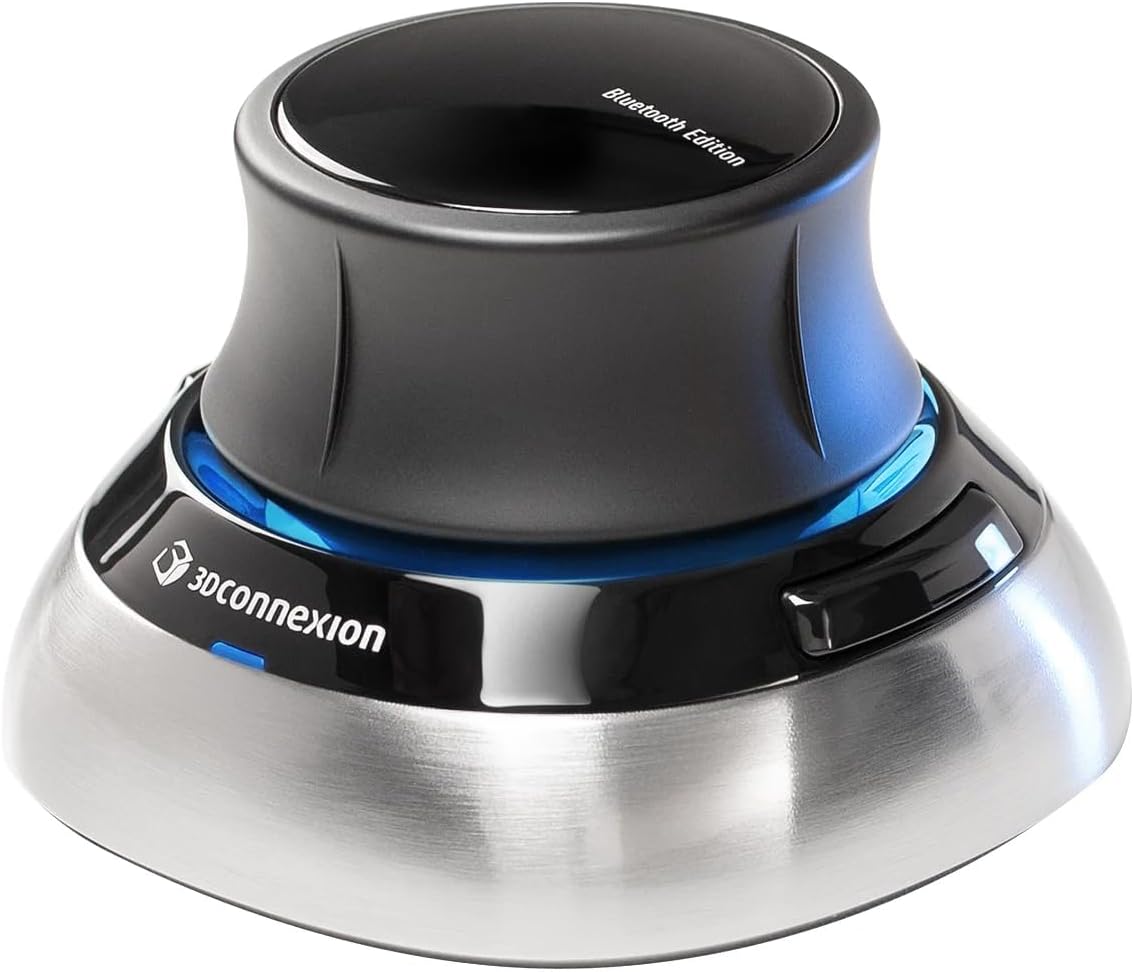
Figure 1: The 3Dconnexion SpaceMouse Wireless, a compact and ergonomic device for 3D navigation.
2. Pengaturan
2.1. Isi Paket
- 3Dconnexion SpaceMouse Nirkabel
- Penerima Universal 3Dkoneksi
- Kabel USB-C (1.5 m)
- Kotak Pembawa
2.2. Opsi Konektivitas
The SpaceMouse Wireless offers flexible connectivity:
- Wireless via Bluetooth: Connect directly to your computer's Bluetooth.
- Wireless via 3Dconnexion Universal Receiver: Plug the included USB receiver into an available USB port on your computer.
- Wired via USB-C Cable: Connect the device directly to your computer using the provided USB-C cable. This also charges the device.
For initial setup or if experiencing connectivity issues, a wired connection is recommended to ensure driver installation and proper device recognition.
3. Petunjuk Pengoperasian
3.1. 6-Degrees-of-Freedom (6DoF) Sensor
The core of the SpaceMouse Wireless is its patented 6DoF sensor. This sensor allows for simultaneous panning, zooming, and rotating of 3D models. To operate:
- Dorong tarik: Move the controller cap forward or backward to pan the model.
- Memutar: Putar tutupnya searah jarum jam atau berlawanan arah jarum jam untuk memutar model di sekitar porosnya.
- Memiringkan: Lean the cap left, right, forward, or backward to tilt the model.
- Kombinasi Gerakan: Apply multiple forces simultaneously for complex navigation.
Use your other hand with a standard mouse for selecting, creating, or editing models, creating a seamless dual-hand workflow.
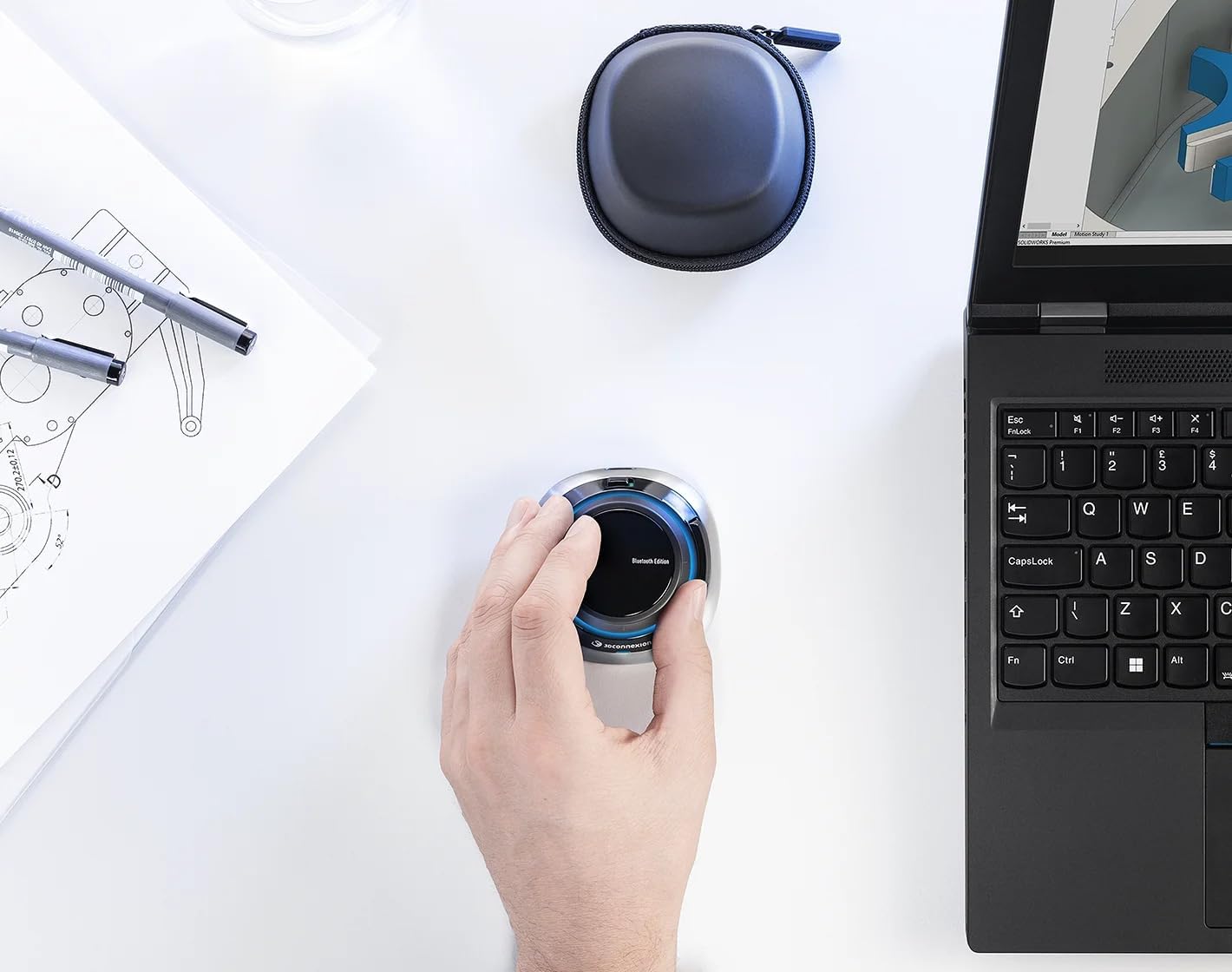
Figure 2: Demonstrates a user interacting with the SpaceMouse Wireless for 3D design on a laptop.
3.2. Programmable Buttons and Customization
The SpaceMouse Wireless features two programmable side buttons. These can be customized using the 3DxWare 10 software to assign application commands, create radial menus, or map custom macros. This allows for a personalized and efficient workflow tailored to your specific software applications.
The device also includes QuickView keys and intelligent function buttons for quick access to frequently used commands and keyboard modifiers (Ctrl, Alt, Shift, Esc).

Gambar 3: Gambaran detail view of a hand manipulating the SpaceMouse Wireless, highlighting its ergonomic design and accessible buttons.
3.3. 3DxWare 10 Software
The 3DxWare 10 software is the unified driver for all 3Dconnexion devices. It provides a user-friendly interface to:
- Adjust sensitivity and speed settings for the 6DoF sensor.
- Program the two side buttons with application-specific commands.
- Create and manage radial menus for quick access to multiple functions.
- Map custom macros to streamline repetitive tasks.
Ensure 3DxWare 10 is installed and up-to-date for optimal performance and customization.
4. Pemeliharaan
4.1. Mengisi Daya Perangkat
The SpaceMouse Wireless is equipped with a high-capacity rechargeable Lithium-Ion battery, providing up to one month of use on a single charge. To charge:
- Connect the included USB-C cable to the device and an available USB port on your computer or a USB wall adapter.
- Perangkat dapat digunakan saat mengisi daya.
4.2. Pembersihan
To clean the SpaceMouse Wireless, use a soft, damp cloth. Avoid using harsh chemicals or abrasive materials that could damage the device's surface.
4.3. Penyimpanan dan Transportasi
When not in use or during transport, store the SpaceMouse Wireless in its compact, lightweight, and durable carry case to protect it from damage.
5. Penyelesaian masalah
5.1. Masalah Konektivitas
- Perangkat tidak dikenali: Ensure the 3Dconnexion Universal Receiver is securely plugged into a USB port, or that Bluetooth is enabled and the device is paired. Try connecting the device via the USB-C cable to confirm functionality and driver installation.
- Koneksi terputus-putus: Check for potential interference from other wireless devices. Ensure the device is within range of the receiver or Bluetooth connection.
5.2. Masalah Perangkat Lunak
- Tombol tidak merespons: Verify that the 3DxWare 10 software is installed and running. Check the button assignments within the software for your specific application.
- Navigation not working as expected: Adjust the sensitivity settings in the 3DxWare 10 software. Ensure the correct application profile aktif.
6. Spesifikasi
| Fitur | Detil |
|---|---|
| Merek | Koneksi 3D |
| Nomor Model | 3DX-700115 |
| Seri | SpaceMouse Nirkabel |
| Teknologi Konektivitas | Bluetooth, USB, Nirkabel |
| Teknologi Deteksi Gerakan | Trackball/Sensor (6DoF) |
| Platform Perangkat Keras | Komputer, Mac |
| Sistem Operasi | Jendela, macOS |
| Berat Barang | 15.9 ons |
| Dimensi Produk (P x L x T) | 78x78x0.1 inci |
| Warna | Hitam |
| Sumber Daya | Bertenaga Baterai |
| Jenis Baterai | 1 baterai Lithium Ion (termasuk) |
| Daya Tahan Baterai Rata-rata | Hingga 1 bulan |
| Fitur Khusus | Bluetooth, Ergonomic Design, Portable, Programmable Buttons, Wireless |
7. Garansi dan Dukungan
7.1. Informasi Garansi
Specific warranty details for the 3Dconnexion SpaceMouse Wireless are typically provided with your purchase documentation or can be found on the official 3Dconnexion websitus. Silakan merujuk ke sumber daya ini untuk syarat dan ketentuan garansi yang lengkap.
7.2. Dukungan Teknis
For technical assistance, driver downloads, and additional product information, please visit the official 3Dconnexion support webAnda juga dapat menemukan FAQ dan forum komunitas di sana.
Dukungan online: www.3dconnexion.com/support