
1. Pendahuluan
This manual provides detailed instructions for the OMOTON Magnetic Keyboard Case, Model KC011. This accessory is designed to enhance the functionality of your iPad Pro 13-inch (M4) 2024, offering a keyboard, multi-touch trackpad, and protective case. Please read this manual thoroughly before use to ensure proper operation and maintenance.
2. Isi Paket
Verifikasi bahwa semua item yang tercantum di bawah ini ada dalam paket Anda:
- OMOTON Magnetic Keyboard Case
- Kabel Pengisian Daya USB-C (1 meter)
- Manual Instruksi
3. Kompatibilitas
This keyboard case is specifically designed for the Apple iPad Pro 13-inch (M4) 2024 model. It is compatible with iPad models A2925, A2926, and A3007.

Gambar 3.1: iPad Pro 13-inch (M4) 2024 compatibility. This image illustrates the 13-inch screen size and lists the compatible iPad model numbers (A2925, A2926, A3007) found on the back of the device.
To confirm your iPad model number:
- Pergi ke Pengaturan di iPad Anda.
- Memilih Umum, Kemudian Tentang, and look for Nama Model.
- Alternatively, locate the model number printed on the back of your iPad.
4. Pengaturan
4.1 Memasang iPad
The keyboard case features strong magnets for secure attachment of your iPad. Align your iPad with the magnetic panel on the case until it snaps into place.

Gambar 4.1: Magnetic attachment. This image demonstrates how the iPad magnetically connects to the keyboard case, highlighting the strong magnetic attraction for secure placement.
4.2 Pemasangan Bluetooth
Follow these steps to pair your keyboard case with your iPad via Bluetooth:
- Pastikan keyboard terisi daya (lihat Bagian 5.4 untuk petunjuk pengisian daya).
- Turn on the keyboard by pressing the power button. The Bluetooth indicator light will flash.
- Di iPad Anda, buka Pengaturan > Bahasa Indonesia: Bluetooth.
- Nyalakan Bluetooth. iPad Anda akan mencari perangkat yang tersedia.
- Select "OMOTON Keyboard" (or similar name) from the list of devices.
- If prompted, enter the pairing code displayed on your iPad and press Memasuki pada papan ketik.
- Once paired, the Bluetooth indicator light on the keyboard will turn off, and your iPad will show the keyboard as "Connected."
5. Operasi
5.1 Fungsi Keyboard
The keyboard features a standard QWERTY layout with additional function keys and backlighting.
- Lampu latar: The keyboard offers 12 backlight modes and 4 brightness levels. Use the dedicated backlight key (often represented by a light bulb icon) to cycle through modes and adjust brightness. This feature provides visibility in low-light conditions.
- Tombol Multimedia: A row of 14 function keys provides quick access to iPadOS features such as screen brightness adjustment, volume control, media playback, and more.
- Kunci Struktur Gunting: The 1-millimeter keystroke scissor structure is designed for a quiet and responsive typing experience.
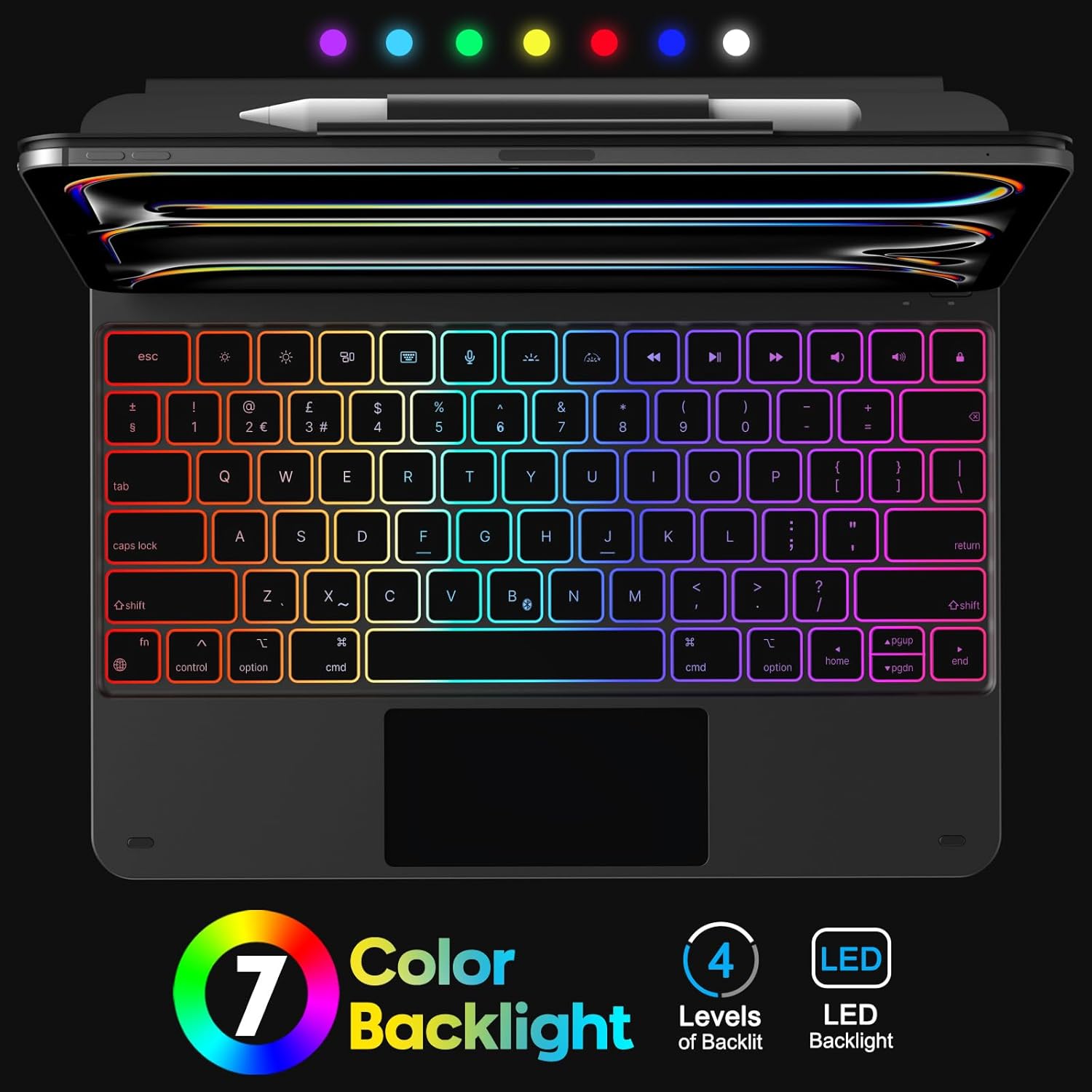
Gambar 5.1: Keyboard Backlight. This image displays the keyboard with its customizable 7-color backlight options and indicates the 4 available brightness levels, enhancing typing visibility.

Gambar 5.2: Key Mechanism. A close-up view of a keyboard key, illustrating the internal scissor-switch mechanism designed for comfortable and quiet typing.
5.2 Penggunaan Trackpad
The integrated multi-touch trackpad supports various iPadOS gestures for navigation and interaction.
- Jari Tunggal: Tap to click, drag to move cursor.
- Dua jari: Scroll up/down/left/right, pinch to zoom.
- Tiga Jari: Swipe up to go to the Home screen, swipe up and hold to view app switcher, swipe left/right to switch between open apps.
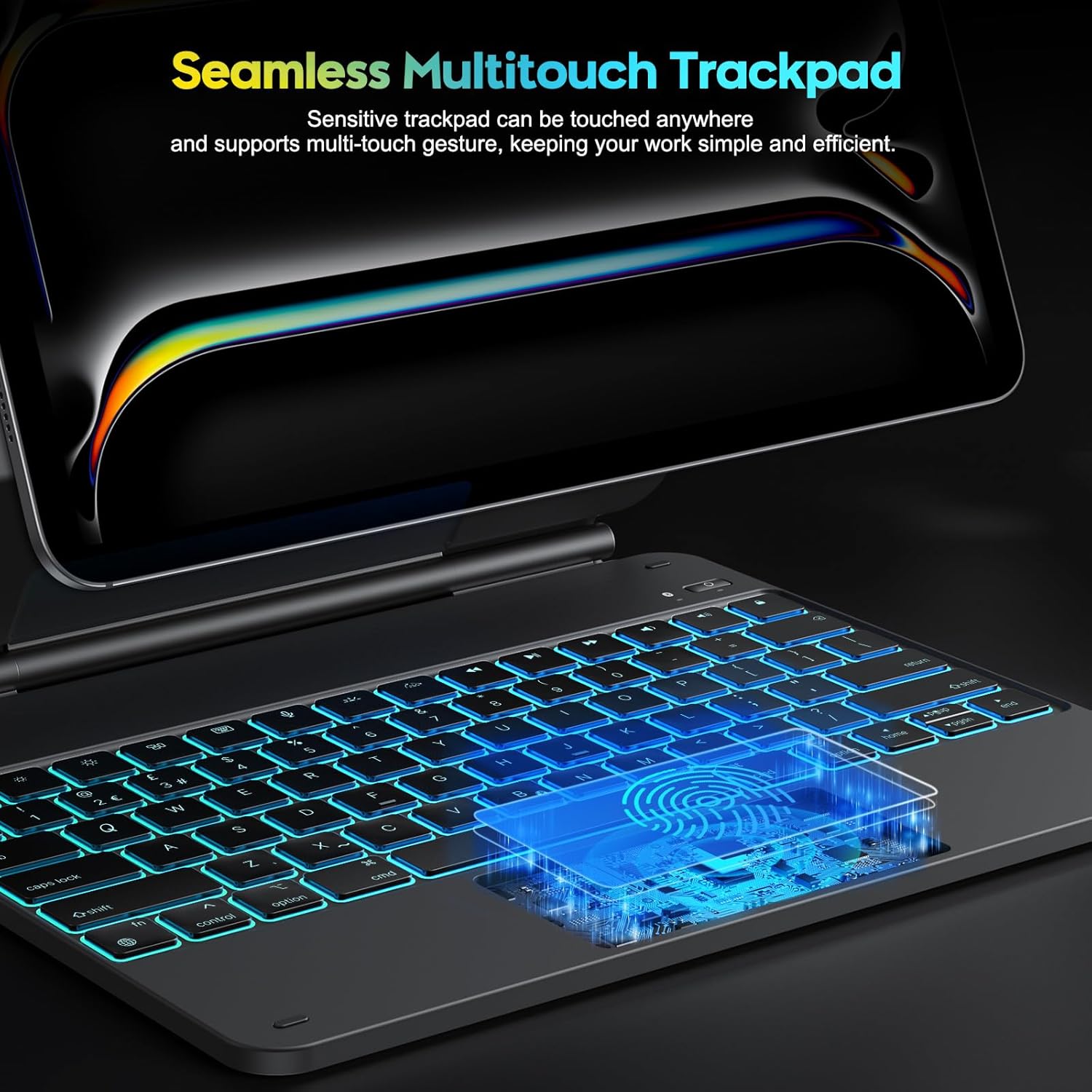
Gambar 5.3: Multi-Touch Trackpad. This image highlights the sensitive multi-touch trackpad, indicating its capability to register various gestures for efficient iPadOS interaction.
5.3 Menyesuaikan Stand
The floating stand design allows for flexible viewing angles. Gently adjust the iPad's position on the magnetic stand to achieve your desired angle.

Gambar 5.4: Floating Stand Design. This image illustrates the adjustable floating stand, demonstrating how the iPad's viewing angle can be smoothly set to various positions, up to 120 degrees.
5.4 Mengisi Daya Keyboard
The keyboard case is equipped with a built-in rechargeable battery. Use the provided USB-C cable to charge the device.
- Connect the USB-C end of the cable to the charging port on the keyboard.
- Hubungkan ujung kabel lainnya ke adaptor daya USB (tidak disertakan) atau port USB komputer.
- Lampu indikator pengisian daya akan menyala selama pengisian daya dan mati saat daya terisi penuh.
- A full charge takes approximately 3 hours. The battery provides up to 260 hours of use without backlight and 9 hours with backlight.

Gambar 5.5: Charging and Battery Life. This image highlights the Type-C charging port on the keyboard and provides information on battery life, including 3 hours fast charging, 800mAh lithium battery, and over 1000 hours standby time.
6. Pemeliharaan
Untuk memastikan umur panjang dan kinerja optimal casing keyboard Anda, ikuti panduan perawatan berikut:
- Keep the device away from liquids and extreme temperatures.
- Clean the keyboard and trackpad surfaces with a soft, dry, lint-free cloth. Avoid abrasive cleaners.
- Do not attempt to disassemble the keyboard case, as this may void the warranty and cause damage.
- Store the keyboard case in a clean, dry environment when not in use.
7. Penyelesaian masalah
If you encounter issues with your keyboard case, refer to the following common solutions:
- Keyboard tidak terhubung: Ensure Bluetooth is enabled on your iPad and the keyboard is powered on and charged. Try re-pairing the keyboard (Section 4.2).
- Tombol tidak merespons: Check if the keyboard is charged. Restart both the keyboard and your iPad.
- Trackpad tidak berfungsi: Ensure the keyboard is connected via Bluetooth. Check iPadOS settings for trackpad functionality. Restart the keyboard and iPad.
- Lampu latar tidak berfungsi: Ensure the keyboard is charged. Press the backlight key to cycle through modes and brightness levels.
- Lag in keyboard response: Ensure the keyboard is fully charged. Minimize interference from other Bluetooth devices.
If the problem persists after trying these steps, please contact OMOTON customer support.
8. Spesifikasi
| Fitur | Spesifikasi |
|---|---|
| Merek | OMOTON |
| Nama Model | KC011 |
| Perangkat yang Kompatibel | iPad Pro 13-inch (M4) 2024 (Models A2925, A2926, A3007) |
| Teknologi Konektivitas | Bahasa Indonesia: Bluetooth |
| Tata Letak Papan Ketik | QWERTY (UK-Layout) |
| Jumlah Kunci | 78 |
| Fitur Khusus | Backlit (12 modes, 4 brightness levels), Hotkeys, Media Keys, Portable, Rechargeable, Multi-Touch Trackpad, Floating Stand Design |
| Kapasitas Baterai | 800mAh Lithium-ion |
| Daya Tahan Baterai (Tanpa Lampu Latar) | Hingga 260 jam |
| Daya Tahan Baterai (Dengan Lampu Latar) | Hingga 9 jam |
| Port Pengisian Daya | USB Tipe C |
| Warna | Hitam |
9. Garansi dan Dukungan
OMOTON products are designed for reliability and performance. For warranty information or technical support, please refer to the contact details provided with your purchase or visit the official OMOTON websitus. Harap simpan bukti pembelian Anda untuk klaim garansi.