
XunFox K30 Pro
XunFox K30 Pro Transparent Mechanical Keyboard User Manual
Model: K30 Pro
Brand: XunFox
Perkenalan
Welcome to the XunFox K30 Pro Transparent Mechanical Keyboard user manual. This guide provides detailed instructions for setting up, operating, and maintaining your new keyboard. The K30 Pro features a unique transparent design, 61-key layout, RGB backlighting, and versatile 3-mode connectivity (2.4GHz wireless, Bluetooth 5.1, and wired USB).
Isi Paket
- XunFox K30 Pro Mechanical Keyboard
- Kabel USB-C ke USB-A (untuk koneksi dan pengisian daya berkabel)
- Penerima Nirkabel 2.4GHz
- User Manual (dokumen ini)
Produk Selesaiview
The XunFox K30 Pro keyboard features a compact 61-key layout with transparent keycaps and a translucent bottom shell, showcasing its internal mechanical components.
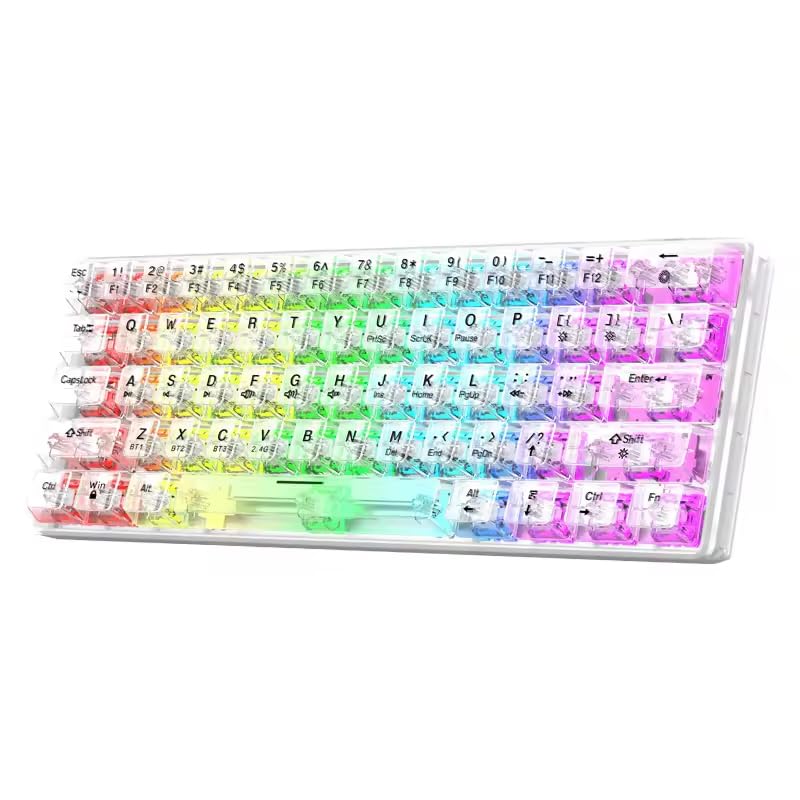
Gambar: Depan view of the XunFox K30 Pro Transparent Mechanical Keyboard, showcasing its compact 61-key layout and vibrant RGB backlighting through transparent keycaps.

Image: Diagram highlighting the 61-key minimalist layout of the XunFox K30 Pro keyboard, emphasizing space-saving design compared to traditional 104-key keyboards.

Image: Exploded diagram illustrating the internal layers of the keyboard, including transparent keycaps, customized mechanical shafts, positioning plate, PCB board, and translucent bottom shell.
Fitur Utama:
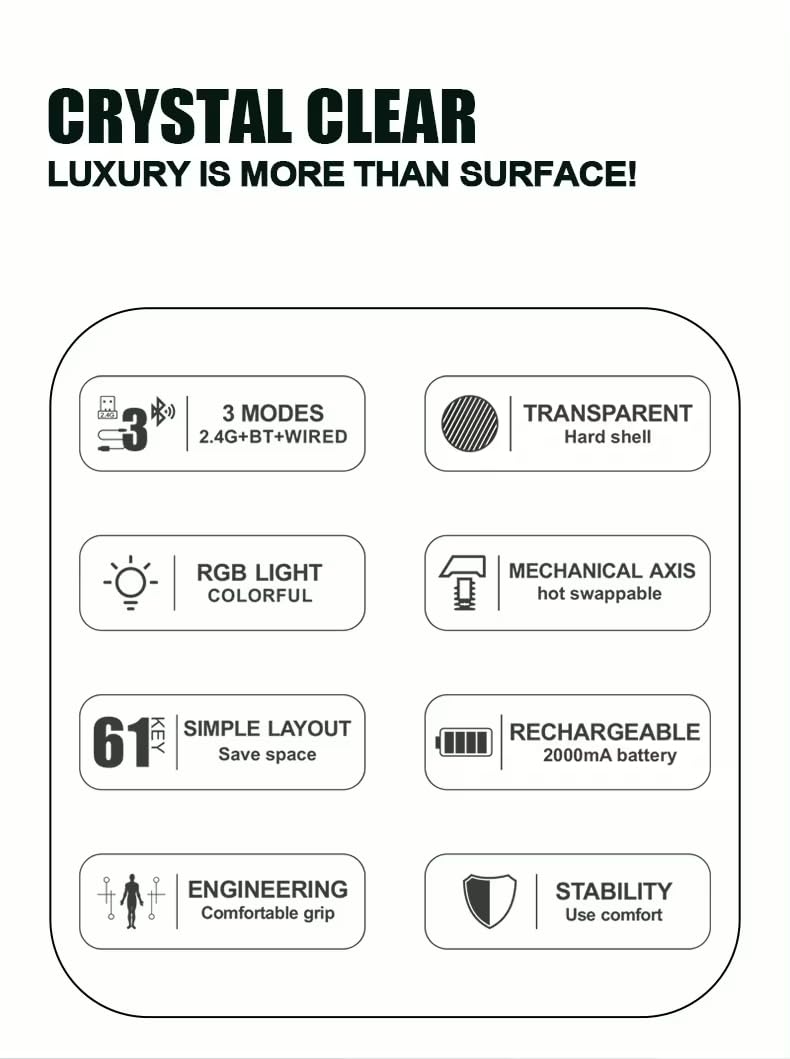
- 61-Key Minimalist Layout: Space-saving design.
- Desain Transparan: Crystal clear hard shell and keycaps.
- Konektivitas 3 Mode: 2.4GHz Wireless, Bluetooth 5.1, and Wired USB.
- Lampu Latar RGB: Customizable colorful lighting effects.
- Hot-Swappable Mechanical Axis: Allows for easy switch replacement.
- Baterai Isi Ulang 2000mAh: For extended wireless use.
- Desain Ergonomis: Comfortable grip for prolonged use.
Pengaturan
1. Mengisi Baterai
Before first use, or when the battery is low, connect the keyboard to a USB power source (e.g., computer USB port, USB wall adapter) using the provided USB-C cable. The charging port is typically located on the back or side of the keyboard.
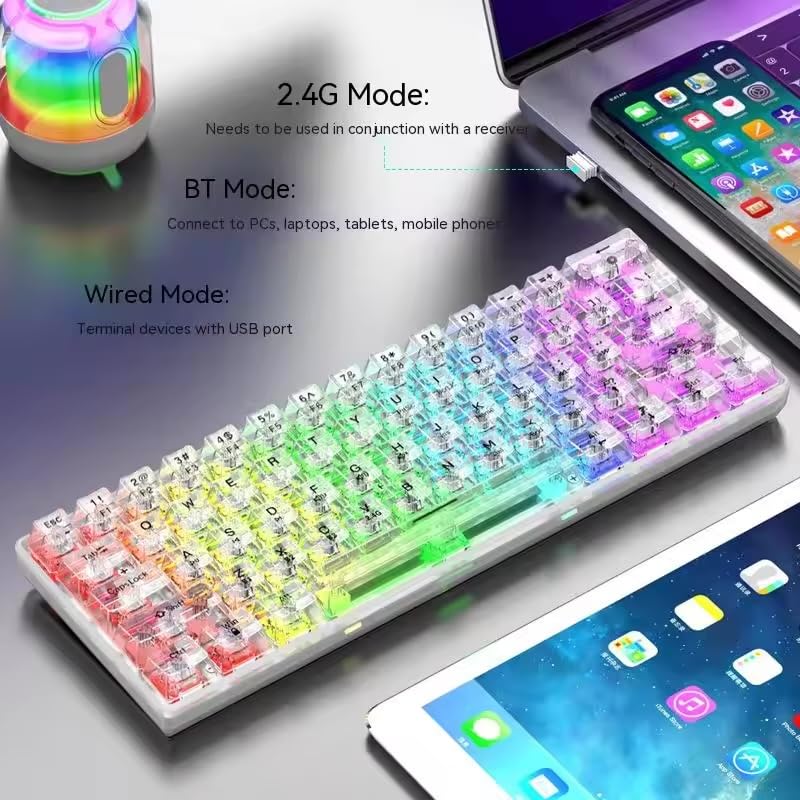
Image: The XunFox K30 Pro keyboard connected via a USB-C cable to a laptop, illustrating the charging process and highlighting the 2000mAh battery capacity.
A full charge provides approximately 2000mAh of battery life.
2. Connecting via 2.4GHz Wireless Mode
- Locate the 2.4GHz wireless receiver, usually stored in a compartment on the keyboard or included separately.
- Plug the 2.4GHz receiver into an available USB port on your computer.
- Switch the keyboard's connection mode to 2.4GHz. This is typically done using a switch on the keyboard or an FN key combination (e.g., FN + V).
- Keyboard akan terhubung secara otomatis ke perangkat Anda.
3. Menghubungkan melalui Mode Bluetooth
- Switch the keyboard's connection mode to Bluetooth. This is typically done using a switch on the keyboard or an FN key combination (e.g., FN + Z untuk BT1, FN + X untuk BT2, FN + C for BT3).
- For first-time pairing, long-press the corresponding FN key combination (e.g., FN + Z for 3 seconds) to enter pairing mode. The keyboard's indicator light will flash.
- On your device (computer, laptop, tablet, phone), open Bluetooth settings and search for new devices.
- Select "XunFox K30 Pro" (or similar name) from the list of available devices to pair.
- Setelah terhubung, lampu indikator akan berhenti berkedip.
4. Connecting via Wired USB Mode
- Hubungkan salah satu ujung kabel USB-C yang tersedia ke port USB-C pada keyboard.
- Hubungkan ujung kabel USB-A lainnya ke port USB yang tersedia di komputer Anda.
- Switch the keyboard's connection mode to Wired. This is typically done using a switch on the keyboard or an FN key combination.
- The keyboard will be recognized as a standard USB keyboard and is ready for use.

Image: Diagram illustrating the three connection modes: Bluetooth (BT), 2.4GHz Wireless (with receiver), and Wired (USB-C cable). Shows the keyboard connected to various devices.
Petunjuk Pengoperasian
Beralih Mode Koneksi
The keyboard supports three connection modes. Use the dedicated switch or FN key combinations to switch between them:
- Nirkabel 2.4Ghz: Tekan FN + V (short press to switch, long press for 3 seconds to enter pairing mode). Requires the 2.4GHz receiver.
- Bluetooth 1 (BT1): Tekan FN + Z (short press to switch, long press for 3 seconds to enter pairing mode).
- Bluetooth 2 (BT2): Tekan FN + X (short press to switch, long press for 3 seconds to enter pairing mode).
- Bluetooth 3 (BT3): Tekan FN + C (short press to switch, long press for 3 seconds to enter pairing mode).
- Mode Berkabel: Connect the USB-C cable. The keyboard will automatically switch to wired mode or may require a specific FN key combination (refer to specific product documentation if FN key is needed).
Kontrol Lampu Latar RGB
The XunFox K30 Pro features customizable RGB backlighting. Specific FN key combinations are used to control lighting effects, brightness, and speed. Please refer to the quick start guide or product packaging for exact FN key combinations for RGB control, as these can vary.
Special Function Keys (FN Combinations)
The 61-key layout utilizes the FN key to access secondary functions printed on the keycaps.
- FN + [Number Keys]: Mengakses fungsi F1-F12.
- FN + [Other Keys]: Access multimedia controls, volume, and other system functions.
A detailed list of FN key combinations can usually be found in the quick start guide or on the product's official support page.
Pemeliharaan
Pembersihan
Untuk membersihkan keyboard Anda:
- Lepaskan keyboard dari semua sumber daya dan perangkat.
- Gunakan kain lembut dan bebas serat untuk sedikit membersihkannya.ampdibersihkan dengan air atau larutan pembersih ringan untuk menyeka penutup tombol dan rangka.
- Untuk debu dan kotoran di sela-sela tombol, gunakan udara bertekanan.
- Hindari penggunaan bahan kimia keras atau bahan abrasif.
Sakelar yang Dapat Ditukar Saat Panas
The K30 Pro features hot-swappable mechanical switches, allowing you to change switches without soldering. Use a switch puller tool (not included unless specified) to carefully remove and insert compatible 3-pin or 5-pin mechanical switches.
Penyelesaian Masalah
Keyboard Tidak Merespon
- Pastikan keyboard terisi daya.
- Check the connection mode (2.4GHz, Bluetooth, Wired) and ensure it matches your device's connection.
- For 2.4GHz, ensure the receiver is properly plugged in.
- For Bluetooth, ensure it's paired correctly and within range. Try re-pairing.
- Untuk koneksi kabel, pastikan kabel USB terhubung dengan aman ke keyboard dan komputer.
- Cobalah menghubungkan ke port USB atau perangkat lain.
Masalah Koneksi Bluetooth
- Ensure the keyboard is in Bluetooth pairing mode (indicator light flashing).
- Hapus keyboard dari daftar Bluetooth perangkat Anda dan coba pasangkan kembali.
- Pastikan Bluetooth perangkat Anda diaktifkan.
- Reduce distance between keyboard and device.
Lampu RGB Tidak Berfungsi
- Pastikan keyboard dalam keadaan menyala dan terisi daya.
- Check if the backlight has been turned off via an FN key combination.
- Adjust brightness settings using FN key combinations.
Spesifikasi
| Fitur | Spesifikasi |
|---|---|
| Merek | XunFox |
| Model | K30 Pro |
| Jenis Papan Ketik | Mekanis |
| Tata Letak | 61 Kunci |
| Konektivitas | 2.4GHz Wireless, Bluetooth 5.1, Wired (USB-C) |
| Kapasitas Baterai | 2000 mAh |
| Lampu latar | Bahasa Inggris: RGB |
| Fitur Khusus | Backlit, Ergonomic, Rechargeable, Hot-swappable mechanical axis |
| Dimensi Produk | Ukuran 40x8x4 cm |
| Berat Barang | 900 gram |
| Perangkat yang Kompatibel | Laptop, PC, Tablet, Phone |
Gambar: Atas-bawah view of the XunFox K30 Pro keyboard with key dimensions (292mm length, 102mm width, 40mm height) indicated.
Garansi dan Dukungan
This XunFox K30 Pro keyboard comes with a Garansi 2 Tahun.
For technical support, warranty claims, or further assistance, please contact:
- Layanan Pelanggan: +91 9906910066
- Importir/Pengemas: NJ Infotech
Harap simpan bukti pembelian Anda untuk tujuan garansi.
Ask a question about this manual
Ask about setup, troubleshooting, compatibility, parts, safety, or missing instructions. Manuals+ will review the question and use this page’s manual context to help answer it.