
Perkenalan
Thank you for choosing the OMOTON Wireless Bluetooth Keyboard. This ultra-slim keyboard is designed for seamless compatibility with various Mac devices, offering a stable and efficient typing experience. This manual provides detailed instructions for setup, operation, maintenance, and troubleshooting to ensure optimal performance of your device.

OMOTON Wireless Keyboard compatible with various Mac devices including iMac, Mac mini, and MacBook Pro/Air. System requirement: Mac OS X 10.10 or above.
Pengaturan
1. Pemasangan Baterai
The OMOTON Wireless Bluetooth Keyboard requires two AAA batteries (not included). Follow these steps to install them:
- Locate the battery compartment on the back of the keyboard.
- Geser buka penutup baterai.
- Masukkan dua baterai AAA, pastikan polaritas yang benar (+/-).
- Tutup penutup baterai dengan rapat.
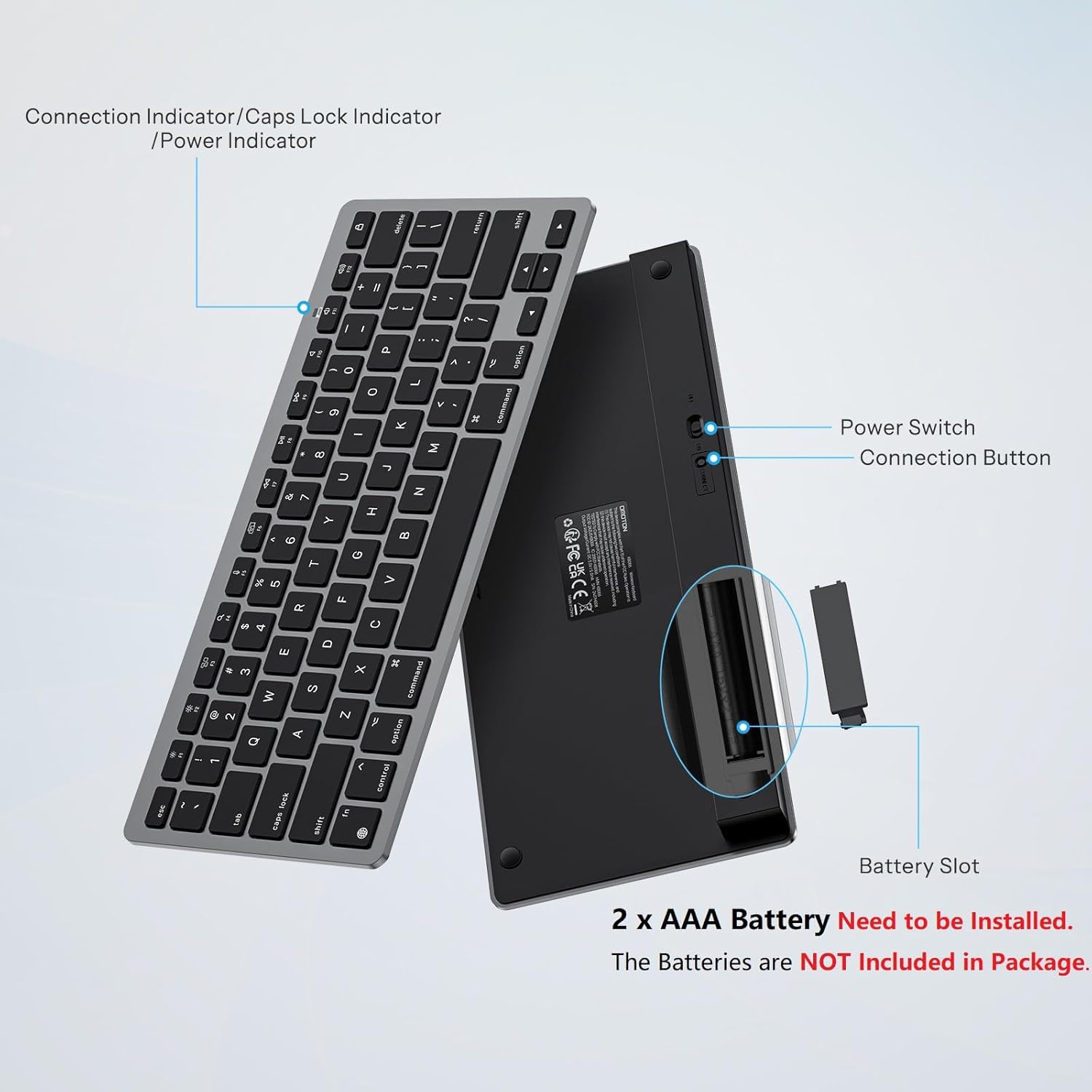
Belakang view of the OMOTON Wireless Keyboard showing the power switch, connection button, and battery slot for two AAA batteries.
2. Pemasangan Bluetooth
To connect your keyboard to your Mac device, follow these steps:
- Pastikan baterai keyboard sudah diganti dengan yang baru.
- Locate the power switch on the back of the keyboard and slide it to the "ON" position.
- Press the "Connect" button on the back of the keyboard. The Bluetooth indicator light on the keyboard will begin to flash, indicating it is in pairing mode.
- On your Mac device, go to Pengaturan Sistem (atau Preferensi SistemBahasa Indonesia: Bahasa Indonesia: Bluetooth.
- Pastikan Bluetooth dihidupkan.
- Look for "KB066 Mac Keyboard" (or similar) in the list of available devices and click "Connect" or "Pair".
- Setelah terhubung, lampu indikator Bluetooth pada keyboard akan berhenti berkedip.

Step-by-step visual guide for connecting the OMOTON Wireless Keyboard via Bluetooth to a Mac device.
The keyboard maintains a stable Bluetooth connection range of up to 33 feet (10 meters).
Petunjuk Pengoperasian
Mengetik Dasar
The keyboard features a standard QWERTY layout. The keys are designed for a quick and responsive typing experience.

Close-up of a key on the OMOTON Wireless Keyboard, illustrating the scissor-switch mechanism for quick and quiet typing.
Tombol Multimedia
The top row of keys (F1-F12) provides dedicated multimedia and function controls for Mac devices. These include:
- F1 dan F2: Penyesuaian kecerahan
- F3: Kontrol Misi
- F4: Pencarian
- F5: Dikte
- F6: Tangkapan layar
- F7/F8/F9: Trek Sebelumnya, Putar/Jeda, Trek Berikutnya
- F10/F11/F12: Bisukan, Volume Turun, Volume Naik
- Tombol Eject: Layar Kunci

Layout of the OMOTON Wireless Keyboard highlighting the dedicated multimedia function keys for Mac.
Desain Ergonomis
The keyboard features an 8-degree tilt angle, designed to promote a comfortable typing posture and reduce strain during extended use. Four rubber feet on the bottom provide slip resistance for stability.

Samping view of the OMOTON Wireless Keyboard demonstrating its 8-degree ergonomic tilt for comfortable typing.
Pemeliharaan
Pembersihan
Untuk menjaga tampilan dan fungsionalitas keyboard:
- Use a soft, lint-free cloth to wipe the surface.
- Untuk kotoran membandel, sedikit dampBilas kain dengan air atau larutan pembersih ringan. Hindari kelembapan berlebih.
- Jangan gunakan pembersih abrasif, pelarut, atau semprotan aerosol langsung pada keyboard.
Penggantian Baterai
When the keyboard's performance degrades or it fails to connect, it may be time to replace the batteries. Refer to the "Battery Installation" section for instructions on replacing the two AAA batteries. The energy-saving design and auto-sleep mode allow for a battery replacement interval of up to 6 months under typical usage.
Penyelesaian Masalah
- Keyboard tidak terhubung atau sering terputus:
- Ensure the keyboard is powered on and has fresh batteries.
- Verify that Bluetooth is enabled on your Mac device.
- Move the keyboard closer to your Mac to ensure it's within the 33-foot (10-meter) range.
- Try unpairing and re-pairing the keyboard through your Mac's Bluetooth settings. - Tombol tidak merespons:
- Check battery levels and replace if necessary.
- Ensure the keyboard is properly connected via Bluetooth.
- If the keyboard has been idle, it may be in auto-sleep mode. Press any key and wait 2-3 seconds for it to wake up. - Input tertunda atau terlambat:
- This could be due to interference. Try moving other wireless devices away from your keyboard and Mac.
- Ensure your Mac's operating system is up to date.
Spesifikasi
| Fitur | Detil |
|---|---|
| Merek | OMOTON |
| Model | B0DLMXVTHM |
| Perangkat yang Kompatibel | Mac/iMac/Macbook/Laptop etc. (macOS 10.10 and later) |
| Teknologi Konektivitas | Bahasa Indonesia: Bluetooth |
| Deskripsi Papan Ketik | Multimedia, Wireless |
| Penggunaan yang Direkomendasikan | Kantor |
| Fitur Khusus | Ergonomis, Portabel |
| Warna | Hitam Abu-abu |
| Bahan | Plastik |
| Sumber Daya | Ditenagai baterai (2 x AAA, tidak termasuk) |
| Tata Letak Papan Ketik | Bahasa QWERTY |
| Berat Barang | 11.7 ons |
| Dimensi Paket | 11.38x5x0.94 inci |

Dimensions of the OMOTON Wireless Keyboard (11.22 x 4.72 inches) shown in comparison to a MacBook and a smartphone.
Garansi dan Dukungan
OMOTON products are designed for reliability and performance. For specific warranty details, please refer to the warranty card included with your product packaging or visit the official OMOTON website. For technical support or further assistance, please contact OMOTON customer service through their official channels.