
1. Produk Lebihview
The Genérico MF253L 4G LTE Router is designed to provide stable and secure wireless network connectivity, especially in areas with limited wired internet access. This device allows you to interlink wireless networks, ensuring high-speed information transfer for various devices.
Fitur utama meliputi:
- Continuous signal with 300 Mbps speed.
- Wireless connectivity for flexible use in home or office environments.
- Triple-band width for simultaneous task execution and efficient file transfer.
- 4G LTE technology (150/50 Mbps) and 3G (850/1900/2100MHz) frequency support.
- GSM Quadriband (850/900/1800/1900 MHz) support.
2. Isi Paket
Harap verifikasi bahwa semua item ada dalam paket Anda:
- 1x Genérico MF253L 4G LTE Router
- 1x Antena Eksternal
- 1x Power Adapter (110v / 220v compatible)
- 1x Kabel Jaringan RJ45
3. Petunjuk Penyiapan
3.1. Memasukkan Kartu SIM
- Locate the SIM card slot on the router. This is typically found on the side or bottom of the device.
- Carefully insert your activated 4G SIM card into the slot until it clicks into place. Ensure the SIM card is oriented correctly as indicated by the diagram near the slot.
3.2. Menghubungkan Antena
- Attach the provided external antenna to the designated antenna port on the router. Screw it on clockwise until it is finger-tight.
- Position the antenna vertically for optimal signal reception.

Gambar 1: Sisi view of the router with the external antenna connected.
3.3. Menyalakan Router
- Hubungkan adaptor daya ke port input daya router.
- Plug the power adapter into a standard electrical outlet (110v or 220v).
- Wait for the router's indicator lights to stabilize. The 4G/3G signal light should turn solid, indicating a successful network connection.
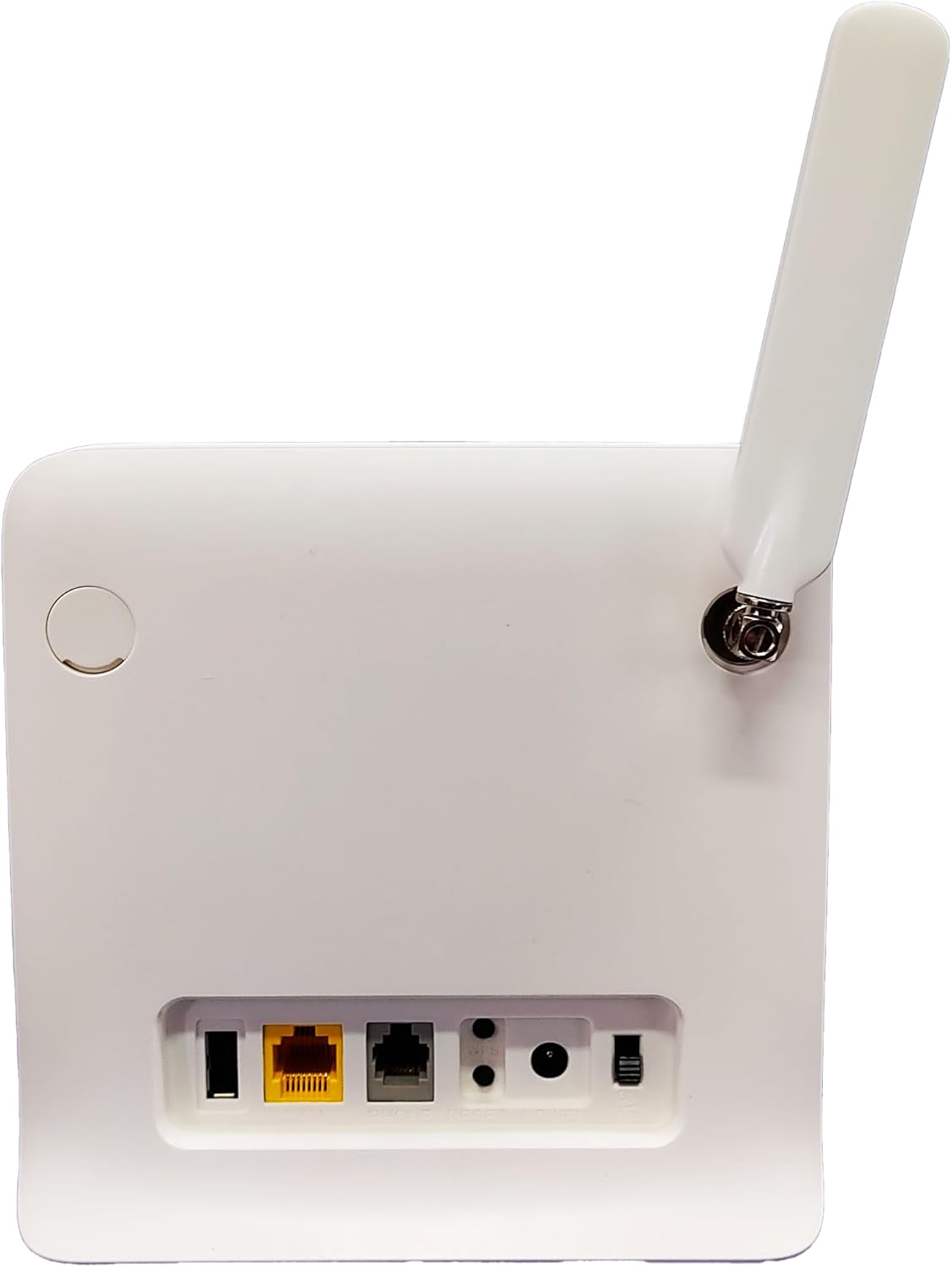
Figure 2: Rear panel of the router with power and network ports.
3.4. Menghubungkan Perangkat
You can connect devices via Wi-Fi or Ethernet cable:
- Koneksi Wi-Fi: Locate the Wi-Fi network name (SSID) and password printed on a label on the router (usually on the bottom). Connect your computer, smartphone, or tablet to this network.
- Koneksi Ethernet: Use the provided RJ45 network cable to connect your computer or other network-enabled device to one of the LAN ports on the router.

Gambar 3: Depan view of the router showing indicator lights and typical device connections.
4. Petunjuk Pengoperasian
4.1. Mengakses Web Antarmuka
- Buka sebuah web browser pada perangkat yang terhubung ke router.
- Enter the default IP address (e.g., 192.168.1.1 or 192.168.0.1) into the address bar and press Enter. This address is usually found on the router's label.
- Enter the default username and password (also on the router's label) to log in.
4.2. Pengaturan dasar
- Ubah Nama dan Kata Sandi Wi-Fi: Navigate to the Wireless Settings section to customize your SSID and password for enhanced security.
- Mode Jaringan: The router automatically detects the best network mode (4G/3G). You can manually select it if needed in the Network Settings.
- Pengaturan APN: In most cases, the APN settings are automatically configured by the SIM card. If you experience connectivity issues, you may need to manually enter the APN details provided by your mobile carrier.
4.3. Lampu Indikator
Familiarize yourself with the router's LED indicators:
- Kekuatan: Lampu hijau menyala menunjukkan perangkat dalam keadaan aktif.
- Wifinya: Solid green indicates Wi-Fi is active. Blinking indicates data transfer.
- Signal (SIG): Indicates the strength of the 4G/3G signal. More bars/lights usually mean stronger signal.
- Jaringan 3G/4G: Indicates the current network type.
- LAN: Solid green indicates a device is connected via Ethernet. Blinking indicates data transfer.
5. Spesifikasi
| Fitur | Keterangan |
|---|---|
| Nama Model | MF253L |
| Teknologi Konektivitas | LTE (4G) |
| 4G LTE Frequencies | 150/50 Mbps (850/2600 MHz) |
| 3G Frequencies | Frekuensi 850/1900/2100MHz |
| Frekuensi GSM | Quadriband (850/900/1800/1900 MHz) |
| Standar Komunikasi Nirkabel | 802.11.be |
| Kecepatan Transfer Data | 300 Megabit Per Detik |
| Max Upload Data Rate | 50 Megabit Per Detik |
| Bandwidth Port LAN | Kecepatan 300Mbps |
| Jumlah Pelabuhan | 1 (LAN) |
| Jumlah Antena | 1 (Eksternal) |
| Perangkat yang Kompatibel | Personal Computer, Notebook, Smartphone, Tablet |
| Protokol Keamanan | Bahasa Indonesia: WPA2 |
| Metode Kontrol | Sentuh (melalui) web antarmuka) |
| Cakupan | Standard wireless for home or small office |
6. Penyelesaian masalah
- Tidak ada koneksi internet:
- Periksa apakah kartu SIM telah terpasang dan diaktifkan dengan benar.
- Verify the 4G/3G signal strength indicator on the router. If the signal is weak, try repositioning the router or antenna.
- Ensure the APN settings in the router's web interface match your mobile carrier's requirements.
- Mulai ulang router dengan mencabut dan memasang kembali adaptor daya.
- Kecepatan Wi-Fi Lambat:
- Pastikan perangkat Anda berada dalam jangkauan optimal dari router.
- Reduce interference by keeping the router away from other electronic devices (microwaves, cordless phones).
- Batasi jumlah perangkat aktif atau aktivitas yang membutuhkan banyak bandwidth.
- Tidak Dapat Mengakses Web Antarmuka:
- Confirm your device is connected to the router's Wi-Fi or via Ethernet.
- Double-check the IP address, username, and password.
- Coba bersihkan cache browser Anda atau gunakan browser lain.
7. Pemeliharaan
- Pembersihan Rutin: Keep the router clean and free from dust to ensure proper ventilation. Use a soft, dry cloth.
- Pembaruan Firmware: Periksa secara berkala produsen webSitus untuk pembaruan firmware. Memperbarui firmware dapat meningkatkan kinerja, menambahkan fitur baru, dan memperbaiki bug.
- Penempatan Optimal: Place the router in a central location, away from obstructions and potential sources of interference, to maximize Wi-Fi coverage.
8. Garansi dan Dukungan
Produk ini dilengkapi dengan Garansi 3 bulan against manufacturing defects. For warranty claims or technical support, please contact your retailer or the manufacturer's customer service.
9. Video Produk Selesaiview
Video: Seorang jenderal di atasview of a 4G modem/router setup and features. While not specific to the MF253L model, it provides useful visual context for similar devices.