
1. Produk Lebihview
The ORICO MiniMate is a high-capacity external Solid State Drive (SSD) designed to seamlessly integrate with your Mac mini M4, as well as other compatible computers and laptops. It provides significant storage expansion and high-speed data transfer capabilities, making it an ideal companion for managing large files, creative projects, and extensive data libraries.
Fitur Utama:
- Massive Storage Expansion: Effortlessly store videos, documents, and materials, meeting growing storage needs without impacting your device's internal space.
- Perfect Mac mini M4 Complement: Precisely sized for a seamless and aesthetically pleasing integration with the new Mac mini M4.
- Transfer Data Berkecepatan Tinggi: Offers 10Gbps (1000MB/s) transmission for daily needs, with potential for 20Gbps speeds on devices supporting USB 3.2 Gen 2x2.
- Konektivitas Nyaman: Includes two high-quality cables for easy connection to various devices.
- Kompatibilitas Luas: Works with Mac mini M4, other computers, and laptops, providing versatile expansion options.
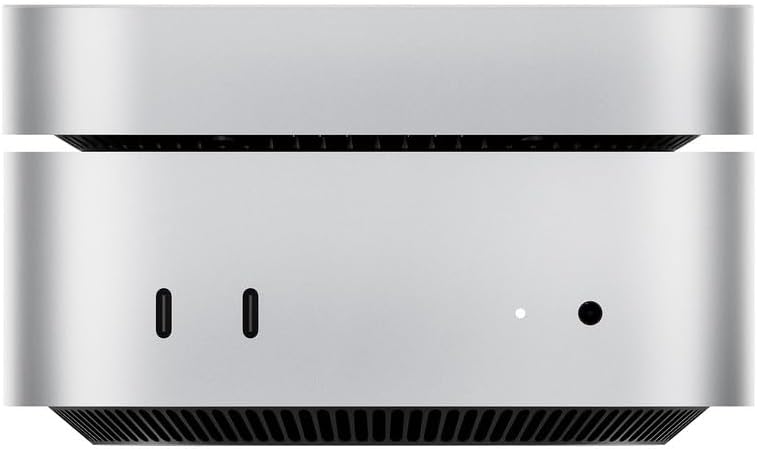
Image: The ORICO MiniMate External SSD, showcasinkarena desainnya yang ringkas dan ramping.
Video: Seorang pejabatview of the ORICO External Solid State Drive for Mac mini M4, highlighting its features and integration.
2. Isi Paket
Upon opening your ORICO MiniMate package, please verify that all the following items are included:
- 1 x ORICO MiniMate External SSD
- 1 x Panduan Pengguna
- 2 x High-quality cables (USB-C to USB-C)
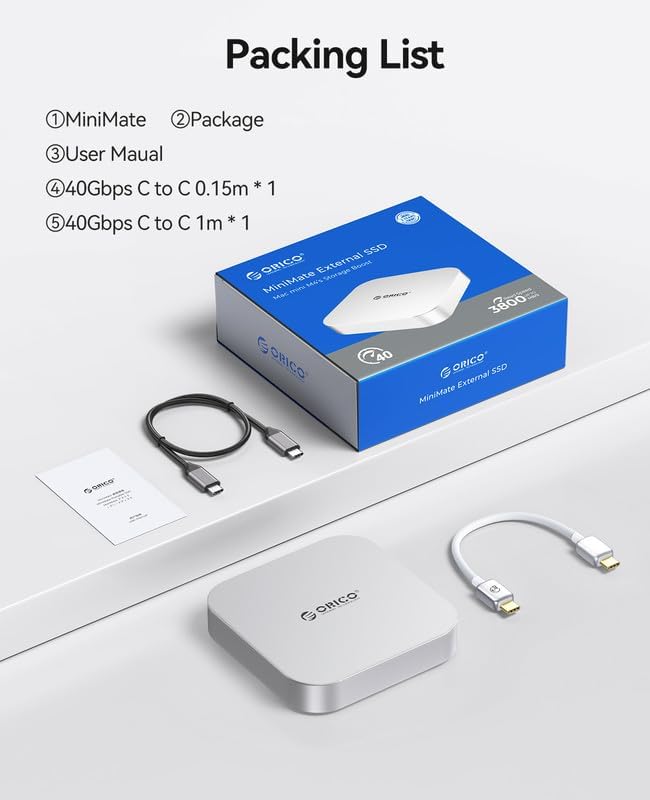
Image: Contents of the ORICO MiniMate package, including the SSD unit, user manual, and two USB-C cables.
3. Panduan Pengaturan
Connecting the MiniMate:
- Penempatan: Place the ORICO MiniMate on a stable, flat surface, ideally next to or beneath your Mac mini M4 for optimal integration.
- Koneksi kabel: Use one of the provided high-quality USB-C cables. Connect one end to the USB-C port on the ORICO MiniMate.
- Host Device Connection: Connect the other end of the USB-C cable to an available USB-C (Thunderbolt) port on your Mac mini M4 or other compatible computer/laptop.
- Kekuatan: The MiniMate is bus-powered via the USB-C connection and does not require an external power adapter.
The device should be automatically recognized by your operating system. For initial use, you may need to format the drive if it's not already formatted for your specific operating system (e.g., APFS for macOS, NTFS for Windows).

Image: The ORICO MiniMate connected to a Mac mini, showing the cable connections at the rear.
4. Petunjuk Pengoperasian
Transfer dan Penyimpanan Data:
Once connected and recognized by your system, the ORICO MiniMate functions like any other external storage device. You can drag and drop files, copy and paste, or use your system's file alat manajemen untuk mentransfer data ke dan dari SSD.
- Transfer Berkecepatan Tinggi: Leverage the 10Gbps (or 20Gbps with compatible ports) speed for rapid transfer of large files such as 4K videos, high-resolution images, and extensive codebases.
- Penyimpanan Aplikasi: Install applications directly onto the MiniMate to free up space on your primary drive, especially useful for large software suites or games.
- Solusi Cadangan: Utilize the MiniMate as a reliable backup destination for your important documents, photos, and system files.
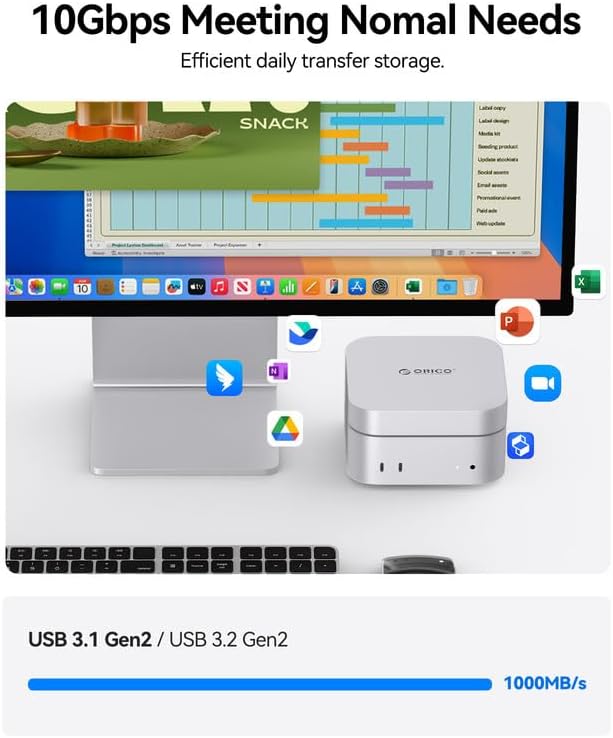
Image: Illustration of the ORICO MiniMate's 10Gbps transfer speed, suitable for efficient daily storage and large file transfer.
Skenario Penggunaan:
The ORICO MiniMate is versatile and can enhance various workflows:
- Kreativitas: Store and access large media files for video editing, graphic design, and music production.
- Pengkodean: Keep development environments, large code repositories, and virtual machines on the external SSD for quick access and performance.
- Permainan: Store game libraries to expand your playable collection without filling your internal drive, benefiting from fast load times.

Image: Visual representation of the ORICO MiniMate's utility in various fields such as creative work, software development, and gaming.
5. Pemeliharaan
To ensure the longevity and optimal performance of your ORICO MiniMate External SSD, follow these maintenance guidelines:
- Ejeksi Aman: Always safely eject the SSD from your operating system before physically disconnecting it. This prevents data corruption.
- Perawatan Fisik: Jaga kebersihan perangkat dan bebaskan dari debu. Gunakan kain lembut dan kering untuk membersihkan. Hindari penggunaan cairan pembersih.
- Suhu dan Lingkungan: Store and operate the SSD within recommended temperature ranges. Avoid extreme heat, cold, or humidity.
- Hindari Jatuh dan Benturan: While durable, the device is still sensitive to physical shocks. Handle with care to prevent internal damage.
- Pembaruan Firmware: Periodically check the ORICO official website for any available firmware updates that may improve performance or stability.
6. Penyelesaian masalah
If you encounter issues with your ORICO MiniMate, refer to the following common problems and solutions:
Perangkat tidak dikenali:
- Periksa Koneksi: Ensure the USB-C cable is securely connected to both the MiniMate and your computer.
- Coba Port/Kabel yang Berbeda: Connect the MiniMate to a different USB-C port on your computer or try using the second provided cable.
- Mulai Ulang Komputer: Seringkali, memulai ulang secara sederhana dapat mengatasi masalah pengenalan.
- Disk Management (Windows) / Disk Utility (macOS): Check if the drive appears in your system's disk management tools. It might need to be initialized or formatted.
Kecepatan Transfer Lambat:
- Verify Port Speed: Ensure you are connected to a USB 3.2 Gen 2 (10Gbps) or USB 3.2 Gen 2x2 (20Gbps) port on your computer. Older USB ports will result in slower speeds.
- Kualitas Kabel: Use the high-quality cables provided with the MiniMate. Lower quality or longer cables can affect performance.
- Beban Sistem: High CPU or disk usage on your computer can impact transfer speeds. Close unnecessary applications.
- Drive Fragmentation (HDD only): While less common for SSDs, ensure your drive is not excessively full.
Koneksi Drive Terputus Secara Acak:
- Manajemen daya: Check your computer's power settings to ensure USB ports are not set to power down to save energy.
- Integritas Kabel: Periksa kabel apakah ada kerusakan.
- Terlalu panas: Ensure the MiniMate is in a well-ventilated area. While it has a cooling system, extreme ambient temperatures can affect stability.
7. Spesifikasi
| Fitur | Detil |
|---|---|
| Merek | ORICO |
| Seri | M4Plus |
| Nomor Model | M4Plus-8TB |
| Kapasitas Penyimpanan Digital | 8 TB |
| Antarmuka Hard Disk | USB 1.1 (Note: Product features indicate 10Gbps/20Gbps, this specification might be a generic entry. Refer to product features for actual speed.) |
| Teknologi Konektivitas | USB |
| Fitur Khusus | Portabel |
| Faktor Bentuk Hard Disk | 2.5 inci |
| Deskripsi Hard Disk | Penggerak Solid State |
| Perangkat yang Kompatibel | Mac mini |
| Jenis Instalasi | Hard Drive Eksternal |
| Berat Barang | 1.06 pon |
| Dimensi Paket | 6.93x6.65x2.4 inci |
| Pabrikan | SHENZHEN ORICO TECHNOLOGIES CO.,LTD |
| Tanggal Pertama Tersedia | 12 Nopember 2024 |
8. Garansi dan Dukungan
ORICO products are designed for reliability and performance. For specific warranty information regarding your MiniMate External SSD, please refer to the warranty card included in your product packaging or visit the official ORICO weblokasi.
For technical support, product registration, or to download the latest drivers and firmware, please visit:
- ORICO Resmi Weblokasi: http://www.orico.cc
- ORICO Direct US Store (Amazon): ORICO Direct US Store
Please have your model number (M4Plus-8TB) and purchase information ready when contacting support.