
Perkenalan
This manual provides essential information for setting up, operating, maintaining, and troubleshooting your HP 14-cf2733wm laptop. Please read this manual thoroughly before using your device to ensure proper function and longevity.
The HP 14-cf2733wm is a 14-inch laptop designed for portability and everyday productivity. It features an Intel Celeron N4120 processor, 4GB of RAM, and 64GB eMMC storage, running on Windows 11 Home in S mode.
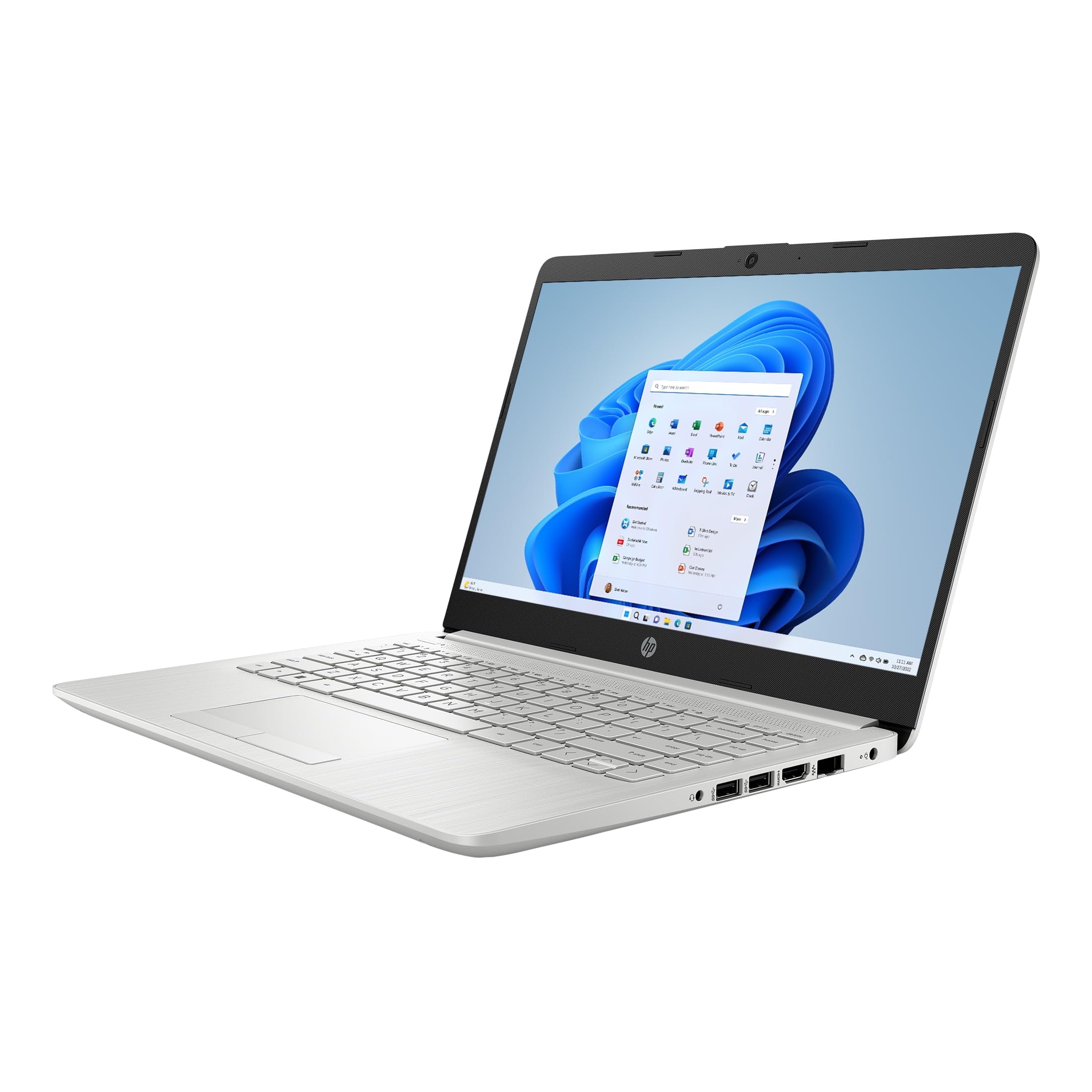
Figure 1: HP 14-cf2733wm Laptop. This image shows the silver HP laptop in a closed position, highlighting its slim design.
1. Pengaturan
1.1 Membuka Kemasan Laptop
Keluarkan semua komponen dari kemasan dengan hati-hati. Pastikan barang-barang berikut ada:
- HP 14-cf2733wm Laptop
- Adaptor Daya dan Kabel
- Dokumentasi (Panduan Memulai Cepat, Informasi Keselamatan)
1.2 Menghubungkan Adaptor Daya
- Sambungkan kabel daya ke adaptor daya.
- Hubungkan adaptor daya ke stopkontak di dinding.
- Insert the adapter's connector into the power port on the side of your HP laptop.
Disarankan untuk mengisi daya laptop hingga penuh sebelum digunakan pertama kali.
1.3 Menyalakan Perangkat dan Pengaturan Windows Awal
- Buka penutup laptop.
- Tekan tombol daya, yang biasanya terletak di bagian atas papan ketik.
- Follow the on-screen instructions to complete the Windows 11 Home in S mode setup. This includes selecting your region, language, connecting to a Wi-Fi network, and creating a user account.
- Activate the included 12-month Microsoft 365 Personal subscription as prompted during setup or later via the Microsoft Store.
2. Mengoperasikan Laptop
2.1 Menggunakan Touchpad
The precision touchpad supports multi-touch gestures for navigation. Common gestures include:
- Mengetuk: Single tap to click, double tap to open.
- Gulir dua jari: Geser dua jari ke atas atau ke bawah untuk menggulir.
- Cubit untuk memperbesar: Jepit kedua jari bersamaan atau rentangkan untuk memperbesar atau memperkecil tampilan.
- Ketukan dua jari: Acts as a right-click.
2.2 Menghubungkan Perangkat Eksternal
Your laptop features various ports for connecting peripherals:
- Port USB: Connect USB drives, external mice, keyboards, or other compatible USB devices.
- Port HDMI: Connect an external monitor or TV for extended display.
- Jack Audio: Hubungkan headphone atau speaker eksternal.
2.3 Konektivitas Wi-Fi dan Bluetooth
Untuk menyambung ke jaringan Wi-Fi:
- Klik ikon Wi-Fi di bilah tugas.
- Pilih jaringan yang Anda inginkan dari daftar.
- Masukkan kata sandi jaringan jika diminta, lalu klik "Hubungkan".
To enable or disable Bluetooth:
- Pergi ke Pengaturan > Bluetooth & perangkat.
- Toggle the Bluetooth switch On or Off.
2.4 Windows 11 Home in S mode
Windows 11 Home in S mode is a version of Windows optimized for security and performance. It exclusively runs apps from the Microsoft Store and uses Microsoft Edge for safe browsing. If you need to install apps outside the Microsoft Store, you can switch out of S mode. This is a one-way switch.
To switch out of S mode:
- Di PC Anda yang menjalankan Windows 11 dalam mode S, buka Pengaturan > Sistem > Pengaktifan.
- In the "Switch to Windows 11 Home" section, select Pergi ke Toko.
- Pada halaman "Beralih dari mode S" (atau serupa) yang muncul di Microsoft Store, klik Mendapatkan tombol.
- After you see a confirmation message on the page, you'll be able to install apps from outside the Microsoft Store.
3. Pemeliharaan
3.1 Membersihkan Laptop
- Layar: Gunakan kain yang lembut dan tidak berbulu secara tipis dampBersihkan dengan air atau pembersih layar. Hindari bahan kimia keras.
- Keyboard dan Sasis: Gunakan kain yang lembut dan kering. Untuk kotoran membandel, gunakan sedikit kain kering.amp cloth can be used. Avoid getting moisture into openings.
- Pelabuhan: Gunakan udara bertekanan untuk membersihkan debu dari lubang-lubang secara perlahan.
Selalu matikan dan cabut kabel daya laptop sebelum membersihkan.
3.2 Perawatan Baterai
- Hindari suhu ekstrem.
- Jangan menguras baterai hingga habis sepenuhnya secara teratur.
- Jika menyimpan laptop untuk jangka waktu lama, isi daya baterai sekitar 50-70%.
3.3 Pembaruan Perangkat Lunak
Periksa dan instal pembaruan Windows secara berkala untuk memastikan stabilitas, keamanan, dan kinerja sistem. Buka Pengaturan > Pembaruan Windows.
4. Penyelesaian masalah
4.1 Laptop Tidak Menyala
- Pastikan adaptor daya terhubung dengan aman ke laptop dan stopkontak dinding yang berfungsi.
- Periksa apakah stopkontak berfungsi dengan mencolokkan perangkat lain.
- Cobalah menekan dan menahan tombol daya selama 15-20 detik untuk melakukan reset paksa.
4.2 Kinerja Lambat
- Tutup aplikasi yang tidak diperlukan yang berjalan di latar belakang.
- Periksa dan instal pembaruan Windows yang tertunda.
- Ensure you have sufficient free storage space on the 64GB eMMC drive.
- Jalankan pemindaian sistem untuk malware atau virus.
4.3 Masalah Konektivitas Wi-Fi
- Restart laptop dan router Wi-Fi Anda.
- Pastikan Wi-Fi diaktifkan di pengaturan Windows.
- Lupakan jaringan dan sambungkan kembali, lalu masukkan kata sandi lagi.
- Periksa apakah perangkat lain dapat terhubung ke jaringan Wi-Fi yang sama.
5. Spesifikasi
| Fitur | Detil |
|---|---|
| Nama Model | HP 14-cf2733wm |
| Prosesor | Intel Celeron N4120 (up to 2.6 GHz burst frequency) |
| Sistem Operasi | Windows 11 Home dalam mode S |
| Menampilkan | 14-inch HD (1366 x 768) micro-edge anti-glare LED display |
| Grafik | Intel UHD Graphics 600 Terintegrasi |
| RAM | Memori DDR4 4 GB |
| Penyimpanan | Memori eMMC 64GB |
| Konektivitas Nirkabel | Wi-Fi 802.11n, Bluetooth |
| Pelabuhan | 2x USB, 1x HDMI, 1x Headphone/Microphone combo |
| Baterai | Lithium Ion, 45 Watt Hours |
| Dimensi (P x L x T) | 12.82" x 8.42" x 0.65" (32.56 x 21.39 x 1.65 cm) |
| Berat | 3.5 pon (1.59 kg) |
| Warna | Perak |
| Webkamera | Terintegrasi Webkamera |
6. Garansi dan Dukungan
6.1 Garansi Terbatas
Your HP 14-cf2733wm laptop comes with a 1-year limited hardware warranty. This warranty covers defects in materials and workmanship under normal use. For full terms and conditions, please refer to the warranty documentation included with your product or visit the official HP support weblokasi.
The warranty does not cover damage caused by accidents, misuse, unauthorized modifications, or external causes such as power fluctuations.
6.2 Dukungan Teknis
Untuk bantuan teknis, unduhan driver, atau dukungan lebih lanjut, silakan kunjungi dukungan resmi HP. website. You will need your product's model number (14-cf2733wm) and serial number (found on the product label) when contacting support.
Dukungan HP Weblokasi: https://support.hp.com