
1. Pendahuluan
Thank you for choosing the MP Mobile Pixels 27-inch Pixcase Portable Touchscreen Monitor. This device is designed to provide a versatile and immersive entertainment and productivity experience on the go. This manual provides essential information for setting up, operating, and maintaining your Pixcase monitor.
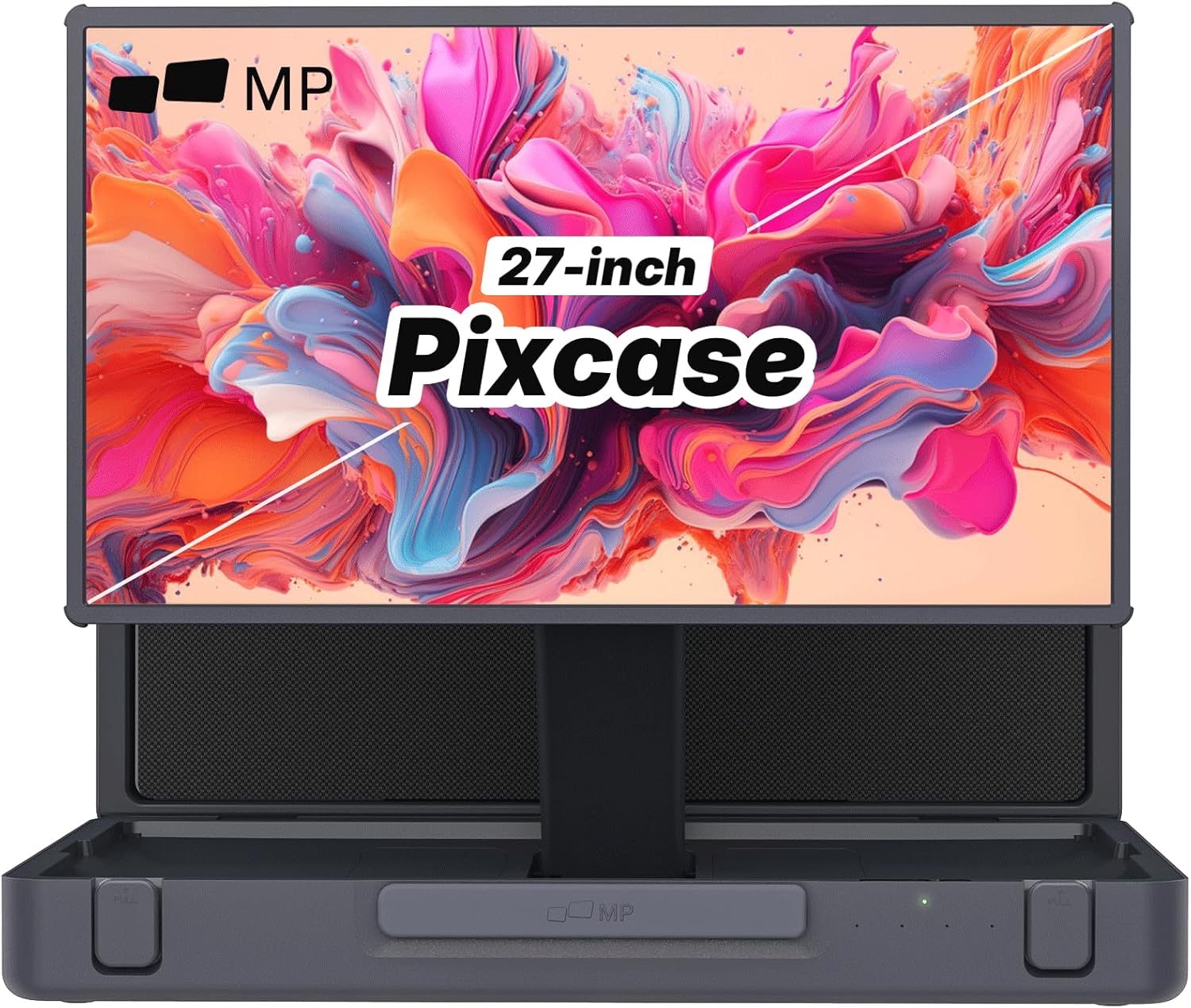
Figure 1: MP Mobile Pixels 27-inch Pixcase Portable Touchscreen Monitor
2. Produk Lebihview
The Pixcase monitor combines a large 27-inch 1080P touchscreen display with a compact, portable suitcase design. It features integrated 40W speakers, 16GB RAM, and access to Google Play, making it suitable for various applications from gaming and movie streaming to presentations and extended desktop use.
- Portable Entertainment System: Combines a 27-inch 1080P touchscreen with a compact suitcase design for easy portability and versatile use.
- Desain Koper Portabel: Transforms into a compact suitcase for effortless transport and quick setup. Features 10-point capacitive touch for responsive navigation.
- Powerful 40W Audio System: Built-in 40W speakers, including dual tweeters and subwoofers, deliver crisp and immersive sound.
- Pilihan Konektivitas Serbaguna: Equipped with HDMI, USB-A, and USB-C ports for easy connection to laptops, gaming consoles, and other devices.
- 5-Hour Battery & Google Play Access: Offers up to 5 hours of battery life and access to thousands of apps via the Google Play Store. Supports device charging via the USB-C port.
Video 1: Pixcase offers power and portability with a 27" touchscreen.
3. Apa yang ada di dalam kotak
Pastikan semua barang lengkap dan dalam kondisi baik saat membongkar kemasan.
- 1 x Pixcase Portable Monitor
- 1 x Papan Permainan
- 1x Kontrol Jarak Jauh
- 1 x Panduan Pengguna
- 1 x Kabel Daya AC
- 1 x Kabel USB-C

Figure 2: Included components with the Pixcase monitor.
4. Pengaturan
4.1 Membuka Kemasan dan Merakit Dudukan
- Carefully remove the Pixcase monitor and all accessories from the packaging.
- Open the suitcase-style casing. The integrated handle folds out to form a stable stand.
- The monitor magnetically attaches to the stand, allowing for adjustable height and rotation.

Figure 3: The integrated handle transforms into a stand.
4.2 Menghubungkan Daya
- Connect the AC power cord to the monitor's power input.
- Colokkan ujung kabel daya AC lainnya ke stopkontak dinding.
4.3 Perangkat Penghubung
The Pixcase monitor offers multiple connectivity options:
- USB-C: Use the included USB-C cable to connect to compatible laptops, smartphones, or gaming consoles for both video/audio signal and power delivery.
- HDMI: Use an HDMI cable to connect to devices like laptops, desktop PCs, or gaming consoles for video and audio.
- USB-A: Connect USB peripherals such as a mouse, keyboard, or flash drive.

Figure 4: Versatile connectivity options for various devices.
Video 2: Instructions on how to set up extended mode on a MacBook.
5. Petunjuk Pengoperasian
5.1 Daya Hidup/Mati
Tekan tombol daya yang terletak di sisi monitor untuk menghidupkan atau mematikannya.
5.2 Display Modes (Tiling, Mirroring, Extended)
The Pixcase monitor supports various display modes when connected to a computer. These modes can typically be configured through your device's display settings:
- Mode Cermin: Duplicates your primary screen's content onto the Pixcase.
- Mode Diperpanjang: Extends your desktop workspace across both screens, allowing for more screen real estate.
- Tiling Mode: Specific to certain multi-monitor setups, allowing screens to be stacked or arranged.
5.3 Penggunaan Layar Sentuh
The 27-inch display features 10-point capacitive touch, enabling intuitive interaction with applications and content. Use gestures similar to those on a tablet or smartphone.

Figure 5: Responsive 10-point multi-touch for intuitive navigation.
5.4 Sistem Audio
The integrated 40W speakers provide powerful audio. Adjust volume using the controls on the monitor or the included remote control.

Figure 6: Powerful 40W audio system with dual tweeters and subwoofers.
5.5 Google Play Access
With 16GB RAM and Google Play access, you can download and use thousands of Android applications directly on the monitor. This enhances its functionality for entertainment, productivity, and gaming.

Figure 7: Access to Google Play for a wide range of applications.
5.6 Baterai dan Pengisian Daya
The Pixcase monitor features a built-in battery providing up to 5 hours of usage. It also supports pass-through charging, allowing you to charge connected devices like laptops or smartphones via its USB-C ports.
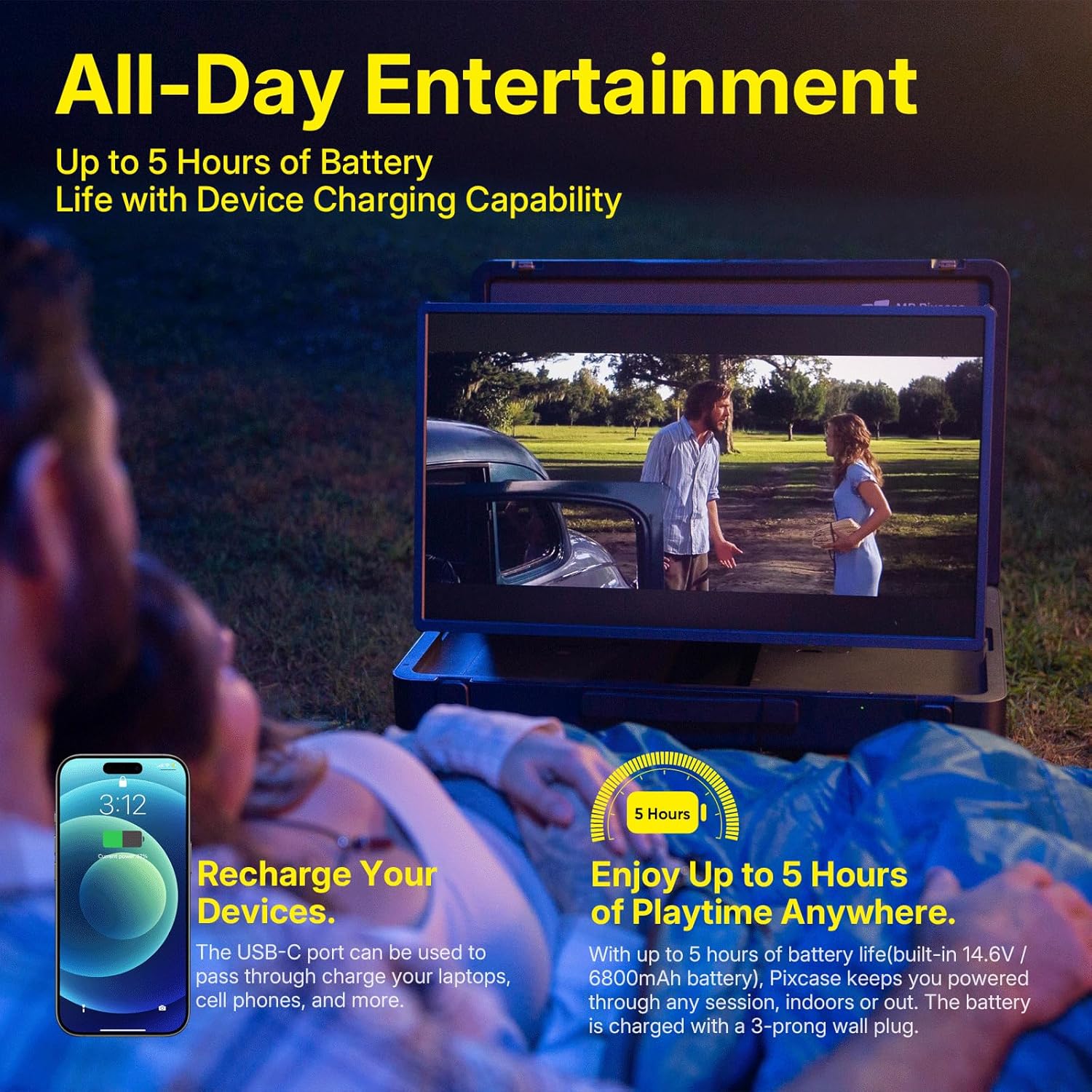
Figure 8: Up to 5 hours of battery life and device charging capability.
5.7 Portability and Screen Rotation
The monitor's suitcase design allows for easy transport. The screen can be rotated between landscape and portrait orientations to suit different content and usage scenarios.
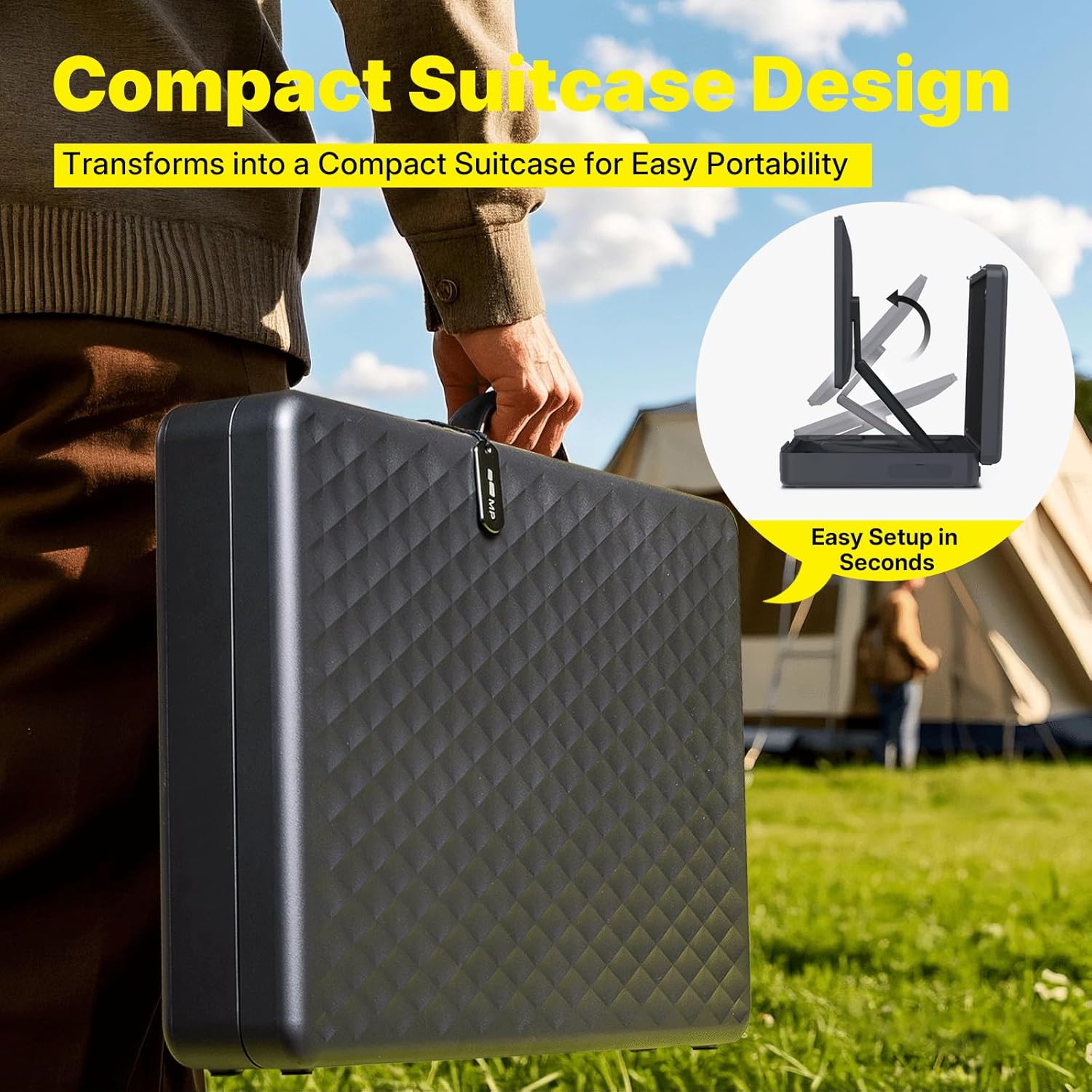
Figure 9: Compact suitcase design for easy portability.
Video 3: Demonstrates the portability and versatility of the Pixcase entertainment system.
Video 4: Shows how to close and pack the portable monitor.
6. Pemeliharaan
- Pembersihan: Use a soft, lint-free cloth to clean the screen. For stubborn marks, lightly dampBasahi kain dengan air atau larutan pembersih layar. Hindari bahan kimia keras.
- Penyimpanan: When not in use, fold the monitor into its suitcase form to protect the screen and components. Store in a cool, dry place away from direct sunlight.
- Penanganan: Always use the integrated handle for carrying. Avoid dropping or subjecting the device to strong impacts.
7. Penyelesaian masalah
- Tidak Ada Daya: Ensure the AC power cord is securely connected to both the monitor and a working power outlet. Check if the power button is pressed.
- Tidak ada sinyal: Verify that the video cable (USB-C or HDMI) is securely connected to both the monitor and the source device. Ensure the source device's display settings are correctly configured for external monitors (mirror or extend).
- Layar Sentuh Tidak Responsif: Disconnect and reconnect the USB-C cable. Restart the monitor and the connected device. Ensure the connected device supports touchscreen input.
- Masalah Audio: Check the volume settings on both the monitor and the connected device. Ensure cables are properly connected.
- Baterai Tidak Mengisi: Ensure the AC power cord is properly connected. If using USB-C for charging, verify the source device provides sufficient power output.
8. Spesifikasi
| Fitur | Detil |
|---|---|
| Dimensi Produk | 26.33x16.53x4.52 inci |
| Berat Barang | 29.5 pon |
| Pabrikan | Piksel Seluler |
| ASIN | B0DSBCXF2M |
| Nomor model barang | Nomor telepon 121-1001P01 |
| Baterai | 1 baterai Lithium Ion diperlukan. (termasuk) |
| Ukuran tampilan layar berdiri | 27 inci |
| Rasio Aspek | 16:9 |
| Resolusi | 1920 x 1080 Piksel (FHD 1080p) |
| Jumlah Port USB | 2 |
| Deskripsi Permukaan Layar | Mengkilap |
9. Garansi dan Dukungan
For warranty information, technical support, or service inquiries, please refer to the documentation included with your product or visit the official Mobile Pixels website. Contact information for customer service is typically found in the user guide or on the manufacturer's weblokasi.