
1. Pendahuluan
This manual provides detailed instructions for the safe and effective operation, maintenance, and troubleshooting of the COXO C-smart-1 Pro Rotary Tool Kit. Please read this manual thoroughly before using the device to ensure proper handling and to prevent potential hazards. Retain this manual for future reference.
2. Informasi Keselamatan
Adherence to the following safety guidelines is crucial for user safety and optimal device performance:
- Always wear appropriate personal protective equipment (PPE), including safety glasses, during operation.
- Ensure the device is fully charged before use to avoid interruptions during procedures.
- Do not immerse the device in water or other liquids. Avoid using the device in wet environments.
- Jauhkan perangkat dari sumber panas, sinar matahari langsung, dan bahan yang mudah terbakar.
- Only use accessories and parts approved by COXO. Use of unauthorized components may void the warranty and pose safety risks.
- Refer to local regulations for proper disposal of batteries and electronic components at the end of their service life.
3. Isi Paket
Saat membuka paket, verifikasi bahwa semua item berikut ada dan dalam kondisi baik:
- COXO C-smart-1 Pro Main Unit
- 16:1 Lighted Rotary Tip
- Adaptor Daya / Kabel Pengisi Daya
- Panduan Pengguna
- Test Wire (if included)
- Lip Hook Wire (if included)
- Motor Handpiece (if included separately)
Jika ada barang yang hilang atau rusak, harap segera hubungi pemasok Anda.
4. Produk Lebihview
The COXO C-smart-1 Pro is an advanced rotary tool kit designed for precision dental procedures. It features multiple working modes, adjustable speed and torque settings, and integrated LED lighting for enhanced visibility.

Figure 4.1: COXO C-smart-1 Pro Main Unit. This image shows the compact design of the device with its central display screen and control buttons.
4.1 Identifikasi Komponen
Familiarize yourself with the various parts and controls of the C-smart-1 Pro unit for efficient operation.

Figure 4.2: Labeled Components of the C-smart-1 Pro. This diagram highlights key functional parts such as the power button, charging socket, motor handpiece socket, and various control buttons for navigation and settings.
- Tombol Daya: Located on the top left of the unit, used to turn the device on or off.
- Charging Socket & Test Wire Socket: Located on the side, for connecting the power adapter for charging and the test wire.
- Lip Hook Wire Socket: Located on the side, for connecting the lip hook wire for specific functions.
- Motor Handpiece Socket: Located on the side, for securely attaching the rotary motor handpiece.
- Increase / Volume Button: Used to increase numerical values or adjust audio volume.
- Mode / Setup State Button: Toggles between different working modes or enters the setup menu.
- Decrease / Screen Brightness Button: Used to decrease numerical values or adjust the screen brightness.
- Mengubah File & File Tombol Sistem: Navigates through available file systems and settings.
5. Pengaturan
5.1 Pengisian Awal
- Connect the power adapter to the charging socket on the side of the device.
- Hubungkan adaptor ke stopkontak listrik yang sesuai.
- Allow the device to charge fully before its first use. The battery indicator on the screen will display the charging status.
5.2 Attaching the Rotary Tip
- Ensure the device is powered off before attaching any components.
- Carefully insert the 16:1 lighted rotary tip into the motor handpiece socket until it clicks securely into place.
- Verify that the tip is firmly attached and stable before powering on the device.
5.3 Aksesori Penghubung
- If required for your procedure, connect the test wire or lip hook wire to their respective sockets on the device.
6. Operasi
6.1 Menghidupkan/Mematikan
To power the device on or off, press and hold the Tombol Daya (located on the top left) for a few seconds until the screen activates or deactivates.
6.2 Mode Kerja
The C-smart-1 Pro features three distinct working modes (M1, M2, M3) designed to accommodate various procedural requirements. Use the Mode / Setup State Button untuk berganti-ganti di antara mode-mode ini.

Figure 6.1: Three Work Modes (M1, M2, M3). This image illustrates the different display configurations for each working mode, showing variations in speed, torque, and file system selection.
6.3 System Selection and Adjustments
The device comes with various mainstream file systems pre-programmed for convenience.
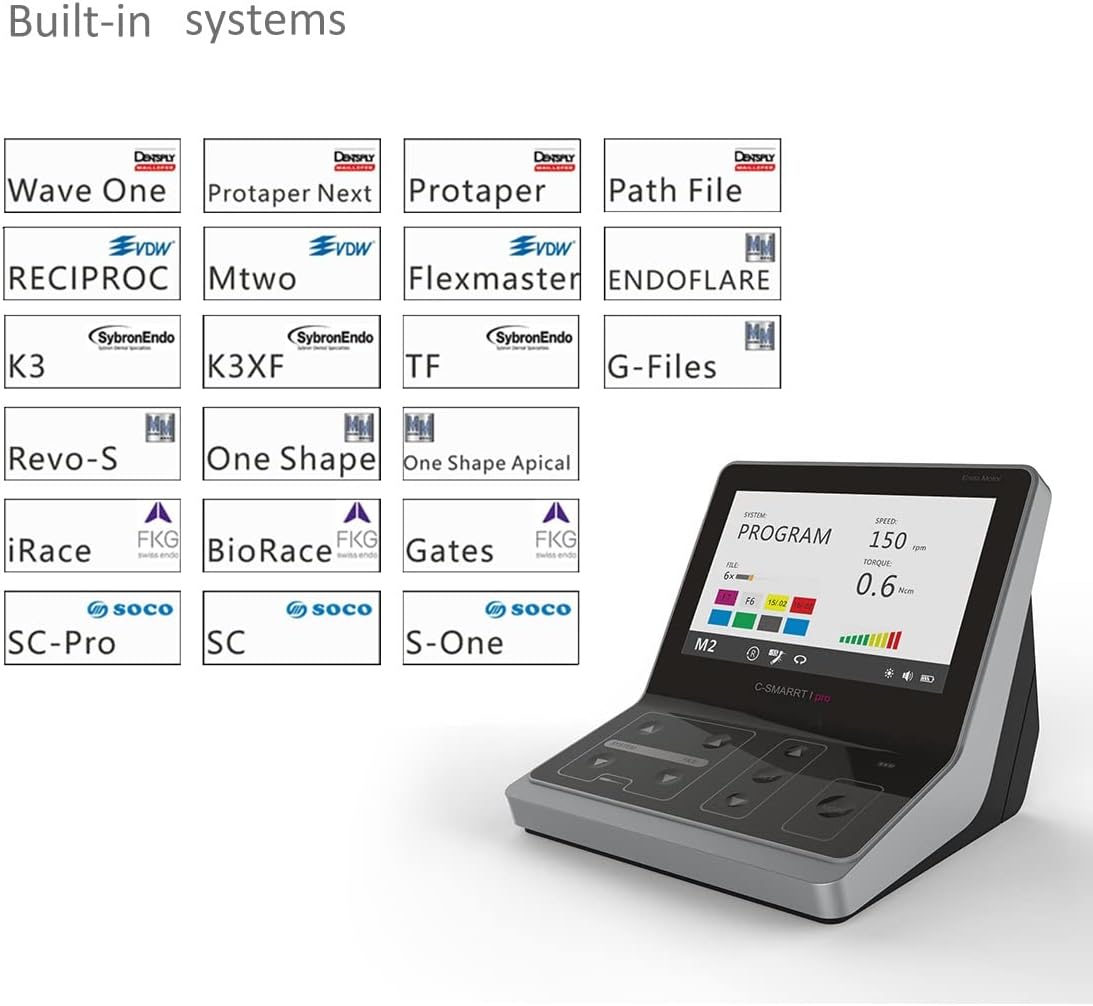
Gambar 6.2: Terintegrasi File Systems. This image displays the extensive list of pre-programmed dental file systems, allowing users to select the appropriate system for their procedure without manual setup.
- Gunakan Mengubah File & File Tombol Sistem (labeled SYSTEM/FILE) to navigate through the available file systems (e.g., DS, VDW, FKG, Micro Mege, Kerr, Komet, etc.).
- Once a system is selected, use the Increase / Volume Dan Decrease / Screen Brightness Buttons to adjust parameters such as speed (RPM) and torque (Ncm) as needed for the specific procedure and file.
- The 16:1 rotary tip allows for precise adjustment of speed and torque settings.
6.4 Lampu LED
The integrated LED light illuminates the working area, providing clear visibility. Use the Decrease / Screen Brightness Button (often combined with a 'SET' button or similar) to adjust the brightness level to your preference.
7. Pemeliharaan
7.1 Pembersihan
- After each use, disconnect the rotary tip and wipe down the main unit with a soft, damp kain.
- Use a mild disinfectant solution if necessary, ensuring no liquid enters the device openings or screen.
- Do not use abrasive cleaners, solvents, or harsh chemicals, as these can damage the device's surface or internal components.
7.2 Perawatan Baterai
The device is equipped with a Lithium Ion battery. To prolong battery life and maintain performance:
- Avoid fully discharging the battery frequently. Recharge when the battery indicator shows low power.
- Simpan perangkat di tempat yang sejuk dan kering saat tidak digunakan dalam jangka waktu lama.
- Recharge the battery regularly, even if the device is not in active use, to prevent deep discharge.
7.3 Penyimpanan
Store the COXO C-smart-1 Pro in its original packaging or a protective case in a clean, dry environment, away from extreme temperatures, humidity, and direct sunlight.
8. Penyelesaian masalah
Bagian ini membahas masalah umum yang mungkin Anda temui. Jika masalah tetap berlanjut setelah mencoba solusi ini, silakan hubungi dukungan pelanggan.
| Masalah | Kemungkinan Penyebab | Larutan |
|---|---|---|
| Perangkat tidak menyala | Baterai lemah; Tombol daya tidak ditekan dengan benar | Charge the device fully; Press and hold the power button firmly for a few seconds. |
| Rotary tip not rotating | Tip not securely attached; Incorrect mode/settings selected | Ensure the tip is fully inserted and locked; Check the selected working mode and adjust speed/torque settings. |
| Lampu LED tidak berfungsi | Brightness set to minimum; Malfunction | Increase brightness using the dedicated button; If issue persists, contact support. |
| Screen display issues (e.g., flickering, no image) | Low battery; Software glitch; Physical damage | Recharge the device; Power cycle the device (turn off and on); If damage is suspected, contact support. |
9. Spesifikasi
- Model: C-smart-1 Pro (Model Number: 132)
- Pabrikan: COXO
- Sumber Daya: Bertenaga Baterai
- Jenis Baterai: Lithium Ion (1 A battery included)
- Fitur Khusus: Integrated LED Light, 16:1 Rotary Tip, Built-in Mainstream File Sistem
- Komponen yang Termasuk: Motor, 16:1 Rotary Tip, Power Adapter, User Manual (may vary)
- Berat Barang: Sekitar 2 kilogram (4.4 pon)
- Dimensi Paket: Sekitar 10 x 10 x 5 inci
10. Garansi dan Dukungan
For detailed warranty information, technical support, or service inquiries, please refer to the official COXO website or contact your authorized dealer. It is recommended to keep your purchase receipt as proof of purchase for warranty claims.
For additional product resources and information, you may visit the PROTECTOR Store on Amazon: PROTECTOR Store
11. Anti-Fake Label Information
To verify the authenticity of your COXO C-smart-1 Pro product, locate the anti-fake label on the product packaging.

Figure 11.1: Anti-Fake Label. This image shows the anti-fake label on the product box, which can be used to verify the product's authenticity by visiting the specified website and entering the code.
Follow the instructions provided on the label, which typically involve visiting a designated websitus (misalnya, www.coxotec.com) and entering a unique verification code found by scratching off a protective coating.