
1. Pendahuluan
This manual provides detailed instructions for the setup, operation, and maintenance of your WAVLINK 13-in-1 USB-C Triple Display Docking Station. Please read this manual thoroughly before using the product to ensure proper functionality and to prevent damage.
2. Produk Lebihview
The WAVLINK 13-in-1 USB-C Triple Display Docking Station expands your laptop's connectivity, offering multiple ports for displays, peripherals, network, and power delivery. It is designed to enhance productivity by supporting various display configurations.
Isi Paket
- WAVLINK 13-in-1 USB-C Triple Display Docking Station
- Kabel USB-C ke C
- Adaptor Daya 130W
- Kabel Daya AC
- Panduan Memulai Cepat

Image: Contents of the WAVLINK 13-in-1 USB-C Triple Display Docking Station package, including the docking station, cables, power adapter, and quick start guide.
Tata Letak Pelabuhan
The docking station features a comprehensive array of ports to connect various devices:

Image: Diagram showing the front and rear ports of the WAVLINK 13-in-1 USB-C Triple Display Docking Station, with each port clearly labeled.
- Port Daya (DC 20V): Terhubung ke adaptor daya 130W yang disertakan.
- Upstream USB-C Port: Connects to your host laptop for data, video, and power delivery.
- Port HDMI: Terhubung ke layar HDMI.
- 2 x DisplayPort: Connects to DisplayPort displays.
- Port Ethernet Gigabit (RJ45): Menyediakan koneksi jaringan kabel yang stabil.
- 4 Port USB 3.0: For connecting USB peripherals, with one supporting BC 1.2 fast charging.
- Pembaca Kartu SD: Untuk membaca kartu SD standar.
- Pembaca Kartu Micro SD: Untuk membaca kartu Micro SD.
- 4-Pole Phone Jack (3.5mm Audio): Untuk menghubungkan headphone atau speaker.
- Tombol Daya: To power on/off the docking station.
3. Petunjuk Penyiapan
Ikuti langkah-langkah ini untuk menyiapkan stasiun dok WAVLINK Anda:
- Hubungkan Daya: Connect the included 130W power adapter to the DC 20V power port on the docking station, then plug the AC power cable into a wall outlet.
- Hubungkan ke Laptop Host: Use the provided USB-C to C cable to connect the upstream USB-C port on the docking station to a compatible USB-C port on your laptop. Ensure your laptop's USB-C port supports DisplayPort Alternate Mode and Power Delivery.
- Hubungkan Layar: Connect your external monitors to the HDMI and DisplayPort outputs on the docking station using appropriate cables.
- Hubungkan Periferal: Hubungkan perangkat USB Anda (keyboard, mouse, hard drive eksternal), kabel Ethernet, dan perangkat audio ke port yang sesuai pada docking station.
- Nyalakan: Press the power button on the docking station. Your laptop should detect the connected devices and displays automatically.
4. Petunjuk Pengoperasian
Mode Tampilan
Docking station ini mendukung berbagai konfigurasi tampilan tergantung pada sistem operasi Anda.
Sistem Windows
Sistem Windows mendukung mode Mirror dan Extend untuk beberapa layar.

Image: Illustration of Windows multi-display modes, showing a laptop connected to three external monitors in both Extend Mode (each monitor displays unique content) and Mirror Mode (all monitors display the same content).
- Perpanjang Mode: Each external monitor can display different content, extending your desktop workspace.
- Mode Cermin: All external monitors will display the same content as your primary display.
Sistem macOS
macOS systems support Mirror mode and a non-mirror mode. They do not support Multi-Stream Transport (MST) for extended displays with unique content on each external monitor.
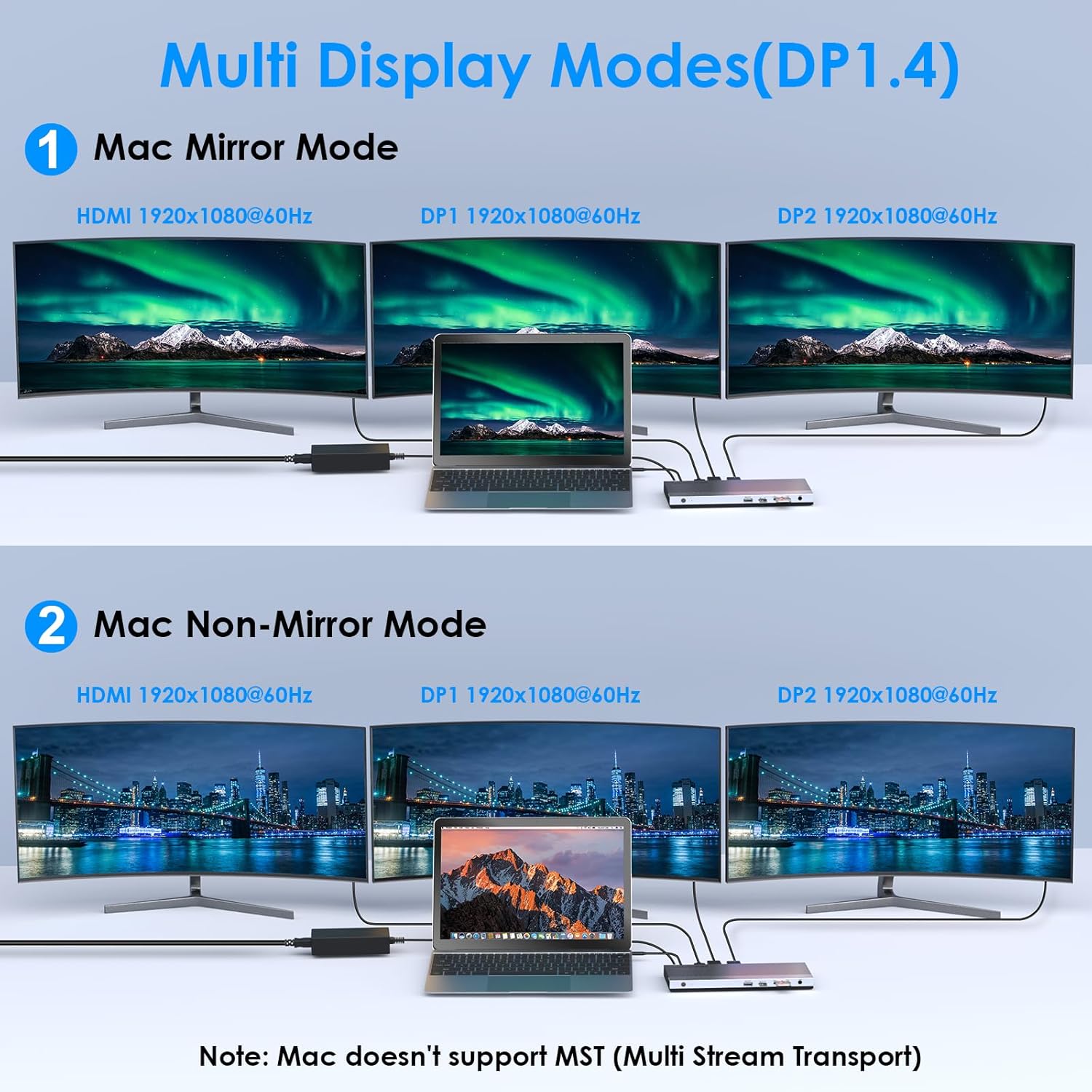
Image: Illustration of Mac multi-display modes, showing a laptop connected to three external monitors in both Mirror Mode (all monitors display the same content) and Non-Mirror Mode (all external monitors display the same content, but different from the laptop screen).
- Mode Cermin: All external monitors will display the same content as your primary display.
- Non-Mirror Mode: The three external monitors (HDMI+DP+DP) will display the same content, which is different from the laptop's built-in screen.
Kemampuan Resolusi
- Single HDMI/DP display: Up to 4K@60Hz (with DP1.3/DP1.4 source).
- Dual displays simultaneously: Up to 2K@60Hz.
- Triple displays (HDMI + DP + DP) simultaneously: Up to 1920x1080@60Hz.
Pengisian Daya (PD)
The upstream USB-C port provides up to 100W Power Delivery 3.0 to charge your connected laptop. Additionally, one USB 3.0 port supports BC 1.2 fast charging, delivering up to 7.5W for mobile devices.

Image: A laptop and a smartphone connected to the docking station, illustrating 100W Power Delivery to the laptop and BC 1.2 fast charging to the smartphone.
Pemindahan Data
The docking station features four USB 3.0 ports, offering data transfer speeds up to 5Gbps. The built-in SD and Micro SD card readers support speeds up to 104MBps and can operate simultaneously.

Image: A laptop connected to the docking station, with USB flash drives and an SD card inserted, highlighting 5Gbps USB 3.0 speeds and 104MB/s SD/TF card reader speeds.
Ethernet Gigabit
The RJ45 Ethernet port provides a stable and high-speed wired network connection up to 1000Mbps, ideal for reliable internet access.
5. Kompatibilitas
This docking station is compatible with most Type-C and Thunderbolt 3/4 devices running Windows, macOS, Chrome OS, Linux, and Android.

Image: Visual representation of the docking station's compatibility with various devices like smartphones, tablets, laptops, desktops, and cameras, as well as operating systems including Windows, Chrome OS, Mac OS, Linux, and Android.
Catatan Kompatibilitas Penting
Sebelum membeliasing or using, ensure your host system's USB-C interface supports:
- DisplayPort Alternate Mode (Alt Mode): Essential for video output.
- USB Power Delivery (PD) Protocol: Required for laptop charging via the docking station.
- Transfer Data: For USB peripheral functionality.
If your USB-C port only supports data transfer or charging without DisplayPort Alt Mode, video output will not function.

Image: A visual guide showing various types of USB-C ports (Thunderbolt 3, Data+DisplayPort+Power Delivery, Data Transfer only, Data+Power Delivery only, Data+DisplayPort only, Charging only) and indicating which are compatible with the docking station for full functionality.
6. Spesifikasi
| Fitur | Detil |
|---|---|
| Model | B0DXF92DL1 |
| Merek | TAUTAN WAV |
| Antarmuka Perangkat Keras | Ethernet, HDMI, USB 3.0, DisplayPort, USB-C, SD/TF Card Reader, 3.5mm Audio Jack |
| Jumlah Pelabuhan | 13 |
| Jumlah Port USB | 4 (USB3.0) |
| Kecepatan Transfer Data | 5 Gbps (USB 3.0), 104 MBps (SD/TF Card Reader) |
| Pengiriman Daya | Up to 100W (Host Charging), 7.5W (BC 1.2 USB 3.0 Port) |
| Keluaran Video | 1x HDMI (4K@60Hz), 2x DisplayPort (4K@60Hz) |
| Eternet | Gigabit (10/100/1000 Mbps) |
| Kompatibilitas Sistem Operasi | Windows, macOS, Chrome OS, Linux, Android |
| Bahan Penutup | Plastik |
Ukuran

Image: Technical drawing showing the dimensions of the WAVLINK 13-in-1 USB-C Triple Display Docking Station: 8.15 inches (207mm) length, 3.27 inches (83mm) width, and 0.71 inches (18mm) height.
7. Penyelesaian masalah
Jika Anda mengalami masalah dengan stasiun dok Anda, lihat masalah umum dan solusi berikut:
- Tidak Ada Output Tampilan:
- Pastikan port USB-C laptop Anda mendukung Mode Alternatif DisplayPort.
- Verify all display cables are securely connected to both the docking station and monitors.
- Check monitor input settings to ensure the correct input source (HDMI/DisplayPort) is selected.
- Mulai ulang laptop dan docking station Anda.
- For triple display, ensure your graphics card supports at least 4 displays (including your laptop's screen).
- Laptop Tidak Mengisi Daya:
- Confirm the 130W power adapter is correctly connected to the docking station and a working power outlet.
- Ensure your laptop's USB-C port supports USB Power Delivery (PD) protocol.
- Verify the USB-C cable connecting the laptop to the docking station is capable of PD.
- Perangkat USB Tidak Dikenali:
- Ensure the docking station is powered on and connected to your laptop.
- Try connecting the USB device to a different USB 3.0 port on the docking station.
- Hubungkan perangkat USB langsung ke laptop Anda untuk memastikan perangkat tersebut berfungsi.
- Tidak Ada Koneksi Ethernet:
- Check that the Ethernet cable is securely connected to both the docking station and your router/modem.
- Periksa pengaturan jaringan di laptop Anda.
- Pastikan router/modem Anda berfungsi dengan benar.
- Konektivitas Intermiten:
- Pastikan semua kabel terhubung dengan benar.
- Hindari menempatkan stasiun dok di dekat sumber interferensi elektromagnetik yang kuat.
- Update your laptop's USB-C port drivers if available.
8. Pemeliharaan
Untuk memastikan umur panjang dan kinerja optimal stasiun dok WAVLINK Anda, ikuti panduan perawatan berikut:
- Pembersihan: Gunakan kain lembut dan kering untuk membersihkan bagian luar stasiun pengisian daya. Jangan gunakan cairan pembersih atau aerosol.
- Penyimpanan: Simpan stasiun pengisian daya di tempat yang sejuk dan kering, jauh dari sinar matahari langsung dan suhu ekstrem.
- Penanganan: Hindari menjatuhkan atau membenturkan perangkat dengan keras.
- Ventilasi: Pastikan docking station memiliki ventilasi yang memadai untuk mencegah panas berlebih, terutama selama penggunaan yang lama dengan banyak perangkat yang terhubung.
9. Garansi dan Dukungan
Informasi Garansi
This WAVLINK product comes with an 18-month warranty from the date of purchase. An additional 6 months of warranty may be available for registered members. Please retain your proof of purchase for warranty claims.
Dukungan Pelanggan
For technical assistance or support, please contact WAVLINK customer service:
- Telepon: +1 8889730883 (UTC -5) Senin - Jumat, 9 - 6
- E-mail: Contact@wavelink.com