
CAMECHO A8039A3662H1MI2
CAMECHO 4+64GB Car Stereo Instruction Manual
Model: A8039A3662H1MI2
Merek: CAMECHO
1. Pendahuluan
This manual provides detailed instructions for the installation, operation, and maintenance of your CAMECHO 4+64GB Car Stereo. This unit is designed for specific Honda Acura MDX models from 2007-2013 (Low-End Version, without Canbus). Please read this manual thoroughly before installation and use to ensure proper functionality and safety.

Image: CAMECHO Car Stereo main interface in a vehicle dashboard.
2. Kompatibilitas Kendaraan
This CAMECHO car stereo is compatible with Honda Acura MDX models manufactured between 2007 and 2013. It is specifically designed for the Low-End Version without Canbus. Please verify your vehicle's console type before installation.

Image: Visual guide for compatible Honda Acura MDX console types (A and B with AUX) and incompatible types (C, D with HDD, E).
Model yang Kompatibel: 2007-2013 Honda Acura MDX (Low-End Version, Without Canbus).
Penting: Consoles with HDD (Hard Disk Drive) are not supported. Ensure your vehicle's console matches types A or B shown in the image for proper installation.
3. Apa yang ada di dalam kotak
Silakan periksa isi paket Anda dengan daftar di bawah ini:
- 1 x Head Unit Android
- 1 x Kamera Mundur AHD
- 1 x Mikrofon Eksternal
- 1 x Small Microphone
- 1 x Antena GPS
- 1 x Kabel Daya
- 1 x Voice-frequency Adapter
- Kabel 1 x RCA
- 1 x Kabel USB
- 1 x Kabel Input Kamera Belakang
- 1 x Aksesoris
- 1 x Alat Instalasi
- 1 x buku petunjuk
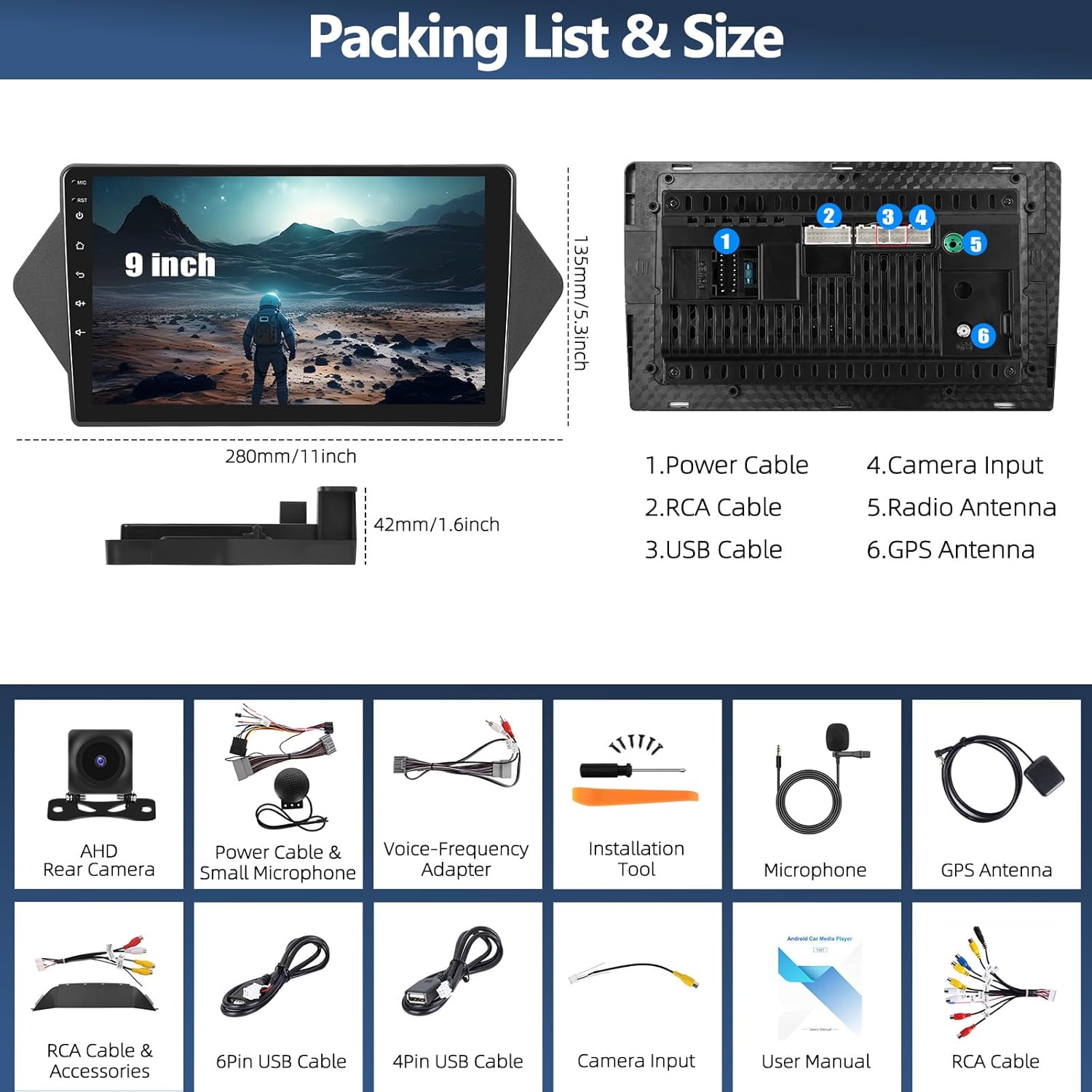
Image: Packing list and size diagram, illustrating the head unit dimensions and all included components.
4. Pengaturan dan Instalasi
4.1 Instalasi Umum
Professional installation is recommended. Ensure the vehicle's power is disconnected before beginning installation. Refer to your vehicle's service manual for specific dashboard removal procedures.
4.2 Pemasangan Kamera Mundur
The reversing input must be connected even if the reversing camera is not used, to ensure proper functionality of the head unit.
- Connect the red wire (positive) of the camera to the positive pole of the car's reversing light.
- Connect the black wire (negative) of the camera to the negative pole of the car's reversing light.
- The reversing trigger is controlled by the stereo; therefore, the third wire (trigger wire) does not require a separate connection.
Catatan: The white plug from the camera input cable must be connected to the main device for Bluetooth and Wi-Fi signals to function correctly.

Image: Reversing Camera Installation wiring diagram.
4.3 Pengaturan Kontrol Roda Kemudi
After connecting the power cable, you need to configure the steering wheel controls. Navigate to the "SWC" application on the head unit. Follow the on-screen instructions to learn and assign the steering wheel buttons. If the learning process fails, repeat the steps.

Image: Steering Wheel Control (SWC) application interface.
5. Petunjuk Pengoperasian
5.1 Apple CarPlay & Android Auto Nirkabel
The head unit supports both wireless Apple CarPlay and Android Auto, allowing seamless integration with your smartphone for navigation, calls, messages, and music.

Image: Wireless Apple CarPlay and Android Auto interfaces.
5.1.1 Koneksi Apple CarPlay Nirkabel
- Aktifkan Bluetooth di iPhone Anda dan pasangkan dengan radio mobil.
- Buka aplikasi "Zlink" di stereo mobil.
- If connection fails, connect your iPhone to the car radio's hotspot, then click the "Zlink" app again.
Maintain both Bluetooth and hotspot connections for stable CarPlay operation.

Image: Wireless Apple CarPlay in use.
5.1.2 Koneksi Android Auto Nirkabel
- Pastikan Anda telah menginstal aplikasi "Android Auto" di ponsel Anda.
- Aktifkan Bluetooth di ponsel Android Anda dan pasangkan dengan radio mobil.
- Buka aplikasi "Zlink" di stereo mobil.

Gambar: Penggunaan Android Auto nirkabel.
5.2 Navigasi GPS & Koneksi WiFi
The unit features a built-in GPS module for both online and offline navigation. Connect to a Wi-Fi hotspot to access online maps, download third-party apps, and browse the internet.
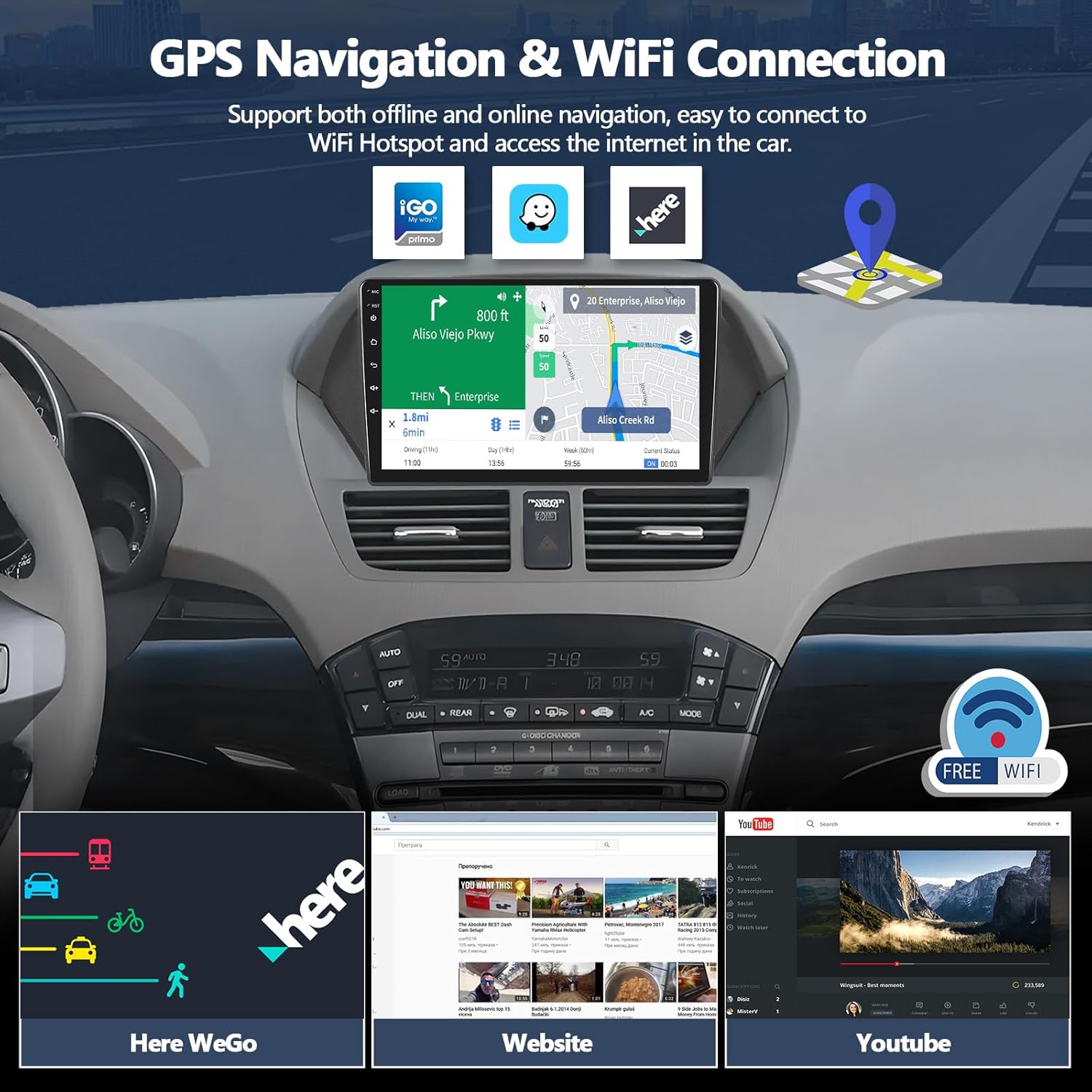
Gambar: Fitur navigasi GPS dan konektivitas WiFi.
5.2.1 Navigasi GPS
Run real-time navigation or offline map navigation on the head unit at any time. Various navigation applications are available for download from the Google Play Store.

Gambar: Antarmuka navigasi GPS.
5.2.2 Koneksi Wi-Fi
Connect to Wi-Fi or a mobile hotspot to download applications, stream videos, access offline maps, and more.

Image: WiFi Connection capabilities and app exampsedikit.
5.3 Bluetooth 5.0 & FM RDS Radio
Enjoy hands-free calls and wireless audio streaming via Bluetooth 5.0. The built-in FM/RDS radio offers 18-station presets for live broadcasting.

Image: Bluetooth and FM RDS Radio interfaces.
5.3.1Bluetooth 5.0
Connect your phone for hands-free calls and wireless audio streaming from services like Spotify or Pandora.

Image: Bluetooth 5.0 features.
5.3.2 FM RDS Radio
Listen to real-time radio broadcasts with RDS information.

Image: FM RDS Radio features.
5.4 16-Band Equalizer (EQ)
Customize your audio experience with the built-in 16-band equalizer. Adjust sound fields for strong bass, soft midrange, and bright treble to achieve your preferred audio quality.

Image: 16-Band Equalizer interface.
5.4.1 Equalizer 32-Band
The system also features a 32-band equalizer for more precise audio tuning, ideal for various musical styles.

Image: 32-Band Equalizer interface.
5.5 Optional Home Page APP Display
Customize your home page by selecting and rearranging the application icons you want to display. This allows for a personalized and efficient user experience.

Image: Optional Home Page APP customization.
5.6 Fungsi Layar Terpisah
Fitur layar terpisah memungkinkan Anda menjalankan dua aplikasi secara bersamaan, seperti navigasi dan pemutaran musik, sehingga meningkatkan kemampuan multitasking.

Gambar: Fungsi Layar Terpisah.
5.7 Fungsi Mirror Link
Synchronize your iOS or Android phone screen to the head unit. Android supports two-way operation, while iOS supports one-way operation (display only).

Image: iOS/Android Mirror Link feature.
6. Pemeliharaan
Untuk memastikan umur panjang dan kinerja optimal stereo mobil Anda, ikuti panduan perawatan berikut:
- Pembersihan Layar: Gunakan kain lembut bebas serat untuk menyeka layar sentuh dengan lembut. Untuk noda membandel, usap sedikitampBilas kain dengan air atau pembersih yang aman untuk layar. Hindari bahan kimia keras atau bahan abrasif.
- Pembersihan Umum: Jaga unit tetap bersih dari debu dan kotoran. Gunakan sikat lembut atau udara bertekanan untuk membersihkan ventilasi dan area tombol.
- Pembaruan Perangkat Lunak: Periksa pembaruan perangkat lunak secara berkala untuk memastikan Anda memiliki fitur dan perbaikan bug terbaru. Lihat petunjuk dari produsen. website or the unit's settings for update procedures.
- Hindari Suhu Ekstrem: Do not expose the unit to extreme heat or cold for extended periods, as this can affect its electronic components.
7. Penyelesaian masalah
7.1 Tidak Ada Output Audio
If you experience no audio from the car stereo, check the following connections:
- Ensure the AUX IN R/L on the Voice-Frequency Adapter is correctly connected to the Audio Out R/L on the RCA cable (red to red, white to white).
- Verify that the small speaker (included in the package) is connected to the power cable.

Image: Solutions for no audio output.
7.2 Steering Wheel Controls Not Responding
If your steering wheel controls are not functioning, ensure they have been properly configured. Refer to section 4.3 "Steering Wheel Control Setup" for detailed instructions. Re-learn the buttons if necessary.
7.3 Masalah Sinyal GPS
Ensure the GPS antenna is properly installed and has a clear line of sight to the sky. Obstructions or poor placement can affect signal reception.
7.4 Masalah Konektivitas Wi-Fi/Bluetooth
Check that the white plug from the camera input cable is securely connected to the main device, as this connection is crucial for Wi-Fi and Bluetooth signals.
8. Spesifikasi
| Fitur | Detil |
|---|---|
| Nomor Model | A8039A3662H1MI2 |
| Sistem Operasi | Android 15 |
| RAM | 4 GB |
| Bahasa Indonesia: ROM | 64 GB |
| Ukuran Layar | 9 inci |
| Teknologi Konektivitas | Bluetooth 5.0, Wi-Fi, GPS |
| Fitur Khusus | Wireless Apple CarPlay, Android Auto, 16-Band EQ, FM RDS Radio, HD Backup Camera Support, Split Screen, Mirror Link |
| Perangkat yang Kompatibel | Honda Acura MDX 2007-2013 (Low-End Version, Without Canbus) |
| Dimensi Produk | 1.6x11x5.3 inci |
| Berat Barang | 2.86 pon |
| Mode Keluaran Audio | Stereo |
| Konfigurasi Saluran Suara Surround | 5.1 |
| Pengkodean Video | H.264, H.265/HEVC |
9. Informasi Garansi
For specific warranty details regarding your CAMECHO car stereo, please refer to the warranty card included in your product packaging or contact the seller directly. Protection plans may be available for purchase separately to extend coverage.
10. Dukungan Pelanggan
If you require further assistance, have questions about installation, or encounter any issues not covered in this manual, please contact CAMECHO customer support.
E-mail: CAMECHOVIP@126.com

Image: CAMECHO Customer Support contact information.
Ask a question about this manual
Ask about setup, troubleshooting, compatibility, parts, safety, or missing instructions. Manuals+ will review the question and use this page’s manual context to help answer it.