
HP CPS HP DeskJet
Panduan Pengguna Printer HP DeskJet Wireless Color Inkjet All-in-One untuk Rumah
Model: CPS HP DeskJet
Perkenalan
This manual provides comprehensive instructions for setting up, operating, and maintaining your HP DeskJet Wireless Color Inkjet All-in-One Home Printer. This versatile device offers printing, scanning, and copying functionalities, designed for efficient home and office use. It features wireless connectivity, mobile printing capabilities, and an auto document feeder for enhanced productivity.
Fitur utama meliputi:
- Easy Mobile Printing: Manage printing, scanning, or copying directly from your smartphone using a free mobile app.
- Wireless Connectivity: Fast and reliable printing with built-in Wi-Fi and Bluetooth support.
- High-Quality Everyday Prints: Produce sharp text and vibrant color images.
- Versatile Functions: Print, scan, and copy with an intuitive control panel.
- Eco-Friendly Design: Made with at least 60% recycled plastic.
- Compact & Energy Efficient: Space-saving design with energy-saving technology.
1. Pengaturan
1.1 Unboxing dan Penempatan Awal
Carefully remove the printer from its packaging. Ensure all protective tapes and packing materials are removed from the exterior and interior of the printer. Place the printer on a stable, flat surface with adequate space for paper trays and cable connections.
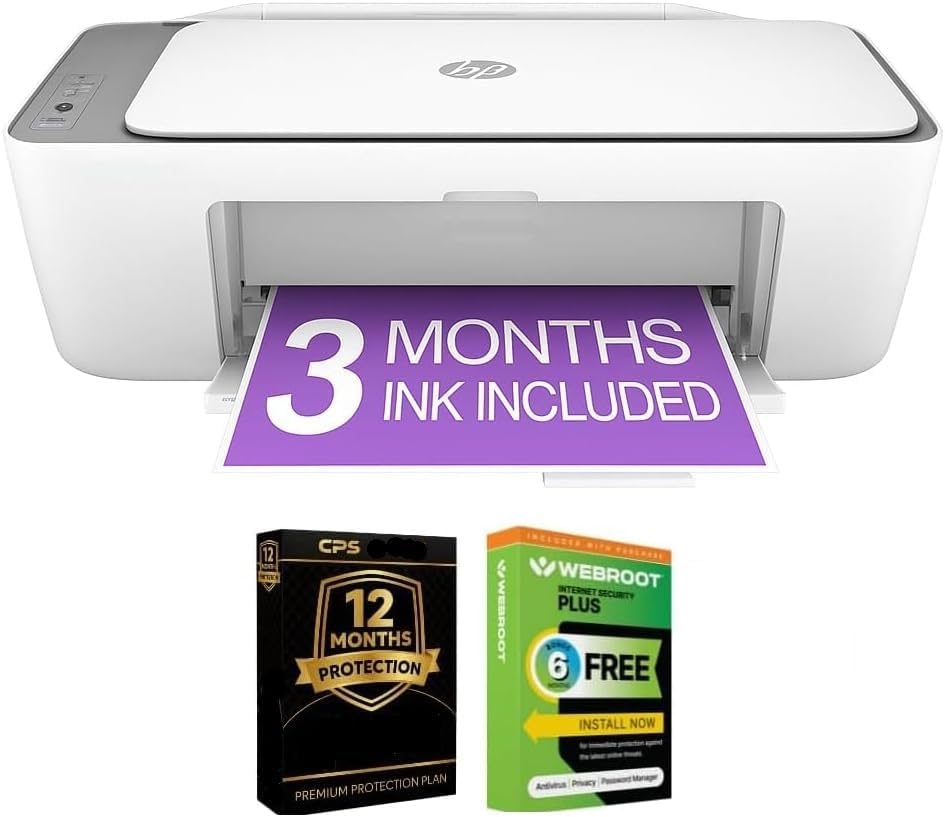
Figure 1: HP DeskJet All-in-One Printer, showing the main unit with an "3 Months Ink Included" graphic.
1.2 Sambungan Daya
Connect the power cord to the printer's power port and then plug the other end into a grounded electrical outlet.

Gambar 2: Belakang view of the printer, highlighting the USB 2.0 port for PC connection and the power input.
1.3 Pemasangan Kartrid Tinta
Open the ink cartridge access door. Wait for the carriage to move to the center. Install the HP ink cartridges into their respective slots, ensuring they click into place. Close the access door.
1.4 Pengaturan Perangkat Lunak dan Nirkabel
For the easiest setup, download the Aplikasi HP Pintar on your computer or mobile device. The app will guide you through connecting the printer to your Wi-Fi network and installing necessary drivers.
- Ensure your mobile device or computer is connected to the same Wi-Fi network you intend to connect the printer to.
- Follow the on-screen instructions in the HP Smart app to complete the wireless setup and printer registration.

Figure 3: A user interacting with the HP DeskJet printer, demonstrating the ease of setup and use with a mobile device.
2. Mengoperasikan Printer
2.1 Memuat Kertas
Load plain paper into the input tray. Adjust the paper guides to fit the paper size snugly. The printer supports various media sizes up to Letter/A4.

Figure 4: A user loading paper into the printer's input tray, illustrating the paper loading process.
2.2 Mencetak Dokumen
To print from a computer, select the print option from your application, choose the HP DeskJet printer, and adjust settings as needed before confirming the print job. For mobile printing, use the HP Smart app or your device's native print function (e.g., Apple AirPrint, Mopria Print Service).
2.3 Memindai Dokumen
Place the document face-down on the scanner glass or use the Auto Document Feeder (ADF) for multiple pages. Open the HP Smart app or your computer's scanning software, select the scan function, choose scan settings (e.g., resolution, color mode), and initiate the scan.

Gambar 5: Atas view of the HP DeskJet printer with the scanner lid open, revealing the scanner glass.

Figure 6: Close-up of the printer's control panel, showing various indicator lights and buttons for operation.
2.4 Menyalin Dokumen
Place the document on the scanner glass or in the ADF. On the printer's control panel, press the Black or Color Copy button to make a copy. You may adjust copy settings (e.g., number of copies) through the HP Smart app if available.
3. Pemeliharaan
3.1 Mengganti Kartrid Tinta
When an ink cartridge runs low or is empty, the printer will indicate this. Replace cartridges with genuine HP ink to ensure optimal print quality and printer longevity. This bundle includes 3 months of HP Instant Ink, which automatically ships original HP cartridges to you before you run out.

Figure 7: Promotional image highlighting the "Instant Ink Ready" feature and the offer of 3 months of free Instant Ink.
3.2 Membersihkan Pencetak
Regularly clean the exterior of the printer with a soft, lint-free cloth. For print quality issues, use the printer's utility software (via HP Smart app or computer) to perform printhead cleaning or alignment procedures. Clean the scanner glass with a soft cloth and glass cleaner (non-abrasive).
4. Penyelesaian masalah
This section addresses common issues you might encounter with your HP DeskJet printer.
- Printer Tidak Merespons:
- Periksa sambungan listrik.
- Pastikan printer dihidupkan.
- Verifikasi koneksi Wi-Fi (printer dan perangkat).
- Nyalakan ulang printer dan komputer/perangkat seluler Anda.
- Kualitas Cetak Buruk:
- Periksa level tinta dan ganti kartrid yang hampir habis.
- Perform printhead cleaning and alignment through the printer software.
- Pastikan Anda menggunakan kartrid tinta HP asli.
- Pastikan pengaturan jenis kertas sesuai dengan kertas yang dimasukkan.
- Kertas Macet:
- Matikan printer dan cabut kabelnya.
- Keluarkan kertas yang macet dari baki input, baki output, atau di dalam printer dengan hati-hati.
- Pastikan kertas dimuat dengan benar dan tidak terlalu penuh.
- Masalah Konektivitas Nirkabel:
- Silakan mulai ulang router, printer, dan perangkat Anda.
- Pastikan printer berada dalam jangkauan router Wi-Fi Anda.
- Re-run the wireless setup using the HP Smart app.
5. Spesifikasi
| Fitur | Detil |
|---|---|
| Merek | HP |
| Nama Model | CPS HP DeskJet |
| Teknologi Konektivitas | Wifi gratis |
| Teknologi Percetakan | Tinta jet |
| Keluaran Printer | Warna |
| Resolusi Cetak Warna Maksimum | Resolusi 4800x1200dpi |
| Kecepatan Cetak Maksimum (Warna) | 5.5 halaman |
| Kecepatan Cetak Maksimum (Monokrom) | 7.5 halaman |
| Jenis Pemindai | lembar makan |
| Resolusi Salinan Maksimum (Hitam-Putih) | 600dpi |
| Ukuran Media Maksimum | Huruf/A4 |
| Kapasitas Lembar Input Maksimum | 500 |
| Berat Barang | 14.6 pon |
| Warna Tinta | Cyan, Magenta, Kuning, Hitam |
| Pencetakan Dupleks | Otomatis |
6. Garansi dan Dukungan
6.1 Informasi Garansi
Your HP DeskJet printer bundle includes a total of 2 years of coverage: the standard 1-Year Manufacturer Warranty plus an additional 1-Year CPS Extended Protection Plan. This provides peace of mind and covers potential defects or malfunctions.

Figure 8: Image of the CPS Premium Protection Plan box, indicating 12 months of additional coverage.
6.2 Dukungan Pelanggan
Untuk bantuan teknis, klaim garansi, atau pertanyaan lebih lanjut, silakan kunjungi dukungan resmi HP. website or contact their customer service. Have your printer's model number (CPS HP DeskJet) and serial number ready when contacting support.
Dukungan HP Weblokasi: support.hp.com
Ask a question about this manual
Ask about setup, troubleshooting, compatibility, parts, safety, or missing instructions. Manuals+ will review the question and use this page’s manual context to help answer it.