1. Pendahuluan
This manual provides detailed instructions for the installation, operation, and maintenance of the Generic MT7925 WiFi 7 Network Card. This M.2 NGFF wireless adapter offers WiFi 7 (802.11be) connectivity with tri-band support (2.4GHz, 5GHz, 6GHz) and Bluetooth 5.3 capabilities, designed for Windows 10 and Windows 11 systems.
2. Informasi Keselamatan
- Selalu putuskan aliran listrik ke komputer Anda sebelum memasang atau melepas komponen internal apa pun.
- Handle the network card by its edges to avoid touching the gold connectors or sensitive components.
- Use appropriate anti-static precautions (e.g., anti-static wrist strap) to prevent electrostatic discharge (ESD) damage.
- Jauhkan perangkat dari kelembapan dan suhu ekstrem.
3. Isi Paket
Verifikasi bahwa semua item ada dalam paket:
- 1 x MT7925 WiFi Card
4. Pengaturan dan Instalasi
4.1 Daftar Periksa Pra-Instalasi
- Ensure your computer has an available M.2 NGFF slot (Key E).
- Confirm your operating system is Windows 10 or Windows 11 (64-bit).
- Download the latest drivers for the MT7925 from the manufacturer's or chipset provider's website onto a USB drive or accessible location before installation.
4.2 Instalasi Fisik
The MT7925 network card is designed for M.2 NGFF Key E slots found in both desktop motherboards and laptops.

Gambar: Depan dan belakang view of the MT7925 WiFi 7 network card, highlighting the Key E connector for installation.
- Matikan komputer Anda dan lepaskan semua kabel.
- Open your computer case (for desktop) or access the M.2 slot compartment (for laptop). Refer to your computer's manual for specific instructions.
- Locate an available M.2 NGFF slot (Key E).
- Carefully insert the MT7925 card into the M.2 slot at a slight angle.
- Gently press down the card and secure it with the screw provided with your motherboard or laptop.
- Connect the antenna cables (if applicable) to the corresponding 'Main' and 'Aux' connectors on the card.
- Close your computer case or compartment.
- Sambungkan kembali semua kabel dan nyalakan komputer Anda.
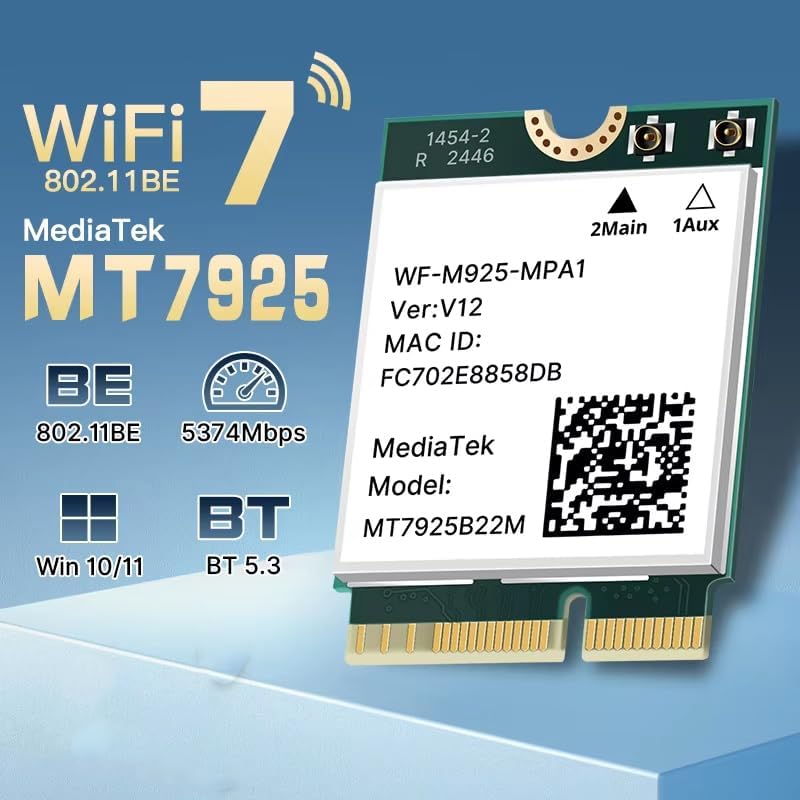
Image: Illustration of M.2 slot availability for both desktop and laptop installations. The image indicates 'Available' and 'Unavailable' slots for clarity.
4.3 Instalasi Driver
- After booting into Windows, open Device Manager.
- Look for an unknown device or a network adapter with a yellow exclamation mark under 'Network adapters' or 'Other devices'.
- Right-click on the device and select 'Update driver'.
- Choose 'Browse my computer for drivers' and navigate to the folder where you saved the downloaded drivers.
- Ikuti petunjuk di layar untuk menyelesaikan instalasi driver.
- Nyalakan ulang komputer Anda jika diminta.
5. Petunjuk Pengoperasian
5.1 Menghubungkan ke Wi-Fi
Once drivers are installed, the MT7925 card will enable Wi-Fi functionality. You can connect to available networks:
- Klik ikon Wi-Fi di bilah tugas Windows.
- Pilih jaringan yang Anda inginkan dari daftar.
- Masukkan kata sandi jaringan jika diperlukan, lalu klik 'Hubungkan'.
- The MT7925 supports tri-band operation (2.4GHz, 5GHz, 6GHz) for optimal performance.

Image: Visual representation of the MT7925's data rates across different frequency bands: 6GHz (2400Mbps), 5GHz (2400Mbps), and 2.4GHz (574Mbps).
5.2 Pemasangan Bluetooth
The MT7925 also provides Bluetooth 5.3 connectivity.
- Buka Pengaturan Windows > Perangkat > Bluetooth & perangkat lain.
- Pastikan Bluetooth diaktifkan.
- Klik 'Tambahkan Bluetooth atau perangkat lain' dan pilih 'Bluetooth'.
- Masukkan perangkat Bluetooth Anda ke mode berpasangan.
- Pilih perangkat Anda dari daftar dan ikuti petunjuk di layar untuk menyelesaikan pemasangan.

Image: An illustration demonstrating the compatibility of the upgraded Bluetooth 5.3 with various devices, including printers, keyboards, gamepads, mice, headsets, speakers, cell phones, and tablets.
5.3 Kompatibilitas Sistem Operasi
The MT7925 network card is compatible with 64-bit versions of Windows 10 and Windows 11.

Image: Logos for Windows 10 and Windows 11, confirming support for 64-bit versions of these operating systems.
6. Pemeliharaan
- Pembaruan Driver: Regularly check for updated drivers on the manufacturer's or chipset provider's websitus untuk memastikan kinerja dan keamanan yang optimal.
- Inspeksi fisik: Periodically inspect the card and antenna connections (if external) for any signs of damage or loose connections.
- Pembersihan: If necessary, gently clean the card with compressed air to remove dust buildup. Ensure the computer is powered off and unplugged before cleaning.
7. Penyelesaian masalah
7.1 Tidak Ada Konektivitas Wi-Fi atau Bluetooth
- Periksa Pengelola Perangkat: Verify that the MT7925 card is recognized and has no error symbols. Reinstall drivers if necessary.
- Koneksi Fisik: Ensure the card is securely seated in the M.2 slot and any antenna cables are properly connected.
- Pengaturan BIOS/UEFI: Some motherboards may require enabling the M.2 slot or Wi-Fi/Bluetooth functionality in the BIOS/UEFI settings.
7.2 Kecepatan Wi-Fi Lambat
- Pembaruan Pengemudi: Pastikan Anda telah menginstal driver terbaru.
- Penempatan Router: Move closer to your Wi-Fi router or ensure there are no significant obstructions.
- Pita Frekuensi: Connect to the 5GHz or 6GHz band for higher speeds, if available and supported by your router.
- Gangguan: Other electronic devices can cause interference. Try changing your router's Wi-Fi channel.
7.3 Perangkat Bluetooth Tidak Terhubung
- Bluetooth Aktif: Confirm Bluetooth is enabled in Windows settings.
- Device Pairing Mode: Pastikan perangkat Bluetooth Anda dalam mode berpasangan.
- Jarak: Keep the Bluetooth device close to your computer during pairing.
- Gangguan: Minimize other wireless devices nearby during pairing.
8. Spesifikasi
| Model | MT7925 |
| Standar nirkabel | WiFi 7 (802.11be) |
| Kecepatan Transfer Data | Up to 5400Mbps (2400Mbps on 6GHz, 2400Mbps on 5GHz, 574Mbps on 2.4GHz) |
| Pita Frekuensi | 2.4GHz, 5GHz, 6GHz (Tri-Pita) |
| Versi Bluetooth | Bluetooth 5.3 |
| Antarmuka | M.2 NGFF (Key E) |
| Sistem Operasi yang Kompatibel | Jendela 10 (64-bit), Windows 11 (64-bit) |
| Protokol Nirkabel | 802.11n, 802.11ax (WiFi 6), 802.11a/g, 802.11ac, 802.11be (WiFi 7) |
| Antarmuka Perangkat Keras | 802.11ac/b/g/n |
| Berat Barang | 0.48 ons (13.61 gram) |
9. Garansi dan Dukungan
This product is sold under the 'Generic' brand. For specific warranty terms and conditions, please refer to the seller or retailer from whom you purchased this product. Keep your proof of purchase for any warranty claims.
For technical support, driver updates, or further assistance, please visit the website of the chipset manufacturer (MediaTek) or contact your product vendor.