
1. Pendahuluan
This manual provides detailed instructions for the installation, operation, and maintenance of your EWIND 5-Port Gigabit Ethernet Switch. This unmanaged network switch is designed to expand your wired network capacity with ease, offering high-speed connectivity for multiple devices.
2. Produk Lebihview
The EWIND 5-Port Gigabit Ethernet Switch (Model: EW-S1605CGU) is a compact, fanless device featuring five 10/100/1000Mbps auto-sensing RJ45 ports. It supports Auto MDI/MDIX and IEEE 802.3az energy-efficient standards. The durable metal casing ensures quiet operation and efficient heat dissipation.
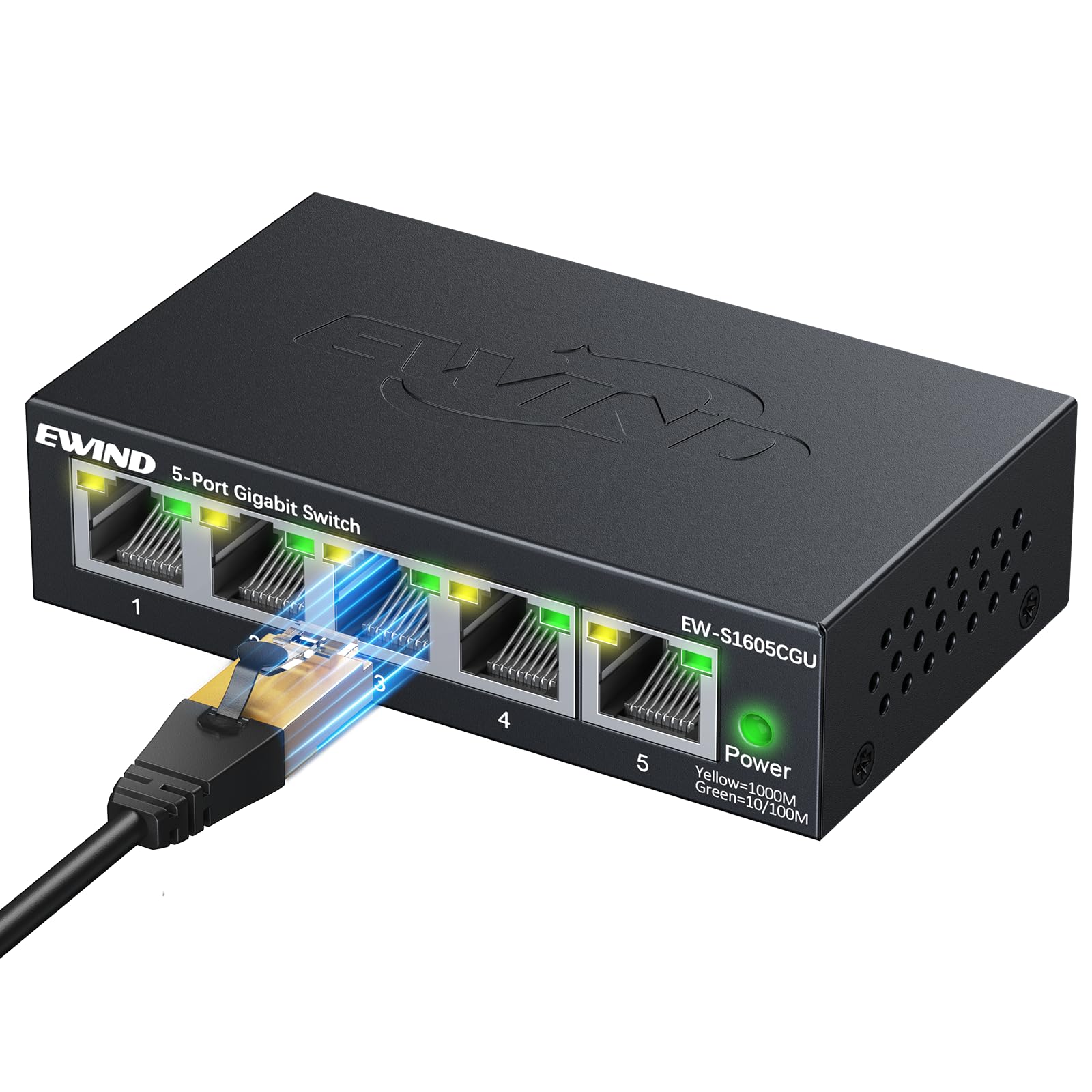
Gambar 1: Depan view of the EWIND 5-Port Gigabit Ethernet Switch, showing five RJ45 ports and a power indicator.
3. Fitur Utama
- Pengoperasian Plug & Play: No configuration required. Simply connect your devices for instant gigabit networking.
- Dual-Color LED Indicators: Each port features a dual-color LED to quickly distinguish between 100Mbps (Green) and 1000Mbps (Yellow) port statuses.
- Gigabit High-Speed Connectivity: Provides 10/100/1000Mbps speeds for reliable data transmission.
- VLAN Isolation: Supports VLAN isolation for enhanced network segmentation and security.
- Efisiensi Energi: IEEE 802.3az compliant, dynamically adjusting power usage for energy savings.
- Silent, Fanless Design: Graphene nano-coating and honeycomb structure ensure quiet operation and efficient heat dissipation.
- Logam Tahan Lama Casing: Encased in a precision CNC-cut metal chassis for long-lasting durability.
- Instalasi Fleksibel: Supports desktop placement and wall mounting.
4. Isi Paket
Verifikasi bahwa paket Anda berisi item berikut:
- 1 x EWIND 5-Port Gigabit Ethernet Switch
- 1 x Adaptor Daya
- 1 x Panduan Instalasi Cepat
Video 1: Unboxing the EWIND 5-Port Gigabit Ethernet Switch, showing the compact size and included accessories. (Note: Actual video URL not provided in JSON, placeholder used.)
5. Pengaturan dan Instalasi
5.1 Menghubungkan Adaptor Daya
- Connect the provided power adapter to the DC 5V/1A port on the switch.
- Plug the power adapter into a standard electrical outlet. The Power LED on the switch will illuminate, indicating it is receiving power.
Video 2: Demonstrating how to connect the power adapter to the EWIND switch. (Note: Actual video URL not provided in JSON, placeholder used.)
5.2 Menghubungkan Perangkat Jaringan
- Connect an Ethernet cable from your router or modem to any of the five RJ45 ports on the EWIND switch. This port will act as your uplink.
- Connect Ethernet cables from your network devices (e.g., computers, gaming consoles, smart TVs, NAS) to the remaining RJ45 ports on the switch.
- The corresponding LED indicators for each connected port will light up, indicating an active connection.

Figure 2: The EWIND switch connected to various devices like a TV, game console, computer, security camera, and NAS, illustrating network expansion.
Video 3: A user connecting multiple Ethernet cables to the EWIND 5-Port Gigabit Ethernet Switch, demonstrating its plug-and-play functionality. (Note: Actual video URL not provided in JSON, placeholder used.)
5.3 Pemasangan di Dinding
The switch features mounting slots on its underside for wall installation. Use appropriate screws (not included) to secure the switch to a wall or other flat surface.

Figure 3: Underside of the switch showing keyhole slots for wall mounting.
6. Petunjuk Pengoperasian
6.1 Indikator LED
The EWIND switch uses dual-color LEDs for each port to indicate connection speed:
- Lampu Kuning: Menunjukkan koneksi 1000Mbps (Gigabit).
- Lampu hijau: Indicates a 10/100Mbps connection.
- Tidak Ada Cahaya: Indicates no active connection or no device is powered on.

Gambar 4: Tampilan jarak dekat view of the switch's LED indicators, showing yellow for 1000M and green for 10/100M connections.
6.2 VLAN Isolation (Optional)
The switch supports VLAN isolation. If enabled, this feature segments network traffic, enhancing security and performance by isolating devices from each other. Refer to the Quick Installation Guide for specific instructions on enabling or disabling VLAN isolation, if applicable to your model.

Figure 5: Visual representation of VLAN isolation, showing how the EWIND switch can create a secure network by segmenting traffic.
7. Spesifikasi
| Fitur | Detil |
|---|---|
| Merek | ANGIN |
| Model | EW-S1605CGU |
| Jumlah Pelabuhan | 5 |
| Jenis Antarmuka | 5 10/100/1000Mbps, Auto-Negotiation, Auto-MDI/MDIX Ports, RJ45 |
| Kecepatan Transfer Data | 1000 Megabit Per Detik |
| Bahan Kasus | Logam |
| Jil.tage | 5 Volt |
| Peringkat Saat Ini | 1 Amps |
| Peringkat Suhu Atas | 40 Derajat Celcius |
| Berat Barang | 8.1 ons |
| Dimensi Paket | 4.61x4.13x1.14 inci |
| Perangkat yang Kompatibel | Camera, Computers, Servers, Printers, Network-attached Storage Devices, Smart Devices, Network Set-Top Boxes, Gaming Consoles, Routers |
8. Penyelesaian masalah
- Tidak ada LED Daya: Pastikan adaptor daya tersambung dengan aman ke sakelar dan stopkontak listrik yang berfungsi.
- Tidak ada LED Tautan/Aktivitas:
- Verifikasi bahwa kabel Ethernet tersambung dengan aman ke port switch dan perangkat jaringan.
- Check if the connected network device is powered on and functioning correctly.
- Cobalah menggunakan kabel Ethernet yang berbeda untuk mengesampingkan masalah kabel.
- Ensure the cable type is compatible (Cat5e or higher recommended for Gigabit speeds).
- Slow Connection Speed (Green LED instead of Yellow for Gigabit device):
- Confirm that both the connected device and the Ethernet cable support Gigabit speeds.
- Replace the Ethernet cable with a known good Cat5e/Cat6/Cat7/Cat8 cable.
- Ensure the device's network adapter is configured for Gigabit speed (if configurable).
- VLAN Isolation Issues: If you are experiencing unexpected network segmentation, check the VLAN switch setting on the device (if applicable to your model).
9. Garansi dan Dukungan
EWIND is committed to providing high-quality products and customer satisfaction. Your purchase includes:
- Perlindungan Seumur Hidup: Covers both installation and any accidental issues.
- 24/7 Professional Support: Access to 1-on-1 professional support for any queries or assistance.
For further assistance, please refer to the contact information provided in your Quick Installation Guide or visit the official EWIND weblokasi.