
1. Pendahuluan
This manual provides detailed instructions for the setup, operation, maintenance, and troubleshooting of your Gvyugke Captain 780 Wireless Gaming Headset. Please read this manual thoroughly before using the product to ensure optimal performance and longevity.

Figure 1: Gvyugke Captain 780 Wireless Gaming Headset
2. Isi Paket
Verifikasi bahwa semua item yang tercantum di bawah ini disertakan dalam paket produk Anda:
- 1 x Gvyugke Captain 780 Wireless Gaming Headset
- 1 x 2.4GHz USB Wireless Dongle
- 1 x Kabel Pengisian USB-C
- 1x Kabel Audio 3.5mm
- 1 x Panduan Pengguna (dokumen ini)

Figure 2: Headset and included accessories
3. Fitur Produk
- Konektivitas 4-in-1: Supports 2.4GHz wireless, Bluetooth 5.3, and wired (3.5mm) connections for versatile use across multiple platforms.
- Suara Surround 7.1 yang Imersif: Equipped with 50mm speakers for enhanced audio clarity and positional accuracy in games.
- Mikrofon Peredam Kebisingan: A rotating microphone designed to reduce background noise for clear communication.
- Daya Tahan Baterai Lebih Lama: Features a 1200mAh battery providing up to 70 hours of playtime, with quick charge capability (2 hours of use after 5 minutes of charging).
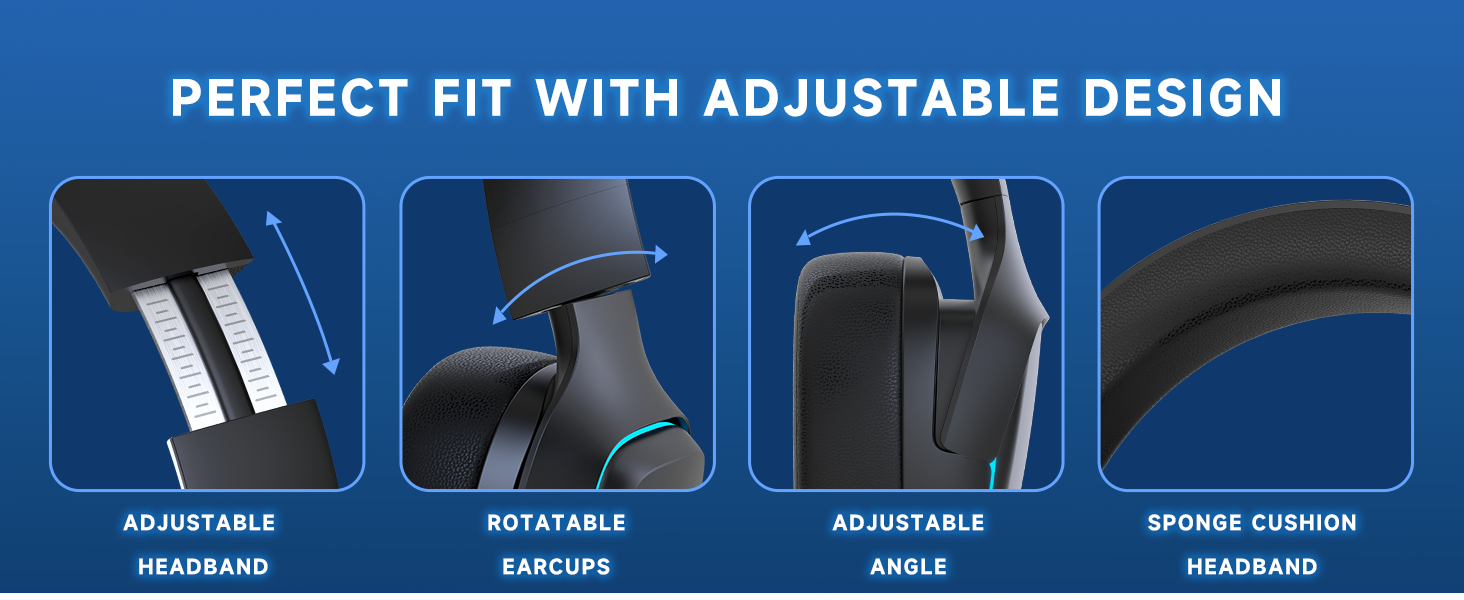
- Desain yang nyaman: Protein leather ear pads with memory foam and an adjustable headband ensure comfort during prolonged use.
- Foldable and Lightweight: Dirancang agar mudah dibawa dan disimpan.
- Pencahayaan LED Biru: Integrated lighting effects enhance the gaming aesthetic.
4. Panduan Pengaturan
4.1. Terhubung melalui Jaringan Nirkabel 2.4GHz (Dongle USB)
This mode offers low-latency audio for gaming on compatible devices.
- Insert the 2.4GHz USB wireless dongle into an available USB port on your PC, PS5, PS4, or Nintendo Switch (in docked mode).
- Power on your Gvyugke Captain 780 headset.
- Slide the connection mode switch on the headset to the '2.4G' position.
- The headset will automatically pair with the dongle. A solid blue light on the headset indicates a successful connection.

Figure 3: 2.4GHz USB Wireless Dongle
4.2. Terhubung melalui Bluetooth 5.3
Use Bluetooth for mobile devices, tablets, and laptops.
- Pastikan headset dalam keadaan hidup.
- Slide the connection mode switch on the headset to the 'BT' (Bluetooth) position. The LED indicator will flash blue, indicating pairing mode.
- On your device (phone, tablet, laptop), go to Bluetooth settings and search for 'Captain 780'.
- Select 'Captain 780' to pair. The LED indicator will turn solid blue upon successful connection.
4.3. Connecting via Wired (3.5mm Audio Cable)
For devices that support a 3.5mm audio jack, such as Xbox controllers or when battery is low.
- Hubungkan salah satu ujung kabel audio 3.5 mm ke port 3.5 mm pada headset.
- Hubungkan ujung lainnya ke jack audio 3.5 mm pada perangkat Anda.
- Headset akan secara otomatis beralih ke mode kabel.
4.4. Device Compatibility Overview

Figure 4: 4-in-1 Connection Compatibility
| Mode Koneksi | Perangkat yang Kompatibel | Catatan |
|---|---|---|
| 2.4GHz Wireless (USB-A) | PC, PS4, PS5, Laptop, Desktop | Low latency, stable connection. |
| 2.4GHz Wireless (USB-C) | Nintendo Switch, Phone, Tablet | Requires USB-C adapter for some devices. |
| Bluetooth 5.3 | Telepon, Tablet, Laptop | For general audio and calls. |
| Berkabel (Jack 3.5mm) | PS4, PS5, Xbox, PC, Nintendo Switch | Microphone functionality may be limited on Switch in wired mode due to platform limitations. |
5. Petunjuk Pengoperasian
5.1. Kontrol Headset
Gambar 5: Tata Letak Kontrol Headset
- Indikator Status Daya: Menampilkan level baterai dan status koneksi.
- Tombol Daya/Bungkam: Press and hold to power on/off. Short press to mute/unmute microphone.
- Roda Volume: Scroll up or down to adjust audio volume.
- BT/2.4G Mode Switch Button: Slide to switch between Bluetooth and 2.4GHz wireless modes.
- Port Pengisian Daya Tipe-C: Hubungkan kabel USB-C untuk pengisian daya.
- Indikator Status Pengisian Daya: Shows charging progress.
5.2. Penggunaan Mikrofon
The rotating noise-canceling microphone can be adjusted for optimal voice pickup. Flip the microphone up to automatically mute it, and flip it down to unmute.

Figure 6: Noise-Canceling Microphone
5.3. Mengisi Daya Headset
Connect the provided USB-C charging cable to the headset's charging port and a power source. The charging indicator will show the charging status. A full charge provides up to 70 hours of playtime. Quick charge provides 2 hours of use after just 5 minutes of charging.

Gambar 7: Daya Tahan Baterai 70 Jam
6. Pemeliharaan
- Pembersihan: Gunakan kain lembut dan kering untuk membersihkan headset. Hindari penggunaan bahan kimia keras atau bahan abrasif.
- Penyimpanan: Simpan headset di tempat yang sejuk dan kering, jauh dari sinar matahari langsung dan suhu ekstrem. Desain yang dapat dilipat memungkinkan penyimpanan yang ringkas.
- Perawatan Baterai: Untuk memperpanjang masa pakai baterai, hindari sering-sering menguras daya headset sepenuhnya. Isi daya secara teratur, meskipun tidak digunakan dalam waktu lama.

Figure 8: Foldable Design for Storage
7. Penyelesaian masalah
7.1. Tidak Ada Suara atau Volume Rendah
- Ensure the headset is powered on and connected correctly (2.4GHz, Bluetooth, or wired).
- Check the volume wheel on the headset and the volume settings on your connected device.
- If using 2.4GHz wireless, ensure the USB dongle is securely plugged in and recognized by your device.
7.2. Mikrofon Tidak Berfungsi
- Ensure the microphone is flipped down and not muted via the power/mute button.
- Check the microphone input settings on your connected device. Select 'Captain 780' as the input device.
- For Nintendo Switch in wired mode, microphone functionality may be limited.
7.3. Masalah Koneksi
- 2.4GHz: Ensure the dongle is within range and there are no major obstructions. Try re-pairing by turning the headset off and on, and re-inserting the dongle.
- Bluetooth dapat digunakan untuk berbagai keperluan, seperti: Ensure Bluetooth is enabled on your device and the headset is in pairing mode. Forget the device in your Bluetooth settings and try pairing again.
7.4. Echo in Microphone
If you experience an echo in the microphone, especially on PC, it might be due to a monitoring function being enabled. Follow the steps in the video below to adjust your sound settings.
Video 1: How to resolve microphone echo on PC. This video demonstrates navigating Windows sound settings to disable the microphone monitoring function, which can cause an echo.
8. Spesifikasi Teknis
| Fitur | Spesifikasi |
|---|---|
| Nama Model | Kapten 780 |
| Teknologi Konektivitas | Wireless (2.4GHz, Bluetooth 5.3), Wired (3.5mm Jack) |
| Ukuran Driver Audio | 50 mm |
| Kontrol Kebisingan | Pembatalan Kebisingan Pasif |
| Respon Frekuensi | Frekuensi 20kHz |
| Latensi Audio | 20 Milliseconds (2.4GHz) |
| Daya Tahan Baterai | Hingga 70 Jam |
| Waktu Pengisian Daya | 2 Jam |
| Berat Barang | 0.49 Kilogram (1.08 pon) |
| Bahan | Plastik |
| Perangkat yang Kompatibel | PC, PS5, PS4, Nintendo Switch, Phone, Xbox (wired) |
9. Garansi dan Dukungan
9.1. Informasi Garansi
Gvyugke products are manufactured with high-quality standards. For specific warranty details and terms, please refer to the warranty card included in your product packaging or visit the official Gvyugke weblokasi.
9.2. Dukungan Pelanggan
If you encounter any issues or have questions regarding your Gvyugke Captain 780 headset, please contact our customer support team. You can find contact information and additional resources on the Gvyugke Brand Store on Amazon.