
Gigastone f1aa7081-8bf8-45fa-b6f8-31c052d31954
GIGASTONE 128GB microSD Express User Manual
Model: f1aa7081-8bf8-45fa-b6f8-31c052d31954
Perkenalan
This manual provides comprehensive instructions for the GIGASTONE 128GB microSD Express memory card. Designed for high-speed data transfer and optimal performance, this card is ideal for devices requiring fast read/write capabilities, such as the Nintendo Switch 2, professional cameras, and personal computers. Please read this manual thoroughly to ensure proper usage and longevity of your product.
Produk Selesaiview dan Isi Paket
The GIGASTONE 128GB microSD Express card offers exceptional speed and reliability. Your package includes:
- 1x GIGASTONE 128GB microSD Express Memory Card
- 1x microSD to SD Adapter
- 1x USB 3.2 Type-C Card Reader

Image: The GIGASTONE 128GB microSD Express memory card, featuring its capacity and speed ratings.

Image: The GIGASTONE microSD Express card shown alongside the included microSD to SD adapter.

Image: The GIGASTONE USB 3.2 Type-C card reader, demonstrating its use with a microSD card and connection to a USB-C port.
Pengaturan dan Instalasi
Memasukkan Kartu microSD
To install the microSD Express card into a compatible device (e.g., Nintendo Switch 2, professional camera, smartphone, tablet, or laptop with a microSD slot):
- Locate the microSD card slot on your device. Refer to your device's manual for exact location.
- Ensure the microSD card is oriented correctly, with the gold contacts facing the appropriate direction as indicated by your device.
- Masukkan kartu perlahan ke dalam slot hingga berbunyi klik. Jangan memaksakan kartu masuk.
Using the SD Adapter
The included SD adapter allows you to use your microSD Express card with devices that have a standard SD card slot (e.g., some cameras, laptops, or desktop computers).
- Insert the GIGASTONE microSD Express card into the designated slot on the SD adapter until it clicks.
- Insert the assembled SD adapter into the standard SD card slot of your device.
Using the USB 3.2 Type-C Card Reader
For direct connection to devices with a USB Type-C port (e.g., modern laptops, tablets, or smartphones), use the provided USB 3.2 Type-C card reader.
- Insert the GIGASTONE microSD Express card into the microSD slot on the USB Type-C card reader.
- Plug the USB Type-C connector of the reader into a compatible port on your computer or device.
- The card will appear as a removable drive, allowing you to transfer files.
Petunjuk Pengoperasian
The GIGASTONE microSD Express card is designed for high-performance applications, offering read speeds up to 880 MB/s and write speeds up to 500 MB/s. Actual performance may vary based on the host device, file jenis, dan faktor lainnya.
Pemindahan Data
Once the card is recognized by your device, you can transfer files to and from it just like any other storage device. Drag and drop fileatau gunakan perangkat Anda file sistem manajemen.
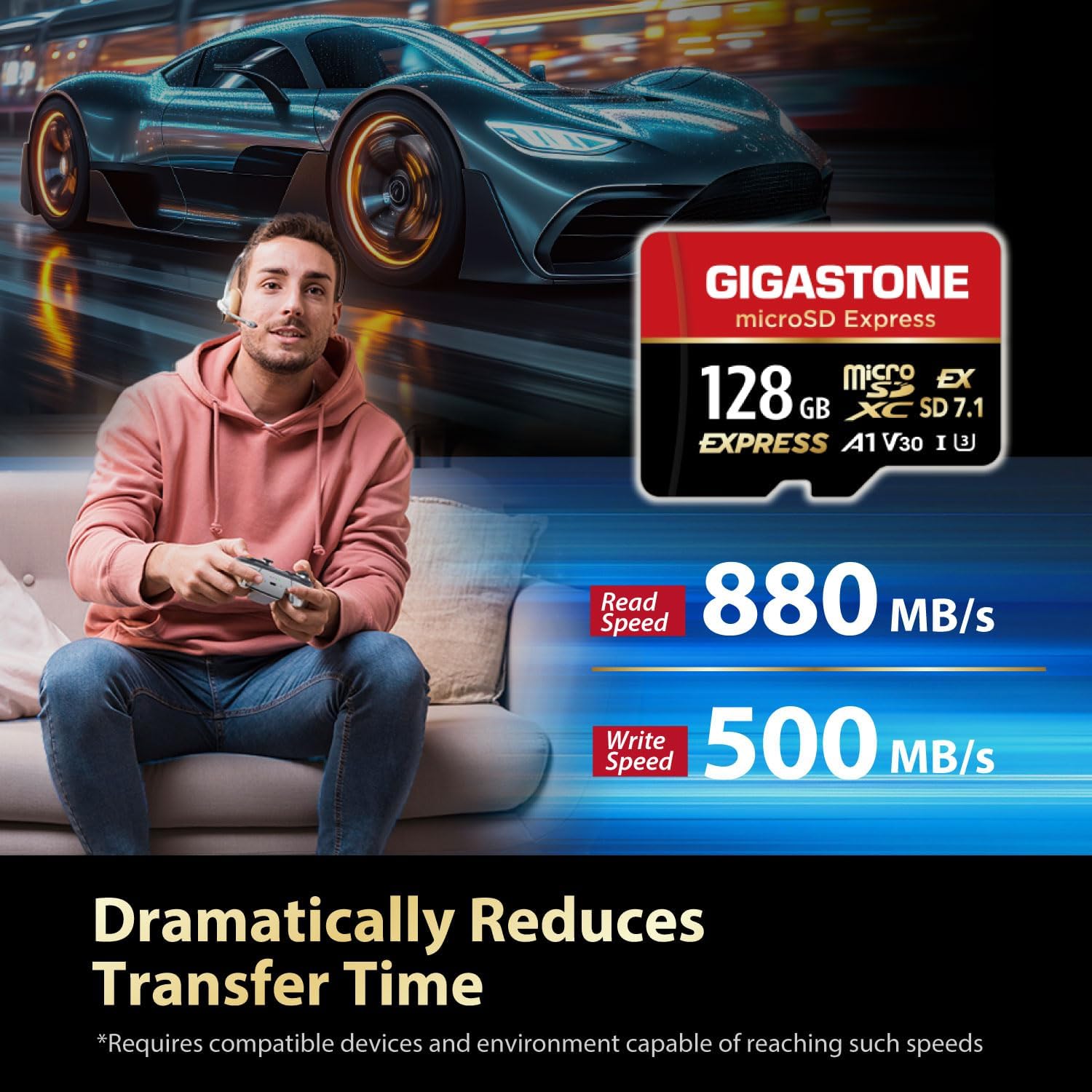
Image: Demonstrates the high read and write speeds of the microSD Express card, highlighting its ability to dramatically reduce transfer times for gaming and other applications.
Performa Gaming
This microSD Express card is optimized for gaming, particularly with compatible consoles like the Nintendo Switch 2. Its high speeds contribute to faster game loading times and smoother gameplay.

Image: Illustrates the ultra-fast gaming response provided by the GIGASTONE microSD Express card, allowing for more playing time and less waiting.
4K UHD Recording
The card's V30 speed class rating ensures stable and high-quality 4K Ultra HD video recording, making it suitable for professional cameras and drones.
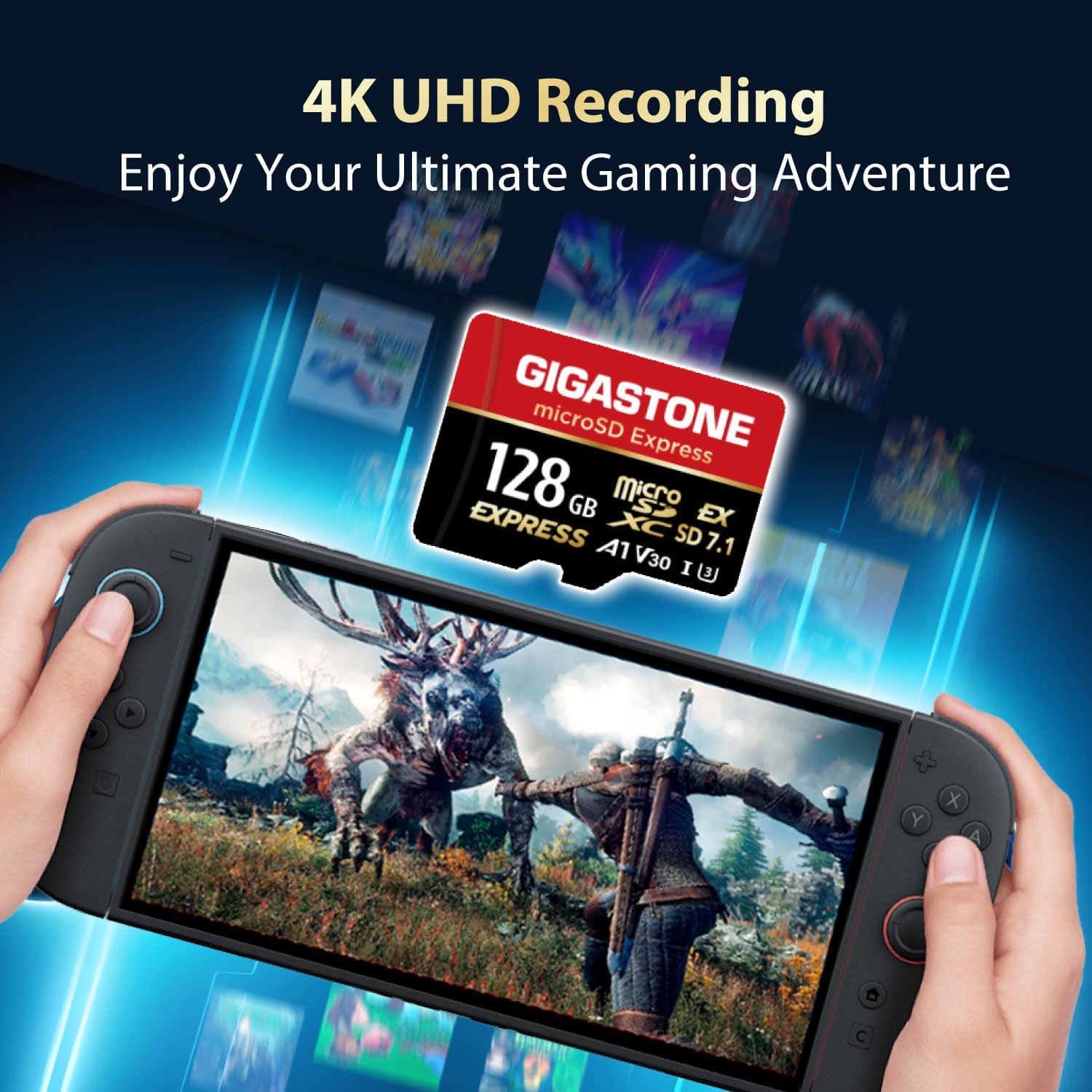
Image: A Nintendo Switch console displaying a game, emphasizing the card's capability for 4K UHD recording and enhanced gaming experiences.
Kesesuaian
The GIGASTONE microSD Express card is designed to be compatible with a range of devices, including gaming consoles (specifically Nintendo Switch 2), professional cameras, and personal computers. It adheres to the SD 7.1 standard.
Please refer to the table below for detailed compatibility information with Nintendo Switch consoles:

Image: A detailed compatibility table showing which microSD card specifications (SD 7.1, SD 4.0, SD 3.0) are compatible with Nintendo Switch 1 and Nintendo Switch 2 for both game and photo/video applications.
Catatan: microSD UHS-I & UHS-II are not compatible for gaming with Nintendo Switch 2. On a Nintendo Switch 1 console, the data reading and writing speed for a microSD Express card will be equivalent to that of a UHS-I microSD card.
Pemeliharaan dan Perawatan
To ensure the longevity and optimal performance of your GIGASTONE microSD Express card, follow these guidelines:
- Tangani dengan hati-hati: Hindari menekuk, menjatuhkan, atau memberikan tekanan berlebihan pada kartu.
- Jaga kebersihan: Do not touch the gold contacts. If necessary, gently wipe the contacts with a clean, dry, lint-free cloth.
- Lindungi dari Elemen: While the card is water and X-ray proof, avoid prolonged exposure to extreme temperatures, humidity, or direct sunlight.
- Penghapusan Aman: Selalu keluarkan kartu dari perangkat Anda dengan aman sebelum mencabutnya secara fisik untuk mencegah kerusakan data.
- Penyimpanan: Store the card in its protective case or a suitable storage solution when not in use.
Penyelesaian Masalah
If you encounter issues with your GIGASTONE microSD Express card, try the following troubleshooting steps:
- Kartu Tidak Terdeteksi:
- Pastikan kartu terpasang sepenuhnya dan benar ke dalam perangkat atau adaptor.
- Try inserting the card into a different compatible device or card reader to rule out a device issue.
- Clean the card's gold contacts with a soft, dry cloth.
- Mulai ulang perangkat Anda.
- Kinerja Lambat:
- Ensure your device supports SD Express (SD 7.1) speeds. If not, performance will be limited to the device's maximum supported speed (e.g., UHS-I speeds on Nintendo Switch 1).
- Check if the card is nearly full. Performance can degrade when storage is almost exhausted.
- Ensure your USB Type-C port and cable are USB 3.2 compatible for optimal transfer speeds when using the card reader.
- Avoid running multiple demanding applications simultaneously during data transfer.
- Korupsi atau Kesalahan Data:
- Selalu keluarkan kartu dengan aman sebelum mencabutnya.
- If data appears corrupted, try formatting the card (Catatan: This will erase all data. Back up important files first). Use your device's or computer's formatting utility.
- Pastikan firmware perangkat Anda sudah diperbarui.
If issues persist, please contact Gigastone customer support.
Spesifikasi
| Fitur | Detil |
|---|---|
| Merek | batu raksasa |
| Nomor Model | f1aa7081-8bf8-45fa-b6f8-31c052d31954 |
| Jenis Memori Flash | MicroSDXC Express |
| Kapasitas Penyimpanan Memori | 128 GB |
| Kecepatan Baca | Hingga 880 MB/s |
| Kecepatan Tulis | Hingga 500 MB/s |
| Fitur Khusus | Water Proof, X Ray Proof |
| Perangkat yang Kompatibel | Gaming Console (Nintendo Switch 2), Personal Computer, Professional Camera |
| Berat Barang | 0.352 ons |
| Dimensi Paket | 5.39x3.46x0.28 inci |
| UPC | 804272777505 |
Garansi dan Dukungan
The GIGASTONE 128GB microSD Express memory card comes with a Garansi terbatas 5 tahun.
For warranty claims, technical support, or further inquiries, please visit the official Gigastone websitus web atau hubungi layanan pelanggan mereka. Simpan bukti pembelian Anda untuk validasi garansi.
Gigastone Store: Visit the Gigastone Store on Amazon
Ask a question about this manual
Ask about setup, troubleshooting, compatibility, parts, safety, or missing instructions. Manuals+ will review the question and use this page’s manual context to help answer it.