
Perkenalan
Terima kasih sudah membeliasing the UPERFECT 23.8-inch 120Hz Portable Touch Monitor. This device is designed to enhance your productivity and entertainment experience with its large display, high refresh rate, and versatile connectivity. Please read this manual carefully before use to ensure proper operation and to maximize the monitor's potential.
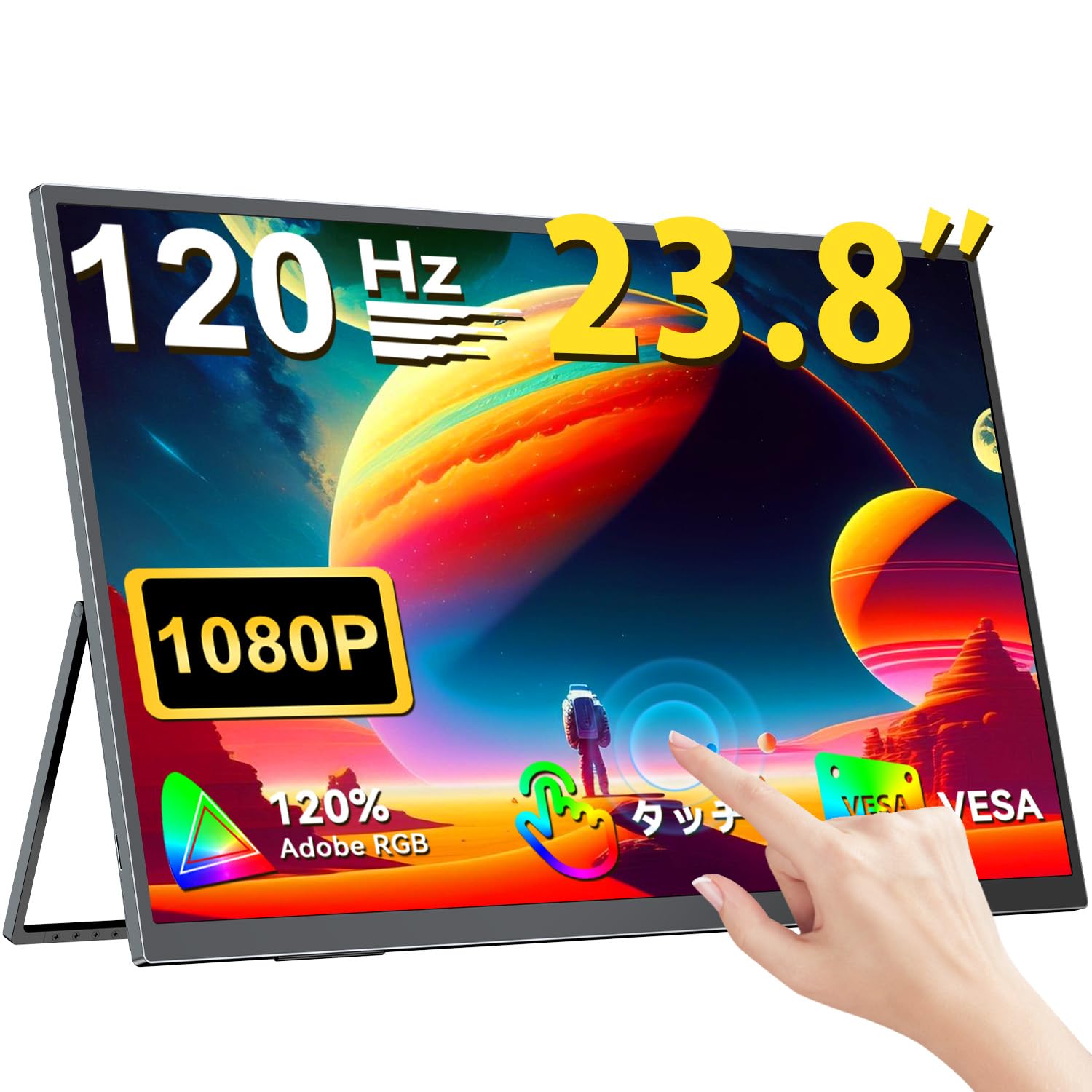
The UPERFECT 23.8-inch 120Hz Portable Touch Monitor.
Informasi Keselamatan
Untuk mencegah kerusakan dan memastikan pengoperasian yang aman, perhatikan tindakan pencegahan berikut:
- Jangan biarkan monitor terkena hujan, kelembapan, atau suhu ekstrem.
- Hindari meletakkan benda berat di atas monitor.
- Gunakan hanya adaptor daya dan kabel yang disediakan.
- Do not attempt to disassemble or repair the monitor yourself. Contact customer support for assistance.
- Pastikan ventilasi yang baik di sekitar monitor untuk mencegah panas berlebih.
- When adjusting the stand, ensure the monitor is stable to prevent tipping.

Recommended ergonomic viewing angles for comfortable use. Avoid upward viewing angles to prevent tipping and eye strain.
Isi Paket
Verifikasi bahwa semua item ada dalam paket:
- UPERFECT 23.8-inch Portable Touch Monitor
- Adaptor Daya
- USB Type-C Cable (Full-featured)
- Kabel Mini HDMI ke HDMI
- USB-A to USB-C Cable (for power/OTG)
- Panduan Pengguna
Produk Selesaiview
Fitur Monitor
- 23.8-inch IPS Panel: Large display with 178° wide viewsudut ing.
- Kecepatan Penyegaran 120Hz: Provides smooth visuals, ideal for gaming and fast-paced content.
- 10-Point Multi-Touch: Intuitive interaction with supported devices.
- Rentang Warna sRGB 120%: Delivers vibrant and accurate colors.
- Dudukan Terintegrasi: Adjustable from 0° to 180° for flexible viewposisi ing.
- Kompatibel dengan Dudukan VESA: Supports 75x75mm VESA standard for alternative mounting options.
- Non-Glare Screen: Reduces reflections for comfortable long-term use.
- Speaker bawaan: Untuk keluaran audio.
Port dan Tombol

Lebihview dari port dan tombol kontrol monitor.
- Jack Earphone: Keluaran audio 3.5mm.
- Tombol Menu: Mengakses menu Tampilan di Layar (OSD).
- Tombol Plus/Minus: Navigate OSD menu, adjust volume/brightness.
- Indikator Daya: Menunjukkan status daya.
- Tombol Daya/Kembali: Powers the monitor on/off, or returns to previous OSD menu.
- Port Tipe-C (x2): Full-featured USB-C for power, video, and touch signal.
- Port HDMI mini: masukan video.
- Micro USB-B OTG Port: For connecting peripherals like mouse or keyboard.
Pengaturan
Menghubungkan ke Perangkat
The monitor supports various devices including laptops, desktops, smartphones, and gaming consoles (PS4, PS5, Xbox, Nintendo Switch).

The monitor can be connected to various devices using a single Type-C cable for power and display, provided the device supports DP Alt Mode.
- Koneksi USB Tipe-C: Connect a full-featured USB Type-C cable from your device (laptop, smartphone, Switch) to one of the monitor's Type-C ports. If your device supports DP Alt Mode, a single cable can transmit video, audio, touch, and power. If your device does not support DP Alt Mode, or for stable power delivery, connect the included power adapter to the other Type-C port.
- Koneksi Mini HDMI: Connect a Mini HDMI to HDMI cable from your device (PC, game console) to the monitor's Mini HDMI port. For power, connect the included power adapter to one of the monitor's Type-C ports.
- Pelabuhan OTG: Use the Micro USB-B OTG port to connect a mouse or keyboard for enhanced control, especially when using the monitor with a smartphone in desktop mode.
Catatan Penting:
- For optimal performance, especially when increasing contrast, brightness, or color saturation, always connect the monitor to an external power source using the provided power adapter.
- If your device's USB-C port does not support DP Alt Mode, a Type-C cable alone cannot transmit video. Refer to your device's specifications for compatibility.
Stand Adjustment and VESA Mounting

The monitor features a smart integrated stand for flexible positioning and VESA compatibility for arm mounts.
- Dudukan Terintegrasi: The monitor features a durable aluminum alloy integrated stand. Adjust the viewing angle freely within a 0° to 180° range. The base includes anti-slip rubber pads for stability.
- Pemasangan VESA: The monitor is compatible with VESA 75x75mm mounts (M4*4mm screw holes). This allows for attachment to monitor arms or wall brackets for a customized setup.
Petunjuk Pengoperasian
Daya Hidup/Mati
Press the Power/Return button to turn the monitor on or off.
Menu Tampilan Pada Layar (OSD)
Press the Menu button to access the OSD menu. Use the Plus/Minus buttons to navigate and adjust settings such as brightness, contrast, color temperature, and input source.
Fungsionalitas Sentuh

The monitor supports 10-point multi-touch gestures for intuitive control. For MacBook connections, 2-point gestures (pinch zoom/rotate) are supported.
The monitor supports 10-point multi-touch for Windows and Android devices. For MacBook connections, 2-point gestures (pinch zoom/rotate) are fully supported. This allows for direct interaction with the screen for tasks like sketching, document navigation, and presentations.
Mode Tampilan

Easily switch between horizontal (landscape) and vertical (portrait) display modes to suit your content and workflow. Portrait mode settings are configured on your PC.
Monitor ini mendukung berbagai mode tampilan untuk memenuhi kebutuhan Anda:
- Mode Diperpanjang: Extend your PC desktop across both screens for increased workspace.
- Modus Duplikat: Mirror your PC screen for presentations or shared viewing.
- Mode Potret: Rotate the monitor vertically for document review or coding. (Settings for portrait mode are typically configured on the connected PC).
Fitur Permainan

The monitor supports FreeSync technology to eliminate screen tearing and stuttering during gaming.
- Kecepatan Penyegaran 120Hz: Experience smoother gameplay and action sequences compared to standard 60Hz displays.
- Dukungan Sinkronisasi Gratis: Compatible with FreeSync technology to reduce screen tearing and stuttering, providing a more fluid gaming experience.
- Waktu Respon Cepat: Enjoy a quick response time of 1ms, minimizing motion blur.
Pemeliharaan
Follow these guidelines to maintain your monitor:
- Membersihkan Layar: Usap layar secara perlahan dengan kain lembut dan bebas serat. Untuk noda membandel, usap layar dengan lembut.ampBasahi kain dengan air atau larutan pembersih layar. Jangan menyemprotkan cairan langsung ke layar.
- Membersihkan Casing: Gunakan kain lembut dan kering untuk membersihkan monitor.asing. Hindari pembersih atau pelarut yang bersifat abrasif.
- Penyimpanan: Saat tidak digunakan dalam jangka waktu lama, simpan monitor di tempat yang sejuk dan kering, jauh dari sinar matahari langsung dan suhu ekstrem.
- Fingerprint Resistance: The screen features an anti-fingerprint coating to help maintain cleanliness in business environments.
Penyelesaian Masalah
Jika Anda mengalami masalah, lihat masalah umum dan solusi berikut:
| Masalah | Kemungkinan Penyebab | Larutan |
|---|---|---|
| Tidak ada tampilan/Tidak ada sinyal | Incorrect input source selected; Cable not connected properly; Device not outputting signal; Insufficient power. | Check cable connections; Select correct input source via OSD; Ensure device is powered on and configured to output to external display; Connect external power adapter to monitor. |
| Fungsi sentuh tidak berfungsi | USB-C cable not full-featured; Device does not support touch output; Driver issue (Windows); Cable connection issue. | Ensure a full-featured USB-C cable is used; Verify device compatibility with touch output; Reconnect USB-C cable; For Windows, ensure touch drivers are installed (usually automatic). |
| Screen flickering/Unstable image | Cable issue; Graphics card issue; Refresh rate mismatch; Insufficient power. | Try a different cable; Update graphics drivers; Adjust refresh rate in device settings; Ensure external power is connected. |
| No audio from monitor speakers | Volume terlalu rendah; Dibisukan; Output audio yang dipilih pada perangkat tidak tepat. | Adjust monitor volume via OSD; Check device's audio output settings. |
| Monitor keeps restarting | Daya yang tidak mencukupi. | Ensure the monitor is connected to the provided power adapter for stable power delivery. |
Spesifikasi
| Fitur | Spesifikasi |
|---|---|
| Merek | SEMPURNA |
| Nomor Model | M238T02 |
| Ukuran Layar | 23.8 inci |
| Resolusi | FHD 1080p (1920 x 1080) |
| Rasio Aspek | 16:9 |
| Jenis Panel | Layar LCD IPS |
| Permukaan Layar | Anti silau |
| Rasio Kontras | 1000:1 |
| Tingkat Penyegaran | 120Hz |
| Waktu Respon | 1 md |
| Viewsudut ing | 178 derajat |
| Nilai Gamut Warna | Warna RGB 120% |
| Konektivitas | 2x USB Type-C (Full-featured), 1x Mini HDMI, 1x Micro USB-B (OTG), 1x 3.5mm Audio Jack |
| Kompatibilitas VESA | 75x75mm (M4*4mm screws) |
| Dimensi (P x L x T) | Ukuran 1.7x54.5x32.7 cm |
| Sinkronisasi Adaptif | Sinkronisasi Gratis |
Garansi dan Dukungan
UPERFECT provides comprehensive support for your product:
- Garansi Pabrik: Produk ini dilengkapi dengan garansi pabrik selama 2 tahun.
- Jaminan Kepuasan 90 Hari: If you are not completely satisfied within 90 days, a full refund is available.
- Dukungan Khusus: Contact our dedicated support team for any questions or issues.
- Free Accessory Replacement: Genuine cables and adapters are provided free of charge for life.
- PSE Certified: The product is PSE certified, ensuring safety standards.
For any inquiries or if you encounter an initial defect within the warranty period, please contact us through your order history. We are committed to providing the best possible assistance.