
Perkenalan
Thank you for choosing the MEETION BTC1100 Wireless Keyboard and Mouse Combo. This product is designed to enhance your productivity and comfort across multiple devices. It features versatile connectivity options, an ergonomic design, and convenient multimedia controls. Please read this manual carefully to ensure proper setup and optimal use.
Isi Paket
- MEETION BTC1100 Wireless Keyboard
- Mouse Nirkabel MEETION
- Kabel Pengisi Daya USB-C ke USB-A
- Penerima USB 2.4G
- User Manual (Instruction Card)
Pengaturan
1. Mengisi Daya Perangkat
Both the keyboard and mouse are equipped with built-in rechargeable batteries. Use the provided USB-C cable to charge them. A full charge typically takes 2-3 hours.

Image: The keyboard and mouse connected to charging cables, illustrating the Type-C rechargeable feature.
2. Operating System Selection (Keyboard)
On the top right side of the keyboard, locate the switch to select your operating system: Windows (Win) or Mac (iOS). Slide the switch to the appropriate position for your device. This ensures correct key mapping for your system.
3. Menghubungkan ke Perangkat
The combo offers triple-device connectivity: one 2.4G USB connection and two Bluetooth connections (BT1, BT2).
3.1. Koneksi Penerima USB 2.4G
- Take the 2.4G USB receiver out of its storage compartment (located on the underside of the mouse or keyboard).
- Hubungkan penerima USB ke port USB-A yang tersedia di komputer Anda.
- On the keyboard, press the 2.4G connection button (often indicated by a Wi-Fi-like symbol). The corresponding indicator light will illuminate.
- On the mouse, press the Mode Switching Button (M) until the 2.4G indicator light illuminates.
- Your keyboard and mouse should now be connected via 2.4G.
3.2. Koneksi Bluetooth (BT1 / BT2)
- On the keyboard, press either the Bluetooth 1 (BT1) or Bluetooth 2 (BT2) button. The corresponding indicator light will turn blue and begin to blink, indicating pairing mode.
- On the mouse, press the Mode Switching Button (M) until the desired Bluetooth indicator (BT1 or BT2) lights up blue and starts blinking.
- Di komputer atau perangkat Anda, buka pengaturan Bluetooth dan cari perangkat baru.
- Select the device named 'MEETION KB-BT1' (for keyboard) and 'MEETION MS-BT1' (for mouse) for Bluetooth 1, or 'MEETION KB-BT2' and 'MEETION MS-BT2' for Bluetooth 2.
- Once connected, the indicator lights on the keyboard and mouse will stop blinking and remain solid blue.

Image: The keyboard and mouse connected to a tablet, phone, and monitor, demonstrating multi-device connectivity.
4. Adjustable Tilt Legs (Keyboard)
For a more natural and relaxed typing experience, you can adjust the keyboard's angle using the tilt legs located on the underside. There are two levels of adjustment available.

Image: Close-up of the keyboard's underside showing the adjustable tilt legs in two different positions (4 and 7 degrees).
Petunjuk Pengoperasian
1. Fitur Keyboard
- Desain Ergonomis dengan Sandaran Pergelangan Tangan: The keyboard features a generous, textured palm rest designed to reduce wrist pressure and provide comfort during extended typing sessions.
- Integrated Tablet/Phone Holder: A 9.2-inch slot at the top of the keyboard securely holds most phones and tablets (up to 11 inches), allowing for easy viewing and a tidier workspace.
- Kunci Gunting: The soft scissor-foot buttons provide a quiet and smooth typing experience, ideal for office environments.
- Multimedia and Shortcut Keys: The keyboard includes 6 dedicated multimedia keys, 12 shortcuts, and a numeric keypad for fast navigation and data entry.
- Peralihan Multi-Perangkat: Easily switch between up to three connected devices (2.4G, Bluetooth 1, Bluetooth 2) using the dedicated buttons at the top of the keyboard.
- Dual OS Compatibility: Keys are dual-labeled for both Windows and Mac operating systems, ensuring full functionality regardless of your device.

Gambar: Atas view of the full-size keyboard with its integrated wrist rest, highlighting its ergonomic design.

Image: Close-up of the keyboard's integrated 9.18-inch phone holder with a smartphone placed inside.
2. Fitur Mouse
- Klik Tenang: The mouse is designed for quiet operation, reducing click noise by 95% for a less disruptive work environment.
- DPI yang dapat disesuaikan: Cycle through 4 DPI levels (1200, 1600, 2400, 3200) using the DPI Speed Switch Button on the underside to match your preference for cursor sensitivity.
- Mode Switching Button (M): Use this button to switch between connected devices (2.4G, Bluetooth 1, Bluetooth 2).
- Desktop Return Key (Q): The magnifying glass button instantly returns you to your desktop on both Windows and Mac.
- Tombol Maju/Mundur: Convenient side buttons for easy web navigasi halaman.
- Penyimpanan Penerima USB: The 2.4G USB receiver can be stored securely in a compartment on the underside of the mouse when not in use.
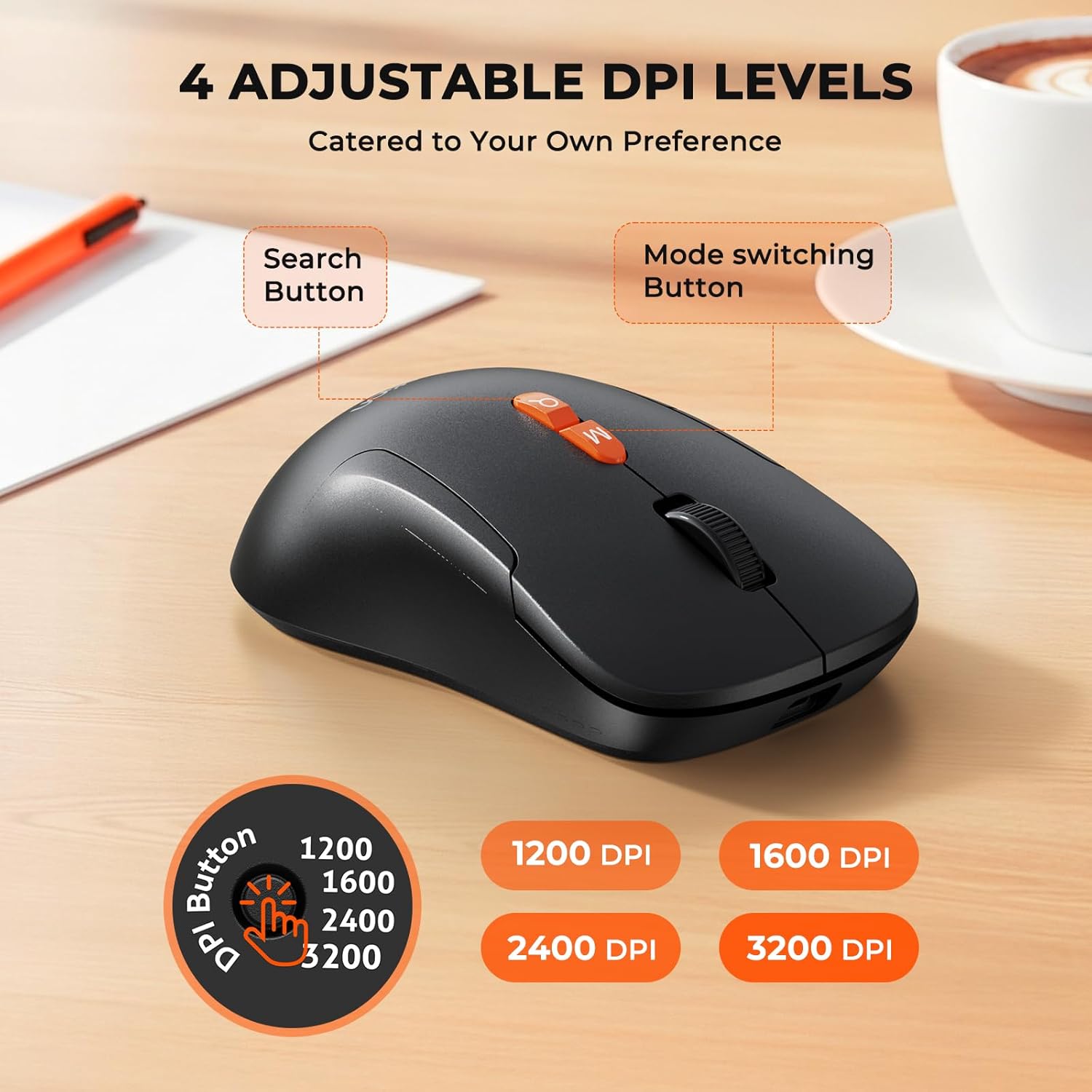
Image: The wireless mouse highlighting its 4 adjustable DPI levels (1200, 1600, 2400, 3200) and dedicated buttons.
3. Official Product Video: Keyboard and Mouse Overview
Video: Seorang pejabatview of the MEETION C1100 Wireless Keyboard and Mouse, demonstrating its features including the phone holder and multi-device connectivity.
Pemeliharaan
- Jaga kebersihan keyboard dan mouse dengan menyekanya menggunakan kain lembut dan kering.
- Hindari memaparkan perangkat ke suhu ekstrem, sinar matahari langsung, atau cairan.
- Store the USB receiver in its designated compartment when not in use to prevent loss.
Penyelesaian Masalah
Masalah Konektivitas
- Tidak ada koneksi: Ensure the keyboard/mouse is switched to the correct operating system (Windows/Mac) and connection mode (2.4G, BT1, or BT2).
- Kegagalan Pemasangan Bluetooth: Make sure the device is in pairing mode (blinking blue light). Remove previous pairings from your device's Bluetooth settings and try pairing again.
- 2.4G Receiver Not Detected: Ensure the USB receiver is fully plugged into a working USB port. Try a different USB port if necessary.
Masalah Kinerja
- Lag atau Tidak Responsif: Check battery levels and recharge if low. Ensure the device is within range of your computer. For 2.4G connection, try moving the receiver closer to the devices.
- Mouse Cursor Jumps/Inaccurate: Adjust the DPI settings on the mouse to find a comfortable sensitivity. Ensure the mouse sensor is clean.
Masalah Baterai
- Baterai Lemah: Recharge the devices using the provided USB-C cable. The indicator light will show charging status.
- Perangkat Tidak Menyala: Ensure the power switch is in the 'On' position and the battery is charged.
Spesifikasi
| Fitur | Keterangan |
|---|---|
| Merek | RAPAT |
| Model | BTC1100 |
| Teknologi Konektivitas | Bluetooth, USB 2.4G |
| Fitur Khusus | Ergonomic, Full-Size, Phone Holder, Rechargeable, Wrist Rest |
| Perangkat yang Kompatibel | Laptop, Komputer Pribadi, Smartphone |
| Warna | Hitam |
| Berat Barang | 2.98 pon |
| Dimensi Paket | 17.28x9.21x2.56 inci |
| Baterai | 1 9V batteries required. (included) - Note: Product is rechargeable via USB-C, internal batteries are included. |
| Pabrikan | MEETION Inc |
Garansi dan Dukungan
For warranty information and technical support, please contact MEETION Inc directly. Refer to the product packaging or the official MEETION webKunjungi situs ini untuk detail kontak dan ketentuan garansi terbaru.