
Perkenalan
This manual provides detailed instructions for the setup, operation, and maintenance of your Doohoeek Keyboard Folio with Status Screen. This accessory is designed to enhance the functionality of your Samsung Galaxy Tab S11 11 inch 2025, transforming it into a versatile workstation with a comfortable typing experience and integrated protection.
Kesesuaian
This keyboard folio is exclusively compatible with the Samsung Galaxy Tab S11 11-inch 2025 (model numbers: SM-X730 Dan SM-X736B).
To verify your tablet's model number, navigate to Settings > About tablet on your device, or check the back of your tablet for the printed model information.

Image: Illustration showing the keyboard folio's compatibility with the Samsung Galaxy Tab S11 2025 11-inch tablet.
Fitur Utama
- Status Display Screen: Provides real-time information on battery level, connection status, and charging status.
- Tombol Lampu Latar: Features 7 adjustable colors and 3 brightness levels for comfortable typing in various lighting conditions.
- Integrated Trackpad: Supports multi-touch gestures and palm-rejection technology for precise navigation.
- Any-Angle Kickstand: Allows for smooth adjustment of viewsudut dalam orientasi horizontal dan vertikal.
- Removable Magnetic Keyboard: The keyboard can be easily detached from the folio for flexible use.
- S-Pen Holder: A dedicated cutout in the case securely holds and provides easy access to your S-Pen.
- Baterai Isi Ulang: Baterai internal 650mAh untuk penggunaan yang lebih lama.
- Kunci Sakelar Gunting: Provides a tactile and responsive typing experience.
- Konektivitas Bluetooth: Ensures a stable wireless connection to your tablet.

Gambar: Close-up view of the keyboard's status display screen, showing indicators for pairing, wireless connection, and battery level.

Gambar: Dua views of the keyboard folio, highlighting the 7-color backlit keys and 3 brightness levels.

Gambar: Detail view of the keyboard folio showing the exact cutout for the S-Pen, the rechargeable battery, and the scissor-switch key mechanism.
Pengaturan
1. Inserting the Tablet
- Gently align your Samsung Galaxy Tab S11 11-inch 2025 with the case's frame.
- Press the tablet firmly into the case until it is securely seated. Ensure all edges are properly covered by the protective frame.
2. Mengisi Daya Keyboard
- Locate the charging port on the keyboard (typically USB-C).
- Connect the provided charging cable to the keyboard and a suitable USB power adapter.
- The status display screen will indicate charging status. A full charge typically takes approximately 2-3 hours.
3. Pemasangan Bluetooth
- Pastikan keyboard terisi daya dan menyala.
- Pada keyboard, tekan dan tahan Fn + C keys simultaneously for 1 second. The status display screen will show "Pairing..." and the Bluetooth indicator will flash.
- On your Samsung Galaxy Tab S11, go to Pengaturan > Perangkat yang terhubung > Bluetooth.
- Nyalakan Bluetooth dan cari perangkat yang tersedia.
- Select "Doohoeek Keyboard" (or similar name) from the list of devices.
- Follow any on-screen prompts to complete the pairing process. The status display screen will show "Wireless Keyboard Connected" once pairing is successful.

Image: Illustration demonstrating the pairing process, showing the keyboard's status display screen indicating "Pairing..." and "Wireless Keyboard Connected".
Petunjuk Pengoperasian
1. Menggunakan Keyboard dan Trackpad
- Mengetik: The QWERTY layout with scissor-switch keys provides a familiar and comfortable typing experience.
- Papan tombol: Use the integrated trackpad for precise cursor control. It supports standard multi-touch gestures for scrolling, zooming, and other functions. Palm-rejection technology helps prevent accidental inputs.

Image: Illustration demonstrating the multi-touch trackpad and palm-rejection feature, showing hands interacting with the trackpad.
2. Menyesuaikan Lampu Latar
- To change backlight colors, press the Fn + Light bulb icon key. Cycle through the 7 available colors.
- To adjust backlight brightness, press the Fn + Up/Down arrow keys (or specific brightness keys if available). There are 3 brightness levels.
3. Using the Any-Angle Stand
- The integrated kickstand on the back of the folio allows you to prop up your tablet.
- Adjust the stand to achieve your desired viewing angle for both horizontal (landscape) and vertical (portrait) orientations.

Image: Illustration showing the keyboard folio with the tablet in various viewing angles, demonstrating the versatility of the any-angle stand for both horizontal and vertical use.
4. Detaching the Keyboard
- The keyboard is held in place by strong magnets. To detach, simply pull the keyboard away from the folio.
- This allows for lighter tablet use when typing is not required, or for more flexible positioning of the keyboard.
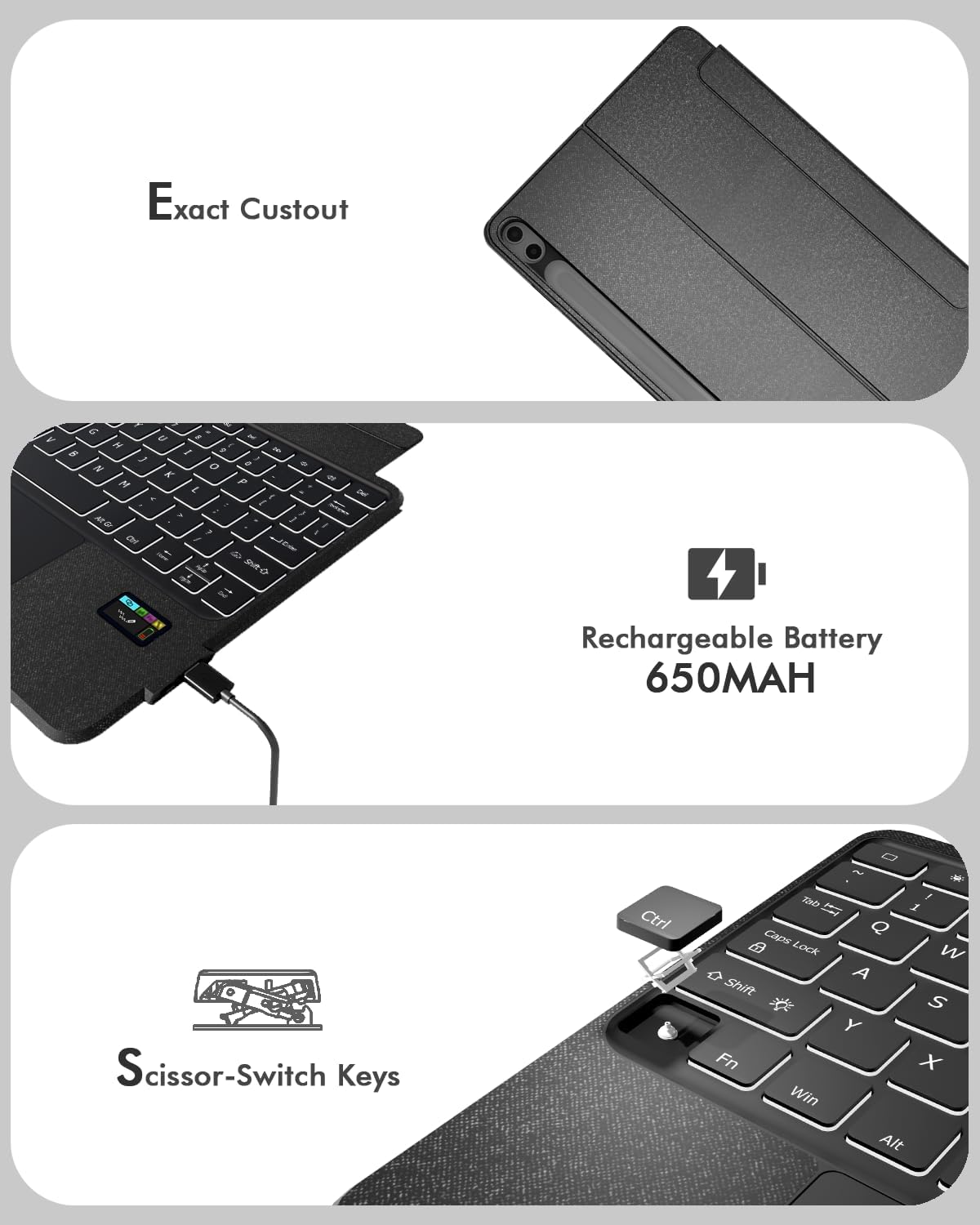
Image: The keyboard folio with the keyboard detached, showcasing the tablet propped up by the kickstand and the separate keyboard unit.
5. S-Pen Access
- The case features a dedicated cutout on the back for storing your S-Pen.
- To retrieve the S-Pen, gently push it through the cutout from the back of the case.
Image: Illustration showing the S-Pen being stored and retrieved from the dedicated holder on the tablet case.
Pemeliharaan
Pembersihan
- Untuk membersihkan keyboard dan casing, gunakan sikat yang lembut dan halus.amp kain.
- Hindari penggunaan bahan kimia keras atau pembersih abrasif, karena dapat merusak permukaan.
- Ensure the keyboard is powered off and disconnected from any power source before cleaning.
Perawatan Baterai
- For optimal battery life, avoid fully discharging the keyboard frequently.
- Simpan keyboard di tempat yang sejuk dan kering bila tidak digunakan dalam jangka waktu lama.
Penyelesaian Masalah
Keyboard Not Connecting/Responding
- Periksa Baterai: Ensure the keyboard has sufficient charge. Refer to the status display screen.
- Pasangkan kembali Bluetooth: If the connection is lost, try re-pairing the keyboard with your tablet following the "Bluetooth Pairing" steps in the Setup section.
- Mulai Ulang Perangkat: Turn off and on both your tablet and the keyboard, then attempt to reconnect.
Keyboard Entering Sleep Mode Too Quickly
- The keyboard is designed to enter a power-saving sleep mode after a period of inactivity.
- To wake it up, simply press any key. There might be a slight delay for the first few keystrokes as it reconnects.
Lampu Latar Tidak Berfungsi
- Periksa Baterai: Low battery can affect backlight functionality. Charge the keyboard.
- Sesuaikan Pengaturan: Ensure the backlight is turned on and brightness is set to a visible level using the Fn key combinations.
Spesifikasi
| Merek | Doohoeek |
| Perangkat yang Kompatibel | Samsung Galaxy Tab S11 11-inch 2025 (SM-X730/SM-X736B) |
| Teknologi Konektivitas | Bahasa Indonesia: Bluetooth |
| Deskripsi Papan Ketik | Keyboard Folio with Status Screen |
| Fitur Khusus | Backlit, Built-In Screen, Integrated Stand, Trackpad, Removable Keyboard |
| Bahan | Plastik |
| Sumber Daya | Baterai Isi Ulang (650mAh) |
| Jenis Sakelar | Mechanical (Scissor-Switch) |
| Tata Letak Papan Ketik | Bahasa QWERTY |
| Jumlah Kunci | 84 |
Jaminan
This Doohoeek Keyboard Folio comes with a Garansi 1 Tahun Terhitung sejak tanggal pembelian. Garansi ini mencakup cacat produksi dan pengerjaan dalam penggunaan normal. Garansi ini tidak mencakup kerusakan yang disebabkan oleh penyalahgunaan, kecelakaan, modifikasi tanpa izin, atau keausan normal.
Harap simpan bukti pembelian Anda untuk klaim garansi.
Mendukung
For technical assistance, troubleshooting beyond this manual, or warranty inquiries, please contact Doohoeek customer support through the retailer where the product was purchased or visit the official Doohoeek websitus untuk informasi kontak.