
1. Pendahuluan
This manual provides detailed instructions for the installation, operation, and maintenance of your Hodozzy Carplay DAB+ Car Radio. This unit features an Android 13 operating system, a 9-inch touchscreen, 4GB RAM, and 64GB ROM, offering a stable and responsive user experience. Key functionalities include wireless CarPlay and Android Auto, DAB+ and FM/RDS radio, GPS navigation, Bluetooth 5.0, Wi-Fi connectivity, split-screen multitasking, and support for steering wheel controls and a backup camera.
2. Pengaturan dan Instalasi
Before installation, ensure all components are present. The package typically includes the main unit, GPS antenna, USB cables, rear camera input cable, RCA cables, camera, installation tools, user manual, microphone, power cable, radio cable, audio cable, and other accessories.
2.1 Pemeriksaan Kompatibilitas
This car radio is specifically designed for Peugeot 207 models manufactured between 2005 and 2015. Verify that the interfaces of the various accessories are compatible with your vehicle before proceeding with installation.

Image: Comparison of the Peugeot 207 dashboard before and after the installation of the Hodozzy car radio, showcasing the integrated 9-inch display.
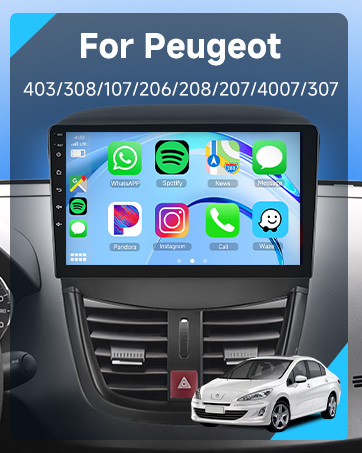
Image: A visual representation of the car infotainment system's interface, integrated into a Peugeot dashboard, displaying various application icons.
2.2 Komponen Berakhirview dan Dimensi
Refer to the diagram below for the product's dimensions and a visual list of included components. Ensure you identify each part before beginning the installation process.

Image: A detailed diagram illustrating the physical dimensions of the Hodozzy car radio unit and a comprehensive list of all accessories provided in the package, such as GPS antenna, USB cables, and the rear camera.
2.3 Basic Wiring and Connections
- Kabel listrik: Connect the main power harness to your vehicle's electrical system. Ensure correct polarity.
- Antena GPS: Pasang antena GPS di lokasi yang terang view langit, biasanya di dasbor atau di bawah kaca depan.
- Kabel USB: Connect the provided USB cables for external device connectivity and data transfer.
- Masukan Kamera Belakang: Connect the rear camera input cable to the designated port.
- Kabel RCA: Use RCA cables for audio/video output connections if required.
- Mikropon: Connect the external microphone for improved hands-free calling audio quality.
3. Petunjuk Pengoperasian
3.1 Sistem Berakhirview
The unit runs on Android 13, providing a familiar and intuitive interface. The 9-inch touchscreen with 1280x720 resolution offers clear visuals and responsive touch control.
3.2 Wireless CarPlay & Android Auto / Mirror Link
Connect your smartphone wirelessly via Bluetooth or Wi-Fi, or using a USB cable, to access CarPlay or Android Auto functionalities. This allows for seamless integration of your phone's navigation, music, and communication apps directly on the car radio screen. The Mirror Link function enables screen mirroring from your phone to the unit (two-way control for Android, one-way for iOS).
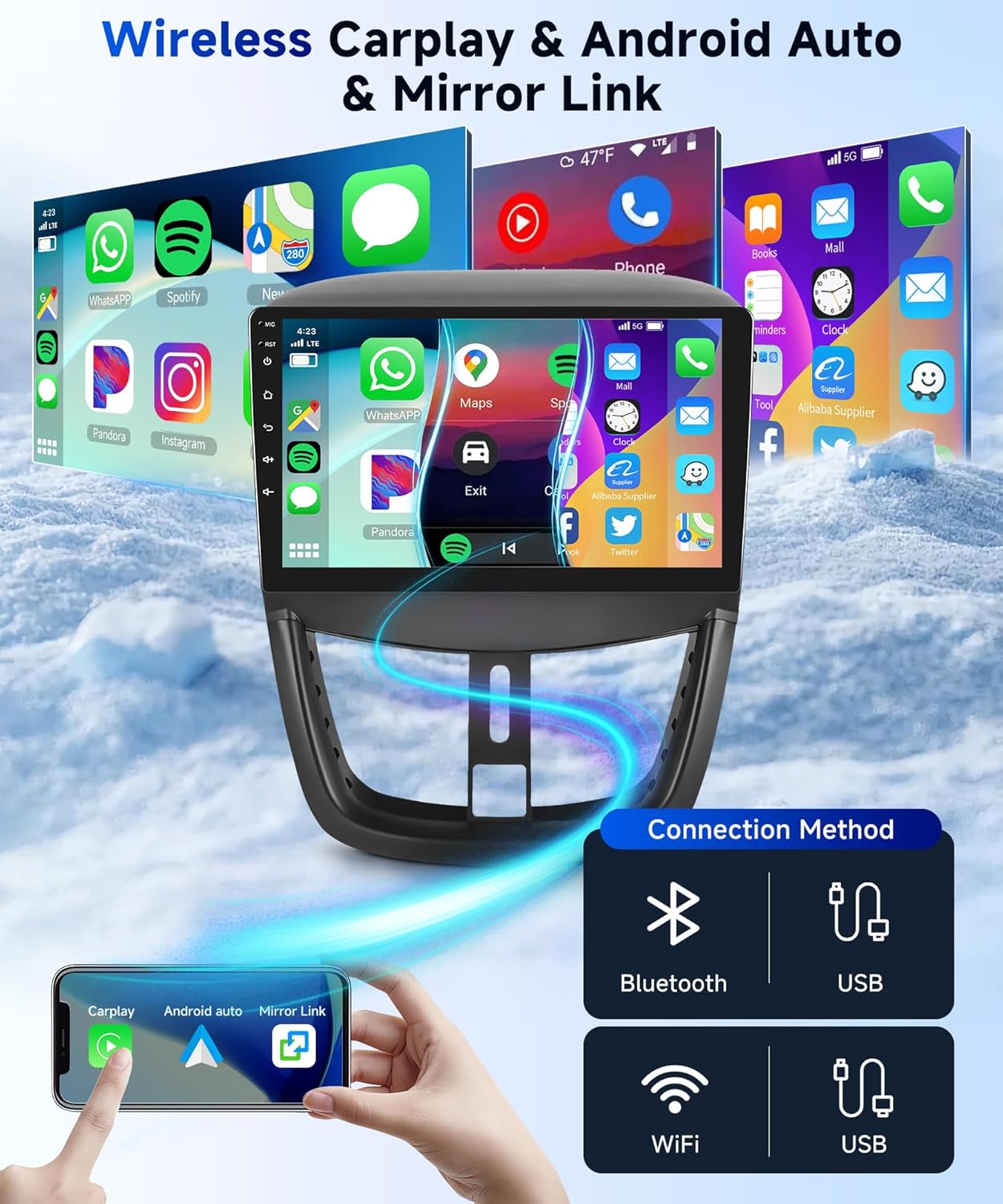
Image: A visual guide demonstrating the various connection methods for Wireless CarPlay and Android Auto, including Bluetooth, USB, and Wi-Fi, with a smartphone mirroring its display to the car radio.
3.3 Radio Functions (DAB+/FM/RDS)
The unit supports both Digital Audio Broadcasting (DAB+) and conventional FM radio with RDS. DAB+ provides superior sound quality, a wider selection of stations, and on-screen information such as song titles. Use the radio application to scan for available stations and save your favorites.

Image: The car radio's display interface for RDS FM radio, showing frequency tuning and preset buttons, alongside a separate screen for DAB+ digital radio station selection and a DAB antenna accessory.
3.4 Navigasi GPS & Wi-Fi
The built-in GPS receiver allows for accurate navigation. You can download free offline maps from the "Here We Go" app or use other online navigation applications. Connect to Wi-Fi via a hotspot to access online services and download additional applications.
3.5 Bluetooth 5.0 & HiFi Audio
Bluetooth 5.0 enables stable and fast connections for hands-free calling with the integrated microphone, contact synchronization, and wireless music streaming. The HiFi audio system ensures excellent sound quality and detailed audio performance for an immersive listening experience.
3.6 Fungsi Layar Terpisah
Utilize the split-screen feature to run two applications simultaneously, such as navigation and music playback, enhancing convenience during your drive.
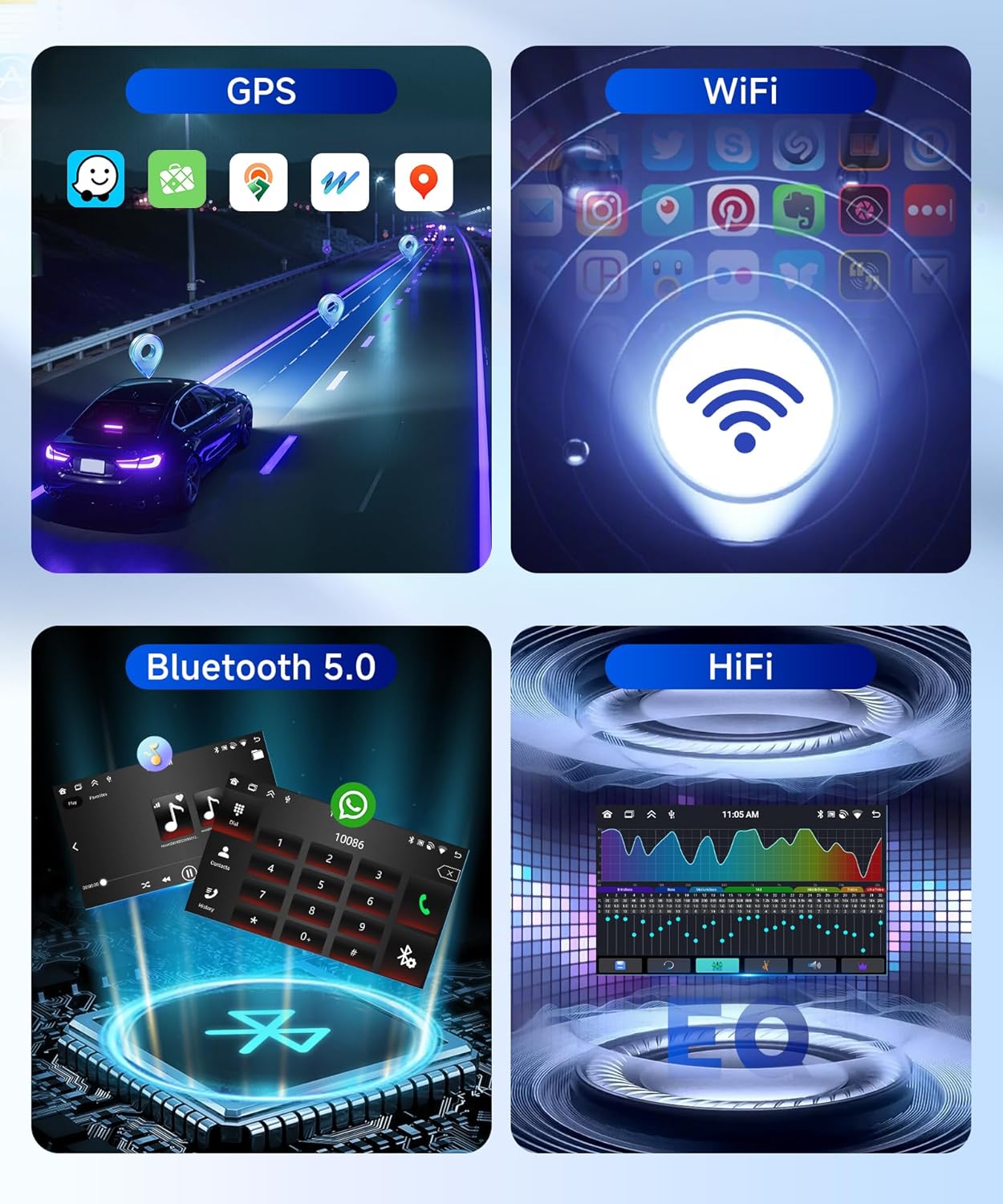
Image: A composite image highlighting key features: GPS navigation with map applications, Wi-Fi connectivity symbol, Bluetooth 5.0 interface for calls and music, and a HiFi audio equalizer display.
3.7 Kontrol Roda Kemudi
The unit supports steering wheel controls, allowing you to manage functions like volume, track changes, and mode selection directly from your steering wheel for safer and more convenient operation.
3.8 Kamera Mundur
The included AHD rear camera provides clear, waterproof, and night vision capabilities. The display automatically switches to the rear view Saat kendaraan dimasukkan ke gigi mundur, hal ini membantu dalam parkir dan manuver.

Image: The car radio screen displaying the backup camera feed with parking guidelines, alongside an illustration of the steering wheel control programming interface and a visual of a steering wheel.
4. Pemeliharaan
4.1 Membersihkan Unit
To clean the touchscreen and the unit's exterior, use a soft, dry cloth. For stubborn smudges, slightly dampen the cloth with water or a screen-safe cleaner. Avoid abrasive materials or harsh chemicals, as these can damage the screen and finish.
4.2 Pembaruan Perangkat Lunak
Periodically check for available software updates to ensure optimal performance and access to new features. Updates can typically be downloaded via Wi-Fi or USB. Follow the on-screen instructions for installation.
5. Penyelesaian masalah
- Tidak Ada Daya: Periksa semua sambungan daya dan sekring. Pastikan kunci kontak dalam posisi ON.
- Tidak ada suara: Verify speaker connections, volume settings, and audio source selection.
- Kehilangan Sinyal GPS: Ensure the GPS antenna is properly connected and has an unobstructed view dari langit.
- Masalah Koneksi Bluetooth: Pastikan Bluetooth diaktifkan baik di radio mobil maupun di perangkat Anda. Coba putuskan dan pasangkan kembali perangkat tersebut.
- Layar Sentuh Tidak Responsif: Try restarting the unit. If the issue persists, a factory reset may be necessary.
- Reset Pabrik: If experiencing persistent software issues, you can perform a factory reset. The factory setting code is 1234Perhatikan bahwa ini akan menghapus semua data dan pengaturan pengguna.
6. Spesifikasi
| Sistem | Android 13 |
| Chipset | 8257 (8-core) |
| Ukuran Layar | 9 inci |
| Memori (RAM) | 4 GB |
| Penyimpanan (ROM) | 64 GB |
| Resolusi Tampilan | Ukuran 1280x720 |
| Chip Radio | 8035 |
| Daya Keluaran | 4 x 45 W (Total 180 Watt) |
| Versi Bluetooth | 5.0 |
| Suhu Operasional | -20 °C hingga 75 °C |
| Kontrol Roda Kemudi | Didukung |
| Pertunjukan Ampchip pengangkat | YD7388 |
| Frekuensi radio | FM/RDS, DAB+ |
| Keluaran Video | Didukung |
| Input Belakang | Bahasa Indonesia: AHD/CVBS |
| Mikrofon Eksternal | Didukung |
| Layar Terbagi | Didukung |
| Peta | Integrated offline maps (data download required) |
| Nirkabel | Didukung |
| Antarmuka USB | USB Tipe A |
| Format Audio | APE/FLAC/WAV/MP3/WMA dll. |
| Format Video | MKV/RMVB/AVI/MP4/MDV dll. |
| Format Gambar | PNG/JPEG/JPG/GIF/WBMP/BNP dll. |
| Factory Setting Code | 1234 |
| Bahasa | Bahasa Cina/Inggris/Prancis/Italia/Korea/Jepang/Arab/Spanyol/Portugis/Rusia/Turki/Vietnam/Ibrani/Polandia/Jerman/Rumania, dll. |
| Dimensi Produk | 5 x 10 x 5 cm; berat 1 kg |
| Nomor Model | B0FPLG8FKW |
7. Garansi dan Dukungan
For warranty information and technical support, please contact Hodozzy directly. If you purchased the product through Amazon, you can typically reach the seller through your order details page.
7.1 How to Contact Hodozzy
If you have questions or require assistance, follow these steps to contact Hodozzy via Amazon:
- Click on the seller name 'Hodozzy' on the product page.
- On the seller's page, locate and click the 'Ask a question' button.
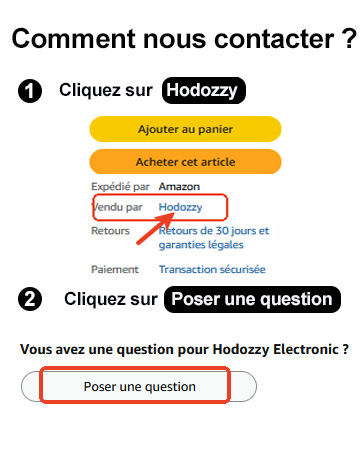
Image: A visual guide demonstrating the steps to contact the Hodozzy seller on Amazon, highlighting where to click 'Hodozzy' and 'Ask a question'.