
INPHIC B0FQCFSHPQ
INPHIC Tri-Mode Wireless Mouse User Manual
Model: B0FQCFSHPQ
Perkenalan
This manual provides comprehensive instructions for the INPHIC Tri-Mode Wireless Mouse, Model B0FQCFSHPQ. It covers setup, operation, maintenance, and troubleshooting to ensure optimal performance and user experience. Please read this manual thoroughly before using the product.
Produk Selesaiview
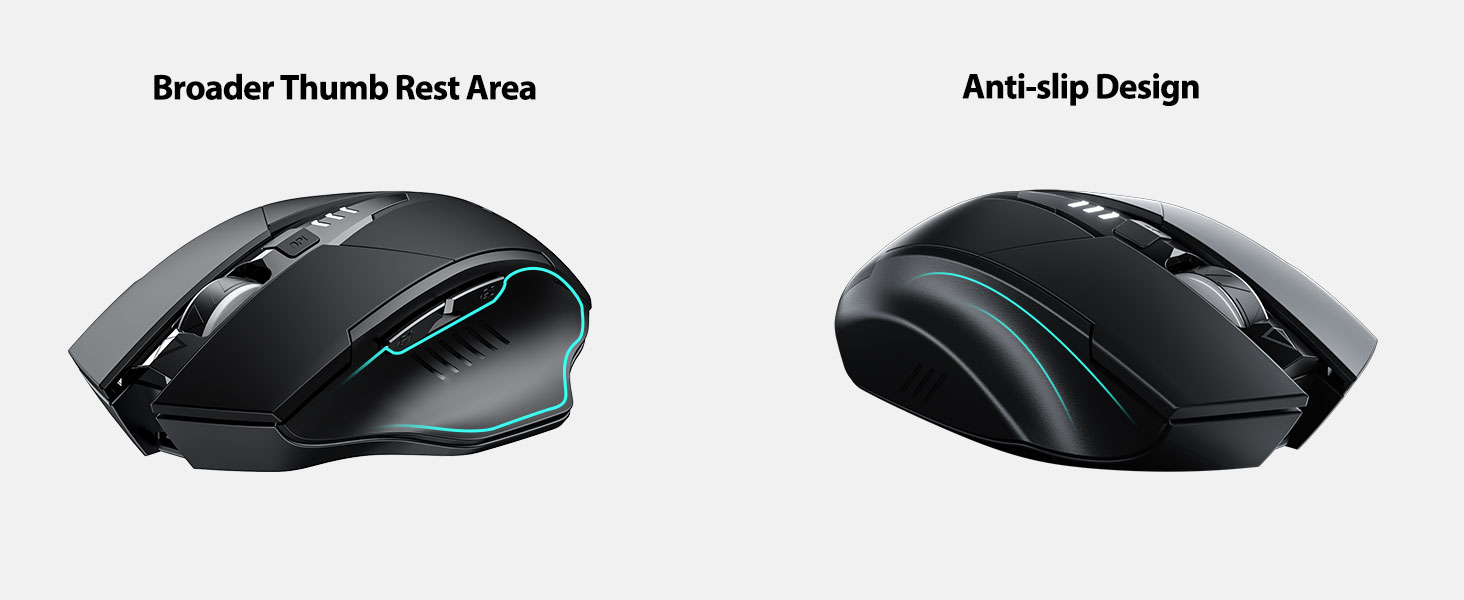
The INPHIC Tri-Mode Wireless Mouse offers versatile connectivity options (Bluetooth 5.0, Bluetooth 4.0, and 2.4G USB) and an ergonomic design for comfortable use. Key features include a visible battery indicator, silent click buttons, and adjustable DPI settings.
Isi Paket
- INPHIC Tri-Mode Wireless Mouse
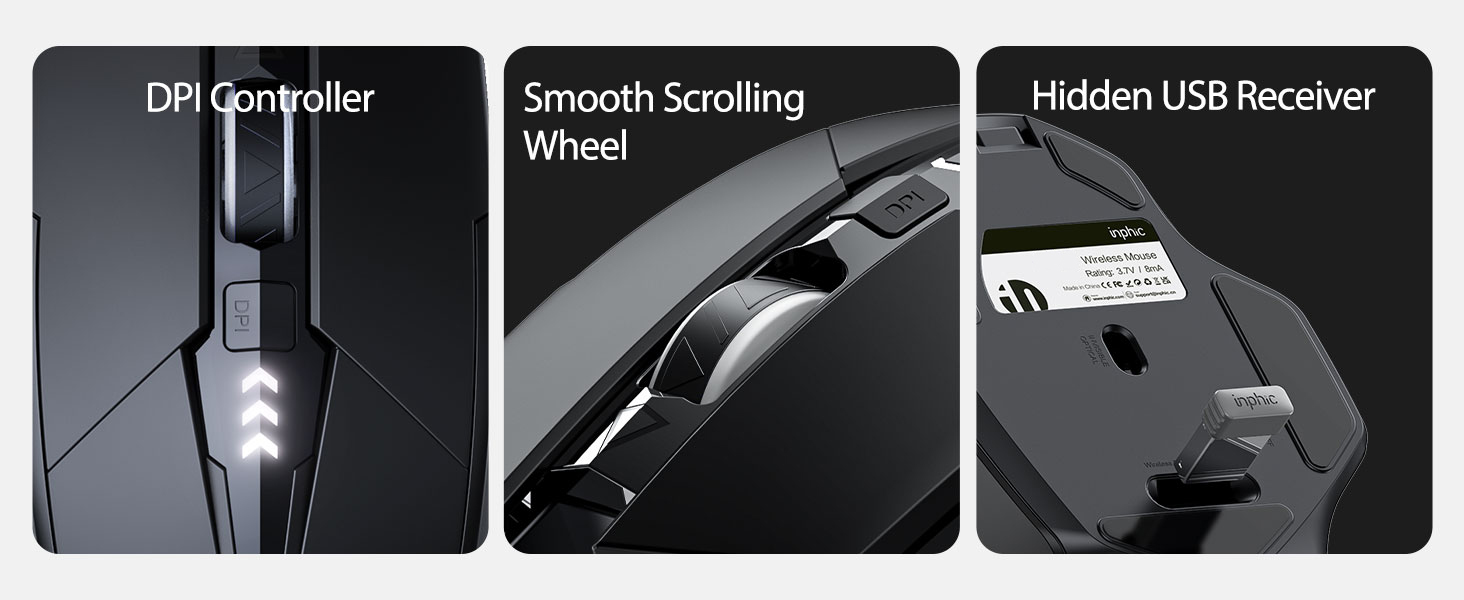
- Penerima USB (disimpan di mouse)
- Kabel Pengisian Daya USB-C
- User Manual (dokumen ini)
Komponen Tikus

- Tombol Klik Kiri/Kanan: Operasi diam.
- Roda Gulir: Untuk pengguliran vertikal.
- Tombol DPI: Adjusts cursor speed (800/1200/1600/2000/2400 DPI).
- Forward/Backward Buttons (Side): Untuk navigasi di web browser atau file penjelajah.
- Indikator Baterai: LED lights on top display remaining battery level.
- Connection Type Switch (Bottom): Toggles between 2.4G USB, Bluetooth 4.0, and Bluetooth 5.0 modes.
- Power Switch (Bottom): Sakelar ON / OFF.
- USB Receiver Slot (Bottom): Stores the 2.4G USB receiver.
- Charging Port (Front): Port USB-C untuk mengisi daya baterai internal.
Pengaturan
Pengisian Awal
Before first use, fully charge the mouse for approximately 1 hour. Connect the USB-C charging cable to the mouse's charging port and to a USB power source (e.g., computer USB port, USB wall adapter).

Menghubungkan Mouse
The mouse supports three connection modes: 2.4G USB, Bluetooth 4.0, and Bluetooth 5.0. Use the switch on the bottom of the mouse to select your desired mode.
Koneksi USB 2.4G
- Cari penerima USB yang tersimpan di slot di bagian bawah mouse.
- Colokkan penerima USB ke port USB yang tersedia di komputer Anda.
- Switch the connection mode on the bottom of the mouse to "2.4G".
- Turn on the mouse using the power switch. The mouse should connect automatically.
Bluetooth Connection (BT 4.0 / BT 5.0)
- Switch the connection mode on the bottom of the mouse to "BT 4.0" or "BT 5.0".
- Nyalakan mouse menggunakan sakelar daya.
- On your device (laptop, tablet, etc.), open Bluetooth settings.
- Pencarian untuk new Bluetooth devices. The mouse should appear as "INPHIC Mouse" or similar.
- Pilih mouse yang akan dipasangkan.
- Setelah dipasangkan, mouse siap digunakan.
Catatan: Bluetooth 5.0 is compatible with Windows 8/10 (not Windows 7 or XP), Android, and Mac OS systems. iOS systems (iPad and iPhone) require iOS 14 or later for Bluetooth 5.0 compatibility.
Petunjuk Pengoperasian
Daya Hidup/Mati
Use the ON/OFF switch located on the bottom of the mouse to power the device. To conserve battery, turn off the mouse when not in use for extended periods.
Beralih Mode Koneksi
The mode switch button on the bottom of the mouse allows you to cycle between 2.4G USB, Bluetooth 4.0, and Bluetooth 5.0 connections. This enables seamless switching between multiple paired devices.

Menyesuaikan DPI (Kecepatan Kursor)
Press the DPI button located on the top of the mouse, below the scroll wheel, to cycle through 5 adjustable DPI levels: 800, 1200, 1600, 2000, and 2400. This allows you to customize cursor sensitivity to your preference.

Indikator Baterai
The mouse features a visible battery indicator on its top surface. LED lights illuminate to show the remaining battery power, providing a clear visual cue for when recharging is needed.

Mode Tidur Otomatis
To conserve power, the mouse will automatically enter sleep mode after 5 minutes of inactivity. To wake the mouse, simply click any button.
Pemeliharaan
Pembersihan
Wipe the mouse with a soft, dry cloth. For stubborn dirt, a slightly damp cloth can be used, ensuring no moisture enters the internal components. Avoid harsh chemicals or abrasive cleaners.
Perawatan Baterai
- Recharge the mouse when the battery indicator shows low power.
- Hindari mengosongkan baterai sepenuhnya secara sering untuk memperpanjang umur pakainya.
- Simpan mouse di tempat yang sejuk dan kering saat tidak digunakan dalam jangka waktu lama.
Penyelesaian Masalah
| Masalah | Kemungkinan Penyebab | Larutan |
|---|---|---|
| Tikus tidak merespons |
|
|
| Pergerakan kursor tidak menentu atau lambat |
|
|
| Masalah koneksi Bluetooth |
|
|
Spesifikasi
| Fitur | Detil |
|---|---|
| Model | B0FQCFSHPQ |
| Teknologi Konektivitas | Bluetooth 5.0 / Bluetooth 4.0 / 2.4G USB Wireless |
| Tingkat DPI | 800 / 1200 / 1600 / 2000 / 2400 (Adjustable) |
| Tombol | 6 (Kiri, Kanan, Roda Gulir, DPI, Maju, Mundur) |
| Jenis Baterai | Rechargeable (400mAh built-in) |
| Port Pengisian Daya | USB Tipe C |
| Jarak Operasi | Hingga 10 meter (33 kaki) |
| Dimensi Produk | 4.7x3.1x0.04 inci |
| Berat Barang | 3.36 ons |
| Kesesuaian | Windows 7/8/10/XP, Vista, Mac OS. Bluetooth 5.0: Windows 8/10, Android, Mac OS, iOS 14+ (iPad/iPhone). 2.4G USB: Any USB-enabled device. |

Garansi dan Dukungan
INPHIC products are designed for reliability and performance. For warranty information and technical support, please refer to the official INPHIC websitus atau hubungi layanan pelanggan mereka secara langsung.
- Pabrikan: INPHIC
- Penjual: YingFeiTe (on Amazon)
- Kebijakan Pengembalian: Refer to Amazon's current return policy.
- Kontak Dukungan: Untuk bantuan, kunjungi INPHIC Store on Amazon atau situs resmi pabrikan. weblokasi.
Informasi Keselamatan Penting
- Jangan biarkan tikus terkena suhu dan kelembapan ekstrem.
- Hindari menjatuhkan atau membiarkan mouse terkena benturan keras.
- Do not attempt to disassemble or repair the mouse yourself. This may void the warranty.
- Jauhkan dari jangkauan anak-anak.
Video Produk
Deskripsi Video: An official product video from INPHIC demonstrating the features and usage of the INPHIC Bluetooth Mouse. It shows the mouse being unboxed, its various components, connection methods, and ergonomic design in action.