
Perkenalan
Thank you for choosing the Salange 2026 Mini Projector. This portable smart projector is designed to deliver a high-quality visual experience with its 4K support, Android 14 operating system, and advanced connectivity features like WiFi 6 and Bluetooth 5.4. This manual provides essential information for safe and efficient use of your device. Please read it thoroughly before operation and retain it for future reference.
Informasi Keselamatan
- Jangan melihat langsung ke lensa proyektor saat lampuamp sedang aktif.
- Pastikan ventilasi yang baik di sekitar proyektor untuk mencegah panas berlebih.
- Gunakan hanya adaptor daya yang disertakan dengan proyektor.
- Jauhkan proyektor dari air, kelembapan, dan bahan yang mudah terbakar.
- Hindari meletakkan proyektor pada permukaan yang tidak stabil.
- Jangan mencoba membongkar atau memperbaiki proyektor sendiri. Hubungi petugas servis yang berkualifikasi.
Pengaturan
1. Unboxing dan Penempatan Awal
Carefully remove the projector and all accessories from the packaging. Place the projector on a stable, flat surface. For optimal viewing, position the projector perpendicular to the projection surface. The projector features a 270° rotatable design for flexible placement.
2. Koneksi Daya
Connect the power cord to the projector's power input port and then plug it into a power outlet. The projector will typically power on automatically or can be turned on using the power button on the device or remote control.

Gambar: Belakang view of the Salange 2026 Mini Projector with power, HDMI, and USB ports.
3. Fokus dan Penyesuaian Keystone
The Salange 2026 Mini Projector supports manual focus adjustment. Rotate the focus ring on the projector to achieve a sharp image. It also features automatic vertical keystone correction (±45°) to eliminate image distortion, ensuring a rectangular picture even when the projector is not perfectly aligned. For more precise adjustments, 4-point correction may be available in the settings.

Image: Automatic vertical keystone correction and manual focus adjustment.
4. Koneksi Jaringan (WiFi 6)
Navigate to the settings menu on the projector. Select 'Network' or 'Wi-Fi' and choose your desired network from the list. Enter the password if prompted. The projector supports dual-band (2.4 GHz + 5 GHz) Wi-Fi 6 for stable and fast connections.
5. Pemasangan Bluetooth
To connect Bluetooth audio devices, go to the settings menu and select 'Bluetooth'. Turn on Bluetooth and search for available devices. Select your device from the list to pair. This allows for wireless audio output to speakers or headphones.
Petunjuk Pengoperasian
1. Daya Hidup/Mati
Press the power button on the projector or the remote control to turn the device on or off. A short press typically puts the projector into standby mode, while a long press performs a full shutdown.
2. Menavigasi Antarmuka Android 14
The projector runs on Android 14.0, providing access to a wide range of applications. Use the remote control to navigate through the home screen, app drawer, and settings. The interface is similar to a smart TV, allowing for intuitive use.
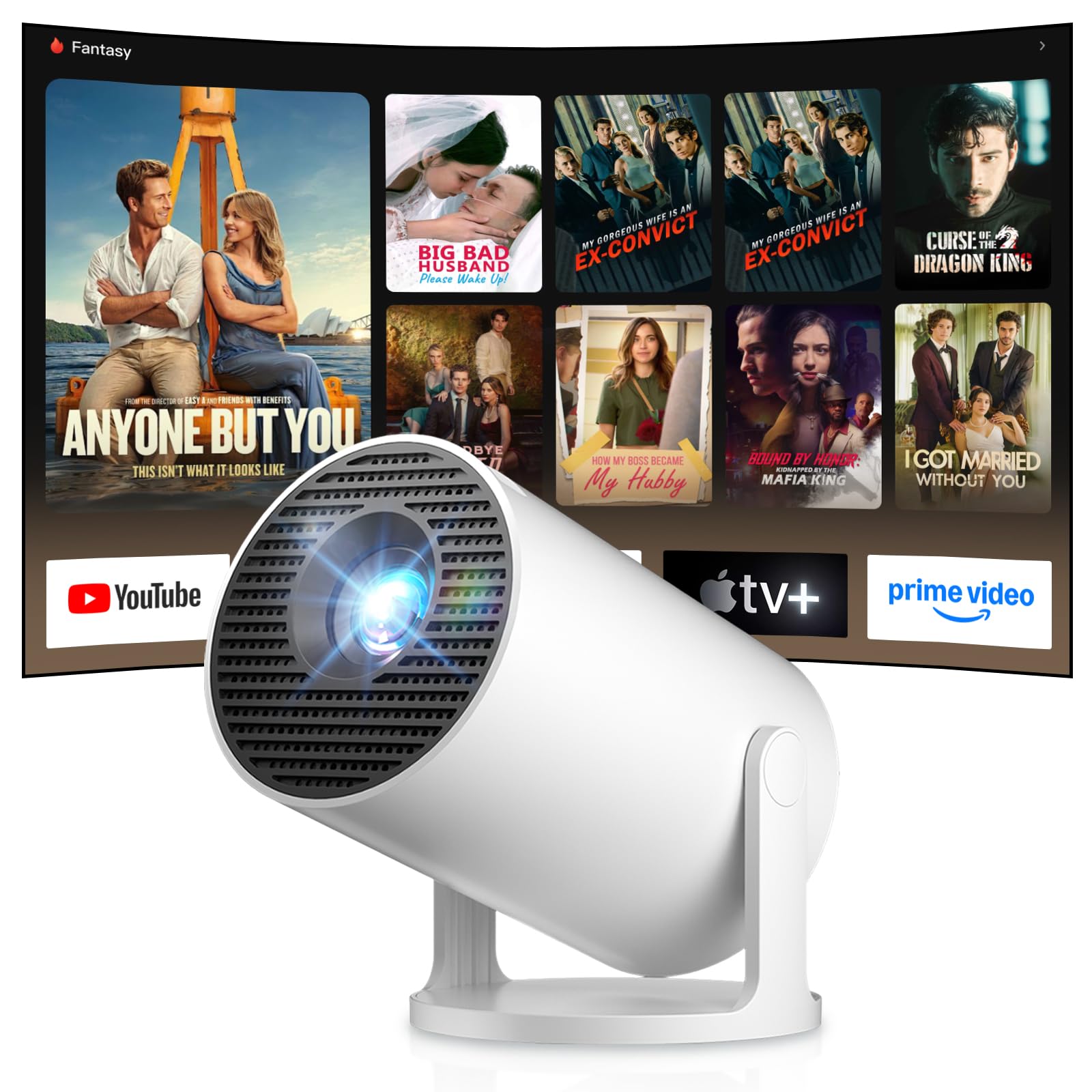
Image: Android TV 14.0 interface with streaming applications.
3. Instalasi Aplikasi
With Android 14, you can install over 8,000 applications directly onto the projector. Access the app store (e.g., Google Play Store) from the home screen, search for desired apps (video players, games, office software), and install them.
4. Screen Mirroring (iOS/Android)
The projector supports screen mirroring for both iOS and Android devices. Ensure your mobile device and the projector are connected to the same Wi-Fi network. On your mobile device, activate the screen mirroring function (e.g., AirPlay for iOS, Cast for Android) and select the projector from the list of available devices.

Image: Wireless casting from mobile devices to the projector.
5. Connecting External Devices (HDMI, USB)
Use the HDMI port to connect devices such as laptops, game consoles (PS5, Switch), or TV sticks. Use the USB port to connect USB drives for media playback or other peripherals. Select the appropriate input source from the projector's input menu.
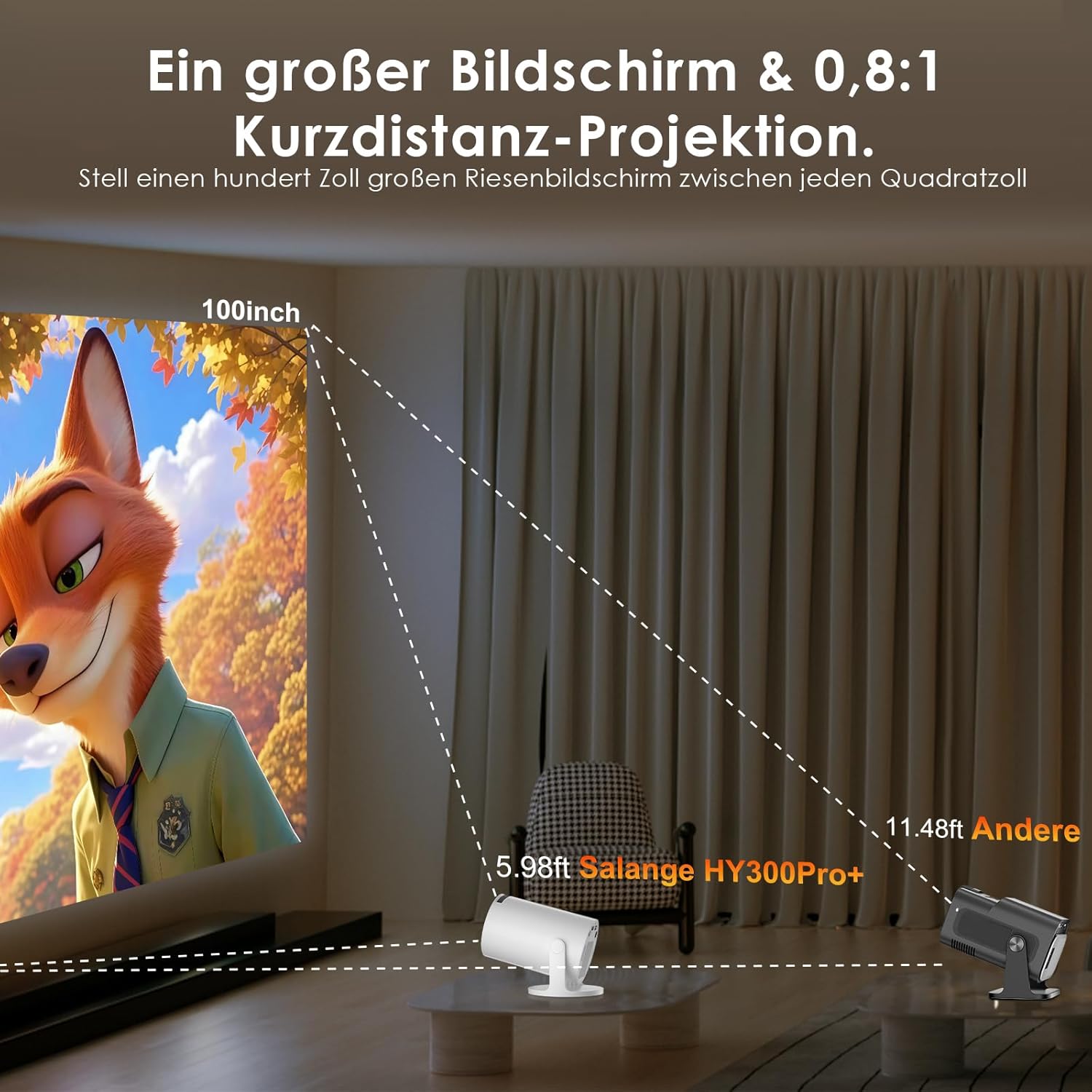
Image: Connectivity options for HDMI, Audio, and USB devices.
6. Keluaran Audio
The projector has built-in speakers. For enhanced audio, connect external speakers or headphones via Bluetooth or the 3.5mm audio jack.
Pemeliharaan
1. Membersihkan Lensa
Use a soft, lint-free cloth specifically designed for optical lenses to gently wipe the projector lens. Avoid using abrasive cleaners or excessive pressure, which can scratch the lens.
2. Membersihkan Bagian Luar
Bersihkan bagian luar proyektor dengan kain lembut dan kering. Untuk kotoran yang membandel, gunakan kain yang sedikit kering.amp Kain lap dapat digunakan, diikuti dengan kain kering. Jangan gunakan bahan kimia atau pelarut yang keras.
3. Penyimpanan
Saat tidak digunakan dalam jangka waktu lama, simpan proyektor di tempat yang sejuk, kering, dan bebas debu. Gunakan kemasan asli atau wadah pelindung untuk mencegah kerusakan.
Penyelesaian Masalah
- Tidak Ada Daya: Pastikan kabel daya terhubung dengan aman ke proyektor dan stopkontak. Coba stopkontak lain.
- Tidak ada gambar: Check if the projector is powered on. Verify the input source is correctly selected (e.g., HDMI 1, USB). Ensure the lens cap is removed.
- Gambar Buram: Adjust the manual focus ring until the image is sharp. Check if the projector is too close or too far from the screen.
- Image Distortion (Trapezoid): The projector has automatic keystone correction. If manual adjustment is needed, check the display settings for keystone correction options.
- Tidak ada suara: Check the volume level on both the projector and the connected source device. Ensure external audio devices are correctly connected and selected as the output.
- Masalah Koneksi Wi-Fi/Bluetooth: Ensure the projector is within range of your router or Bluetooth device. Restart the projector and your network devices. Re-pair Bluetooth devices.
- Kendali Jarak Jauh Tidak Merespons: Periksa baterai pada remote control. Pastikan tidak ada penghalang antara remote dan penerima IR proyektor.
Spesifikasi Produk
| Fitur | Spesifikasi |
|---|---|
| Pabrikan | salang |
| ASIN | B0G43FF84L |
| Negara Asal | Cina |
| Penggunaan yang Direkomendasikan | Business, Home Cinema, Gaming, Education |
| Fitur Khusus | Wi-Fi Compatible, Digital Keystone Correction, Lightweight, Portable |
| Teknologi Konektivitas | Bluetooth, HDMI, USB, Wi-Fi |
| Resolusi Tampilan Asli | 1280 x 720 piksel |
| Resolusi Tampilan Maksimum | 3840 x 2160 pixels (4K supported) |
| Jenis Tampilan | Layar LCD |
| Dimensi Produk (P x L x T) | Ukuran 10.1x10.1x17 cm |
| Faktor Bentuk | Portabel |
| Jenis Pemasangan | Dudukan Meja |
| Kecerahan | 8000 lumen cahaya |
| Warna | Putih |
| Perangkat yang Kompatibel | Game Console, Speaker, Laptop, Smartphone, Television |
| Rasio Kontras | 1500:1 |
| Ukuran Gambar Maksimum | 150 inci |
| Ukuran Gambar Minimum | 30 inci |
| Pengkodean Video | Bahasa Indonesia: H.265 |
| Teknologi Peningkatan Gambar | Video definisi tinggi |
| Isi Kotak | 1 Projector, 1 Power Cord, 1 Remote Control, 1 User Manual |
Informasi Garansi
The Salange 2026 Mini Projector comes with a standard manufacturer's warranty. Please refer to the warranty card included in your product packaging for specific terms, conditions, and duration. Keep your proof of purchase for warranty claims.
Dukungan Pelanggan
For technical assistance, troubleshooting, or any questions regarding your Salange 2026 Mini Projector, please contact Salange customer support. Contact details can typically be found on the official Salange website or in the warranty information provided with your product.