1. Produk Lebihview
The Cisco WAP200 Wireless-G Access Point enables the connection of Wireless-G (802.11g) or Wireless-B (802.11b) devices to your existing wired network. This allows for the expansion of your network to include wireless clients without the need for additional cabling. Its Power over Ethernet (PoE) support simplifies installation, permitting flexible placement even in locations without immediate access to a power outlet. When connected to a PoE-enabled switch or injector, a single Ethernet cable can deliver both data and power. An AC adapter is also included for installations where a power outlet is available. Integrated Quality of Service (QoS) features ensure consistent voice and video quality across both wired and wireless networks, supporting business-grade VoIP and video applications.

Figure 1-1: Cisco WAP200 Wireless-G Access Point. This image displays the top-down view of the access point with its two detachable antennas.
2. Fitur Utama
- Easy Installation and Configuration: Designed for straightforward setup and full backward compatibility with 802.11b devices.
- Port Ethernet: Features a 10BASE-T/100BASE-TX Ethernet port with autosensing half/full duplex capabilities and support for MDI/MDI-X.
- Protokol Keamanan: Supports Wired Equivalent Privacy (WEP), WPA Pre-Shared Key (WPA-PSK), WPA2-PSK, WPA-Enterprise, and WPA2-Enterprise authentication (802.11i ready).
- Antena: Equipped with SMA detachable dipole antennas featuring 1x2 Multiple-Input, Multiple-Output (MIMO) technology to enhance wireless coverage.
- Opsi Daya: Supports both Power over Ethernet (PoE) and external DC power via the included AC adapter.
3. Deskripsi Fisik
3.1 LED Panel Depan

Figure 3-1: Front Panel. This image shows the front panel of the WAP200 with four indicator LEDs.
- Energi (Hijau): Illuminates when the Access Point is powered on.
- PoE (Green): Illuminates when the Access Point receives power through an Ethernet cable.
- Wireless (Green): Illuminates when the wireless module is active. If flashing, the Access Point is actively transmitting or receiving wireless data.
- Ethernet (Green): Illuminates when the Access Point is successfully connected to a device via the Ethernet network port. If flashing, the Access Point is actively transmitting or receiving data over the Ethernet network port.
3.2 Port Panel Belakang

Figure 3-2: Back View. This image details the rear panel connections of the WAP200.
- Tombol Reset: Used to restore the Access Point to its factory default configuration. Press and hold for approximately ten seconds, or use the webutilitas berbasis. Penting: Resetting the Access Point will erase all configured settings, including wireless security (SSID, password, IP address). Do not reset if you wish to retain current settings.
- Port Ethernet: Connects to Ethernet network devices such as a switch or router. This port supports Power over Ethernet (PoE).
- Pelabuhan Daya: Connects to the supplied power adapter for non-PoE installations.
3.3 Antennas and Positions

Figure 3-3: Desktop Placement and Antenna Setup. This image illustrates the WAP200 placed on a desktop with its antennas adjusted.
The Access Point features two detachable 2dBi omni-directional antennas located on the back of the device. For optimal MIMO range performance, adjust the two antennas to form a 90-degree angle. The Access Point can be placed on a desktop or wall-mounted and can be stacked with other Linksys Business Series products.
4. Network Setup Example

Gambar 2-1: Contohample of a Simple Wireless Network. This diagram illustrates a typical infrastructure wireless network setup, showing how wireless access points connect to a switch, which then connects to a router for internet access.
The diagram above depicts a basic wireless network infrastructure. Wireless Access Points, such as the WAP200, connect to a network switch. This switch provides connectivity for multiple wireless devices and PCs that are wired to the network. The switch then connects to a router, which provides access to the global Internet.
5. Instalasi dan Koneksi
5.1 Menghubungkan Kabel Ethernet
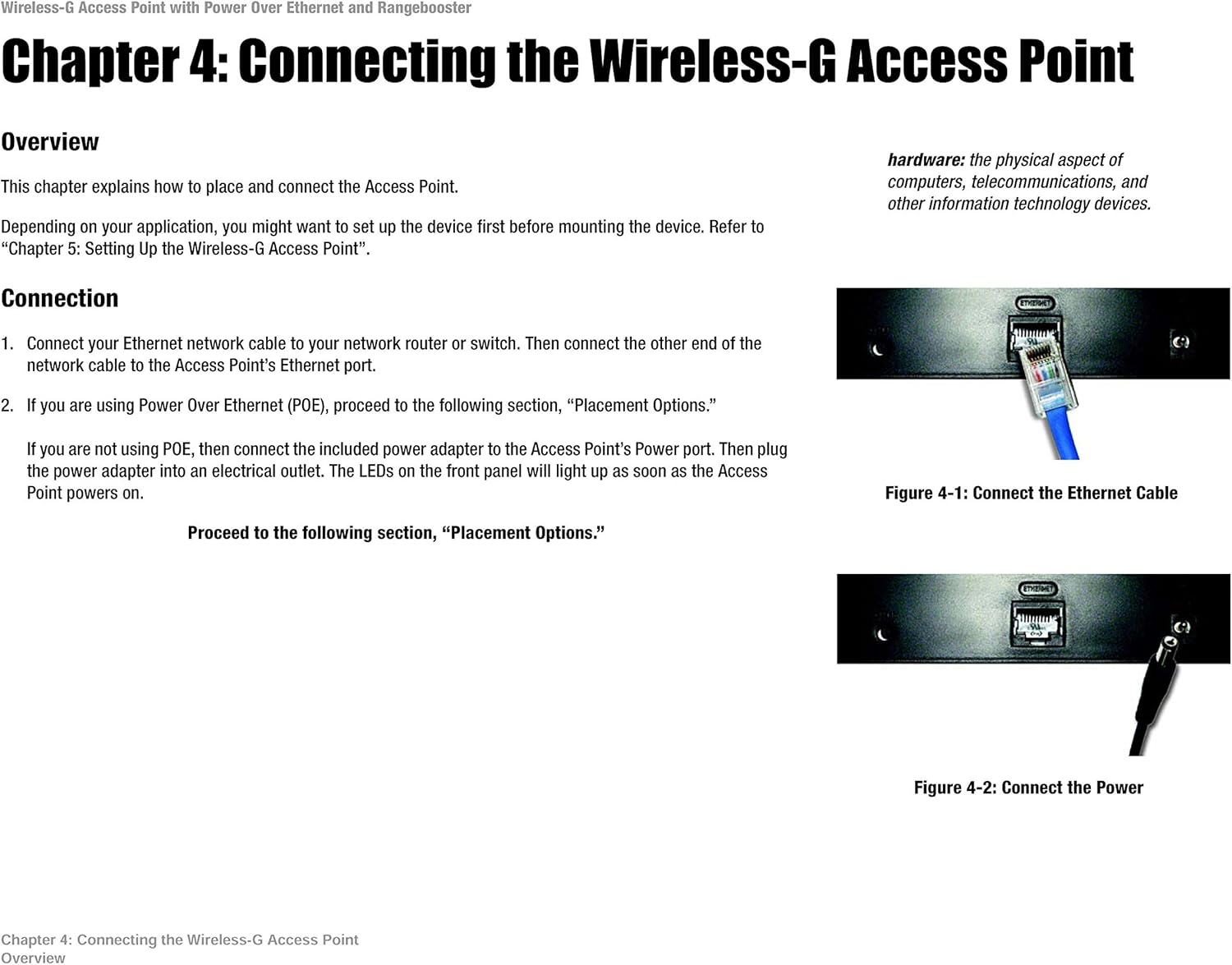
Figure 4-1: Connect the Ethernet Cable. This image shows an Ethernet cable being inserted into the Ethernet port on the WAP200.
- Connect one end of an Ethernet network cable to your network router or switch.
- Connect the other end of the network cable to the Access Point's Ethernet port.
5.2 Menghubungkan Daya

Figure 4-2: Connect the Power. This image shows the power adapter being plugged into the WAP200's power input.
- Menggunakan Power over Ethernet (PoE): If your network switch or router supports PoE, the Access Point will receive power directly through the Ethernet cable. No separate power adapter is needed.
- Menggunakan Adaptor AC: If PoE is not available, connect the included power adapter to the Access Point's power port and then plug the adapter into an electrical outlet. The LEDs on the front panel will illuminate once the Access Point powers on.
6. Konfigurasi
After physical installation, the Access Point requires configuration via its web-based management utility. To access this utility, connect a computer directly to the Access Point or to the same network segment. Open a web browser and enter the Access Point's default IP address (commonly 192.168.1.245 or similar, refer to the device's label or documentation for the exact default IP). You will be prompted for a username and password (default typically 'admin' for both). From the web interface, you can configure wireless settings, security protocols, IP address, and other network parameters.
7. Mengoperasikan Titik Akses
Once configured, the WAP200 operates by broadcasting a wireless signal (SSID) that wireless devices can detect and connect to. It acts as a bridge between your wireless clients and your wired network, allowing wireless devices to access network resources and the internet. Ensure that your wireless devices are configured with the correct SSID and security key (WPA/WPA2-PSK) to connect successfully.
8. Pemeliharaan
- Pembaruan Firmware: Periksa dukungan Cisco secara berkala website for firmware updates. Keeping the firmware current ensures optimal performance, security, and compatibility.
- Lingkungan Fisik: Ensure the Access Point is placed in a well-ventilated area, away from direct sunlight, heat sources, and excessive moisture.
- Pembersihan: Gunakan kain lembut dan kering untuk membersihkan perangkat. Hindari penggunaan cairan pembersih.
- Keamanan: Secara teratur kembaliview your wireless security settings (SSID, password, encryption type) to maintain network integrity.
9. Penyelesaian masalah
- Tidak Ada Daya: Check power connections. If using PoE, ensure the PoE source is active. If using the AC adapter, verify it is securely plugged into both the device and a working electrical outlet.
- No Wireless Signal: Ensure the Wireless LED is illuminated. Verify that the wireless function is enabled in the web-based utility. Check antenna connections and positioning.
- Tidak Dapat Terhubung ke Jaringan: Verify that your wireless client is using the correct SSID and security key. Ensure the Access Point's IP address is within the same subnet as your network. If your network uses a different IP range (e.g., 192.168.2.x instead of 192.168.1.x), you may need to temporarily configure your PC with a static IP in the WAP200's default range to access its configuration interface and change its IP address.
- Koneksi Lambat: Ensure optimal antenna positioning. Check for sources of interference (e.g., cordless phones, microwaves).
- Reset Pabrik: If configuration issues persist, perform a factory reset by pressing and holding the Reset button for approximately 10 seconds. This will revert all settings to their defaults, requiring a full reconfiguration.
10. Spesifikasi
| Dimensi Produk | 10.8x9.3x2.7 inci |
| Berat Barang | 2.1 pon |
| Nomor Model | WAP200 |
| Merek | Bahasa Indonesia: Cisco |
| Fitur Khusus | Mode Titik Akses, WPS |
| Kelas Pita Frekuensi | Pita Tunggal |
| Standar Komunikasi Nirkabel | Standar 802.11b dan 802.11g |
| Perangkat yang Kompatibel | Komputer Pribadi |
| Penggunaan yang Direkomendasikan | Rumah, Kantor Kecil |
| Teknologi Konektivitas | Wi-Fi (802.11b, 802.11g), Ethernet |
| Sistem Operasi | Bahasa Indonesia: Cisco IOS |
11. Garansi dan Dukungan
For specific warranty information, please refer to the warranty card included with your product or visit the official Cisco support website. Technical support resources, including FAQs, documentation, and software downloads, are also available on the Cisco website. Please have your product model number (WAP200) and serial number ready when contacting support.


