1. Pendahuluan
This manual provides comprehensive instructions for the setup, operation, and maintenance of your KitVision 7-inch Digital Photo Frame, model DPF7BKK. Please read this manual thoroughly before using the device to ensure proper functionality and longevity.

Gambar 1: Depan view of the KitVision 7-inch Digital Photo Frame. The frame is silver with a black bezel, displaying a vibrant image of a person holding a child on a beach.
2. Isi Paket
Verifikasi bahwa semua item yang tercantum di bawah ini ada dalam paket Anda:
- KitVision 7-inch Digital Photo Frame (DPF7BKK)
- Adaptor Daya AC
- Penyangga yang Dapat Dilepas
- User Manual (dokumen ini)

Figure 2: The product packaging for the KitVision 7-inch Digital Photo Frame. The box features a blue background with wave patterns and an image of the digital photo frame displaying a beach scene.
3. Produk Lebihview
3.1. Panel Belakang dan Kontrol

Gambar 3: Belakang view of the digital photo frame. Visible features include the USB port, SD/MMC/MS card slot, DC power input, control buttons (ENTER, arrows, MENU, STANDBY), and a detachable stand.
- Port USB: Untuk menghubungkan flash drive USB.
- SD/MMC/MS Card Slot: For inserting compatible memory cards.
- Input DC: Power connection port for the AC adapter.
- Tombol Kontrol:
- MEMASUKKAN: Konfirmasikan pilihan.
- < / > (Left/Right Arrows): Navigates through menus and images.
- ^ / v (Up/Down Arrows): Menavigasi melalui menu dan opsi.
- TIDAK BISA: Mengakses menu utama.
- BERSIAP: Powers the frame on or off.
- Dudukan yang dapat dilepas: Allows for tabletop placement in landscape or portrait orientation.
- Lubang Pemasangan di Dinding: Untuk memasang bingkai pada dinding.
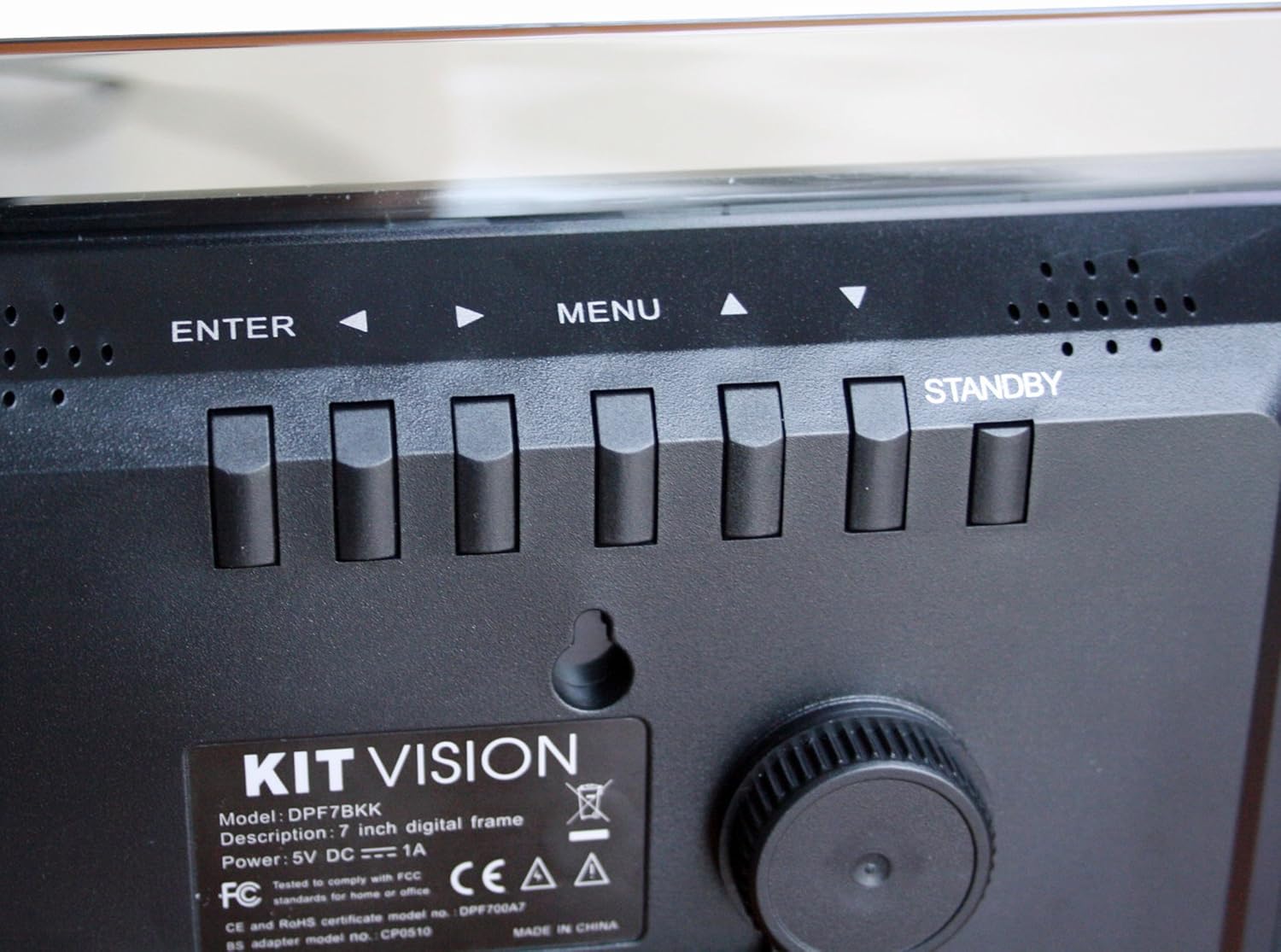
Gambar 4: Tampilan jarak dekat view of the control buttons and product label on the rear of the digital photo frame. The label clearly shows "KITVISION", "Model: DPF7BKK", and power specifications.
4. Pengaturan
4.1. Memasang Stand
- Locate the detachable stand in the package.
- Insert the stand's peg into the designated hole on the rear of the photo frame.
- Rotate the stand to secure it in place and adjust the angle for optimal viewing. The stand supports both landscape and portrait orientations.
4.2. Koneksi Daya
- Connect the AC power adapter to the DC input port on the rear of the frame.
- Hubungkan ujung lain adaptor daya ke stopkontak listrik standar.
- The frame will typically power on automatically or can be turned on using the STANDBY button.
4.3. Inserting a Memory Card or USB Drive
The frame supports SD, MMC, MS memory cards, and USB flash drives. Ensure your photos are in a compatible format (e.g., JPEG).
- Carefully insert your memory card into the SD/MMC/MS slot or your USB flash drive into the USB port.
- Ensure the card or drive is inserted correctly and fully seated. Do not force it.
- The frame should automatically detect the storage device and begin displaying photos, or prompt you to select a source.
5. Petunjuk Pengoperasian
5.1. Navigasi Dasar
- Gunakan </> (Left/Right) and ^ /v (Up/Down) arrow buttons to navigate through menus and select options.
- Tekan tombol MEMASUKI button to confirm a selection or open a sub-menu.
- Tekan tombol MENU button to return to the previous menu or access the main menu from a slideshow.
- Tekan dan tahan tombol BERSIAP button to power the frame off or on.
5.2. Viewing Foto
Once a memory card or USB drive is inserted, the frame will typically start a slideshow automatically. If not, navigate to the "Photo" or "Slideshow" option in the main menu and press MEMASUKI.
5.3. Slideshow Settings
To customize your slideshow:
- Tekan tombol MENU tombol untuk mengakses menu utama.
- Navigate to "Settings" or "Slideshow Options" using the arrow buttons and press MEMASUKI.
- Adjust settings such as:
- Waktu Tampilan: Duration each photo is shown.
- Efek Transisi: How photos change (e.g., fade, wipe).
- Ulangi Mode: Loop all photos or play once.
- Photo Order: Sequential or random.
- Tekan MEMASUKI to confirm changes and MENU untuk keluar.
6. Pemeliharaan
6.1. Membersihkan Bingkai
- Selalu lepaskan adaptor daya sebelum membersihkan.
- Gunakan kain lembut, kering, dan bebas serat untuk menyeka layar dan bingkai dengan lembut.
- Untuk noda membandel di layar, usap perlahan.ampBasahi kain dengan air atau larutan pembersih yang aman untuk layar. Jangan menyemprotkan cairan langsung ke layar.
- Avoid using abrasive cleaners, solvents, or alcohol-based solutions, as these can damage the surface.
6.2. Penyimpanan
- When not in use for extended periods, store the digital photo frame in a cool, dry place, away from direct sunlight and extreme temperatures.
- It is recommended to store the frame in its original packaging to protect it from dust and physical damage.
7. Penyelesaian masalah
| Masalah | Kemungkinan Penyebab | Larutan |
|---|---|---|
| Frame tidak menyala. | No power, faulty adapter, or STANDBY button not pressed. | Ensure power adapter is securely connected to both the frame and a working electrical outlet. Press the STANDBY button. Try a different outlet. |
| Tidak ada gambar yang ditampilkan. | No memory card/USB, incompatible file format, or card/USB not inserted correctly. | Insert a memory card or USB drive with compatible image files (JPEG). Ensure it is fully seated. Check if the frame is set to the correct source input in the menu. |
| Gambar tampak terdistorsi atau berkualitas rendah. | Low resolution images, damaged memory card/USB, or screen issue. | Use higher resolution images. Try a different memory card or USB drive. Clean the screen. |
| Tombol tidak responsif. | Gangguan perangkat lunak sementara. | Disconnect the power adapter, wait 10 seconds, then reconnect it to reset the device. |
8. Spesifikasi
| Nomor Model | DPF7BKK |
| Ukuran Layar | 7 inci |
| Resolusi | WXGA |
| Dimensi Produk | 9.06x6.5x1.26 inci |
| Berat Barang | 0.012 ons |
| Teknologi Konektivitas | USB |
| Sumber Daya | Corded Electric (5V DC === 1A) |
| Kartu Memori yang Didukung | SD, MMC, MS |
| Format Gambar yang Didukung | JPEG (common format, specific list not provided in input) |
9. Garansi dan Dukungan
For warranty information and technical support, please refer to the documentation provided at the time of purchase or contact KitVision customer service. Specific warranty terms may vary by region and retailer.


