1. Pendahuluan
This manual provides essential information for the safe and efficient operation of your Intermec PD42 Series Commercial Printer. The PD42 is a dependable and versatile direct thermal printer designed for medium-duty applications in manufacturing, transportation, and warehousing environments. It features a robust all-metal chassis, proven printing mechanics, and powerful electronics to ensure reliable performance. The integrated monochrome graphical display allows for direct setup and configuration, enhancing user control and reducing reliance on host commands.
2. Informasi Keselamatan
Please read and understand all safety instructions before operating the printer. Failure to follow these instructions may result in injury or damage to the equipment.
- Selalu sambungkan printer ke stopkontak yang memiliki ground.
- Do not operate the printer with a damaged power cord or plug.
- Avoid placing the printer in areas with excessive dust, humidity, or extreme temperatures.
- Jangan mencoba memperbaiki printer sendiri. Serahkan semua perbaikan kepada teknisi yang berkualifikasi.
- Jauhkan tangan dan pakaian longgar dari bagian yang bergerak selama pengoperasian.
3. Isi Paket
Verify that all items are present in the package. If any items are missing or damaged, contact your supplier immediately.
- Intermec PD42 Series Commercial Printer
- Power Cord (Euro and US compatible)
- Panduan Memulai Cepat (jika disertakan)
- Documentation CD (if included)
4. Fisik Lebih dariview
Familiarize yourself with the external components and connection ports of the Intermec PD42 printer.

Gambar 4.1: Tampak Depan dan Samping View of the Intermec PD42 Printer. This image displays the printer's front panel with its graphical display and control buttons, along with a label partially ejected from the print mechanism. The robust casing and compact design are visible.
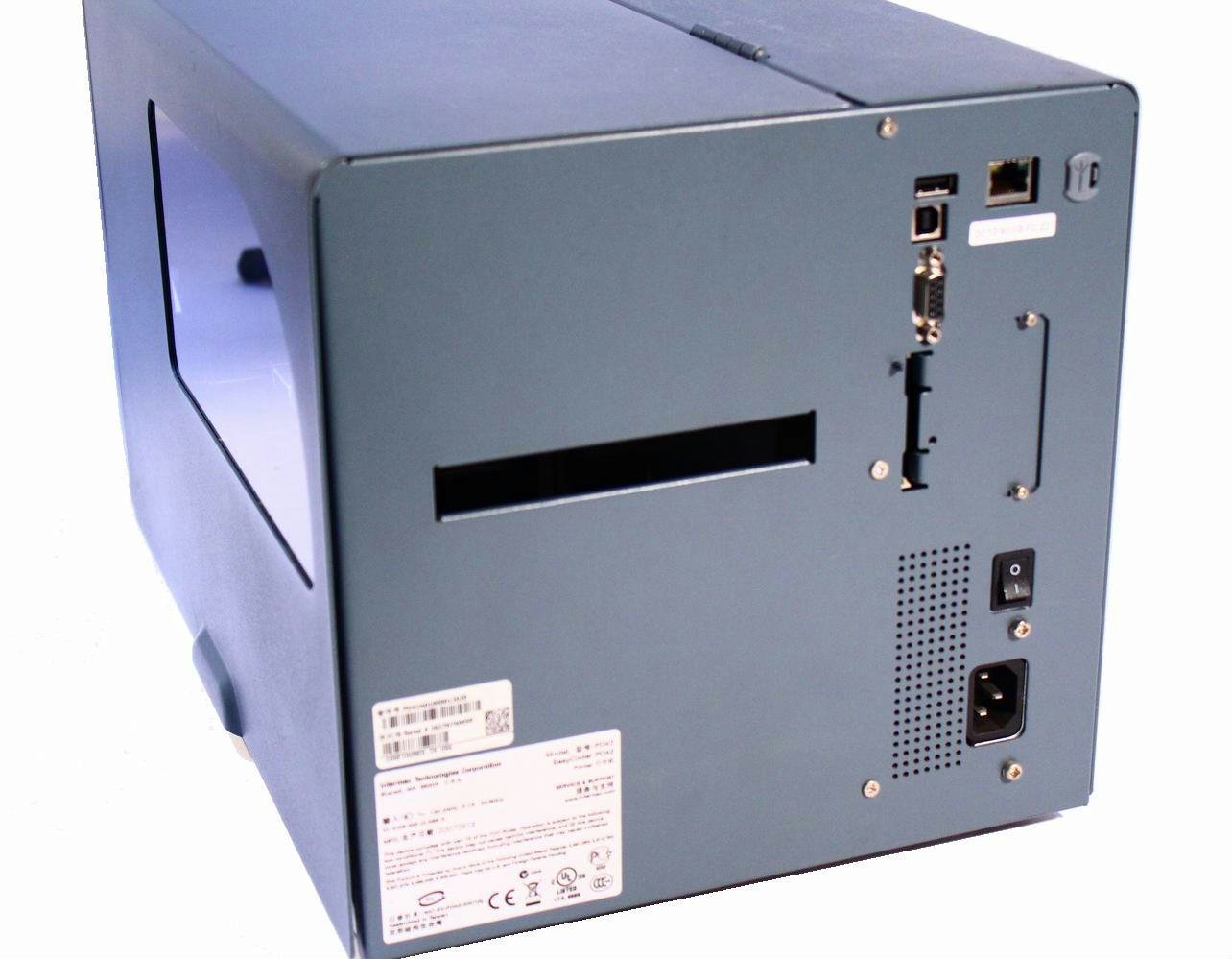
Gambar 4.2: Belakang View of the Intermec PD42 Printer. This image highlights the various connectivity options available on the back of the printer, including USB, Serial, and Ethernet ports. The power input and main power switch are also visible.

Gambar 4.3: Internal View of the Intermec PD42 Printer. With the top cover open, this image reveals the internal mechanisms for loading labels and ribbon. Key components such as the printhead assembly, media guides, and ribbon spindles are visible, illustrating the media path.
5. Pengaturan
5.1 Pembongkaran dan Penempatan
- Keluarkan printer dari kemasannya dengan hati-hati.
- Letakkan printer di permukaan yang stabil, rata, dan memiliki ventilasi yang memadai.
- Ensure sufficient space around the printer for media loading and maintenance.
5.2 Menghubungkan Daya
- Connect the power cord to the power input on the rear of the printer (refer to Figure 4.2).
- Colokkan ujung kabel daya yang lain ke stopkontak yang diarde.
5.3 Menghubungkan Kabel Data
PD42 menawarkan berbagai pilihan konektivitas:
- Kabel USB: Hubungkan kabel USB dari port USB printer ke komputer Anda.
- Serial: Connect a serial cable from the printer's serial port to your computer or host system.
- Eternet: Connect an Ethernet cable from the printer's Ethernet port to your network.
5.4 Memuat Media (Label dan Pita)
The PD42 supports industry-standard 200-mm (8-inch) label rolls and 450-m (18,000-inch) ribbon rolls.
- Open the printer's top cover (refer to Figure 4.3).
- Follow the internal diagrams or specific instructions for your media type to correctly load the label roll onto the media spindle.
- Thread the labels through the media guides and under the printhead assembly.
- If using thermal transfer printing, load the ribbon onto the ribbon supply spindle and thread it according to the internal guides.
- Tutup penutup atas dengan rapat.
6. Petunjuk Pengoperasian
6.1 Menghidupkan/Mematikan
- Untuk menghidupkan: Flip the main power switch on the rear of the printer to the 'On' position. The graphical display will illuminate.
- Untuk mematikan: Flip the main power switch to the 'Off' position.
6.2 Using the Graphical Display
The monochrome graphical display and control buttons on the front panel allow you to configure printer settings directly. Navigate through menus using the arrow buttons and confirm selections with the 'Enter' button. Refer to the on-screen prompts for specific options.
6.3 Instalasi Driver dan Perangkat Lunak
Before printing from a computer, install the appropriate printer drivers. These are typically available on the manufacturer's website or an included CD. Follow the on-screen instructions during installation.
6.4 Printing a Test Label
After setup, it is recommended to print a test label to verify proper operation and media loading. This option is usually available through the printer's front panel menu or via the printer driver software.
7. Pemeliharaan
Perawatan rutin memastikan kinerja optimal dan memperpanjang umur printer Anda.
7.1 Membersihkan Kepala Cetak
The printhead should be cleaned regularly, especially if print quality degrades. Use a lint-free cloth or a printhead cleaning pen with isopropyl alcohol. Ensure the printer is powered off and cooled down before cleaning.
7.2 Cleaning Rollers and Media Path
Dust and adhesive residue can accumulate on rollers and within the media path. Use a lint-free cloth dampened with isopropyl alcohol to clean these components. Always power off the printer before cleaning.
7.3 Mengganti Media
Jika rol label atau pita habis, ikuti langkah-langkah di Bagian 5.4 untuk memuat media baru.
8. Penyelesaian masalah
Bagian ini membahas masalah umum yang mungkin Anda temui dengan printer PD42 Anda.
- Printer Tidak Menyala: Check power cord connections and ensure the power outlet is functional.
- Tidak ada output cetak: Verify that the printer is online, connected correctly to the host, and that media is loaded properly. Check for error messages on the graphical display.
- Kualitas Cetak Buruk: Clean the printhead. Ensure the correct media and ribbon (if applicable) are used and properly loaded. Adjust print darkness settings via the display or driver.
- Masalah Konektivitas: Check all cable connections. Verify network settings for Ethernet connections. Reinstall printer drivers if necessary.
- Pesan Kesalahan di Layar: Consult the printer's graphical display for specific error codes or messages, then refer to the full product documentation or manufacturer's support websitus untuk solusi terperinci.
9. Spesifikasi
| Fitur | Spesifikasi |
|---|---|
| Nama Model | PD42BJ1000002021 |
| Teknologi Percetakan | Termal Langsung |
| Keluaran Printer | Satu warna |
| Resolusi | 203dpi |
| Kecepatan Cetak | Hingga 150 mm/s (6 ips) |
| Teknologi Konektivitas | USB, Serial, Ethernet |
| Fitur Khusus | Graphical Display, Ethernet |
| Berat Barang | 28.7 pon |
| Dimensi Produk | 25x15x15 inci |
| Tipe Pengendali | Tombol Tekan |
| Media Cetak | Label |
10. Garansi dan Dukungan
For warranty information and technical support, please refer to the documentation provided with your printer or visit the official Intermec (now Honeywell) websitus. Simpan struk pembelian Anda sebagai bukti pembelian untuk klaim garansi.
Sumber Daya Daring: For the latest drivers, firmware updates, and detailed troubleshooting guides, visit the manufacturer's support portal.


