1. Pendahuluan
The SteelSeries Sensei Laser Gaming Mouse is designed for precision and customization, catering to both casual and competitive gamers. It features an advanced laser sensor, an ambidextrous design, and extensive customization options through its dedicated software. This manual provides detailed instructions for setup, operation, maintenance, and troubleshooting to ensure optimal performance of your device.

Gambar 1: Atas-bawah view of the SteelSeries Sensei Laser Gaming Mouse, showcasing its sleek grey finish and central scroll wheel.
2. Isi Paket
Harap verifikasi bahwa semua item ada dalam paket Anda:
- SteelSeries Sensei Laser Gaming Mouse
- Panduan Memulai Cepat (jika disertakan)

Image 2: Retail packaging for the SteelSeries Sensei Laser Gaming Mouse, displaying the product name and brand logo.
3. Pengaturan
3.1 Koneksi Perangkat Keras
- Unpack the SteelSeries Sensei Laser Gaming Mouse from its packaging.
- Connect the USB cable of the mouse to an available USB port on your computer. The mouse is plug-and-play compatible, and your operating system should automatically detect and install the necessary basic drivers.
3.2 Software Installation (SteelSeries Engine)
For full customization and advanced features, it is recommended to install the SteelSeries Engine software:
- Visit the official SteelSeries weblokasi (steelseries.com/engine) to download the latest version of the SteelSeries Engine software.
- Ikuti petunjuk di layar untuk menginstal perangkat lunak.
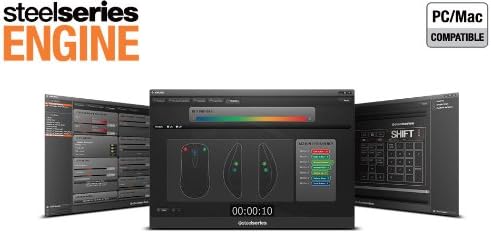
- Once installed, launch the SteelSeries Engine to configure your mouse settings, including CPI, button assignments, macros, and lighting effects.
Gambar 3: Bawah view of the SteelSeries Sensei Laser Gaming Mouse, showing the laser sensor and product information label.
4. Mengoperasikan Mouse
4.1 Desain Ambidextrous
The Sensei mouse features an ambidextrous shape, making it comfortable for both left-handed and right-handed users. The side buttons are mirrored on both sides to accommodate different grip styles and preferences.
4.2 Tombol yang Dapat Diprogram
The mouse is equipped with 7 programmable buttons. These buttons can be customized using the SteelSeries Engine software to perform various functions, including:
- Standard mouse clicks (left, right, middle)
- Keyboard key assignments
- Complex macros
- CPI switching

Gambar 4: Samping view of the SteelSeries Sensei Laser Gaming Mouse, highlighting the two programmable side buttons.
4.3 CPI Adjustment
The Sensei mouse allows for on-the-fly CPI (Counts Per Inch) adjustment. The dedicated CPI indicator button, typically located behind the scroll wheel, allows you to cycle between two user-defined CPI settings. These settings can be configured within the SteelSeries Engine software to match your preferred sensitivity levels for different tasks or games.
4.4 Iluminasi
The mouse features three-zone illumination: the scroll wheel, the CPI indicator, and the SteelSeries logo. The color and lighting effects (e.g., steady, pulse) for these zones can be customized through the SteelSeries Engine software.
5. SteelSeries Engine Software
The SteelSeries Engine is a powerful software suite that unlocks the full potential of your Sensei mouse. Key functionalities include:
- Pemetaan Tombol: Assign any function, keyboard key, or macro to any of the 7 programmable buttons.
- CPI Settings: Fine-tune and save multiple CPI profileuntuk berbagai aplikasi atau permainan.
- Editor Makro: Create and manage complex macros for in-game actions or productivity tasks.
- Tingkat Polling: Sesuaikan kecepatan polling mouse untuk responsivitas optimal.
- Kontrol iluminasi: Customize LED colors and effects for the scroll wheel, CPI indicator, and logo.
- Profile Pengelolaan: Buat dan simpan beberapa profiles, allowing you to switch between different configurations quickly.
- Pembaruan Firmware: Keep your mouse's firmware up-to-date for improved performance and new features.

Image 5: Screenshot of the SteelSeries Engine software interface, showing options for button mapping, CPI adjustment, and lighting customization.
6. Pemeliharaan
To ensure the longevity and optimal performance of your SteelSeries Sensei mouse, follow these maintenance guidelines:
- Pembersihan: Gunakan kain lembut dan kering untuk menyeka permukaan mouse. Untuk kotoran yang membandel, gunakan kain yang sedikit kering.amp cloth can be used, but ensure no moisture enters the mouse. Avoid harsh chemicals or abrasive cleaners.
- Perawatan Sensor: Keep the laser sensor on the bottom of the mouse clean and free from dust or debris. Use a cotton swab or compressed air if necessary.
- Manajemen Kabel: Hindari tikungan tajam atau tarikan berlebihan pada kabel USB untuk mencegah kerusakan.
7. Penyelesaian masalah
If you encounter issues with your SteelSeries Sensei mouse, refer to the following common solutions:
- Mouse Tidak Merespons:
- Pastikan kabel USB tersambung dengan benar ke komputer Anda.
- Coba hubungkan mouse ke port USB yang berbeda.
- Hidupkan ulang komputer Anda.
- Pelacakan Tidak Konsisten:
- Bersihkan sensor laser di bagian bawah mouse.
- Pastikan Anda menggunakan mouse di atas permukaan yang sesuai (misalnya, alas mouse).
- Check for dust or debris on your mouse pad.
- Tombol Tidak Berfungsi:
- Verify button assignments in the SteelSeries Engine software.
- Ensure the software is running correctly and profiles dimuat.
- Masalah Perangkat Lunak:
- Update the SteelSeries Engine software to the latest version.
- Reinstall the SteelSeries Engine software.
- Check for any available firmware updates for your mouse within the software.
8. Spesifikasi
| Fitur | Detil |
|---|---|
| Merek | Seri Baja |
| Nomor Model | 62150 |
| Teknologi Deteksi Gerakan | Laser |
| Teknologi Konektivitas | USB |
| Warna | Abu-abu |
| Platform Perangkat Keras | PC |
| Kompatibilitas Sistem Operasi | All Major PC Operating Systems |
| Berat Barang | 14.6 ons |
| Dimensi Produk (P x L x T) | 7.9x6.8x2.3 inci |
| Tombol yang Dapat Diprogram | 7 |
| Illumination Zones | 3 (Scroll Wheel, CPI Indicator, Logo) |
9. Garansi dan Dukungan
The SteelSeries Sensei Laser Gaming Mouse is covered by a manufacturer's warranty. For detailed information regarding warranty terms, conditions, and duration, please refer to the warranty card included with your product or visit the official SteelSeries website. For technical support, driver downloads, and frequently asked questions, please visit the SteelSeries support page.
SteelSeries Official Weblokasi: steelseries.com
SteelSeries Support: dukungan.steelseries.com


