1. Pendahuluan
The Juniper Networks WLA532 Wireless Access Point is designed to provide a high level of integration for security, performance, and manageability, ensuring an optimal WLAN user experience with enhanced reliability. This device features an energy-efficient power design, robust security protocols, dual radios, 3x3 MIMO technology, 3 spatial streams, and a 1 Gigabit Ethernet uplink port. Its compact footprint allows for efficient deployment. The WLA532 helps reduce Capital Expenditure (CAPEX) by requiring fewer access points per floor and lowers Operational Costs (OPEX) through reduced IT staffing demands, thanks to improved reliability with concurrent spectrum analysis and deployments optimized for known interference sources.
2. Isi Paket
Please verify that all items are present in your package. If any items are missing or damaged, contact your vendor or Juniper Networks support immediately.
- Juniper WLA532 Wireless Access Point
- Braket Pemasangan (untuk pemasangan di langit-langit atau dinding)
- Perangkat Keras Pemasangan (sekrup, jangkar)
- Panduan Memulai Cepat / Dokumentasi
- (Optional, depending on SKU) Power Adapter or PoE Injector
3. Informasi Keselamatan
Read all safety warnings and instructions before installing or operating this device. Keep this manual for future reference.
- Sumber Daya: Use only the power adapter or Power over Ethernet (PoE) source specified for this device. Incorrect voltagdapat menyebabkan kerusakan atau kebakaran.
- Ventilasi: Ensure proper ventilation. Do not block any ventilation openings. Overheating can cause damage.
- Lingkungan: Do not expose the device to water, moisture, or extreme temperatures. Avoid placing it near heat sources or in direct sunlight.
- Pelayanan: Jangan mencoba membuka atau memperbaiki perangkat sendiri. Serahkan semua perbaikan kepada teknisi yang berkualifikasi.
- Pemasangan: Ensure the device is securely mounted to a stable surface to prevent it from falling.
4. Pengaturan dan Instalasi
This section guides you through the physical installation and initial power-up of your Juniper WLA532 Access Point.
4.1. Fisik Lebih dariview
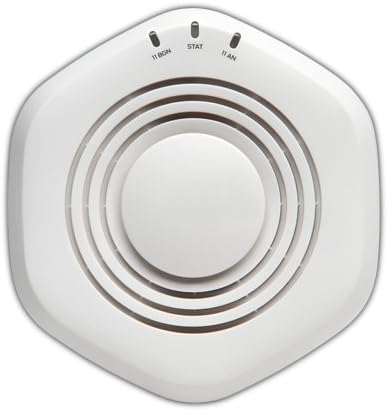
Gambar 1: Atas view of the Juniper WLA532 Wireless Access Point. Note the indicator lights for 11 BGN, STAT, and 11 AN.
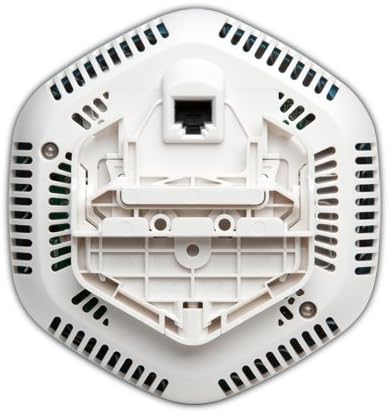
Gambar 2: Bawah view of the Juniper WLA532 Wireless Access Point, illustrating the integrated mounting bracket and the Gigabit Ethernet port for network connectivity and Power over Ethernet (PoE).
4.2. Memasang Access Point
The WLA532 can be mounted on a ceiling or wall. Choose a central location free from obstructions for optimal wireless coverage.
- Siapkan Permukaan Pemasangan: Use the mounting bracket as a template to mark the drill holes on the ceiling or wall.
- Pasang Jangkar: Drill pilot holes and insert appropriate wall anchors if mounting on drywall or plaster.
- Amankan Braket: Pasang braket pemasangan ke permukaan menggunakan sekrup yang disediakan.
- Attach the Access Point: Align the access point with the mounting bracket and twist it clockwise until it clicks securely into place.
4.3. Connecting to the Network and Power
The WLA532 supports Power over Ethernet (PoE) for simplified installation.
- Koneksi Ethernet: Connect a standard Ethernet cable from your network switch (preferably a PoE-enabled switch) to the Gigabit Ethernet port on the bottom of the WLA532.
- Power (PoE): If using a PoE-enabled switch, the device will power on automatically once the Ethernet cable is connected.
- Power (Optional AC Adapter): If PoE is not available, connect a compatible Juniper Networks AC power adapter (sold separately) to the power input port on the device and then to a power outlet.
- Verifikasi Daya: Once powered, the indicator lights on the top of the device (Figure 1) should illuminate, indicating power and network activity. Refer to the "Indicator Lights" section for details.
4.4. Konfigurasi Awal
Initial configuration typically involves accessing the device's web-based management interface or using Juniper's network management software. Refer to the separate Juniper Networks WLA532 Software Configuration Guide for detailed instructions on setting up SSIDs, security, and other network parameters.
5. Mengoperasikan Titik Akses
Once installed and configured, the Juniper WLA532 operates as a wireless access point, broadcasting Wi-Fi signals for client devices to connect to your network.
5.1. Lampu Indikator
| Lampu | Status | Keterangan |
|---|---|---|
| 11 BGN | Hijau Padat | 802.11b/g/n (2.4 GHz) radio is operational. |
| Berkedip Hijau | Activity on the 2.4 GHz radio. | |
| STAT | Hijau Padat | Perangkat dalam keadaan menyala dan beroperasi normal. |
| Berkedip Hijau | Firmware upgrade in progress or other system activity. | |
| 11 Sebuah | Hijau Padat | 802.11a/n (5 GHz) radio is operational. |
| Berkedip Hijau | Activity on the 5 GHz radio. |
5.2. Connecting Client Devices
Client devices (laptops, smartphones, tablets) can connect to the WLA532 using the configured Wi-Fi network (SSID) and password. Ensure your devices support 802.11n for optimal performance.
6. Pemeliharaan
Pemeliharaan rutin membantu memastikan umur panjang dan kinerja titik akses Anda yang optimal.
- Pembersihan: Gently wipe the exterior of the device with a soft, dry cloth. Do not use liquid cleaners or aerosols. Ensure ventilation openings are free from dust accumulation.
- Pembaruan Firmware: Periksa dukungan Juniper Networks secara berkala. website for the latest firmware updates. Keeping the firmware updated ensures the best performance, security, and access to new features. Follow the instructions provided with the firmware update package carefully.
- Kondisi Lingkungan: Ensure the operating environment remains within the recommended temperature and humidity ranges to prevent damage.
7. Penyelesaian masalah
This section provides solutions to common issues you might encounter with your Juniper WLA532 Access Point.
7.1. No Power / Lights Off
- Periksa Sumber Listrik: Ensure the Ethernet cable is securely connected to a PoE-enabled switch or a compatible AC power adapter is properly connected to a working power outlet.
- Verifikasi PoE: If using PoE, confirm that the switch port is configured for PoE and is supplying power. Try a different PoE port or switch.
7.2. No Wireless Connectivity
- Periksa Lampu Indikator: Ensure the "11 BGN" and "11 AN" lights are solid green, indicating the radios are operational. If not, check network connectivity.
- Kabel jaringan: Verify the Ethernet cable connecting the access point to your network is securely plugged in and functional.
- Status Router/Switch: Ensure your upstream router or switch is working correctly and providing internet access.
- Siaran SSID: Confirm that the SSID (Wi-Fi network name) is being broadcast and is visible to client devices. Check your access point's configuration.
- Pengaturan Keamanan: Double-check the Wi-Fi password and security settings (e.g., WPA2-PSK).
- Menyalakan ulang: Power cycle the access point by disconnecting and reconnecting its power source.
7.3. Slow Wireless Speed
- Gangguan: Wireless performance can be affected by interference from other Wi-Fi networks, cordless phones, microwaves, or other electronic devices. Consider changing the Wi-Fi channel in the access point's settings.
- Kekuatan Sinyal: Ensure client devices are within optimal range of the access point. Obstacles like thick walls can degrade signal.
- Client Device Capability: Ensure your client devices support 802.11n and are using the appropriate wireless adapter drivers.
- Kemacetan Jaringan: Too many devices on the network or high bandwidth usage can slow down speeds.
7.4. Cannot Access Management Interface
- Alamat IP: Ensure your computer is on the same network segment as the access point and you are using the correct IP address for the management interface.
- Dinding Api: Temporarily disable any firewalls on your computer to rule out blocking issues.
- Atur Ulang ke Default Pabrik: As a last resort, if you cannot access the device, you may need to perform a factory reset. Refer to the Juniper Networks WLA532 Software Configuration Guide for instructions on how to perform a factory reset. Peringatan: Ini akan menghapus semua konfigurasi khusus.
8. Spesifikasi Teknis
| Fitur | Detil |
|---|---|
| Nomor Model | WLA532-WW |
| Tipe Nirkabel | 802.11n |
| Kelas Pita Frekuensi | Dual-Band (2.4GHz dan 5GHz) |
| Standar Komunikasi Nirkabel | 802.11n |
| Teknologi Konektivitas | Ethernet, Wi-Fi |
| Protokol Keamanan | WPS (Pengaturan Terlindungi Wi-Fi) |
| Sistem Operasi | OS Junos |
| Berat Barang | 13.9 ons (393 gram) |
| Dimensi Produk (P x L x T) | 5.71x5.37x1.77 inci |
| Jil.tage | 48 Volt (DC) |
| Jumlah Prosesor | 1 |
| Penggunaan yang Direkomendasikan | Bisnis |
| Pabrikan | Juniper Networks, Inc |
| Tanggal Pertama Tersedia | 6 Sept 2012 |
9. Garansi dan Dukungan
For detailed warranty information, please refer to the warranty card included with your product or visit the official Juniper Networks website. Warranty terms may vary by region and purchase agreement.
For technical support, product documentation, software downloads, and additional resources, please visit the Juniper Networks support portal:
When contacting support, please have your product model number (WLA532-WW) and serial number ready.


