1. Produk Lebihview
The Gioteck EX-05S High Definition Headset is designed to deliver superior stereo game sound and crystal-clear voice communication. It is compatible with multiple platforms including PS4, PS3, Xbox 360, PC, and Mac. This headset features 40mm high-quality stereo drivers, a noise-isolating microphone, and breathable micro-fibre ear cups for extended comfort.
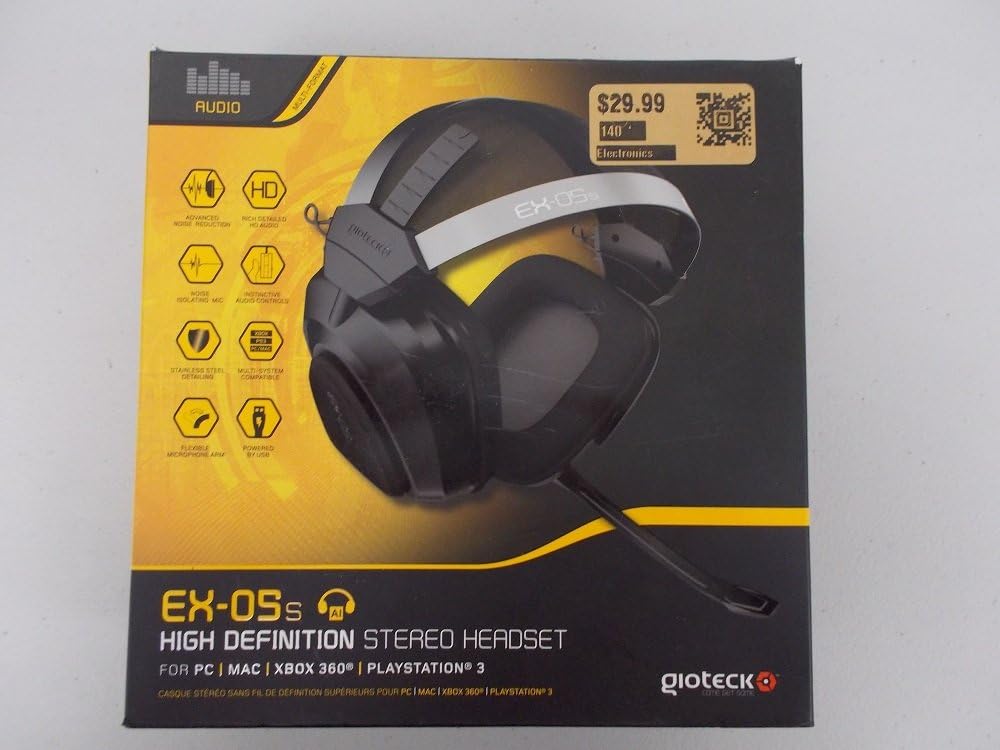
Figure 1.1: Gioteck EX-05S Headset packaging, highlighting key features and compatibility.

Gambar 1.2: Sisi view of the Gioteck EX-05S Headset, showing the ear cup and microphone arm.
2. Fitur
- 40mm High Quality Stereo Drivers: Delivering rich, detailed audio for an immersive gaming experience.
- Mikrofon Peredam Kebisingan: Designed to eliminate echo and external noise for clear communication.
- Breathable Micro-Fibre Ear Cups: Ensures comfort during long gaming sessions.
- Pengurangan Kebisingan Tingkat Lanjut: Minimizes game sound interference from external speakers.
- Flexible and 180-Degree Rotating Microphone Arm: Allows for optimal microphone positioning.
- Instinctive and Accessible Controls: Conveniently located controls for voice and game sound adjustments.
- Stainless Steel Detailing: Provides durability and a premium finish.
- Kompatibilitas Multi-Platform: Works with PS4, PS3, Xbox 360, PC, and Mac.
3. Isi Paket
Harap pastikan semua barang berikut ada di dalam paket Anda:
- Gioteck EX-05S Universal High Definition Stereo Headset
4. Panduan Pengaturan
4.1 Connecting to Gaming Consoles (PS4, PS3, Xbox 360)
- Locate the 3.5mm audio jack on your gaming controller or console.
- Insert the 3.5mm connector from the EX-05S headset firmly into the audio jack.
- Ensure your console's audio settings are configured to output game audio and chat through the connected headset. Refer to your console's system settings for specific audio output configurations.
4.2 Menghubungkan ke PC/Mac
- For PCs with separate audio and microphone jacks, you may need a PC splitter cable (not included) to connect the single 3.5mm headset jack to your computer's audio output and microphone input ports.
- For devices with a combined 3.5mm audio/microphone jack, simply plug the headset's 3.5mm connector directly into the port.
- Adjust your computer's sound settings to select the EX-05S headset as the default playback and recording device.
5. Petunjuk Pengoperasian
5.1 Kontrol Volume
The EX-05S headset features an inline control box on the cable. Use the volume dial to adjust the overall audio level of your game and chat sound.
5.2 Mematikan Mikrofon
A switch or button on the inline control box allows you to quickly mute or unmute your microphone. Ensure the microphone is unmuted when you wish to communicate.
5.3 Penempatan Mikrofon
The flexible microphone arm can be rotated 180 degrees. Position the microphone approximately 1-2 inches from your mouth for optimal voice clarity and to minimize background noise.
6. Pemeliharaan dan Perawatan
- Pembersihan: Use a soft, dry cloth to clean the headset. For ear cups, a slightly damp Kain dapat digunakan, tetapi pastikan tidak ada kelembapan yang masuk ke dalam kisi-kisi speaker. Jangan gunakan bahan kimia keras atau pembersih abrasif.
- Penyimpanan: Simpan headset di tempat yang sejuk dan kering, jauhkan dari sinar matahari langsung dan suhu ekstrem. Hindari kabel yang kusut.
- Penanganan: Always grasp the plug when disconnecting the cable, rather than pulling on the cable itself, to prevent damage to the wiring.
- Penutup Telinga: The breathable micro-fibre ear cups can be gently wiped clean. Avoid excessive pressure or stretching.
7. Penyelesaian masalah
7.1 Tidak Ada Suara dari Headset
- Pastikan jack 3.5mm dimasukkan sepenuhnya ke port audio.
- Check the inline volume control on the headset cable and ensure it is turned up.
- Verify your device's (console, PC, Mac) audio output settings are configured to send sound to the headset.
- Uji coba headset pada perangkat lain untuk mengesampingkan masalah yang spesifik pada perangkat tersebut.
7.2 Mikrofon Tidak Berfungsi
- Check the microphone mute switch on the inline control box and ensure it is unmuted.
- Verify your device's (console, PC, Mac) microphone input settings are configured to receive input from the headset.
- Ensure the microphone arm is positioned correctly and not obstructed.
- Test the microphone on another device or application to confirm functionality.
7.3 Static or Distorted Audio
- Pastikan sambungan terpasang dengan aman dan bebas dari kotoran.
- Try adjusting the volume levels on both the headset and the connected device.
- Move away from potential sources of electromagnetic interference (e.g., Wi-Fi routers, cordless phones).
- Cobalah dengan sumber audio atau perangkat lain.
8. Spesifikasi
| Fitur | Detil |
|---|---|
| Nama Model | E5SUNI-11-MU |
| Teknologi Konektivitas | Berkabel |
| Komponen yang Termasuk | Headphone |
| Rentang Usia (Deskripsi) | Dewasa |
| Bahan | Baja tahan karat |
| Penggunaan Khusus Untuk Produk | Permainan |
| Perangkat yang Kompatibel | Gaming Consoles, Computers |
| Jenis Kontrol | Kontrol Volume |
| Fitur Kabel | Dapat ditarik |
| Berat Barang | 669 Gram (1.47 pon) |
| Metode Kontrol | Suara |
| Jenis Penggerak Audio | Driver Dinamis |
| Bentuk Lubang Suara | Di atas telinga |
| Jack Headphone | 3.5 mm Jack |
| Dimensi Produk | 8.46x7.87x3.94 inci |
9. Garansi dan Dukungan
Gioteck products are manufactured to high standards and undergo rigorous testing. For information regarding warranty coverage, technical support, or service, please refer to the official Gioteck websitus web atau hubungi dukungan pelanggan mereka secara langsung. Simpan bukti pembelian Anda untuk klaim garansi.
Untuk informasi dukungan terkini, silakan kunjungi: www.gioteck.com/support